
1. Introduction
Thank you for choosing the DuneVoyager Core 68C Wired RGB Mechanical Gaming Keyboard. This manual provides essential information for setting up, operating, and maintaining your new keyboard. Please read it carefully to ensure optimal performance and longevity of your device.
2. Product Overview
The DuneVoyager Core 68C is a compact 65% mechanical gaming keyboard designed for high performance and customization. It features advanced magnetic switches, vibrant RGB lighting, and durable PBT keycaps.
Key Features:
- 65% Compact Layout: 68 keys with a space-saving QWERTY design, supporting both Arabic and English languages.
- Magnetic Hall Effect Switches: Adjustable actuation travel from 0.1mm to 3.4mm for a customized typing and gaming experience.
- High Polling Rate: 8000Hz polling rate for ultra-low latency and rapid response, ideal for gaming.
- Vibrant RGB Backlighting: 16.8 million customizable RGB colors and lighting effects.
- Durable PBT Keycaps: Dual-color injection molded PBT keycaps for enhanced durability and resistance to wear.
- Multi-Platform Compatibility: Compatible with PC, PlayStation 5, PlayStation 4, and Xbox.
- Wired USB-C Connection: Stable and reliable connection with an included 8K pure copper data cable.
- Customizable Software (HUB): Allows for trigger travel adjustment, RGB backlight settings, custom shortcut keys, macro recording, and magnetic switch performance customization.

Image 2.1: The DuneVoyager Core 68C keyboard in white, showcasing its compact layout and RGB lighting.
3. Package Contents
Upon unboxing your DuneVoyager Core 68C keyboard, please ensure all the following items are present:
- DuneVoyager Core 68C Mechanical Gaming Keyboard
- USB-C to USB-A Cable (8K pure copper data cable)
- Keycap Puller Tool
- Alternative Magnetic Switches
- Alternative Keycaps
- Sticker Accessories
Video 3.1: An unboxing and initial setup demonstration of a similar Thunderobot K63 keyboard, showing the compact size and wired connection. This video is provided by the seller and is relevant to the product's setup process.
4. Setup Instructions
4.1 Connecting the Keyboard
- Locate the USB-C port on the back or side of your DuneVoyager Core 68C keyboard.
- Connect the USB-C end of the provided cable to the keyboard.
- Connect the USB-A end of the cable to an available USB port on your computer or gaming console (PC, PS5, PS4, Xbox).
- The keyboard should be automatically recognized by your system. Drivers may install automatically.
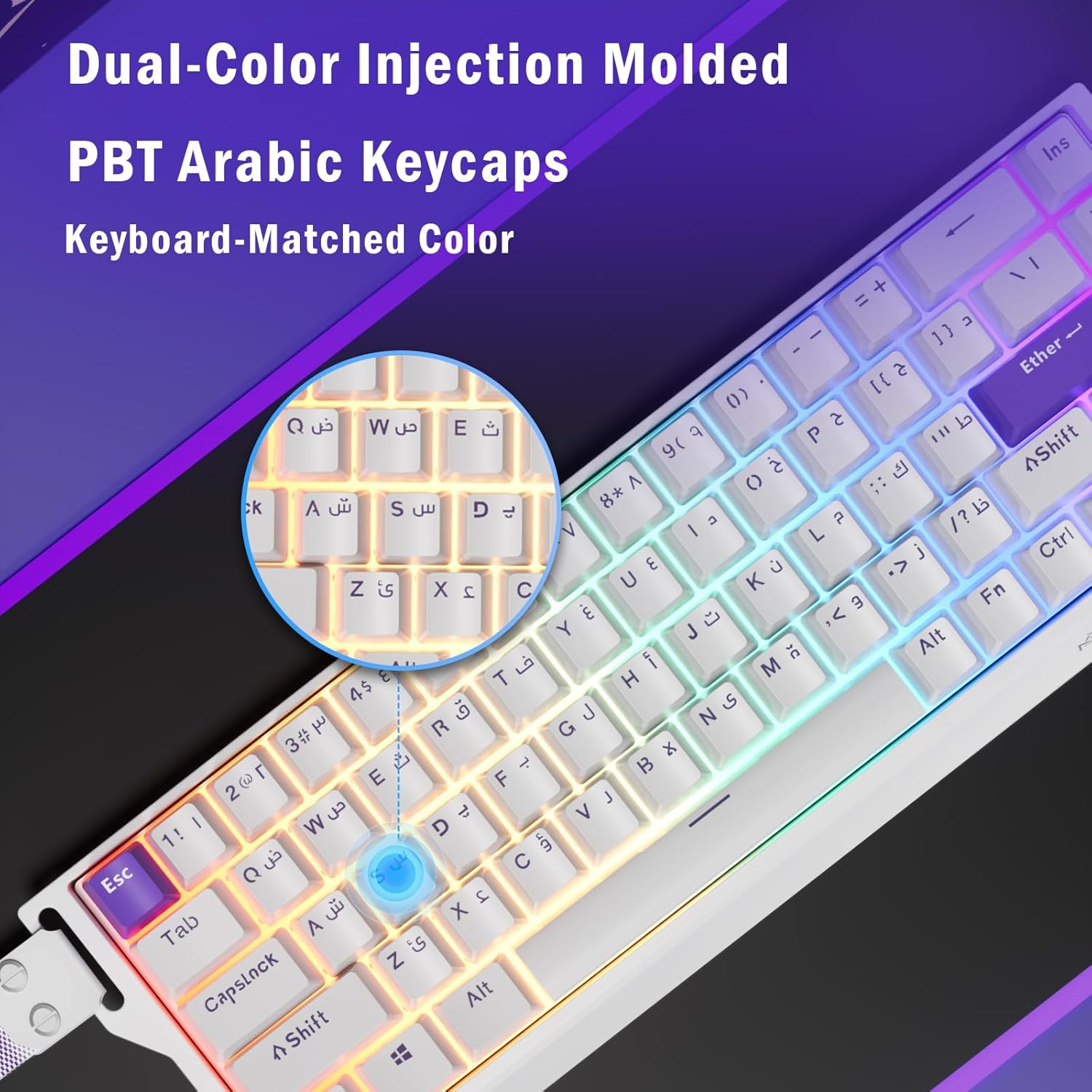
Image 4.1: Close-up of the USB-C cable connecting to the keyboard, highlighting the wired connection for stable performance.
4.2 Adjusting the Keyboard Stand
The keyboard features adjustable stands on the underside to change the typing angle for ergonomic comfort.
- Gently lift the keyboard.
- Flip out the small stands located at the top corners of the keyboard's underside to raise the angle.
- Push the stands back in to return to a flat position.
5. Operating Instructions
5.1 Basic Key Functions
The DuneVoyager Core 68C keyboard utilizes a compact 68-key layout. Many functions are accessed via the Function (Fn) key in combination with other keys.
5.2 RGB Backlight Control
Customize your keyboard's RGB lighting using the following Fn key combinations:
- Fn + Del: Switch backlight color.
- Fn + Ins: Switch lighting effect mode.
- Fn + Up Arrow: Increase brightness.
- Fn + Down Arrow: Decrease brightness.
- Fn + Left Arrow: Decrease backlight speed.
- Fn + Right Arrow: Increase backlight speed.

Image 5.1: Visual guide to Fn key combinations for controlling RGB backlight colors, effects, brightness, and speed.
Video 5.2: Demonstration of RGB backlight effects and controls on a MIKIBY Nano 68 mechanical gaming keyboard. This video is provided by the seller and illustrates similar RGB functionality.
5.3 Customizable Application (HUB)
For advanced customization, download and install the dedicated software (HUB) from the official DuneVoyager website. The software allows you to:
- Adjust trigger travel for magnetic switches.
- Fine-tune RGB backlight settings.
- Create custom shortcut keys.
- Record and edit macros.
- Customize magnetic switch performance (DKS/MT/TGL/PRCS).
Note: The driver currently only supports Windows operating systems.

Image 5.3: Screenshot of the customizable application (HUB) interface, showing options for trigger travel, RGB settings, and custom key functions.
6. Specifications
| Feature | Description |
|---|---|
| Brand | DuneVoyager |
| Model Number | CORE 68C |
| Keyboard Type | Mechanical Gaming Keyboard |
| Switch Type | Magnetic Hall Effect Switches |
| Key Layout | 68-key, 65% Compact QWERTY (Arabic/English) |
| Actuation Travel | Adjustable from 0.1mm to 3.4mm |
| Polling Rate | 8000Hz |
| Keycap Material | PBT (Polybutylene Terephthalate) |
| Backlight | RGB (16.8 Million Colors) |
| Connectivity | Wired USB-C |
| Compatible Devices | PC, PS5, PS4, Xbox |
| Dimensions (approx.) | 325.3mm x 115.1mm (Keyboard) |
| Weight (approx.) | 820g |
| Material | Polybutylene Terephthalate |

Image 6.1: Diagram illustrating the compact 65% layout and physical dimensions of the DuneVoyager Core 68C keyboard.
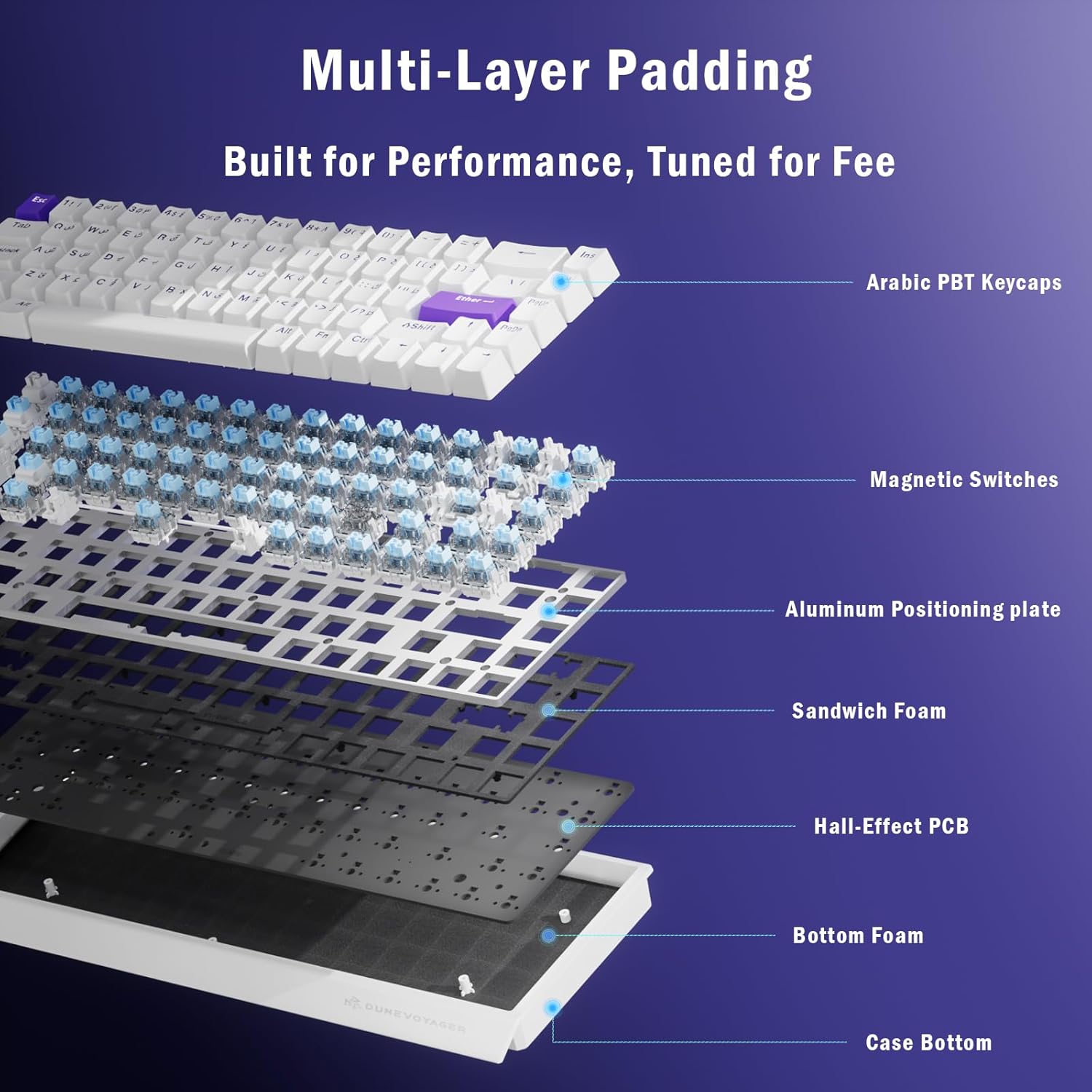
Image 6.2: Exploded view of the keyboard's multi-layer padding and internal components, including Arabic PBT keycaps, magnetic switches, aluminum positioning plate, sandwich foam, Hall-Effect PCB, bottom foam, and case bottom.
7. Troubleshooting
7.1 Keyboard Not Responding
- Ensure the USB-C cable is securely connected to both the keyboard and the computer/console.
- Try connecting the keyboard to a different USB port.
- Test the keyboard on another computer or device to rule out system-specific issues.
- Restart your computer or console.
7.2 RGB Backlight Not Working or Incorrect
- Check the RGB control key combinations (Fn + Del, Fn + Ins, Fn + Arrow keys) to ensure settings are not turned off or set to minimum brightness.
- Ensure the keyboard software (HUB) is installed and updated to the latest version. Check settings within the software.
- If the issue persists, try resetting the keyboard to factory defaults (refer to software or manufacturer's website for specific instructions).
7.3 Keys Not Registering or Double-Typing
- Ensure the magnetic switches are properly seated. You can use the keycap puller to remove the keycap and inspect the switch.
- Adjust the actuation travel settings in the customizable software (HUB). Incorrect settings can sometimes cause unexpected key behavior.
- Clean under the keycaps to remove any debris that might be interfering with the switch mechanism.
8. Maintenance
8.1 Cleaning the Keyboard
- Disconnect the keyboard from your device before cleaning.
- Use a can of compressed air to blow away dust and debris from between the keycaps.
- For stubborn dirt, use a soft, lint-free cloth lightly dampened with water or a mild cleaning solution (avoid harsh chemicals).
- The included keycap puller can be used to remove keycaps for deeper cleaning of the switches and plate.
8.2 Storing the Keyboard
When not in use for extended periods, store the keyboard in a dry, cool place away from direct sunlight and extreme temperatures. Keep it covered to prevent dust accumulation.
9. Warranty and Support
Your DuneVoyager Core 68C keyboard comes with a standard manufacturer's warranty. Please refer to the warranty card included in your package or visit the official DuneVoyager website for detailed warranty terms and conditions.
For technical support, troubleshooting assistance, or inquiries about replacement parts, please contact DuneVoyager customer service through their official website or the contact information provided in your product packaging.
Always ensure you have your product model number (CORE 68C) and proof of purchase ready when contacting support.