
1. Introduction
Thank you for choosing the MELOGAGA 3-Mode Wireless Gaming Mouse. This manual provides detailed instructions for setting up, operating, and maintaining your new mouse. Please read this manual thoroughly before use to ensure optimal performance and longevity of your device.
2. Package Contents
- MELOGAGA 3-Mode Wireless Gaming Mouse
- USB-C Charging Cable
- 2.4GHz USB Receiver
- User Manual
3. Product Overview
Familiarize yourself with the components of your MELOGAGA 3-Mode Wireless Gaming Mouse.
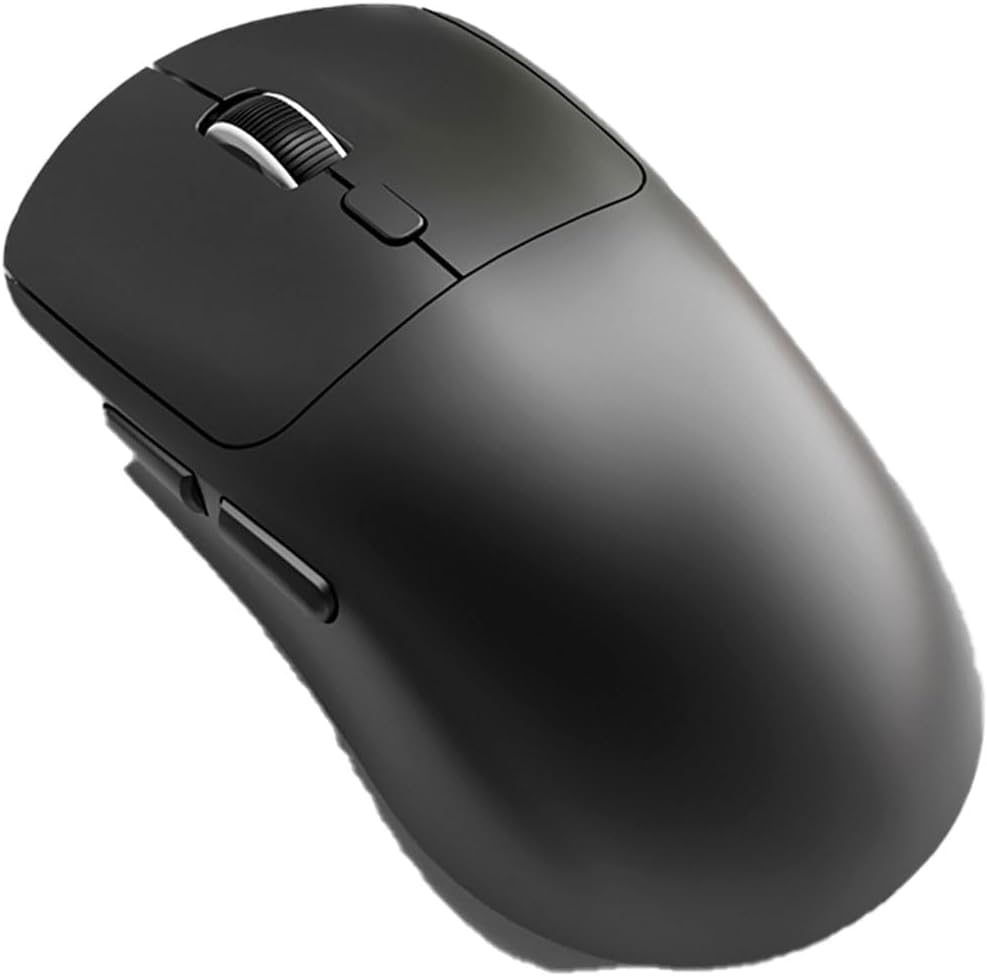
Image 1: Top-down view of the MELOGAGA 3-Mode Wireless Gaming Mouse. The image shows the ergonomic black mouse with its left and right click buttons, a scroll wheel in the center, and two side buttons on the left flank. The mouse has a smooth, matte finish.
- Left Click Button: Standard primary mouse function.
- Right Click Button: Standard secondary mouse function.
- Scroll Wheel: For scrolling and middle-click function.
- DPI Adjustment Button: Located behind the scroll wheel, used to cycle through DPI settings.
- Forward/Backward Buttons: Side buttons for navigation (default function).
- Mode Switch: Located on the underside of the mouse, used to select connectivity mode (2.4G, Bluetooth, Off).
- USB-C Port: For charging and wired connection.
4. Setup and Connectivity
4.1 Initial Charging
Before first use, it is recommended to fully charge the mouse. Connect the supplied USB-C cable to the mouse's USB-C port and the other end to a USB power source (e.g., computer USB port, USB wall adapter). The charging indicator light will show charging status and turn off when fully charged.
4.2 Connecting via 2.4GHz Wireless Mode
- Locate the 2.4GHz USB receiver, typically stored in a compartment on the underside of the mouse.
- Plug the USB receiver into an available USB port on your computer or device.
- Slide the mode switch on the underside of the mouse to the "2.4G" position.
- The mouse should automatically connect. If not, press any button to wake it up.
4.3 Connecting via Bluetooth 5.4 Mode
- Slide the mode switch on the underside of the mouse to the "Bluetooth" position.
- The mouse will enter pairing mode, indicated by a blinking LED light (refer to mouse LED behavior for specific indication).
- On your device (PC, Mac, Tablet, PS5), go to Bluetooth settings and search for new devices.
- Select "MELOGAGA Mouse" (or similar name) from the list of available devices to pair.
- Once paired, the LED indicator will become solid or turn off, depending on the mouse model.
4.4 Connecting via USB-C Wired Mode
- Connect the supplied USB-C cable to the mouse's USB-C port.
- Connect the other end of the USB-C cable to an available USB port on your computer or device.
- The mouse will automatically switch to wired mode and function as a standard wired mouse. This mode also charges the mouse.
5. Operating Instructions
5.1 Switching Between Connectivity Modes
To switch between 2.4GHz wireless, Bluetooth, and wired modes, use the mode switch located on the underside of the mouse. Ensure the correct mode is selected for your desired connection type.
5.2 Adjusting DPI (Dots Per Inch)
The mouse features 8 adjustable DPI levels (800-6400 DPI). To change the DPI sensitivity, press the DPI adjustment button located behind the scroll wheel. Each press will cycle through the available DPI settings, allowing you to find the optimal sensitivity for your tasks or games. The mouse operates with a 1000Hz polling rate for responsive tracking.
5.3 Ergonomic Design
The mouse is designed for comfort during extended use, weighing approximately 2.5oz (71g). Its ergonomic shape supports various grip styles, including claw, palm, and fingertip, to minimize hand fatigue.
6. Battery and Charging
The MELOGAGA mouse is equipped with a long-lasting rechargeable Lithium Polymer battery, providing up to 120 hours of wireless use on a single charge. When the battery is low, the cursor may slow down or become unresponsive. Simply connect the USB-C cable to recharge. The mouse can be used in wired mode while charging, ensuring continuous operation without downtime.
7. Maintenance
- Cleaning: Use a soft, dry cloth to clean the mouse. Avoid using harsh chemicals or abrasive materials.
- Storage: Store the mouse in a cool, dry place when not in use.
- Avoid Liquids: Do not expose the mouse to liquids.
8. Troubleshooting
- Mouse not responding or cursor slow:
This often indicates a low battery. Connect the mouse to a power source using the USB-C cable to recharge. The mouse can be used in wired mode while charging.
- Connectivity issues (2.4GHz):
Ensure the USB receiver is securely plugged into a working USB port. Verify the mode switch on the mouse is set to "2.4G". Try a different USB port or restart your device.
- Connectivity issues (Bluetooth):
Ensure the mode switch on the mouse is set to "Bluetooth" and the mouse is in pairing mode (blinking LED). Check your device's Bluetooth settings to ensure Bluetooth is enabled and try re-pairing the mouse. Ensure the mouse is within range of your device.
- DPI button not changing sensitivity:
Ensure the mouse is powered on and connected. Press the DPI button firmly. If the issue persists, try restarting the mouse and your device.
9. Specifications
| Brand | MELOGAGA |
| Model | 3-Mode Wireless Gaming Mouse |
| Connectivity | 2.4GHz Wireless, Bluetooth 5.4, USB-C Wired |
| DPI Levels | 800 / 1200 / 1600 / 2400 / 3200 / 4000 / 4800 / 6400 (Adjustable) |
| Polling Rate | 1000Hz |
| Battery Life | Up to 120 hours (wireless use) |
| Click Lifespan | Rated for 5 million clicks |
| Weight | Approx. 2.5 oz (71g) |
| Compatibility | PC, Mac, PS5, Tablet (Windows, macOS, iPadOS, Android) |
| Movement Detection | Optical |
10. Warranty and Support
MELOGAGA products are designed for reliability and performance. For warranty information, technical support, or customer service inquiries, please refer to the contact information provided on the product packaging or visit the official MELOGAGA website. Please retain your proof of purchase for warranty claims.