
1. Introduction
The TFA Dostmann WLAN Weather Station ID-05 (Model 35.8106) is an advanced 8-in-1 weather monitoring system designed to provide accurate and detailed weather information. It combines local sensor data with professional 4-day weather forecasts from wetter.com, accessible via its display and the free TFA.me online portal. This manual provides essential instructions for setting up, operating, and maintaining your weather station.
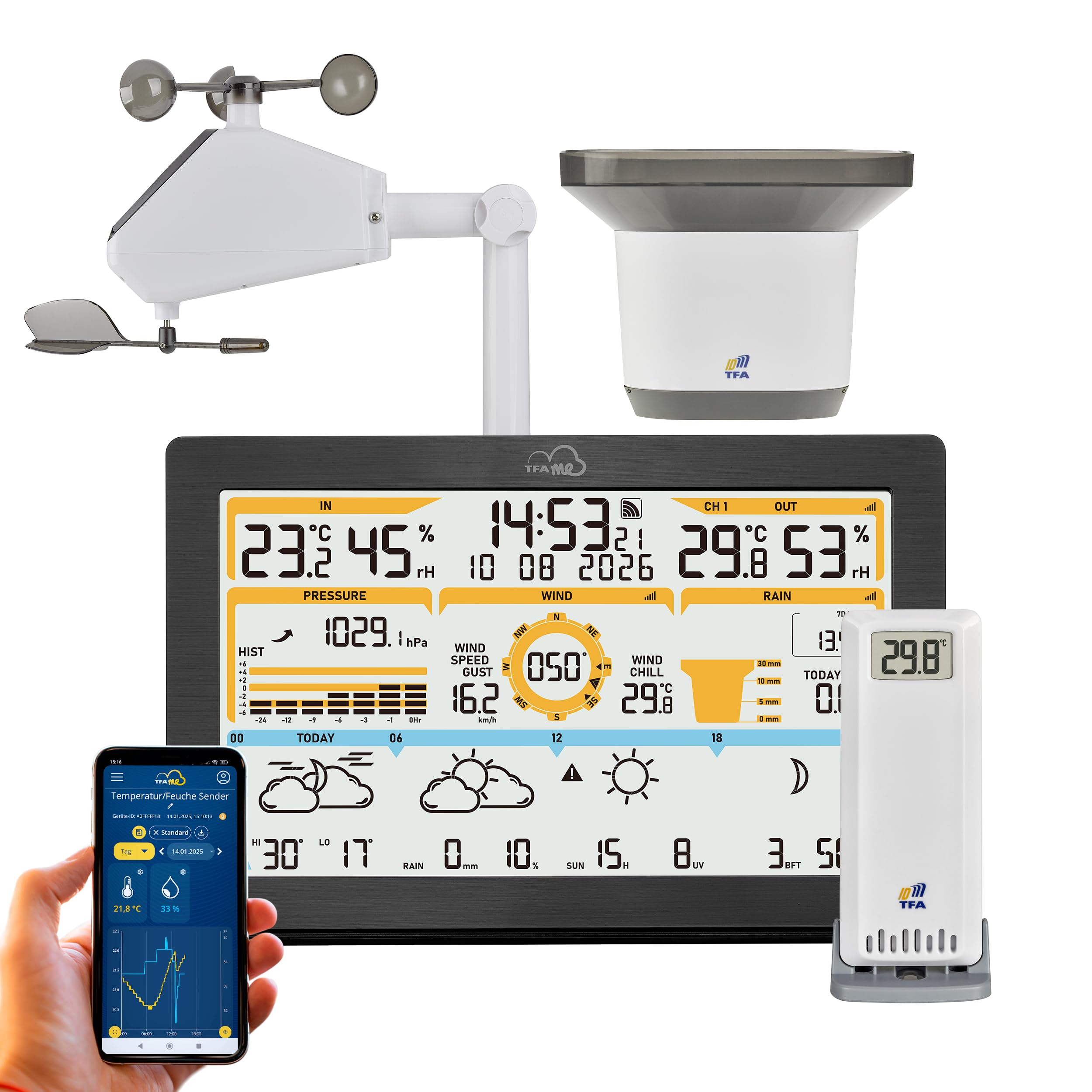
Figure 1.1: The TFA Dostmann WLAN Weather Station ID-05 main display unit with its associated external sensors for wind, rain, temperature, and humidity.
2. Package Contents
Please check the package contents upon unboxing to ensure all components are present:
- WLAN Weather Station ID-05 (Main Display Unit)
- 1x Thermo-hygrometer transmitter (for temperature and humidity)
- 1x Rain transmitter (pluviometer)
- 1x Wind transmitter (anemometer)
- Mounting material for sensors
- Power adapter for the main unit
- Quick start guide (in 6 languages)
Note: 9 x 1.5 V AA batteries are required for the sensors and are not included in the package. Please purchase these separately.

Figure 2.1: Overview of the TFA Dostmann Weather Station components, including the main display, thermo-hygrometer, rain gauge, and wind sensor, along with a smartphone showing the TFA.me app interface.
3. Setup
Follow these steps for initial setup:
- Powering the Main Unit: Connect the main display unit to a power outlet using the provided power adapter.
- Installing Batteries in Sensors: Insert the required 1.5 V AA batteries into the thermo-hygrometer, rain, and wind transmitters. Ensure correct polarity.
- Sensor Placement:
- The thermo-hygrometer should be placed in a shaded area, protected from direct sunlight and rain, ideally at a height of approximately 2 meters for accurate temperature and humidity readings.
- The rain transmitter should be placed in an open area, away from obstructions that could block rainfall.
- The wind transmitter should be installed in an elevated position, such as a rooftop, to ensure unobstructed wind flow for accurate speed and direction measurements.
- Sensor Synchronization: The sensors should automatically synchronize with the main unit upon power-up. If not, refer to the quick start guide for manual synchronization steps, especially for the wind and rain sensors which may require specific button presses after battery insertion.
- WLAN Connection: Connect the weather station to your local Wi-Fi network. This can typically be done via a guided setup on the main unit or through a web interface (e.g., by accessing me.local or 192.168.8.1 in a web browser when connected to the station's temporary Wi-Fi). This step is crucial for accessing professional weather forecasts and the TFA.me portal.
- Location Setting: Set your precise location on the device or via the TFA.me portal to receive accurate local forecasts from wetter.com.
4. Operating Instructions
The weather station provides a wealth of information on its digital display:
- Local Measurements: View real-time indoor and outdoor temperature, humidity, precipitation, wind speed, and wind direction.
- Professional Forecasts: Access 4-day weather forecasts from wetter.com, updated hourly. These forecasts include 40 different weather symbols and icons to predict conditions.
- Additional Data: The display may also show probability of rain, expected rain quantity, hours of sunshine, and UV index.
- Display Navigation: Use the buttons on the main unit to cycle through different display modes or adjust settings as described in the quick start guide.

Figure 4.1: The TFA Dostmann Weather Station main display unit showing various weather data, including temperature, humidity, pressure, wind, and a 4-day forecast, placed on a wooden shelf in a room.
5. TFA.me Online Portal
The free TFA.me portal extends the functionality of your weather station:
- Worldwide Access: Retrieve and record local weather conditions and readings from your PC, tablet, or smartphone online, from anywhere in the world.
- Data Visualization: All readings from your transmitters (up to 50 optional transmitters can be connected) are clearly displayed in the portal via graphs.
- Gateway Functionality: The weather station acts as a gateway for the TFA.me system, transmitting data from your local sensors to the online portal.
- Email Notifications: Configure email notifications through the TFA.me portal to be alerted if selected values are exceeded or not reached (e.g., high temperature, low humidity).
- Data Export: Manual or automatic data export via email is available.
6. Warning Function
The weather station includes a warning function for dangerous weather conditions:
- Display Warnings: A warning symbol will be displayed on the main unit for conditions such as storms, heavy rain, intense heat, lightning, ice, or high UV load.
- Customizable Alerts: Through the TFA.me portal, you can set specific thresholds for various weather parameters to receive email notifications when these thresholds are met or exceeded.
7. Maintenance
To ensure optimal performance and longevity of your weather station:
- Cleaning: Regularly clean the main unit and external sensors with a soft, damp cloth. Avoid abrasive cleaners or solvents. Ensure the rain gauge is free of debris.
- Battery Replacement: Replace batteries in the external sensors annually or when the low battery indicator appears on the display. Use high-quality alkaline batteries.
- Sensor Inspection: Periodically check the external sensors for any physical damage or obstructions. Ensure the wind sensor rotates freely.
- Firmware Updates: Check the TFA.me portal or TFA Dostmann website for any available firmware updates for your station to ensure you have the latest features and bug fixes.
8. Troubleshooting
If you encounter issues with your weather station, consider the following:
- No Sensor Data:
- Ensure batteries are correctly installed and not depleted in the respective sensor.
- Check the distance between the sensor and the main unit; it might be out of range or have too many obstructions.
- Resynchronize the sensor by removing and reinserting batteries, then following the specific pairing instructions in the quick guide (especially for wind and rain sensors).
- WLAN Connection Issues:
- Verify your Wi-Fi network name (SSID) and password are correct.
- Ensure the weather station is within range of your Wi-Fi router.
- Restart your Wi-Fi router and the weather station.
- If connecting via me.local or 192.168.8.1 is difficult, ensure your device is temporarily connected to the weather station's own Wi-Fi hotspot during the setup phase.
- Inaccurate Readings:
- Temperature/Humidity: Ensure the thermo-hygrometer is placed in a shaded, well-ventilated area, away from direct heat sources or sunlight.
- Rainfall: Check the rain gauge for obstructions (leaves, dirt) and ensure it is level.
- Wind: Confirm the wind sensor is mounted securely and free from obstructions that could block wind flow.
- TFA.me Portal Access: If you have trouble registering or accessing the portal, ensure your email address is valid and check your spam folder for verification emails. Some users reported issues with non-German email addresses for verification.
9. Specifications
| Feature | Detail |
|---|---|
| Model | 35.8106 |
| Brand | TFA Dostmann |
| Connectivity Technology | Wi-Fi |
| Frequency | 868 MHz |
| Power Source (Main Unit) | Wired Electric (Power Adapter) |
| Batteries Required (Sensors) | 9 x AA (1.5 V, not included) |
| Temperature Accuracy | ±1 °C |
| Operating Temperature (Upper) | 60 °C |
| Display Type | Digital |
| Sensor Technology | Thermo-hygrometer, Rain, Wind Emitter |
| Material | Plastic |
| Color | Black |
| Dimensions (D x W x H) | 3P x 21.7l x 13.9H cm |
| Item Weight | 378 Grams |
| Recommended Uses | Library, Bedroom, Kitchen, Living Room, Office (Main Unit) |
| Specific Product Uses | Weather, Precipitation, Temperature, Humidity, Wind Speed and Direction |
10. Warranty and Support
For warranty information, technical support, or further assistance, please refer to the official TFA Dostmann website or contact their customer service directly. The quick start guide included in your package also contains contact details and additional support resources.
You can also find the full instruction manual in PDF format here.


