
1. Introduction
This manual provides essential information for the installation, operation, and maintenance of your ERYING ITX Gaming Motherboard Combo Kit with the 12th Gen Core i9 12900HK processor. This high-performance PC mainboard is designed for gaming enthusiasts, offering robust features and reliable performance. Please read this manual thoroughly before proceeding with installation and use to ensure proper functionality and to prevent damage.
2. Key Features
- Powerful 12th Gen Core i9 12900HK CPU: Features 14 cores and 20 threads for exceptional gaming and multitasking performance.
- DDR4 Memory Support: Designed for high-speed data processing, enhancing overall system responsiveness.
- PCIe 4.0 Slots: Provides lightning-fast data transfer rates and compatibility with the latest graphics cards and expansion devices.
- M.2 Slot for NVMe SSDs: Supports ultra-fast SSD storage for quick load times and smooth gameplay.
- RJ45 2.5G Ethernet: Ensures high-speed internet connectivity, ideal for online gaming and streaming.
3. Package Contents
Upon opening the package, please verify that all components are present and in good condition. The typical package contents include:
- ERYING ITX Gaming Motherboard with integrated 12th Gen Core i9 12900HK CPU
- I/O Shield
- SATA Data Cables
- M.2 SSD Screw Kit
- User Manual (this document)
- Driver CD/USB (or download instructions)
Note: Specific accessories may vary. If any items are missing or damaged, please contact your retailer.
4. Setup and Installation
Before beginning installation, ensure your workspace is clean, well-lit, and free of static electricity. It is recommended to wear an anti-static wrist strap.
4.1. Motherboard Overview
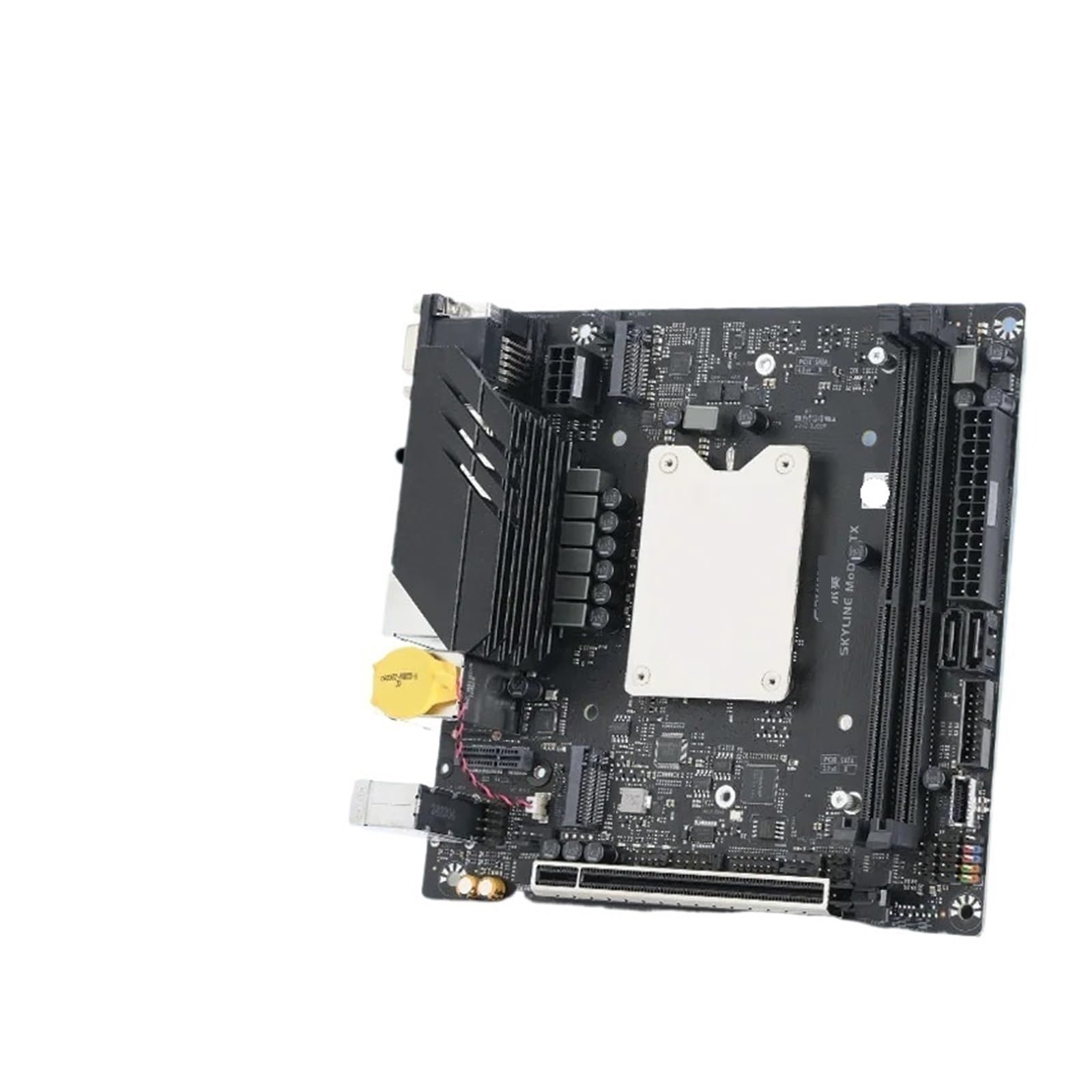
Image 1: ERYING ITX Gaming Motherboard. This image displays the compact ITX form factor motherboard, highlighting the CPU heatsink mounting area, DDR4 RAM slots, PCIe 4.0 slot, M.2 slot, and various rear I/O ports including USB, audio, and video outputs. The integrated CPU is located under the central heatsink mounting bracket.
4.2. Component Installation
- Install RAM Modules: Locate the DDR4 memory slots. Open the clips on both ends of the slot. Align the RAM module with the slot, ensuring the notch on the module matches the key in the slot. Press down firmly on both ends until the clips snap into place.
- Install M.2 SSD (if applicable): Locate the M.2 slot. Insert the M.2 SSD at an angle into the slot. Gently push it down and secure it with the provided screw.
- Install Graphics Card (if applicable): Locate the PCIe 4.0 x16 slot. Open the retention clip. Align your graphics card with the slot and press down firmly until it is fully seated and the clip locks. Secure the card to your PC case with screws.
- Mount Motherboard in Case: Carefully align the motherboard with the standoffs in your PC case. Secure the motherboard with screws, ensuring it is firmly seated but not overtightened.
- Connect Power Supply: Connect the 24-pin ATX power connector and the 8-pin (or 4+4-pin) CPU power connector from your power supply to the corresponding ports on the motherboard. Connect SATA power cables to storage devices if used.
- Connect Front Panel Cables: Connect the power button, reset button, HDD LED, power LED, and front panel USB/audio cables to the appropriate headers on the motherboard. Refer to the motherboard diagram for exact pin locations.
- Connect SATA Devices: Connect SATA data cables from your storage devices (HDDs/SSDs) to the SATA ports on the motherboard.
5. Operating Instructions
- First Boot: After all components are installed and connected, connect your monitor, keyboard, and mouse. Power on your system.
- BIOS/UEFI Setup: During startup, press the designated key (usually DEL or F2) to enter the BIOS/UEFI setup utility. Here you can configure boot order, system time, and other advanced settings.
- Operating System Installation: Insert your operating system installation media (USB drive or DVD). Set the boot order in BIOS/UEFI to prioritize the installation media. Follow the on-screen prompts to install your operating system.
- Driver Installation: After OS installation, install all necessary drivers for the motherboard components (chipset, audio, LAN, etc.). These can typically be found on the manufacturer's website or the provided driver media.
6. Maintenance
Regular maintenance helps ensure the longevity and optimal performance of your motherboard.
- Keep it Clean: Periodically clean dust from inside your PC case using compressed air. Pay attention to heatsinks and fans to prevent overheating.
- BIOS/UEFI Updates: Check the manufacturer's website for BIOS/UEFI updates. Updates can improve stability, compatibility, and performance. Follow update instructions carefully.
- Driver Updates: Keep your system drivers updated to ensure compatibility and optimal performance with new software and hardware.
- Environmental Control: Operate the system in a well-ventilated area, away from direct sunlight, excessive heat, humidity, and dust.
7. Troubleshooting
This section addresses common issues you might encounter.
- No Power:
- Ensure the power supply is connected correctly to the motherboard (24-pin ATX and 8-pin CPU).
- Check if the power supply switch is in the "ON" position.
- Verify front panel power button connection to the motherboard.
- No Display:
- Ensure the monitor is connected to the graphics card (or motherboard integrated graphics if no discrete GPU).
- Reseat the graphics card and RAM modules.
- Test with a different monitor or display cable.
- System Instability/Crashes:
- Check for overheating. Ensure CPU cooler is properly installed and fans are working.
- Verify RAM modules are correctly seated and functioning.
- Update drivers and BIOS/UEFI to the latest versions.
- Operating System Not Booting:
- Check boot order in BIOS/UEFI.
- Ensure storage devices (SSD/HDD) are properly connected and detected.
- Run a diagnostic tool for your storage device.
For more complex issues, consult the manufacturer's support website or contact technical support.
8. Specifications
| Feature | Detail |
|---|---|
| Brand | Generic |
| Model Name | STBBTUSAB-COREI9-NONE |
| CPU | Integrated 12th Gen Intel Core i9-12900HK (14 Cores, 20 Threads) |
| Memory Support | DDR4 (Specific speeds and capacities depend on motherboard revision) |
| Expansion Slots | PCIe 4.0 x16 (for graphics card) |
| Storage | M.2 slot for NVMe SSDs, SATA ports |
| Networking | RJ45 2.5G Ethernet |
| Form Factor | ITX |
| ASIN | B0FS7RWD3J |
9. Warranty and Support
This product is covered by a standard manufacturer's warranty. For specific warranty terms and conditions, please refer to the documentation provided with your purchase or visit the manufacturer's official website. For technical support, troubleshooting assistance, or to inquire about warranty claims, please contact your retailer or the product manufacturer directly.
Please retain your proof of purchase for warranty purposes.