
1. Product Overview
The DEWENWILS 200W Smart Low Voltage Landscape Transformer is designed to power your outdoor lighting systems efficiently and intelligently. It converts 120V AC household current to a safe 12V or 15V AC output, suitable for various low-voltage LED landscape lights. Featuring dual independent zones, Wi-Fi connectivity, and compatibility with Alexa and Google Assistant, this transformer offers flexible control options for your garden and patio lighting. Its weatherproof design ensures reliable performance in outdoor environments year-round.
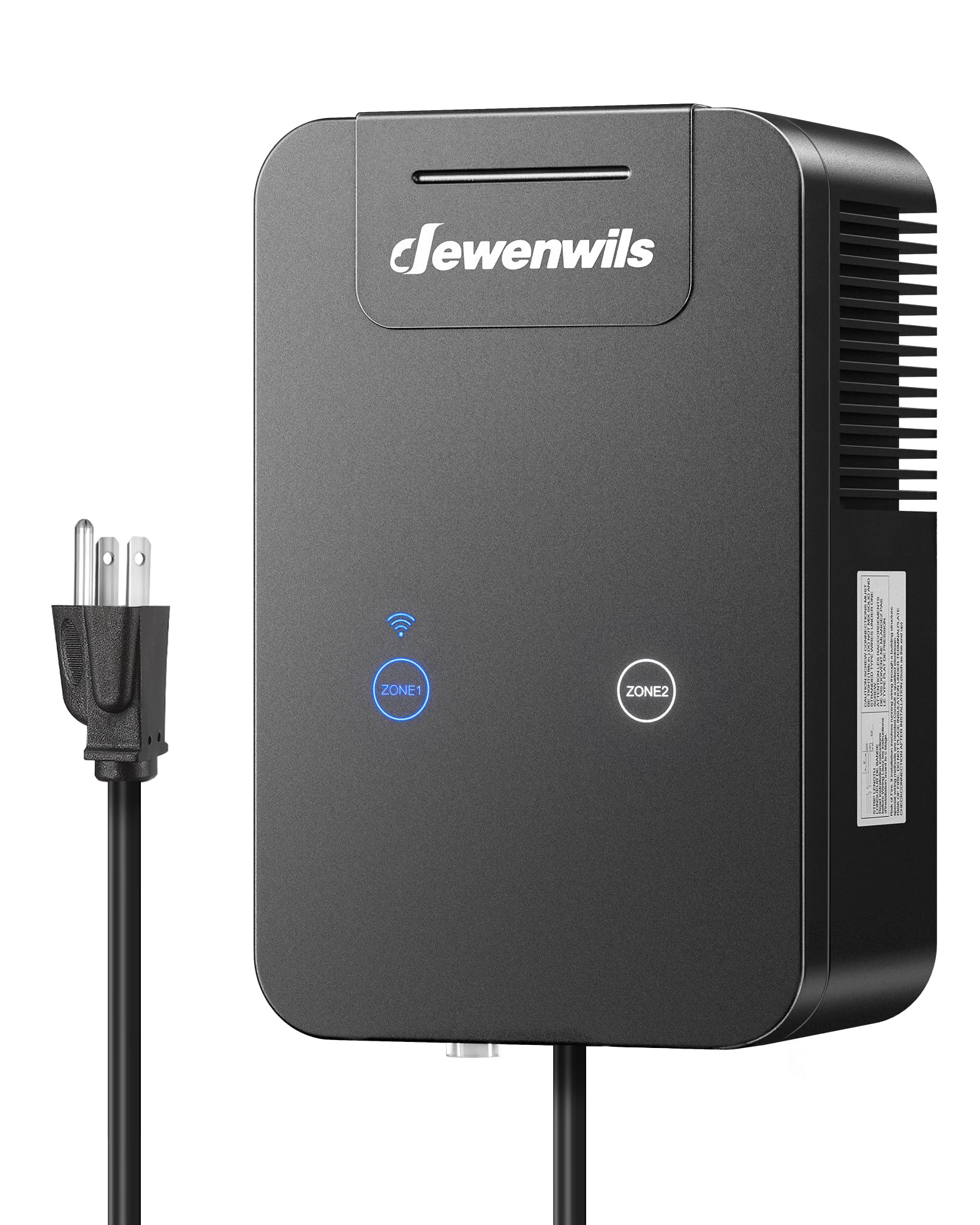
Image 1.1: Front view of the DEWENWILS 200W Smart Low Voltage Landscape Transformer.
2. Safety Information
Please read and understand all instructions before installing or operating this transformer. Failure to follow these instructions may result in electric shock, fire, or other hazards. Keep this manual for future reference.
- Electrical Safety: Always disconnect power at the circuit breaker before installing or servicing the transformer. Ensure all wiring connections are secure and comply with local electrical codes.
- Outdoor Use: This transformer is designed for outdoor use and features a weatherproof housing. However, ensure it is mounted in a location that minimizes direct exposure to heavy rain or standing water.
- Load Capacity: Do not exceed 80% of the transformer's total wattage capacity (200W) when connecting lights. Overloading can cause damage and pose a fire hazard.
- Grounding: Ensure the transformer is properly grounded according to local electrical codes.
- Children and Pets: Keep the transformer and wiring out of reach of children and pets.
3. Package Contents
Verify that all items are present in the package:
- DEWENWILS 200W Low Voltage Landscape Transformer
- User Manual
- Mounting hardware (screws and anchors)
4. Product Features
- Smart Wi-Fi & Voice Control: Manage your landscape lighting via the Smart Life app (no hub required) and integrate with Alexa or Google Assistant for convenient voice commands. Supports 2.4GHz Wi-Fi networks only.
- Dual Independent Zones: Features two programmable zones, each capable of supporting up to 200W (maximum 200W combined total). Each zone has dedicated touch control buttons for ON/OFF and Wi-Fi connection.
- Voltage Conversion: Safely converts 120V AC input to 12V AC or 15V AC output, suitable for a wide range of 12V LED outdoor lights.
- Smart Scheduling Timer: Set custom on/off schedules through the app or utilize the astronomical function for automatic dusk-to-dawn operation based on local sunrise/sunset times.
- Weatherproof Design: Constructed with a fully enclosed, rain-tight housing and silicone-sealed electronics for protection against dust, moisture, and harsh weather conditions.
- Durable Construction: Engineered for enhanced safety, efficiency, and longevity with lower power consumption and robust materials.

Image 4.1: The transformer supports app and voice control via 2.4GHz Wi-Fi, compatible with Alexa and Google Assistant.

Image 4.2: Two independent zones allow for customized lighting schedules and control for different areas.

Image 4.3: Smart scheduling includes a dusk-to-dawn astronomical function for energy efficiency.

Image 4.4: The transformer features a robust, weatherproof housing for outdoor durability.
5. Specifications
| Attribute | Value |
|---|---|
| Brand | DEWENWILS |
| Model | HTLT04A |
| Power Source | Corded Electric |
| Product Dimensions | 9"D x 6"W x 6"H |
| Mounting Type | Wall Mount |
| Wattage | 200 Watts |
| Input Voltage | 120V AC |
| Output Voltage | 12V AC / 15V AC |
| Wi-Fi Compatibility | 2.4GHz only |
| Smart Home Compatibility | Alexa, Google Assistant |
| Weight | 8 Pounds |
| Certifications | FCC Listed |
6. Setup & Installation
6.1 Mounting the Transformer
- Choose a suitable outdoor location near a 120V AC power outlet, ensuring it is protected from direct heavy rainfall.
- Use the provided mounting template to mark the drill holes on the wall or surface.
- Drill pilot holes and insert the wall anchors if necessary.
- Secure the transformer to the wall using the provided screws.
6.2 Wiring the Landscape Lights
The transformer features two output zones (Zone 1 and Zone 2) with common (COM), 12V, and 15V terminals for each. Ensure your landscape lights are compatible with 12V or 15V AC.
- Strip approximately 1/2 inch of insulation from the ends of your low-voltage landscape lighting cables.
- Connect one wire from your lighting circuit to the 'COM' terminal of the desired zone (e.g., Zone 1).
- Connect the other wire from your lighting circuit to either the '12V' or '15V' terminal of the same zone, depending on the voltage requirement of your lights.
- Repeat for Zone 2 if you have a second lighting circuit.
- Ensure all connections are tight and secure to prevent loose wiring and potential hazards.

Image 6.1: Close-up of the wiring terminals for Zone 1 and Zone 2, showing COM, 12V, and 15V options.
6.3 Initial Power-Up and Wi-Fi Connection
- Plug the transformer's power cord into a 120V AC outdoor-rated GFCI outlet.
- Download the 'Smart Life' app from your smartphone's app store.
- Register or log in to your Smart Life account.
- In the app, tap '+' to add a device. The app should automatically discover the transformer. If not, select 'Electrical' -> 'Transformer' or 'Lighting' -> 'Low Voltage Transformer'.
- Follow the in-app instructions to connect the transformer to your 2.4GHz Wi-Fi network. The Wi-Fi indicator on the transformer will stop blinking once connected.
Video 6.1: This video demonstrates the unboxing, wiring, and initial Wi-Fi setup process for a similar DEWENWILS low voltage landscape transformer (note: video shows a 300W model, but setup steps are generally applicable to the 200W model).
7. Operating Instructions
7.1 Manual Control
Each zone (Zone 1 and Zone 2) on the transformer has a dedicated touch button. Press the button to manually turn the corresponding zone ON or OFF.
7.2 Smart Life App Control
Once connected to Wi-Fi, you can control your transformer from anywhere using the Smart Life app:
- Remote ON/OFF: Toggle each zone on or off directly from the app interface.
- Scheduling: Set custom daily or weekly schedules for each zone. You can specify exact times for lights to turn on and off.
- Astronomical Timer: Enable the dusk-to-dawn feature, which automatically adjusts lighting times based on your local sunrise and sunset.
- Countdown Timer: Set a countdown for lights to turn off after a specific duration.

Image 7.1: The app allows individual control and scheduling for each of the two lighting zones.

Image 7.2: Set precise schedules for your landscape lights using the Smart Life app.
8. Maintenance
Regular maintenance helps ensure the longevity and optimal performance of your landscape transformer.
- Cleaning: Periodically wipe the exterior of the transformer with a damp cloth to remove dirt and debris. Do not use harsh chemicals or abrasive cleaners.
- Inspect Wiring: Annually inspect all wiring connections for corrosion, damage, or loose terminals. Tighten any loose connections.
- Check for Obstructions: Ensure that the ventilation openings on the transformer are not blocked by leaves, dirt, or other debris to prevent overheating.
- Fuse Replacement: If the transformer stops working, check the fuse. Disconnect power before attempting to replace the fuse. Refer to the specifications for the correct fuse type.
9. Troubleshooting
If you encounter issues with your DEWENWILS landscape transformer, refer to the following troubleshooting guide:
| Problem | Possible Cause | Solution |
|---|---|---|
| Lights are not turning on. | No power to transformer, loose wiring, overloaded circuit, blown fuse, incorrect schedule. | Check power outlet, ensure transformer is plugged in. Verify all wiring connections are secure. Reduce the number of lights if exceeding 80% capacity. Check and replace fuse if blown. Review app schedules. |
| Wi-Fi connection fails or disconnects. | Incorrect Wi-Fi password, 5GHz network used, weak signal, router issues. | Ensure correct 2.4GHz Wi-Fi network and password. Move transformer closer to router. Restart router. Re-pair the device in the Smart Life app. |
| Lights flicker or are dim. | Voltage drop due to long cable runs, undersized wire, too many lights, faulty bulb. | Use heavier gauge wire for longer runs. Reduce the number of lights on the circuit. Check individual bulbs for faults. Ensure connections are tight. |
| Voice control (Alexa/Google) not working. | Incorrect linking of Smart Life account, device not discovered, voice command error. | Ensure Smart Life account is correctly linked in Alexa/Google Home app. Discover devices in the smart assistant app. Use precise voice commands. |
10. Warranty and Support
DEWENWILS products are designed for quality and reliability. For warranty information, technical support, or any questions regarding your product, please contact DEWENWILS customer service through their official website or the contact information provided with your purchase. Please have your model number (HTLT04A) and purchase details ready when contacting support.


