1. Introduction
Thank you for choosing the IMIPAW Automatic Cat Feeder and Water Dispenser Combo. This system is designed to provide a convenient and healthy feeding and hydration solution for your small pets, ensuring they receive timely meals and fresh water.

Image 1.1: The IMIPAW Automatic Cat Feeder and Water Dispenser Combo.
2. Product Components
2.1 Automatic Cat Feeder Components

Image 2.1: Components of the Automatic Cat Feeder.
- Feeder Unit (x1)
- Food Bowl (x1)
- Power Adapter (x1)
- Power Cord (x1)
- Product Manual (x1)
- Feeding Guide (x1)
2.2 Cat Water Fountain Components

Image 2.2: Components of the Cat Water Fountain.
- Water Fountain Unit (x1)
- Water Pump Power Cord (x1)
- Water Outlets (x2)
- Power Adapter (x1)
- Filter (x1)
- Product Manual (x1)
3. Setup Instructions
3.1 Automatic Cat Feeder Setup
- Turn the top cover counter-clockwise to remove it.
- Take out the internal accessories.
- Install the food bowl and desiccant packs.
- Pour dry pet food into the feeder. Ensure food is suitable for dry pet grains with a diameter of 2-12mm.
- Turn the lid clockwise to close and secure it.
- Plug in the power supply to set up the feeder.
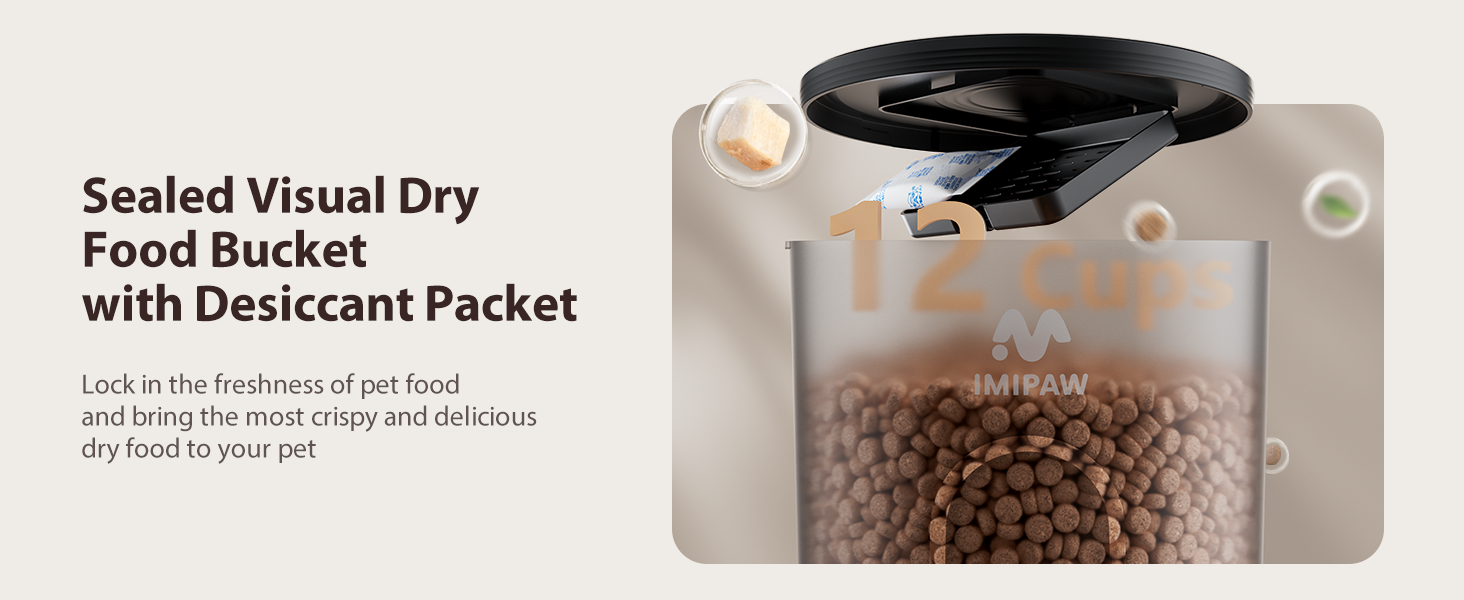
Image 3.1: Step-by-step installation of the Automatic Cat Feeder.
3.2 Water Dispenser Setup
- Secure the pump suction cup to the bottom of the water dispenser, aligning the power cord with the groove.
- Fill the water tank with clean water, ensuring the water level is between MIN and MAX indicators.
- Take out the cartridge frame and insert the filter cartridge.
- Install the water storage tray and the showerhead or fountain-style water outlet.
- Place the unit on a level floor and connect the DC5V power adapter.

Image 3.2: Step-by-step installation of the Water Dispenser.
Video 3.1: Pet water dispenser installation steps.
3.3 App Connection
- Ensure your mobile device's Wi-Fi and Bluetooth are enabled.
- Download the "PetTech" app from your app store and authorize login.
- On the feeder, press and hold the "SET" button for 6 seconds until you hear a "dididi" sound and the blue light flashes fast, indicating Wi-Fi configuration mode.
- Open the "PetTech" App, select "Add Device" and choose "Pet Feeder (2.4GHz & 5GHz)".
- Enter your Wi-Fi password and click "Next".
- Confirm the indicator light is flashing fast, then proceed. If the indicator is blinking slowly, hold the "SET" button for 5 seconds again until it blinks slowly, then confirm.
- Connect your phone to the device's hotspot (e.g., "SmartLife-XXXX") in your phone's Wi-Fi settings.
- Return to the app to complete the connection.

Image 3.3: Steps for connecting the device using the mobile app.
Video 3.2: APP Connection Steps.
Video 3.3: How to connect the device using a mobile phone.
4. Operating Instructions
4.1 App Remote Control Feeding
The "PetTech" app allows you to manage your pet's feeding schedule and monitor feeding history from anywhere. The feeder supports both 2.4GHz and 5GHz Wi-Fi networks for fast and convenient connection.

Image 4.1: Dual-Frequency Channel for fast and convenient Wi-Fi connection.
- Set Feeding Schedule: Program up to 10 meals per day, with 1-20 portions per meal.
- Remote Manual Feeding: Dispense food instantly via the app, even when the device is locked.
- View Feeding Records: Access a history of dispensed meals to ensure your pet is fed as scheduled.
- Device Lock/Unlock: Remotely lock or unlock the feeder to prevent accidental changes or tampering.
- Customizable Feeder Name: Personalize the device name in the app for easy identification.
- Offline Alert: Receive notifications if the device goes offline, ensuring continuous monitoring.
- Shared Device: Allow multiple family members to control the feeder from their smartphones.

Image 4.2: App interface for setting feeding schedules and remote feeding.
Video 4.1: WiFi Automatic Pet Feeders Demonstration Video.
Video 4.2: App function display, showing various features like remote unlock/lock, reset, meal settings, and feeding records.
4.2 Water Dispenser Modes
The water dispenser offers two distinct modes to encourage your pet to drink more water:
- Fountain Mode: Provides a bubbling water flow.
- Shower Mode: Offers a gentle, cascading water flow.

Image 4.3: Visual representation of Fountain Mode and Shower Mode.
Video 4.3: Pet water dispenser display, showing both water flow modes.
4.3 Dual Power Options
The cat food feeder features dual power options to ensure uninterrupted feeding:
- AC Power: Connect the feeder to a standard wall outlet using the provided power adapter.
- Battery Backup: For power outages, install 3 x D-size alkaline batteries (not included) to maintain feeding schedules.

Image 4.4: Illustration of the dual power supply feature.
5. Maintenance
5.1 Water Dispenser Cleaning and Filter Replacement
Regular cleaning and filter replacement are crucial for maintaining fresh and healthy water for your pet. The water dispenser utilizes a triple filtration system to remove impurities and odors.

Image 5.1: Diagram of the triple filtration system.
To clean the water pump:
- Disassemble the pump by removing the front cover and impeller.
- Clean the impeller and pump housing with a small brush.
- Reassemble the pump components.
Video 5.1: Water Pump Disassembly and Cleaning Tutorial.
5.2 Feeder Cleaning
Periodically clean the food container and bowl to ensure hygiene. The transparent sealed grain barrel and desiccant pack help keep food fresh.

Image 5.2: Sealed food bucket with desiccant for freshness.
- Remove any remaining food and wash the food container and bowl with mild soap and water.
- Ensure all parts are completely dry before reassembling.
- Replace the desiccant pack regularly to maintain food freshness.
6. Troubleshooting
- Device not connecting to App: Ensure your Wi-Fi network is 2.4GHz or 5GHz compatible and stable. Follow the app connection steps carefully, including resetting the device if necessary. Check that your phone's Bluetooth is on.
- Food not dispensing: Check if the feeder is powered on and connected to the app. Verify the feeding schedule and portion settings. Ensure the food hopper is not empty and there are no clogs. The anti-clog design helps prevent blockages.
- Water not flowing from dispenser: Check if the water pump is properly installed and submerged. Ensure the water level is sufficient. Clean the pump and filter if water flow is weak or absent.
- Power outage: If using battery backup, ensure fresh D-size alkaline batteries are installed. The feeder will continue to dispense food according to the set schedule even without AC power.
7. Specifications
| Feature | Detail |
|---|---|
| Brand | IMIPAW |
| Model | B0FS6MXSP4 |
| Item Weight | 4.55 pounds |
| Product Dimensions | 7 x 7 x 12 inches |
| Material | Acrylonitrile Butadiene Styrene |
| Color | Black |
| Number of Items | 2 (Feeder & Water Dispenser) |
| Feeder Capacity | 3L (approx. 12 cups) |
| Water Dispenser Capacity | 3L |
| Feeding Schedule | Up to 10 meals/day, 1-20 portions/meal |
| Connectivity | 5G WiFi and 2.4GHz WiFi (via "PetTech" App) |
| Power Options | AC Power (DC 5V/1A adapter) or 3x D-size batteries (not included) |
| Special Features | Portion Control, Programmable, Smart App, Triple Filtration Water System, Anti-clog Design, Security Lock, Anti-Pet Bite Cable |
| Target Species | Cats, Small pets |
8. Warranty and Support
IMIPAW is committed to providing high-quality products and customer satisfaction. This product comes with a 12-month warranty.
If you encounter any problems or have questions regarding your IMIPAW Automatic Cat Feeder and Water Dispenser, please contact our customer support for assistance. We strive for quick responses to ensure your comfort and satisfaction.
For specific instructions or further support, please refer to the contact information provided in your product packaging or visit the official IMIPAW website.