
1. Introduction
The IDCS ZKTECO S922 is a portable biometric time and attendance terminal designed for robust performance in demanding environments. This device utilizes fingerprint and ID card recognition for accurate workforce management. Its durable construction and long-lasting battery make it suitable for various industrial applications.

Figure 1: The S922 terminal is designed for mobile industries and harsh environments.
2. What's in the Box
Upon unpacking your IDCS ZKTECO S922, please verify that all items are present:
- IDCS ZKTECO S922 Biometric Terminal
- Power Adapter
- USB Cable
- User Manual (this document)
- Link for Time and Attendance Software
3. Setup
3.1 Initial Charging
Before first use, fully charge the device. Connect the power adapter to the terminal's charging port and plug it into a power outlet. The charging indicator will illuminate.
3.2 Powering On/Off
- To Power On: Press and hold the power button until the screen illuminates.
- To Power Off: Press and hold the power button until a shutdown prompt appears, then confirm.
3.3 Basic Configuration
Upon initial power-on, you may be prompted to set the date, time, and language. Follow the on-screen instructions using the keypad and 3.5" color TFT screen.
3.4 Connectivity
The S922 supports multiple connectivity options for data transfer:
- TCP/IP: Connect the device to your network via an Ethernet cable. Configure network settings (IP address, subnet mask, gateway) through the device's menu.
- USB-Host: Use a USB flash drive to transfer attendance data or user information. Insert the USB drive into the USB-Host port and navigate to the data management menu on the device.
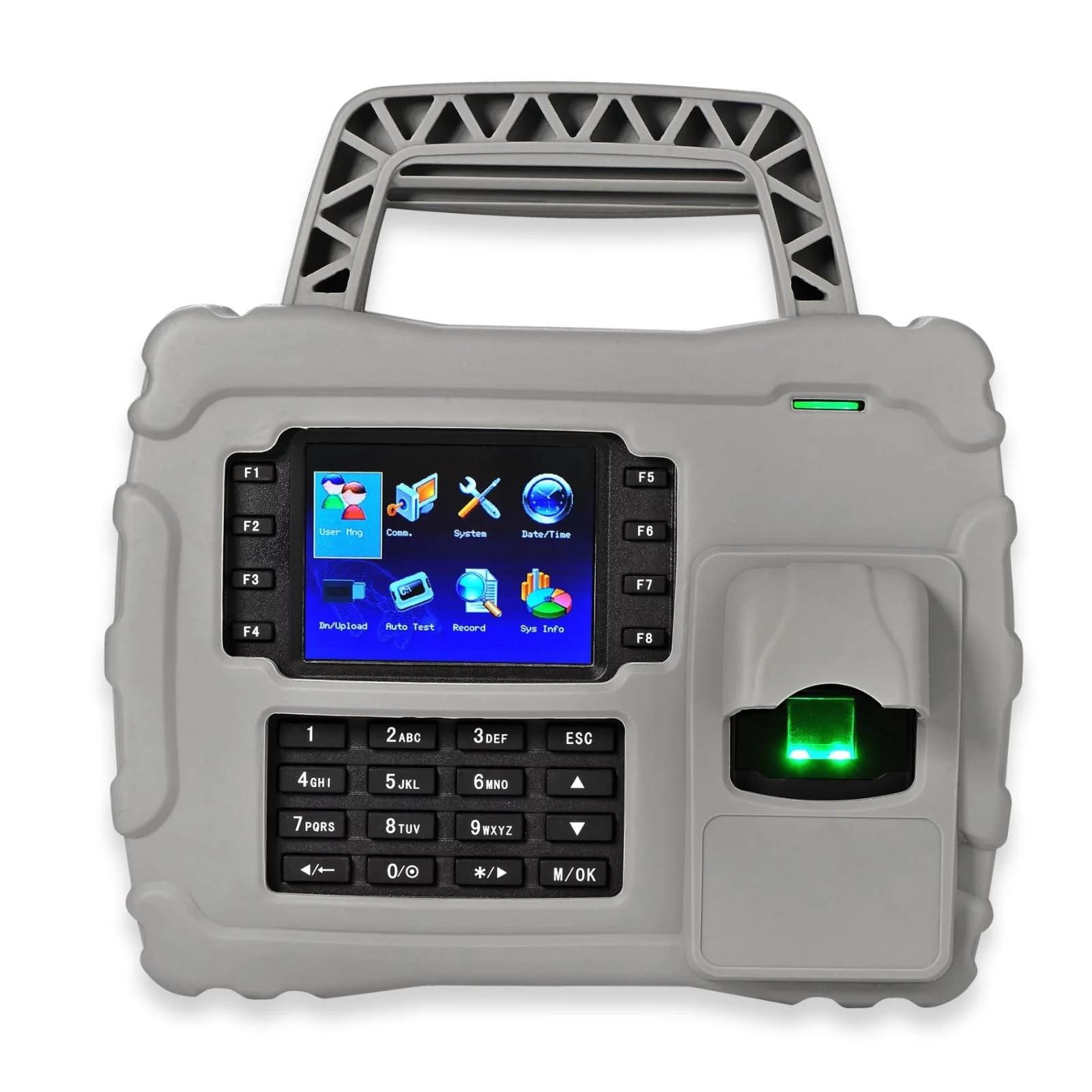
Figure 2: The S922 features water and dust proofing, along with shockproof and rubberized protection for durability.
4. Operating Instructions
4.1 User Registration
To register new users, access the 'User Management' menu. You can register users via fingerprint or ID card.
- Fingerprint Registration: Select 'Enroll Fingerprint', enter the user ID, and follow the prompts to place the finger on the sensor multiple times for accurate capture.
- ID Card Registration: Select 'Enroll Card', enter the user ID, and present the ID card to the reader.
4.2 Time Attendance Recording
Users can record their attendance by presenting their registered fingerprint or ID card to the device. The device will provide visual and audio confirmation of a successful entry.
4.3 Data Transfer
Attendance logs and user data can be transferred to a computer using the configured TCP/IP network connection or by exporting data to a USB flash drive.
4.4 Advanced Features
The S922 includes several advanced features accessible through the menu:
- Workcode: Assign specific work codes to attendance records for detailed job tracking.
- SMS Messaging: Configure the device to send short messages.
- Bell Scheduling: Set up scheduled bells for breaks or shift changes.
- Self-Service Inquiries: Users can view their own attendance records directly on the device.
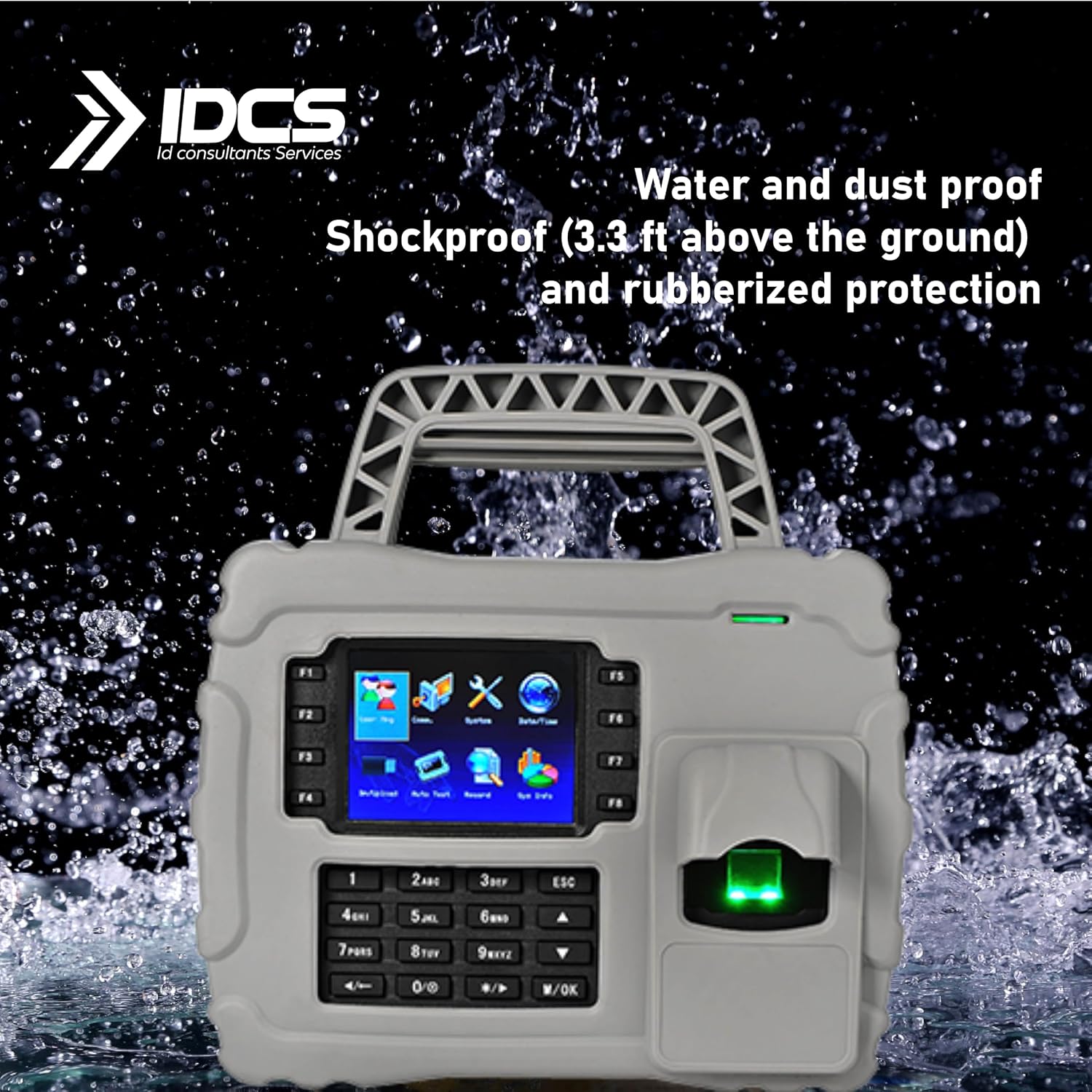
Figure 3: The S922 features a high-speed sensor for less than 1.5 second user recognition, supporting both fingerprint and ID card verification.
5. Maintenance
5.1 Cleaning
Regularly clean the device to ensure optimal performance. Use a soft, dry cloth to wipe the screen and keypad. For the fingerprint sensor, use a lint-free cloth lightly dampened with isopropyl alcohol. Avoid abrasive cleaners or direct spraying of liquids onto the device.
5.2 Battery Care
To prolong battery life, avoid fully discharging the device frequently. If the device will not be used for an extended period, charge it to approximately 50% and store it in a cool, dry place.
5.3 Software Updates
Periodically check the manufacturer's website for available firmware updates. Updates can improve performance, add new features, or address security vulnerabilities. Follow the provided instructions carefully when performing updates.
6. Troubleshooting
- Device does not power on: Ensure the battery is charged. Connect the power adapter and try again. If the issue persists, contact support.
- Fingerprint not recognized: Ensure the finger is clean and dry. Try re-enrolling the fingerprint. Ensure the sensor is clean.
- ID card not recognized: Ensure the card is correctly presented to the reader. Verify the card is registered to a user.
- Cannot connect via TCP/IP: Check network cable connection. Verify IP settings (IP address, subnet mask, gateway) are correct and match your network configuration. Ensure no firewall is blocking communication.
- Data transfer to USB fails: Ensure the USB drive is formatted correctly (FAT32 is generally recommended). Check if the USB drive has sufficient free space.
7. Specifications
| Feature | Specification |
|---|---|
| Fingerprint Capacity | 5,000 templates (expandable to 10,000) |
| ID Card Capacity | 30,000 users |
| Log Record Capacity | 200,000 transactions |
| Recognition Speed | <1.5 seconds |
| Display | 3.5-inch Color TFT Screen |
| Connectivity | TCP/IP, USB-Host |
| Battery | 7,600 mAh Rechargeable Battery |
| Operating Time | Up to 16 hours (continuous operation) |
| Standby Time | Up to 28 hours |
| Durability | Rugged rubber casing, waterproof, shockproof |

Figure 4: The S922 offers large capacity for fingerprint templates, cards/badges, and attendance records.

Figure 5: The S922 is equipped with a 7600 mAh battery, providing 16 hours of operation and 28 hours of standby time.
8. Warranty and Support
8.1 Warranty Information
The IDCS ZKTECO S922 comes with a standard manufacturer's warranty. Please refer to the warranty card included with your product or visit the official IDCS website for detailed terms and conditions regarding coverage and duration.
8.2 Technical Support
For technical assistance, troubleshooting beyond this manual, or warranty claims, please contact IDCS customer support. Contact information can typically be found on the product packaging, the official IDCS website, or through your point of purchase.