
1. Introduction
The DODOXCX T11 is a compact, portable thermal printer designed for wireless and wired printing on the go. This inkless printer supports various paper sizes including US Letter (8.5" x 11"), Legal, A4, and A5, making it suitable for a wide range of document printing needs. It features Bluetooth connectivity for mobile devices (Android, iOS) and USB-C for computers (Windows, macOS), offering versatile compatibility. Its thermal printing technology eliminates the need for ink cartridges, providing a clean and efficient printing experience. This manual provides essential information for setting up, operating, maintaining, and troubleshooting your DODOXCX T11 printer.

Image: The DODOXCX T11 portable printer shown in a travel scenario, highlighting its compact design and wireless capability for printing documents on the go.

Image: Various applications of the DODOXCX T11 printer, including in-car printing, educational use, travel printing, and office work, demonstrating its versatility.
2. Package Contents
Please check the box for the following items:
- 1 x DODOXCX T11 Portable Thermal Printer
- 1 x USB-C Charging Cable
- 1 x User's Manual (this document)
- 10 x Thermal Paper Sheets (for general printing)
- 3 x Transfer Paper Sheets (for specialized applications like tattoo stencils)
3. Safety Information
To ensure safe operation and prevent damage to the printer, please observe the following:
- Do not expose the printer to water, moisture, or extreme temperatures.
- Use only the provided USB-C cable for charging.
- Keep the printer away from direct sunlight and heat sources.
- Do not attempt to disassemble or repair the printer yourself. Contact customer support for assistance.
- Ensure proper ventilation during operation.
4. Setup
4.1 Charging the Printer
Before initial use, fully charge the printer. Connect the provided USB-C cable to the printer's charging port and the other end to a compatible USB power adapter (not included) or a computer's USB port. The charging indicator light will show the charging status.

Image: The DODOXCX T11 printer with an overlay indicating its 1500mAh x 2 battery capacity, emphasizing its long battery life for extended use.
4.2 Loading Paper
- Open the paper cover on the printer.
- Insert the thermal paper with the printable side facing up. Ensure the paper is aligned straight and fits snugly into the paper slot.
- Close the paper cover securely.
4.3 Connecting via Bluetooth (for Android/iOS)
- Turn on the printer by pressing and holding the power button.
- Enable Bluetooth on your mobile device (smartphone or tablet).
- Download and install the "Sharpfox" app from your device's app store.
- Open the "Sharpfox" app and follow the in-app instructions to search for and connect to your DODOXCX T11 printer. The printer should appear as "DODOXCX T11" or a similar name.
- Once connected, the app will indicate a successful pairing.
4.4 Connecting via USB-C (for Windows/macOS)
- Turn on the printer.
- Connect the printer to your computer using the provided USB-C cable.
- For Windows/macOS, you may need to install the appropriate printer drivers. These can typically be found on the DODOXCX official website or provided on a CD/USB drive with the product. Follow the on-screen instructions for driver installation.
- After driver installation, the printer should be recognized by your operating system and appear in your list of available printers.
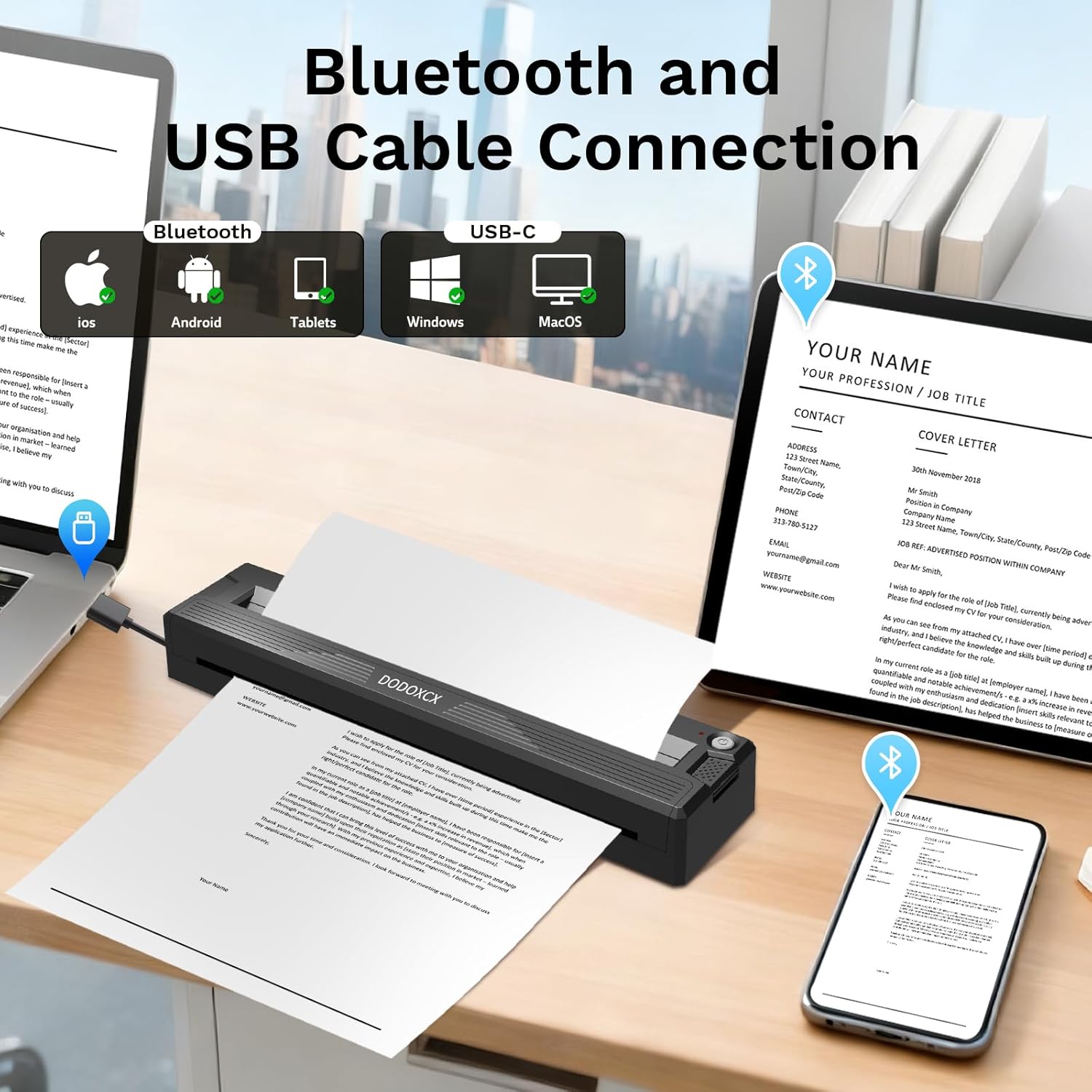
Image: The DODOXCX T11 printer demonstrating its dual connectivity options: Bluetooth for mobile devices (iOS, Android, Tablets) and USB-C for computers (Windows, macOS).
5. Operating Instructions
5.1 Power On/Off
- Power On: Press and hold the power button for a few seconds until the indicator light illuminates.
- Power Off: Press and hold the power button again until the indicator light turns off.
5.2 Printing from Mobile Devices (via Sharpfox App)
- Ensure your printer is powered on and connected via Bluetooth to your mobile device.
- Open the "Sharpfox" app.
- Select the document or image you wish to print from within the app. The app supports various file types.
- Adjust print settings such as paper size, density, and orientation as needed.
- Tap the print button to initiate printing.
5.3 Printing from Computers (via USB-C)
- Ensure your printer is powered on and connected via USB-C to your computer, and drivers are installed.
- Open the document or image you wish to print using your preferred application (e.g., Word, PDF viewer, image editor).
- Go to "File" > "Print" (or use the shortcut Ctrl+P / Cmd+P).
- Select the DODOXCX T11 printer from the list of available printers.
- Adjust print settings as required (e.g., paper size, print quality).
- Click "Print" to send the job to the printer.

Image: A comparison showing the DODOXCX T11 printer's high-definition print output (300dpi) versus a lower resolution output from another printer, illustrating print clarity.
6. Maintenance
6.1 Cleaning the Printer
- Exterior: Wipe the exterior of the printer with a soft, dry, lint-free cloth. Do not use abrasive cleaners or solvents.
- Print Head: If print quality degrades, gently clean the thermal print head using a cotton swab lightly dampened with isopropyl alcohol. Ensure the printer is off and completely dry before use.
6.2 Paper Handling and Storage
- Use only high-quality thermal paper recommended for your printer.
- Store thermal paper in a cool, dry place away from direct sunlight to prevent premature fading.
- Avoid touching the thermal coating of the paper excessively.
6.3 Battery Care
- Charge the printer regularly, even if not in frequent use, to maintain battery health.
- Avoid completely draining the battery before recharging.
- Do not expose the printer to extreme temperatures, which can affect battery performance and lifespan.
7. Troubleshooting
7.1 Printer Not Turning On
- Ensure the printer is fully charged. Connect it to a power source and wait for the charging indicator.
- Press and hold the power button firmly for a few seconds.
7.2 Connection Issues (Bluetooth/USB)
- Bluetooth: Ensure Bluetooth is enabled on your device and the printer is within range. Restart both the printer and your device. Try unpairing and re-pairing the printer in the "Sharpfox" app.
- USB-C: Verify the USB-C cable is securely connected to both the printer and the computer. Ensure the correct printer drivers are installed on your computer. Try a different USB port or cable.
7.3 Poor Print Quality
- Check if the thermal paper is loaded correctly with the printable side facing up.
- Clean the thermal print head as described in the Maintenance section.
- Ensure you are using high-quality thermal paper.
- Adjust print density settings in the app or printer preferences.
7.4 Paper Jams
- Turn off the printer immediately.
- Carefully open the paper cover and gently pull out any jammed paper. Avoid tearing the paper inside the mechanism.
- Ensure the paper is loaded straight and not creased before closing the cover and resuming printing.
8. Specifications
| Brand | DODOXCX |
| Model Name | T11 |
| Connectivity Technology | Bluetooth, USB-C |
| Printing Technology | Thermal (Inkless) |
| Printer Output | Monochrome |
| Max Print Speed (Monochrome) | 20 pages per minute |
| Maximum Media Size | 8.5 x 11 inch (US Letter) |
| Supported Paper Sizes | 8.5" x 11" (US Letter), Legal, A4, A5 |
| Item Weight | 1.2 Pounds |
| Product Dimensions (D x W x H) | 2"D x 11.5"W x 1.5"H |
| Battery Capacity | 2 x 1500mAh (3000mAh total) |
| Compatibility | Android, iOS, Windows, macOS |
9. Warranty and Support
9.1 Manufacturer's Warranty
The DODOXCX T11 Portable Thermal Printer comes with a 1-Year Manufacturer's Warranty from the date of purchase. This warranty covers defects in materials and workmanship under normal use. It does not cover damage caused by misuse, accidents, unauthorized modifications, or improper maintenance.
9.2 Customer Support
For technical assistance, warranty claims, or any questions regarding your DODOXCX T11 printer, please contact DODOXCX customer support. Refer to the contact information provided on the product packaging or the official DODOXCX website.