
Tosuny Tosuny6t2b0oprqc
Tosuny External USB Optical Sound Card 48KHz with Digital Recording Function
Model: Tosuny6t2b0oprqc
1. Introduction
This user manual provides detailed instructions for the Tosuny External USB Optical Sound Card, Model Tosuny6t2b0oprqc. This device is designed to enhance your audio experience by providing high-quality sound output and digital recording capabilities. Please read this manual thoroughly before using the product to ensure proper operation and to maximize its performance.
2. Product Overview
2.1 Key Features
- High Sampling Rate: Supports up to 48 kHz sampling rate for clear digital recording.
- Intelligent Noise Reduction: Features the CM6206LX smart noise reduction chip for stable and immersive sound quality.
- Multi-Channel Support: True 5.1 and 7.1 channel support for connecting to compatible speaker systems.
- Wide System Compatibility: Compatible with Windows 98, ME, 2000, XP, Vista, 7, 8, and OS X 9.1 (2-channel only for OS X).
- Convenient Connections: Easy integration with televisions, speakers, and HTPC home theater setups.
2.2 Device Layout and Components
The Tosuny External USB Optical Sound Card features various input and output ports for versatile connectivity.
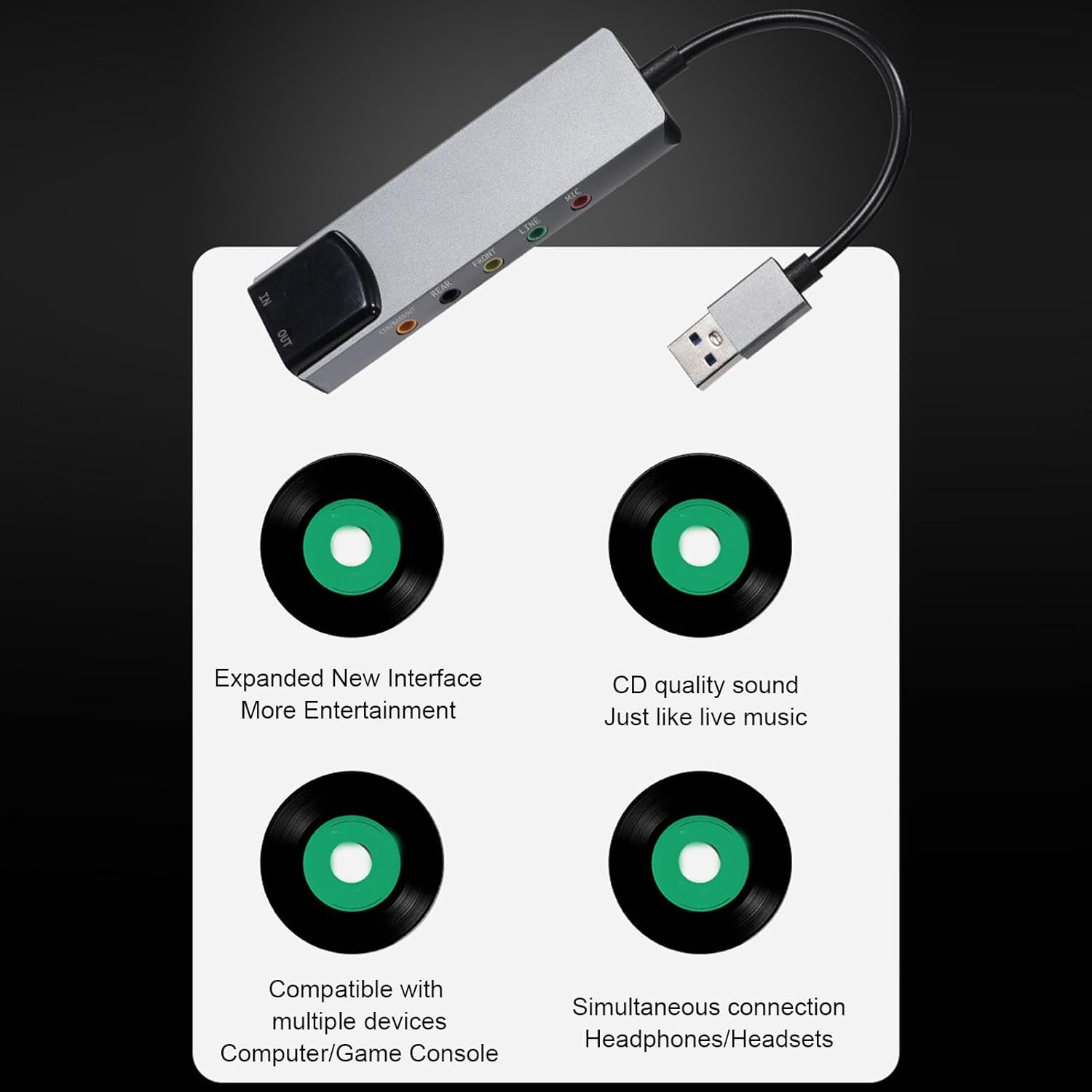
Figure 2.2.1: Overview of the Tosuny External USB Optical Sound Card. This image shows the compact gray aluminum alloy body, the integrated USB cable, and the various audio input/output ports on one end.
- Inputs: Microphone Input (Mic), 3.5mm Line Input (Line), Optical Fiber Input (IN).
- Outputs: Front Output (Front), Rear Output (Rear), Bass Output (CEN/BASSOUT), Optical Fiber Output (OUT).
- Connectivity: USB Type-A connector for computer connection.
The package includes: 1 x External Sound Card, 1 x CD (for drivers/software).
3. Setup Instructions
The Tosuny External USB Optical Sound Card is designed for plug-and-play functionality on most compatible operating systems. Follow these steps for initial setup:
- Connect to Computer: Insert the USB Type-A connector of the sound card into an available USB port on your computer.

Figure 3.1.1: The sound card connected to a laptop via its USB port. The device is shown resting on a desk next to the laptop.
- Driver Installation (if necessary): For optimal performance and access to all features, especially on older operating systems or for 5.1/7.1 channel configuration, install the drivers from the provided CD. Insert the CD into your computer's optical drive and follow the on-screen instructions. For newer systems, drivers may install automatically.
- Connect Audio Devices:
- Speakers/Headphones: Connect your speakers or headphones to the appropriate output jacks (Front, Rear, CEN/BASSOUT).
- Microphone: Connect your microphone to the "MIC" input.
- Optical Devices: Use optical cables to connect to devices with optical audio input/output ports.

Figure 3.1.2: A detailed view of the analog audio ports including CEN/BASSOUT, REAR, FRONT, LINE, and MIC.

Figure 3.1.3: A detailed view of the optical audio input (IN) and output (OUT) ports.
- Configure Audio Settings: After connecting, go to your computer's sound settings (e.g., Sound Control Panel on Windows, System Preferences > Sound on macOS) and select the Tosuny USB Audio Device as your default playback and recording device.
4. Operating Instructions
4.1 Audio Playback
Once the sound card is set as the default playback device, all audio from your computer will be routed through it. Ensure your speakers or headphones are properly connected and powered on.
- For 5.1 or 7.1 channel audio, ensure your media player and audio content support multi-channel output, and configure your system's sound settings accordingly.
- The device supports high-quality sound, providing an immersive experience for movies, games, and music.

Figure 4.1.1: The sound card is capable of a high sampling rate of up to 48KHz, supporting digital recording functionalities for clear and pure sound quality.
4.2 Digital Recording
To record audio, connect your microphone or other audio source to the appropriate input (MIC or LINE IN). Select the Tosuny USB Audio Device as your recording input in your recording software (e.g., Audacity, Windows Sound Recorder).
- The 48 kHz sampling rate ensures high-fidelity digital recordings.
- Note: Only one of the mixing or reverb functions can be used simultaneously.
4.3 Noise Reduction
The integrated CM6206LX smart noise reduction chip works automatically to provide stable and clear audio output, minimizing unwanted background noise.
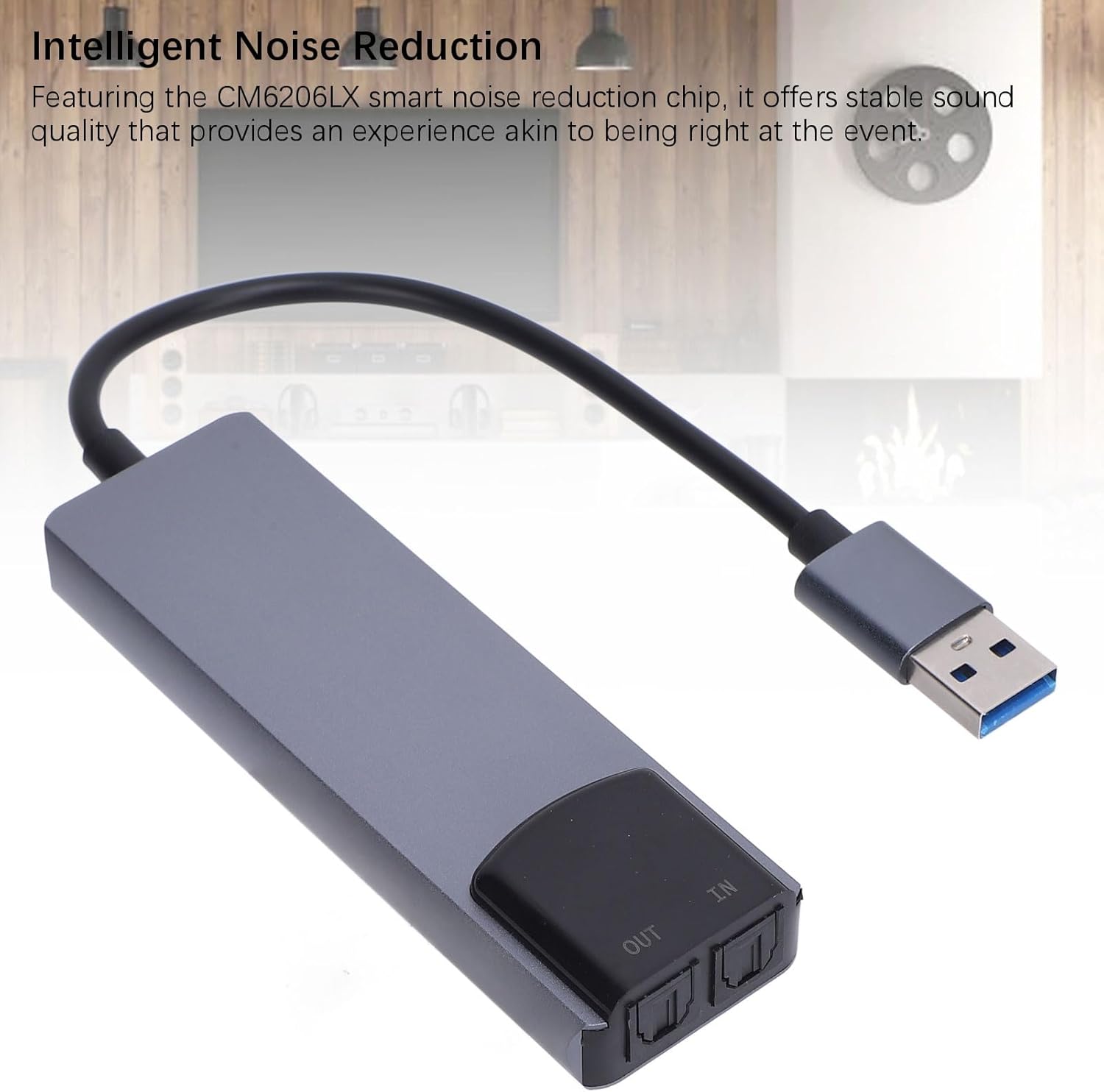
Figure 4.3.1: The sound card features the CM6206LX smart noise reduction chip, offering stable sound quality for an immersive experience.
5. Maintenance
To ensure the longevity and optimal performance of your Tosuny External USB Optical Sound Card, follow these simple maintenance guidelines:
- Cleaning: Use a soft, dry cloth to wipe the device. Avoid using liquid cleaners or abrasive materials.
- Storage: Store the device in a cool, dry place away from direct sunlight and extreme temperatures.
- Handling: Handle the device with care. Avoid dropping it or subjecting it to strong impacts.
- Connectivity: Ensure USB and audio cables are connected securely but do not force them.
6. Troubleshooting
If you encounter issues with your Tosuny External USB Optical Sound Card, refer to the following common problems and solutions:
6.1 No Sound Output
- Check Connections: Ensure all audio cables (speakers, headphones) are securely plugged into the correct output ports on the sound card.
- USB Connection: Verify that the sound card's USB connector is firmly inserted into a working USB port on your computer. Try a different USB port.
- Default Playback Device: Confirm that the "Tosuny USB Audio Device" is selected as the default playback device in your computer's sound settings.
- Volume Levels: Check the volume levels on your computer, media player, and any connected speakers/headphones.
- Drivers: Reinstall the drivers from the provided CD or check the manufacturer's website for the latest drivers.
6.2 No Microphone Input
- Microphone Connection: Ensure your microphone is correctly plugged into the "MIC" input port.
- Default Recording Device: Verify that the "Tosuny USB Audio Device" is selected as the default recording device in your computer's sound settings.
- Microphone Volume: Check the microphone input level in your computer's sound settings and recording software.
6.3 5.1/7.1 Channel Audio Not Working
- Speaker Setup: Ensure your 5.1/7.1 speaker system is correctly connected to all corresponding output ports (Front, Rear, CEN/BASSOUT).
- Software Configuration: Verify that your operating system's sound settings and your media player are configured for 5.1 or 7.1 channel output.
- Content Compatibility: Ensure the audio content you are playing is encoded for 5.1 or 7.1 surround sound.
- Drivers: Ensure the correct drivers for multi-channel audio are installed.
7. Specifications
| Model | Tosuny6t2b0oprqc |
| Material | Aluminum Alloy |
| Inputs | Mic Input, 3.5mm Sound Input (Line), Optical Fiber Input (IN) |
| Outputs | Front Output, Rear Output, Bass Output (CEN/BASSOUT), Optical Fiber Output (OUT) |
| Interface | USB |
| Max Sampling Rate | 48 KHz |
| Audio Output Mode | 5.1, 7.1 Channel |
| Supported Systems | Windows 98, ME, 2000, XP, Vista, 7, 8; OS X 9.1 (2 channels only) |
| Dimensions | 16.3 x 8.5 x 2.2 cm |
| Weight | 64 g |
8. Warranty and Support
For warranty information and technical support, please refer to the documentation provided with your purchase or contact the seller directly. You may also visit the official Tosuny brand store for additional resources: