
1. Setup
1.1 What's in the Box
Upon opening the package, ensure all the following components are present:
- 1 x 7" Touch Screen GPS Navigation Device
- 1 x Car Charger
- 1 x MINI USB Cable
- 1 x Suction Cup Mount
- 1 x Back Bracket
- 1 x User Manual

Image: All components included in the NAVRUF GPS Navigation System package.
1.2 Device Overview
Familiarize yourself with the device's ports and buttons:
- NO/OFF Button: Power on/off the device.
- Headset Socket: For audio output to headphones.
- TF Card Slot: Insert a TF (microSD) card for additional storage.
- AVIN Port: For audio/video input.
- USB Type-C Port: For charging and data transfer.
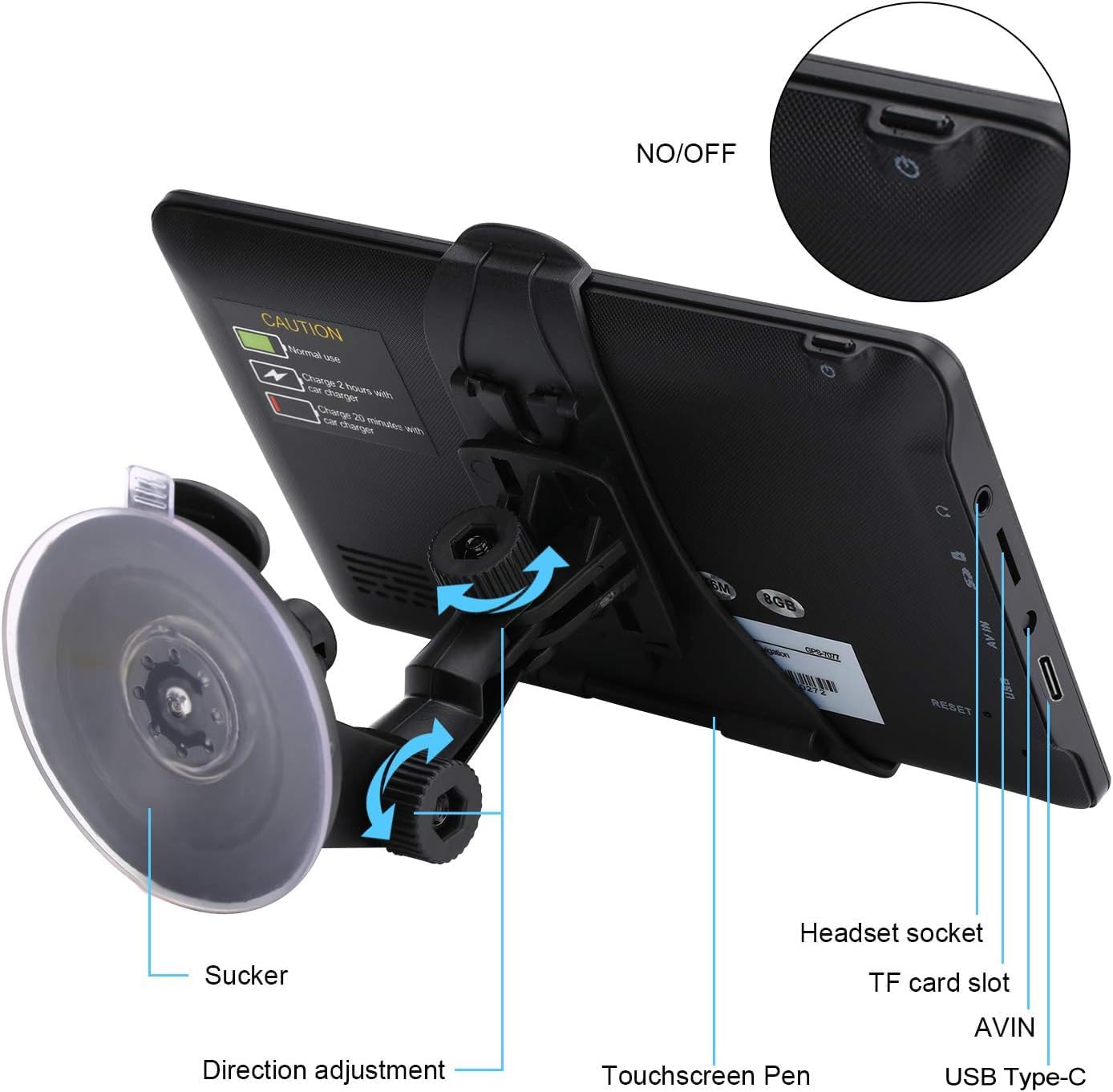
Image: Detailed view of the NAVRUF GPS device's side panel with labeled ports and buttons.
1.3 Installation
To install the GPS navigation system in your vehicle:
- Attach the back bracket to the GPS device.
- Connect the suction cup mount to the back bracket, ensuring a strong connection.
- Clean the desired mounting surface (dashboard or windshield) thoroughly.
- Remove the protective film from the suction cup and firmly press it onto the clean surface, then engage the lever to secure it.
- Adjust the device's angle for optimal viewing.

Image: Visual representation of the installation process for the GPS unit in a vehicle.
1.4 Initial Power On and Time Setting
To power on the device, long press the power button. The device will automatically synchronize the time and date with satellites once connected. You can manually adjust the time zone if needed:
- From the main menu, tap 'Setting'.
- Select 'DateTime' or 'Regional' (depending on interface).
- Choose 'Time Zone' and select your local time zone.
- Ensure 'Use Auto Time Zone' is checked for automatic synchronization.
1.5 Vehicle Profile Setup
Customize your navigation experience by setting up your vehicle profile. This allows the GPS to plan routes optimized for your specific vehicle type, avoiding restrictions:
- From the navigation menu, tap 'More' then 'Route Settings'.
- Select 'Vehicle' and choose your vehicle type (Car, Truck, Bus, Taxi, Emergency, Bicycle, Pedestrian).
- For specific vehicle types like 'Truck' or 'RV', you can enter details such as maximum speed, length, width, height, and weight to ensure appropriate route planning.

Image: Supported vehicle modes for customized route planning.
Watch Setup and Basic Operation
Video: This video demonstrates the unboxing, assembly, initial power-on, time setting, and basic navigation steps for the NAVRUF GPS Navigator.
2. Operating Instructions
2.1 Navigation Basics
To begin navigating, tap the 'Navigation' icon from the main menu. You will be presented with options to find your destination and plan your route.

Image: The primary navigation interface of the GPS device.
2.2 Searching Destinations
The device supports multiple methods for finding your destination:
- Address Search: Enter the country/area, city, street name, and house number.
- Postcode/ZIP Code Search: Enter the ZIP code to narrow down the location.
- Coordinates Search: Input specific latitude and longitude coordinates.
- POI (Point of Interest) Search: Find nearby restaurants, gas stations, attractions, etc.
- Favorites: Save frequently visited locations for quick access.
2.3 Route Planning
After selecting your destination, the GPS will calculate a route. You can choose from various route options:
- Fast: Prioritizes the quickest route.
- Green: Focuses on fuel-efficient routes.
- Short: Selects the shortest distance.
- Easy: Avoids complex turns or difficult roads.
The device also allows for multi-destination route planning, enabling you to add multiple stops to your journey.
2.4 Voice Guidance and Alerts
The NAVRUF GPS provides clear, real voice spoken turn-by-turn directions, including street names. It also features intelligent alerts to enhance safety:
- Current Speed Camera Alerts: Notifies you of upcoming speed cameras.
- Sound Warning: Provides audible warnings for various road conditions.
- Active Lane Assistant: Guides you to the correct lane for upcoming turns or exits.
- Speed Limit Reminder: Informs you of the current speed limit.
- Traffic Light Reminder: Alerts you to upcoming traffic lights.
2.5 FM Transmitter Function
The built-in FM transmitter allows you to broadcast the GPS voice instructions to your car's speakers. This is not an FM radio, but a way to transfer audio:
- Go to 'Setting' from the main menu.
- Select 'FM' to access the FM transmitter settings.
- Choose an unused FM frequency on your GPS device and tune your car radio to the same frequency.
- When the FM transmitter is active, the device's internal speaker will be disabled.

Image: FM Transmitter settings interface.

Image: NAVRUF GPS in use within a vehicle.
3. Maintenance
3.1 Map Updates
Your NAVRUF GPS comes pre-installed with the latest 2025 maps for the United States, Canada, and Mexico. We offer free lifetime map updates. To update your maps or request maps for other regions (e.g., Europe), please contact our customer support.

Image: Representation of the map update process.
3.2 Battery Care
The device is equipped with a 9V battery providing approximately 6 hours of battery life. For continuous operation, especially during long journeys, it is recommended to keep the navigator connected to the car charger. Always plug in the car charger after the automobile engine has started to prevent damage from current surges.
3.3 General Care
To ensure the longevity and optimal performance of your GPS device:
- Keep the screen clean using a soft, lint-free cloth. Avoid harsh chemicals.
- Protect the device from extreme temperatures and direct sunlight for prolonged periods.
- Avoid dropping the device or subjecting it to strong impacts.
4. Troubleshooting
This section addresses common issues you might encounter. For more detailed information, refer to the included user manual or contact support.
4.1 Device Not Powering On
- Ensure the battery is charged. Connect the device to the car charger or a USB power source.
- Long press the power button for several seconds.
- If using the car charger, ensure the car engine is running before plugging in the charger.
4.2 No GPS Signal
- Ensure the device has a clear view of the sky, away from obstructions like tall buildings or dense foliage.
- Move the vehicle to an open area if possible.
- Allow a few minutes for the device to acquire satellite signals, especially after initial setup or long periods of inactivity.
4.3 Incorrect Time/Date
- Verify that the correct time zone is selected in the device settings.
- Ensure the 'Use Auto Time Zone' option is enabled for automatic synchronization with satellites.
4.4 Voice Guidance Issues
- Check the volume settings on the device.
- If using the FM transmitter, ensure your car radio is tuned to the correct frequency and the FM transmitter is enabled on the GPS.
5. Specifications
| Feature | Detail |
|---|---|
| Brand | NAVRUF |
| Model Name | 7077-922 |
| Screen Size | 7 Inches |
| Display Type | Touchscreen |
| Item Weight | 1.25 pounds |
| Product Dimensions | 5.8 x 3 x 8.2 inches |
| Batteries | 1 x 9V battery (included) |
| Battery Life | 6 Hours |
| Connectivity Technology | USB |
| Map Type | North America (US, Canada, Mexico) |
| Vehicle Service Type | Car, RV, Truck |
| Mounting Type | Dashboard Mount, Windshield Mount |
6. Warranty Information
The NAVRUF 7-inch GPS Navigation System comes with a 2-year warranty from the date of purchase. This warranty covers manufacturing defects and ensures the product meets our quality standards. Please retain your proof of purchase for any warranty claims.
7. Support
For any questions, technical assistance, map updates, or further support regarding your NAVRUF GPS Navigation System, please do not hesitate to contact us. Our customer service team is available to provide prompt and helpful solutions.
Refer to the contact information provided in your purchase documentation or on the official NAVRUF website for the most up-to-date support channels.


