
Introduction
The Starlink Gen 3 Standard Satellite Internet Kit provides high-speed, low-latency internet access, particularly designed for rural and remote locations. This kit includes a Gen 3 satellite dish and a Wi-Fi 6 router, engineered to deliver robust connectivity for streaming, video calls, online gaming, and remote work. Its modern Wi-Fi 6 technology supports multiple devices simultaneously with enhanced speed and network efficiency.
What's in the Box
Your Starlink Gen 3 Standard Satellite Internet Kit comes with all the essential components for a complete setup:
- Starlink Gen 3 Satellite Dish
- Wi-Fi 6 Router
- 150-Foot Cable (for connecting the dish to the router)
- Power Supply
- Kickstand (integrated with the dish for easy placement)
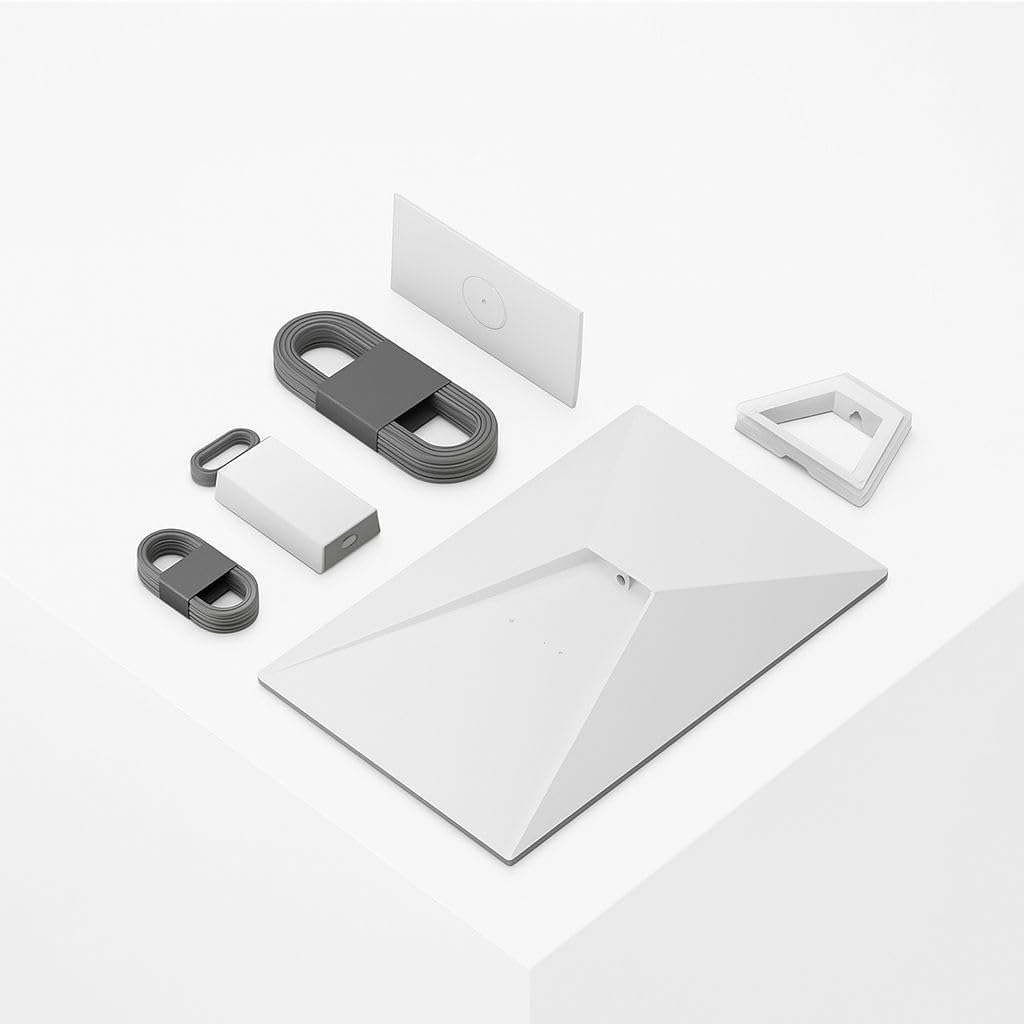
Image: All components of the Starlink Gen 3 Kit laid out, including the satellite dish, Wi-Fi 6 router, cables, and power supply.

Image: A line drawing illustrating the Starlink dish, kickstand, Gen 3 router, Starlink cable, AC cable, and power supply with their respective lengths.

Image: A close-up view of the Starlink Gen 3 satellite dish and the Wi-Fi 6 router, highlighting their sleek design.
Setup
The Starlink Gen 3 kit is designed for quick and easy self-installation without specialized tools. Follow these steps to get online:
- Download the Starlink App: Before starting, download the official Starlink app from your device's app store. This app is crucial for finding the best installation location and guiding you through the setup process.
- Find a Clear View of the Sky: Use the Starlink app's obstruction tool to scan the sky from your intended installation spot. The dish requires a clear, unobstructed view to connect to satellites.
- Assemble the Dish: Open the integrated kickstand on the back of the Starlink dish.
- Connect the Dish Cable: Insert one end of the provided 150-foot cable into the port on the Starlink dish.
- Connect to the Router: Insert the other end of the dish cable into the designated port on the Wi-Fi 6 router.
- Connect Power: Plug the power supply cable into the router, then plug the power supply into a standard wall outlet.
- Initial Setup via App: Once powered on, use the Starlink app to connect to your new Wi-Fi network. The app will guide you through the final steps, including automatic dish alignment and network configuration.
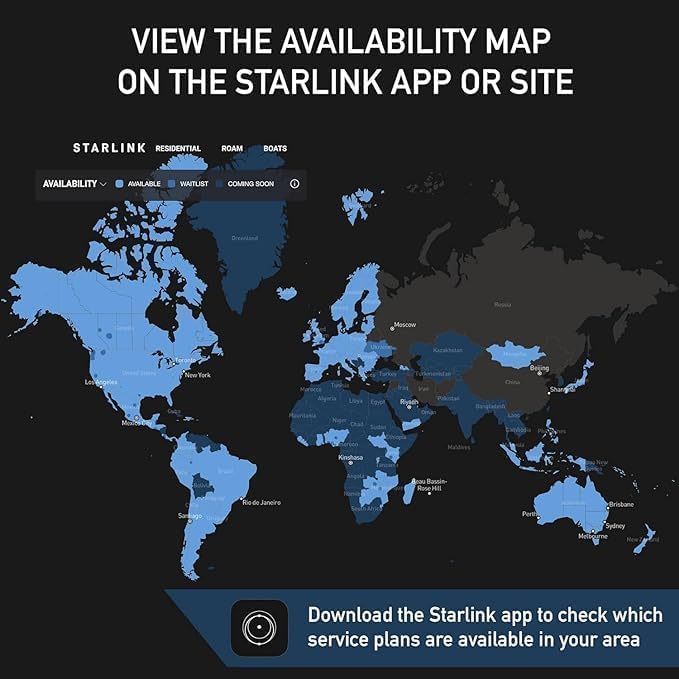
Image: A screenshot of the Starlink app displaying an availability map, indicating regions where Starlink services are available.

Image: An illustration showing the two primary setup steps: 'Plug it in' and 'Point at sky', with a visual of the dish and the app interface.

Image: A rear view of the Starlink Wi-Fi 6 router, showing the ports for the dish cable and power supply.

Image: A map indicating Starlink coverage areas, emphasizing the importance of checking availability and optimal placement via the app.
Installation Video Guide
Video: An official seller's installation guide for the Starlink Gen 3 kit, demonstrating the easy setup process.
Video: A detailed tutorial from a seller on how to install the Starlink Gen 3 system for optimal performance.
Operating
Once your Starlink system is set up and connected, it will automatically begin providing internet access. The dish will self-align to maintain optimal connection with the Starlink satellite constellation.
- Wi-Fi Connectivity: The included Wi-Fi 6 router broadcasts a strong signal, allowing multiple devices to connect wirelessly.
- App Monitoring: Use the Starlink app to monitor your internet performance, view network statistics, and manage connected devices.
- Usage Scenarios: Enjoy high-speed internet for streaming HD content, participating in video conferences, online gaming, and general web browsing, even in areas with limited traditional internet options.
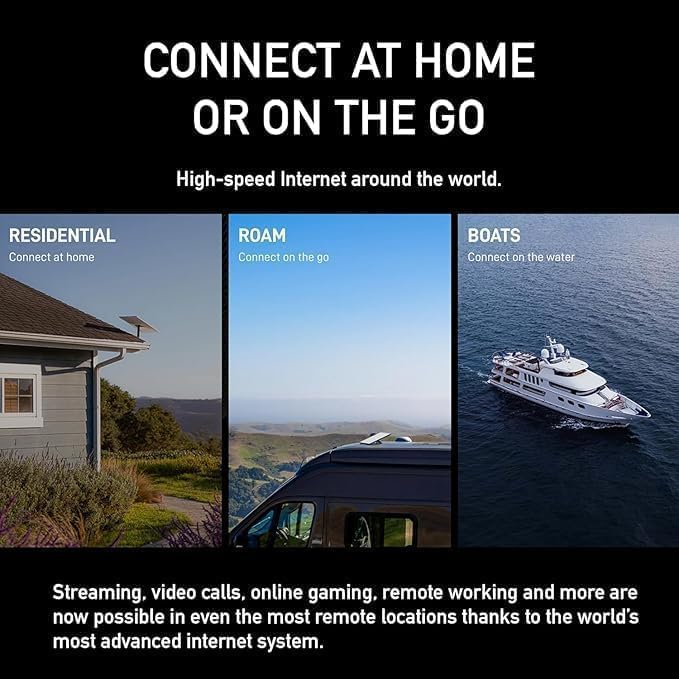
Image: An illustration showing various Starlink connectivity options, including residential, roam, and boats, emphasizing its versatility.
Maintenance
The Starlink Gen 3 dish is built to be durable and withstand various environmental conditions. Minimal maintenance is required to ensure continuous optimal performance:
- Clear View: Periodically check that the satellite dish has a clear, unobstructed view of the sky. Accumulations of snow, ice, or debris can interfere with the signal. The dish has a self-heating capability to melt snow.
- Cable Integrity: Ensure all cables are securely connected and free from damage.
- App Alerts: Pay attention to any alerts or notifications from the Starlink app regarding system status or potential issues.
Troubleshooting
If you encounter any issues with your Starlink service, consider the following troubleshooting steps:
- Check Starlink App: The app provides real-time diagnostics and can often identify the root cause of connectivity problems, offering solutions or guiding you through alignment.
- Verify Connections: Ensure all cables are firmly plugged into the dish, router, and power supply. A loose connection can disrupt service.
- Clear Obstructions: Confirm that the dish has an unobstructed view of the sky. Use the app's obstruction tool to re-evaluate the placement if necessary.
- Power Cycle: Disconnect the power supply from the wall outlet for 30 seconds, then plug it back in. This can resolve minor software glitches.
- Manual Alignment: If the app indicates misalignment, follow the app's instructions for manual adjustment of the dish's position.
Specifications
| Feature | Detail |
|---|---|
| Model Number | UTA-231 |
| Antenna Type | Satellite |
| Brand | Generic |
| Color | White and Gray |
| Number of Channels | 1 |
| Impedance | 5 Ohms |
| Maximum Range | 150 Feet (cable length) |
| Product Dimensions (L x W x H) | 17"L x 7"W x 21"H |
| Manufacturer | SpaceX |
| Item Weight | 14 Pounds |
| Built-In Media | Satellite |
Warranty
The Starlink Gen 3 Standard Satellite Internet Kit is covered by a 1-Year Warranty from the date of purchase. Please retain your proof of purchase for any warranty claims. For detailed terms and conditions, refer to the warranty information provided with your product or contact Starlink support.
Support
For any questions, technical assistance, or service inquiries, please utilize the following resources:
- Starlink App: The app offers comprehensive support, FAQs, and direct contact options.
- Online Support: Visit the official Starlink support website for additional resources and contact information.