

1. Introduction
Thank you for choosing the Osmo Dashcam Pro. This advanced dual dash camera system is designed to provide reliable video evidence and enhance your driving safety with its 4K front and 1080P rear recording capabilities, enhanced night vision, 24/7 parking monitoring, and integrated Wi-Fi and GPS functions. Please read this manual carefully before use to ensure proper installation and operation.
2. Package Contents
- 1 x Osmo Dashcam Pro Main Unit
- 1 x Rear Camera with Cable
- 1 x Car Charger
- 1 x Suction Cup Mount
- 1 x User Manual
3. Product Overview
Familiarize yourself with the components of your Osmo Dashcam Pro.

Figure 3.1: Osmo Dashcam Pro Main Unit. This image displays the front-facing camera lens, the main unit body, and a small screen on the right side showing a car on a road, indicating its primary function.

Figure 3.2: Key Features of Osmo Dashcam Pro. This image shows the dashcam unit with icons representing its main features: 4K+1080P recording, 170° wide angle, Wi-Fi connectivity, GPS tracking, 24-hour parking monitor, loop recording, and WDR (Wide Dynamic Range).
4. Setup and Installation
Follow these steps for proper installation of your dashcam.
4.1 Insert MicroSD Card
Before mounting, insert a high-speed (Class 10 or higher) MicroSD card into the designated slot on the dashcam. Ensure the card is inserted correctly until it clicks into place.
4.2 Mount the Front Camera
- Clean the area on your windshield where you intend to mount the dashcam.
- Attach the suction cup mount to the dashcam.
- Press the suction cup firmly against the windshield, ensuring a clear view of the road without obstructing your driving vision.
- Adjust the camera angle to capture the road ahead effectively.
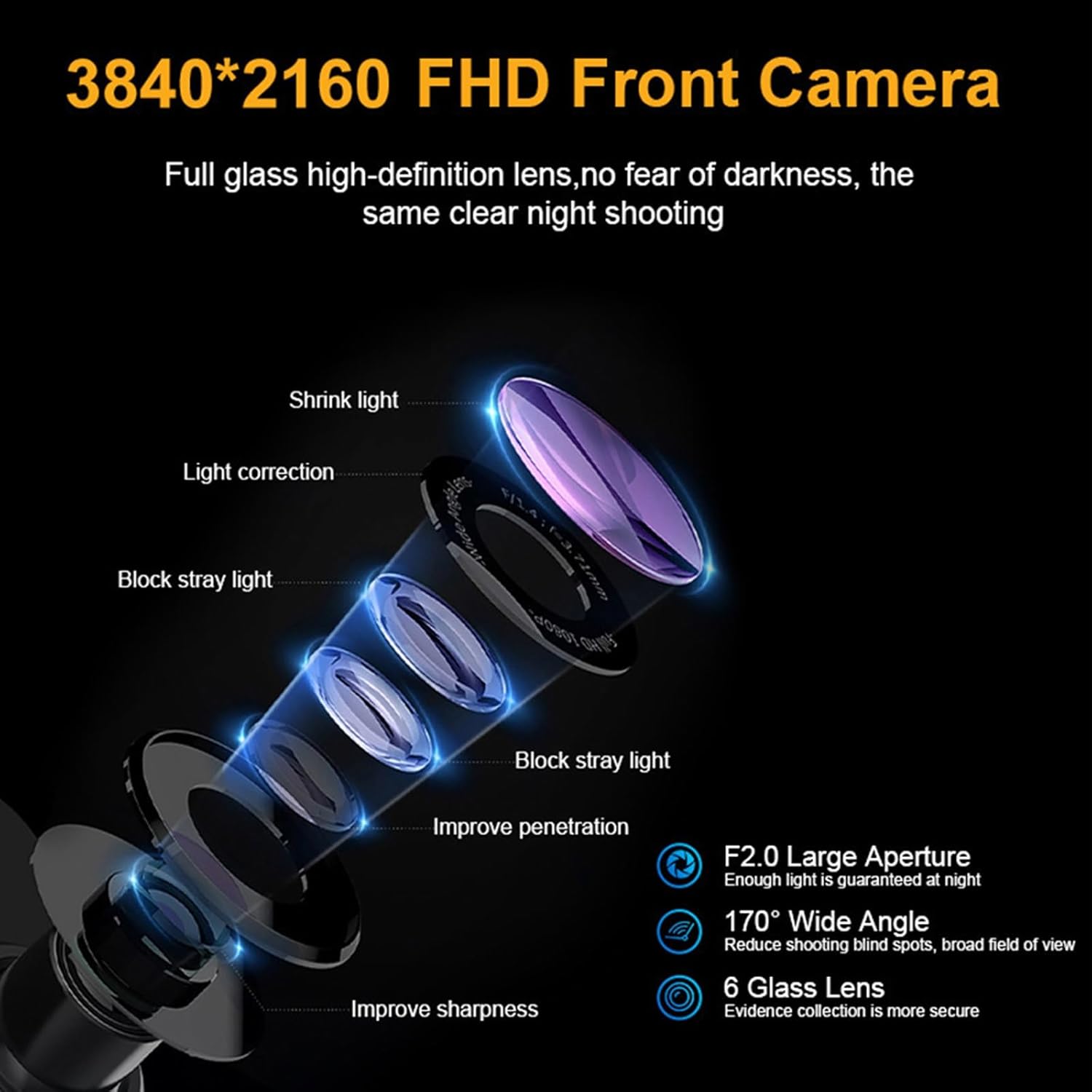
Figure 4.1: Front and Interior Camera Mounting. This image illustrates the dashcam mounted on the front windshield, showing its dual lens capability for recording both the road ahead (4K) and the vehicle's interior (1080P).
4.3 Connect Power
- Connect the car charger to the dashcam's power input port.
- Plug the other end of the car charger into your vehicle's 12V power outlet (cigarette lighter socket).
- Route the power cable neatly along the windshield and dashboard to avoid obstruction.
4.4 Install Rear Camera (Optional)
- Mount the rear camera on the rear windshield, ensuring a clear view.
- Connect the rear camera cable to the main dashcam unit.
- Route the cable discreetly along the vehicle's interior trim.
5. Operating Instructions
5.1 Power On/Off
The dashcam will automatically power on and begin recording when your vehicle starts. It will power off automatically when the vehicle is turned off. You can also manually power it on/off using the power button.
5.2 Loop Recording
The dashcam records video in continuous loops. When the MicroSD card is full, the oldest unlocked files will be overwritten automatically. This ensures continuous recording without manual intervention.
5.3 G-Sensor (Emergency Recording)
The built-in G-sensor detects sudden impacts or collisions. In such an event, the current video segment will be automatically locked and saved to prevent it from being overwritten by loop recording. These files are crucial for accident evidence.
5.4 Parking Monitor
The 24/7 parking monitor feature protects your vehicle even when parked. When enabled, the dashcam will automatically start recording if it detects motion or an impact while your vehicle is stationary. The system includes battery protection to prevent vehicle battery drain.
5.5 Wi-Fi and App Control
Connect your smartphone to the dashcam via Wi-Fi for convenient control and file management.
- Download the dedicated app (e.g., 'Viidure' as suggested by image) from your smartphone's app store.
- Enable Wi-Fi on your dashcam and smartphone.
- Connect your smartphone to the dashcam's Wi-Fi network (SSID and password usually displayed on the dashcam screen).
- Use the app to view live footage, browse recorded videos, download files to your phone, and adjust settings.
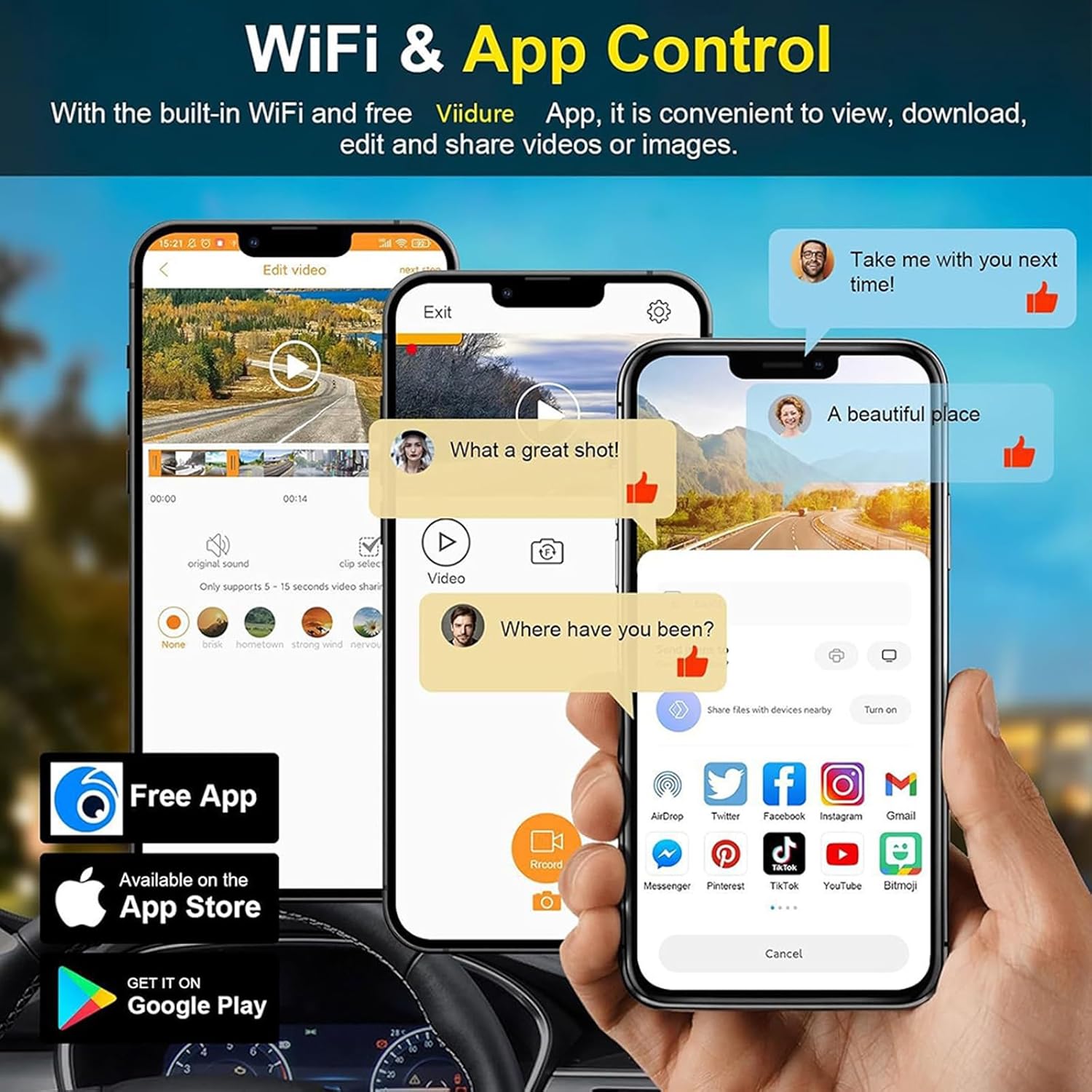
Figure 5.1: Wi-Fi and App Control Interface. This image displays multiple smartphone screens demonstrating the dashcam's mobile application, allowing users to view, edit, download, and share videos and images wirelessly.
5.6 GPS Tracking
The integrated GPS module records your driving route, speed, and location data. This information is embedded in your video files, providing crucial evidence in case of disputes or accidents.
5.7 Enhanced Night Vision
The Osmo Dashcam Pro features advanced night vision technology, including WDR (Wide Dynamic Range) and an F2.0 large aperture lens, to capture clear and detailed video even in low-light conditions. This ensures important details like license plates are visible at night.
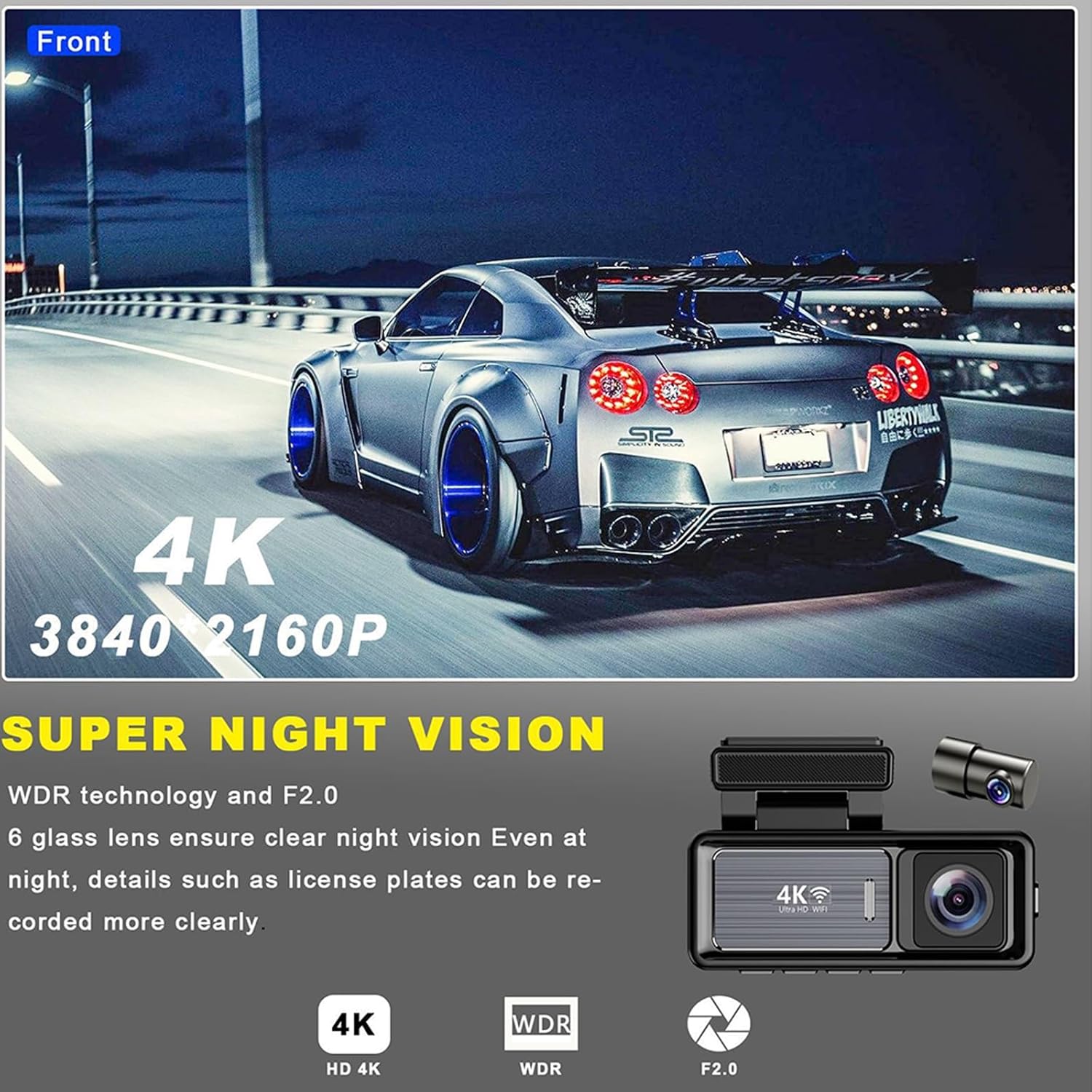
Figure 5.2: Super Night Vision in Action. This image highlights the dashcam's superior night vision, showing a clear view of a car on a highway at night, emphasizing its ability to record details in low-light environments with 4K resolution, WDR, and F2.0 aperture.
6. Maintenance
6.1 Cleaning the Lenses
Regularly clean the front and rear camera lenses with a soft, lint-free cloth to ensure clear video quality. Avoid using abrasive cleaners that could scratch the lens.
6.2 MicroSD Card Formatting
It is recommended to format the MicroSD card every 2-4 weeks to maintain optimal performance and prevent data corruption. This can usually be done through the dashcam's settings menu or via the mobile app.
6.3 Firmware Updates
Check the manufacturer's website periodically for firmware updates. Keeping your dashcam's firmware up-to-date can improve performance, add new features, and fix bugs.
7. Troubleshooting
If you encounter issues with your Osmo Dashcam Pro, refer to the following common problems and solutions:
- Dashcam not powering on:
Ensure the car charger is securely connected to both the dashcam and the vehicle's power outlet. Check if the vehicle's 12V power outlet is functioning. - Recording stops or freezes:
Format the MicroSD card. Ensure you are using a high-speed (Class 10 or U1/U3) MicroSD card from a reputable brand. Replace the card if the issue persists. - Poor video quality:
Clean the camera lenses. Ensure the protective film has been removed from the lenses. Check settings to confirm 4K/1080P resolution is selected. - Wi-Fi connection issues:
Ensure Wi-Fi is enabled on both the dashcam and your smartphone. Restart both devices. Verify you are connecting to the correct dashcam Wi-Fi network. - Parking monitor not working:
Ensure the parking monitor feature is enabled in the settings. Check if the dashcam is receiving continuous power (e.g., via a hardwire kit for 24/7 monitoring).
8. Specifications

Figure 8.1: Front Camera Lens Technology. This diagram illustrates the advanced components of the front camera lens, including light correction, stray light blocking, improved penetration, and sharpness, highlighting its F2.0 large aperture, 170° wide angle, and 6-glass lens construction for optimal 4K recording.
| Feature | Specification |
|---|---|
| Front Camera Resolution | 4K (3840x2160P) |
| Rear Camera Resolution | 1080P (1920x1080P) |
| Photo Pixels | 5MP |
| Lens Aperture | F2.0 Large Aperture |
| Lens Construction | 6-Glass Lens |
| Wide Angle | 170° (Front & Rear) |
| Night Vision Technology | WDR (Wide Dynamic Range) |
| Recording Mode | Loop Recording |
| Parking Monitoring | 24-hour with Battery Protection |
| Connectivity | Built-in Wi-Fi, GPS |
| Mounting Location | Front Windshield |
| Dimensions | 16 x 12 x 9 cm (approx. 6.3 x 4.7 x 3.5 inches) |
9. Warranty and Support
9.1 Warranty Information
The Osmo Dashcam Pro comes with a standard manufacturer's warranty. Please refer to the product packaging or the seller's information for specific warranty terms and duration. Keep your proof of purchase for warranty claims.
9.2 Customer Support
For any questions, technical assistance, or support regarding your Osmo Dashcam Pro, please contact the seller or manufacturer directly. Contact details are typically provided with your purchase documentation or on the product's official website.