
Introduction
This manual provides detailed instructions for the GIGABYTE X870E AORUS ELITE X3D ICE AMD AM5 ATX Motherboard. It covers essential information for installation, operation, maintenance, and troubleshooting to ensure optimal performance and longevity of your system. The X870E AORUS ELITE X3D ICE supports AMD Ryzen 9000, 8000, and 7000 Series Processors, features DDR5 memory support, 16+2+2 power phase design, four M.2 slots, PCIe 5.0, WIFI7, and 5 GbE connectivity.
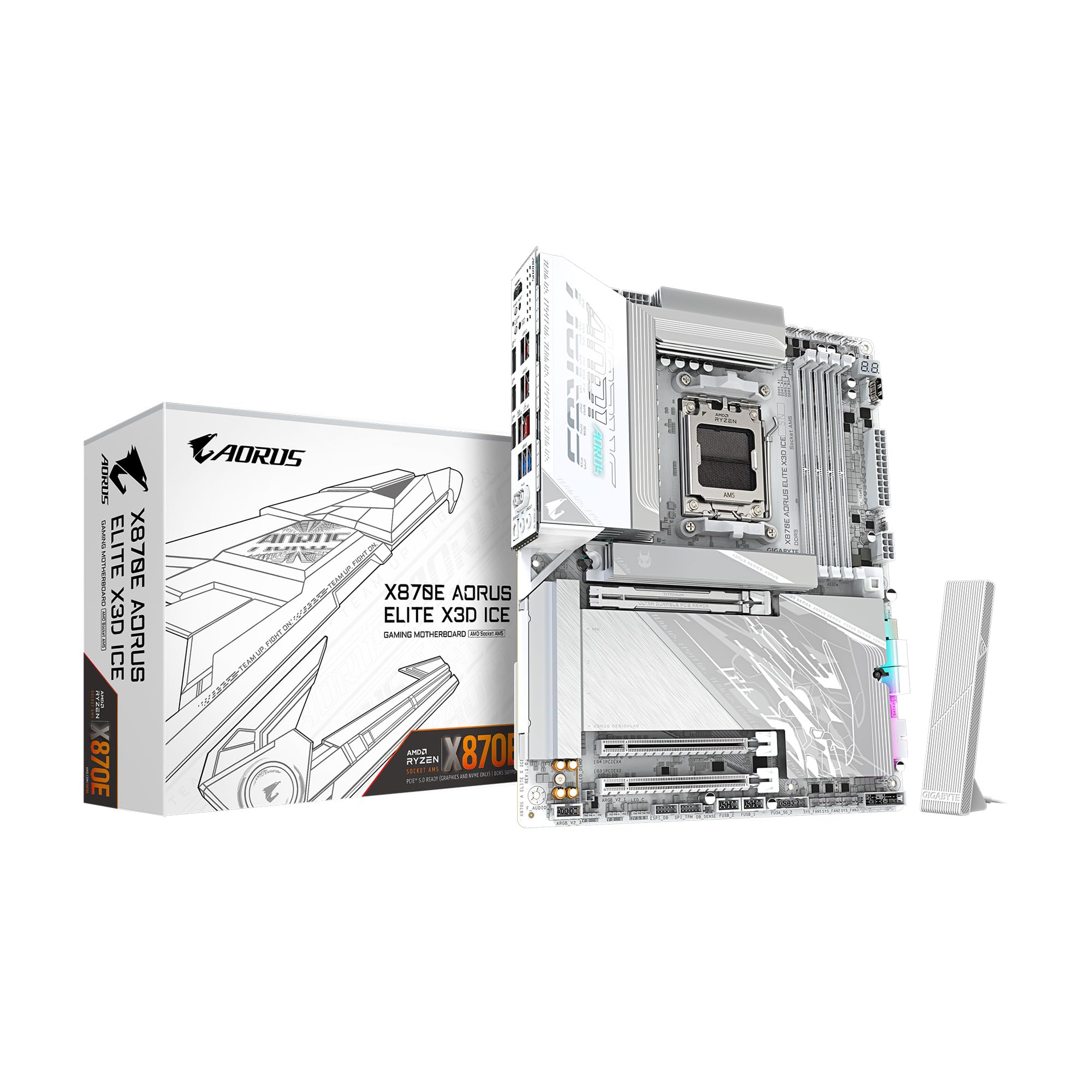
Figure 1: GIGABYTE X870E AORUS ELITE X3D ICE Motherboard, top-down view.
Setup and Installation
Proper installation is crucial for the stability and performance of your system. Follow these steps carefully.
1. Preparing the Motherboard
- Unpack the motherboard from its anti-static bag.
- Place the motherboard on a non-conductive surface, such as the anti-static bag itself or a cardboard box.
Video 1: Official unboxing of the X870E AORUS ELITE X3D ICE motherboard, showing the contents and initial handling.
2. CPU Installation (AMD AM5 Socket)
- Locate the AM5 CPU socket on the motherboard.
- Open the CPU retention mechanism by pushing down and away from the socket.
- Carefully align the CPU with the socket, ensuring the golden triangle on the CPU matches the triangle on the socket. Do not force the CPU into place.
- Close the retention mechanism to secure the CPU.

Figure 2: Close-up view of the AMD AM5 CPU socket on the motherboard, ready for processor installation.
3. Memory (RAM) Installation
- Open the clips on both ends of the DDR5 DIMM slots.
- Align the notch on the DDR5 memory module with the key in the DIMM slot.
- Insert the memory module firmly into the slot until the clips snap into place. Ensure both clips are closed.
- For dual-channel configuration, refer to the motherboard manual for specific slot pairing.

Figure 3: View of the DDR5 memory slots on the motherboard, indicating where RAM modules are installed.
4. M.2 SSD Installation
- Locate the M.2 slots on the motherboard. The X870E AORUS ELITE X3D ICE features two PCIe 5.0 M.2 slots and two PCIe 4.0 M.2 slots.
- Remove the M.2 heatsink and stand-off screw (if present).
- Insert the M.2 SSD into the slot at an angle.
- Push down the M.2 SSD and secure it with the stand-off screw or the M.2 EZ-Latch mechanism.
- Reattach the M.2 heatsink for optimal thermal performance.

Figure 4: Illustration of M.2 SSD installation, highlighting the EZ-Latch mechanism for tool-less setup.
5. Graphics Card (GPU) Installation
- Locate the PCIe Gen5 x16 slot.
- Open the retention clip at the end of the PCIe slot.
- Align your graphics card with the slot and press down firmly until it clicks into place.
- Secure the graphics card to your PC case with screws.

Figure 5: Close-up of the PCIe EZ-Latch Plus, simplifying graphics card removal and installation.
6. Power Connections
- Connect the 24-pin ATX main power connector from your power supply to the motherboard.
- Connect the 8-pin (or 4+4 pin) CPU power connector(s) to the motherboard.
7. Front Panel and Peripheral Connections
- Connect the front panel headers (power switch, reset switch, HDD LED, power LED) according to the motherboard manual.
- Connect USB 2.0, USB 3.2 Gen 1, and USB 3.2 Gen 2 Type-C front panel connectors.
- Connect SATA drives to the available SATA 6Gb/s ports.
- Attach the WIFI antenna to the rear I/O panel for wireless connectivity.

Figure 6: Detailed view of the rear I/O panel, showing USB ports, Ethernet, audio jacks, and Wi-Fi antenna connectors.
Operating Instructions
1. Initial Boot and BIOS/UEFI Setup
- After assembling your PC, connect a monitor, keyboard, and mouse.
- Power on your system. Press the DEL key during startup to enter the BIOS/UEFI setup.
- Configure boot order, enable XMP/EXPO for memory, and set up any other necessary system parameters.
- Save changes and exit the BIOS/UEFI.
2. Driver Installation
- Install your operating system.
- After OS installation, install the latest drivers for your motherboard chipset, graphics card, audio, and network from the GIGABYTE website or the provided support DVD/USB.
3. GIGABYTE Software Utilities
GIGABYTE provides various software utilities to enhance your user experience:
- GIGABYTE Control Center (GCC): A unified software platform for managing system performance, RGB lighting, fan speeds, and more.
- BIOS Update Utility: For updating the motherboard BIOS from within the operating system.
- App Center: Provides access to various GIGABYTE applications and utilities.
Maintenance
Regular maintenance helps ensure the longevity and stable operation of your motherboard.
1. Cleaning
- Periodically clean dust from the motherboard and components using compressed air.
- Ensure the system is powered off and unplugged before cleaning.
- Avoid using liquid cleaners directly on components.
2. BIOS Updates
- Check the GIGABYTE website for the latest BIOS versions.
- BIOS updates can improve compatibility, stability, and performance.
- Follow the instructions provided by GIGABYTE carefully when performing a BIOS update to avoid system damage.
3. Driver Updates
- Regularly check the GIGABYTE website for updated drivers for your motherboard.
- Keeping drivers up-to-date can resolve issues and improve system performance.
Troubleshooting
If you encounter issues, refer to the following common troubleshooting steps:
1. No Power / No Boot
- Ensure all power cables (24-pin ATX, 8-pin CPU) are securely connected.
- Verify the power supply is switched on and functioning correctly.
- Check front panel connections, especially the power switch.
- Try booting with minimal components (CPU, one RAM stick, GPU if no integrated graphics) to isolate the issue.
2. POST Code Errors
- The motherboard may display a POST code on its debug LED. Refer to the GIGABYTE manual for the meaning of specific codes.
- Common codes relate to CPU, RAM, or GPU initialization failures.
3. System Instability / Crashes
- Ensure all drivers are up-to-date.
- Check CPU and GPU temperatures to prevent overheating.
- Verify RAM stability using memory diagnostic tools.
- Reset BIOS settings to default if overclocking or custom settings are causing issues.
Specifications
| Feature | Specification |
|---|---|
| Brand | GIGABYTE |
| Model Name | X870E AORUS ELITE X3D ICE |
| CPU Socket | LGA 1718 (AMD AM5) |
| Compatible Processors | AMD Ryzen 9000/8000/7000 Series |
| Chipset Type | AMD X870E |
| RAM Memory Technology | DDR5 |
| Memory Slots Available | 4 |
| RAM Memory Maximum Size | 256 GB |
| PCIe Slots | 1x PCIe Gen5 x16, 2x PCIe 5.0 M.2, 2x PCIe 4.0 M.2 |
| USB Ports | 2x USB4 Type-C with DP Alt, 1x USB 3.2 Gen 2 Type-C, 5x USB 3.2 Gen 2 Type-A, 3x USB 3.2 Gen 1 Type-A, 65W Front USB-C |
| Ethernet | 5 GbE LAN |
| Wireless Connectivity | WIFI7 |
| Power Phase | Digital Twin 16+2+2 |
| Form Factor | ATX |
| Dimensions (L x W x H) | 12.01"L x 9.61"W x 1.75"H |
Warranty and Support
The GIGABYTE X870E AORUS ELITE X3D ICE Motherboard comes with a 5-Year Manufacturer Warranty. For technical support, driver downloads, BIOS updates, and further assistance, please visit the official GIGABYTE website. You can also refer to the multilingual installation guide included in the product packaging for additional details.
Video 2: A 360-degree view of the X870E AORUS ELITE X3D ICE motherboard, showcasing its design and features.


