
Introduction
This manual provides detailed instructions for the GOWENIC 6-in-1 Wireless Car Play and Android Auto Adapter. This device transforms your car's wired CarPlay or Android Auto system into a wireless connection, offering enhanced multimedia and navigation capabilities. It features a powerful processor, 4GB RAM, and supports Android 13.0, 4G LTE, and dual-band WiFi for a seamless in-car entertainment experience.
Key features include:
- Powerful Performance: Equipped with a 2290 quad-core processor and 4GB of RAM for excellent speed and responsiveness.
- Seamless Wireless Experience: Converts wired CarPlay or Android Auto to wireless for both iOS and Android devices.
- Double APP Functionality: Supports split-screen operation for running two applications simultaneously, such as navigation and music.
- Enhanced System: Integrates Android 13.0 with access to Google Play Store and real-time vehicle tracking via WiFi or built-in 4G LTE.
- Future-Proof Technology: Receives OTA updates for continuous feature enhancements and performance optimization.
Setup Instructions
The GOWENIC Wireless Adapter is designed for plug-and-play operation. Follow these steps to connect the device to your vehicle and establish a wireless connection.
- Insert Adapter: Connect the GOWENIC Wireless Adapter to your car's USB port that supports wired CarPlay or Android Auto. Use the provided USB-C or USB-A cable as appropriate for your vehicle. The device will power on automatically.
- Turn on WiFi: On your car's infotainment system, navigate to the settings and ensure WiFi is enabled.
- Bluetooth Pairing: On your smartphone (iOS or Android), enable Bluetooth. Search for available devices and select the GOWENIC adapter (e.g., "Smart Dongle-XXXX" or "AI Box-XXXX") to pair. Confirm the pairing request on both your phone and the car's screen if prompted.
- Use CarPlay/Android Auto: Once paired, your car's system should automatically detect the wireless connection and launch CarPlay or Android Auto.

This image illustrates the four main steps for connecting the GOWENIC Wireless Adapter: 1. Inserting the adapter into the car's USB port. 2. Turning on WiFi on the car's infotainment system. 3. Pairing your smartphone via Bluetooth. 4. Initiating Wireless CarPlay or Android Auto.
Operating Instructions
After successful setup, the GOWENIC Wireless Adapter provides a range of functionalities to enhance your driving experience.
Wireless CarPlay and Android Auto
Once connected, your car's display will mirror your smartphone's CarPlay or Android Auto interface wirelessly. You can access navigation, music, calls, and messages directly from your car's screen without needing a physical cable connection.
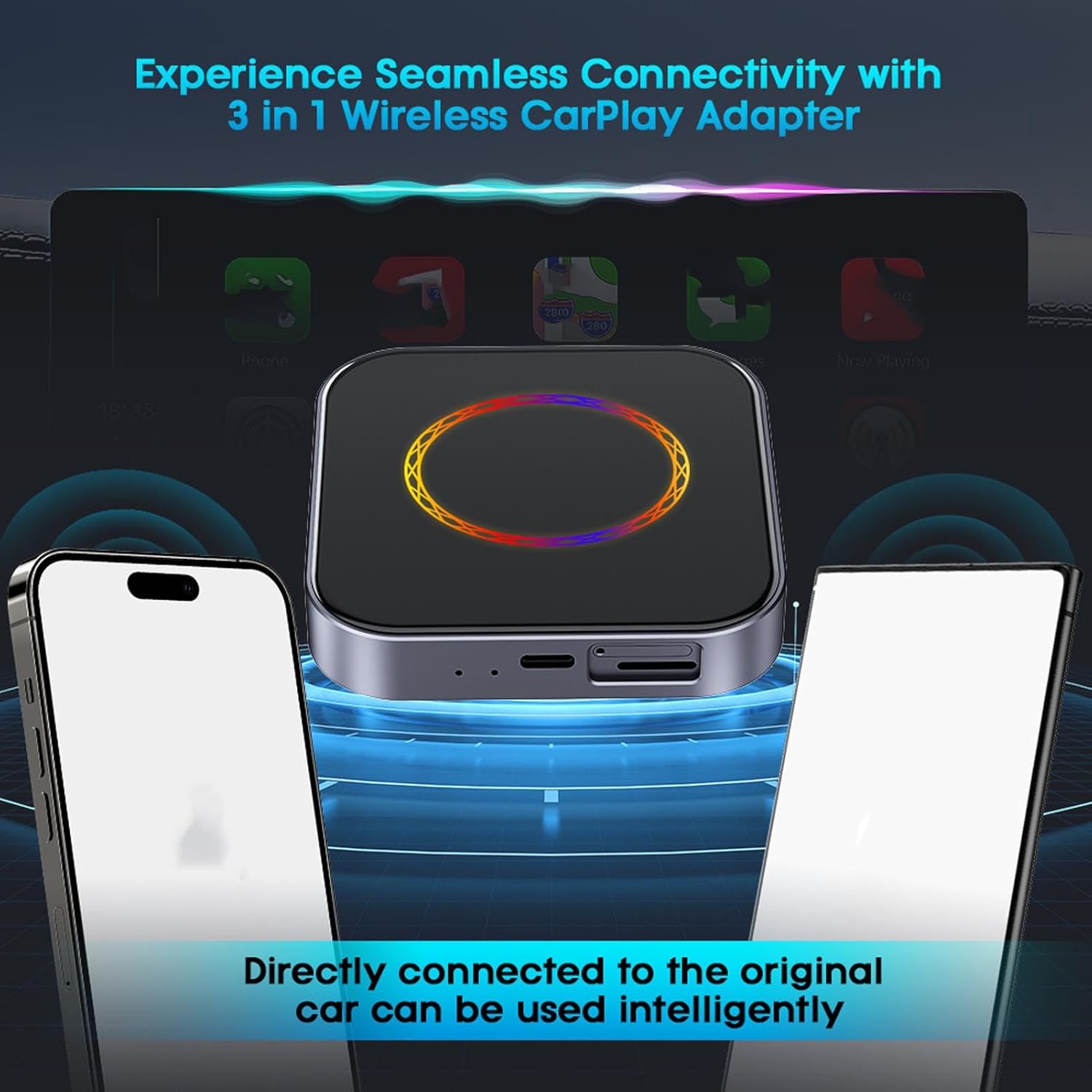
This image depicts the GOWENIC adapter in use, providing a wireless connection to the car's infotainment system, displaying the CarPlay/Android Auto interface with various app icons.
Split-Screen Functionality
The adapter supports split-screen mode, allowing you to run two applications simultaneously on your car's display. For example, you can view navigation on one side and control music playback on the other, optimizing your multitasking capabilities while driving.
Android 13.0 System and App Access
The device runs on Android 13.0, providing access to the Google Play Store. You can download and install various applications directly onto the adapter, expanding its functionality beyond standard CarPlay/Android Auto features. This includes streaming services, additional navigation apps, and more.
4G LTE and WiFi Connectivity
The adapter supports both WiFi (2.4G+5G) and built-in 4G LTE connectivity (requires a SIM card, not included). This allows for independent internet access for streaming, app downloads, and real-time services like vehicle tracking (e.g., TrackHU, if installed) without relying solely on your phone's data.
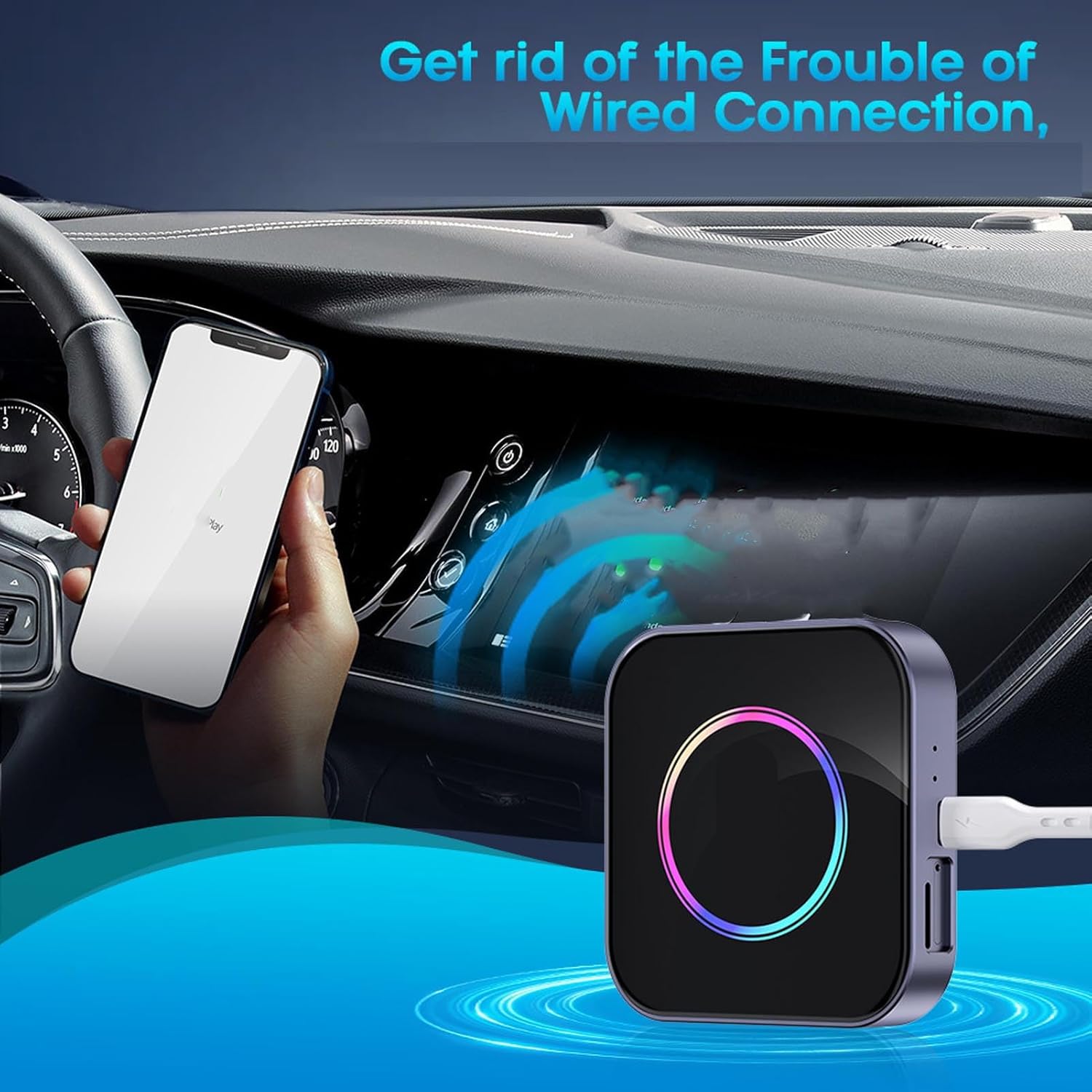
This image highlights the convenience of the wireless adapter, showing a smartphone connected wirelessly to the car's display, removing the need for cumbersome cables.
Maintenance
To ensure the longevity and optimal performance of your GOWENIC Wireless Adapter, follow these simple maintenance guidelines:
- Cleaning: Use a soft, dry cloth to wipe the device. Avoid using liquid cleaners, aerosols, or harsh chemicals, as these can damage the surface or internal components.
- Storage: When not in use for extended periods, store the adapter in a cool, dry place away from direct sunlight and extreme temperatures.
- Software Updates: Regularly check for Over-The-Air (OTA) updates to ensure your device has the latest features, security patches, and performance improvements. Access update options through the device's settings menu.
- Avoid Physical Damage: Handle the device carefully. Avoid dropping it or exposing it to excessive force, which can damage the internal circuitry or the tempered glass surface.
- Environmental Conditions: Do not expose the device to water, high humidity, or extreme dust.
Troubleshooting
If you encounter issues with your GOWENIC Wireless Adapter, refer to the following common troubleshooting steps:
- Device Not Powering On:
- Ensure the adapter is securely plugged into a functional USB port in your car.
- Verify that the car's ignition is on and the USB port is receiving power.
- Try a different USB cable or USB port if available.
- Unable to Connect Wirelessly (CarPlay/Android Auto):
- Confirm that your car's infotainment system supports wired CarPlay or Android Auto natively.
- Ensure Bluetooth and WiFi are enabled on both your smartphone and the car's system.
- Delete previous Bluetooth pairings for the adapter on your phone and car, then attempt to re-pair.
- Restart your smartphone and the car's infotainment system.
- Check if the adapter's firmware is up to date via OTA updates.
- Intermittent Connection or Lag:
- Ensure there are no strong electromagnetic interferences near the device.
- Try moving your smartphone closer to the adapter.
- Check your car's USB port for debris or damage.
- If using 4G LTE, ensure good signal strength and a valid SIM card with an active data plan.
- Apps Not Downloading or Functioning Correctly:
- Verify that the adapter has an active internet connection (via WiFi or 4G LTE).
- Check the available storage space on the adapter.
- Ensure the Google Play Store is signed in with a valid Google account.
- Clear the cache and data for the problematic app or the Google Play Store app in the adapter's settings.
- No Audio Output:
- Check the volume levels on both your car's system and the adapter.
- Ensure the car's audio input is correctly set to the CarPlay/Android Auto source.
- Restart the adapter and your car's infotainment system.
If these steps do not resolve the issue, please contact GOWENIC customer support for further assistance.
Specifications
Below are the technical specifications for the GOWENIC 6-in-1 Wireless Car Play and Android Auto Adapter:
| Model Number | GOWENIC68bxhternu |
| System | Android 13.0 |
| CPU Chip | 2290 Quad-Core Processor |
| Memory | 4GB RAM + 64GB Internal Storage |
| WiFi Connectivity | 2.4G + 5G Dual-Band |
| Network Support | LTE CAT.4, TD-LTE, FDD-LTE, WCDMA, GSM (integrates BT, GNSS, WIFI) |
| 4G Network Bands (Eurasian Version) | B5, B8, B20, B28 |
| Compatible Phones | iOS Phone 6 and above (iOS 10+), Overseas Android phones (Android 12+) |
| Languages | Multiple languages worldwide (e.g., Arabic, English, French, Spanish) |
| Interfaces | Type-C, USB-A, Memory Card Slot, SIM Card Slot (SIM card not included), LED Ambient Light |
| Memory Card Support | Up to 128GB maximum capacity (not included) |
| Input | 5V=1A |
| Material | Aluminum Alloy, Tempered Glass |

This image displays the back of the GOWENIC adapter, showing the CarPlay and Auto indicators, CE FC RoHS markings, input voltage (5V=1A), and model number (BY961P). It also shows the included USB cables.
Warranty Information
The GOWENIC Wireless Adapter comes with a manufacturer warranty for 90 days from the date of purchase. This warranty covers defects in materials and workmanship under normal use. It does not cover damage caused by misuse, accidents, unauthorized modifications, or external causes.
Please retain your proof of purchase for warranty claims. For detailed warranty terms and conditions, refer to the documentation included with your product or contact GOWENIC customer support.
Customer Support
For any questions, technical assistance, or warranty inquiries regarding your GOWENIC Wireless Adapter, please contact GOWENIC customer support.
You can find more information and contact details by visiting the official GOWENIC Store on Amazon: GOWENIC Store.