
1. Introduction
The EVILTO RGB Digital Alarm Clock is designed to provide clear time display, dual alarm functionality, and ambient lighting options. It features a high-contrast screen that shows time, temperature, date, and day of the week. With customizable RGB display colors and ambient light settings, it complements various room decors while offering practical features like Daylight Saving Time (DST) adjustment and power-outage memory.
2. Safety Instructions
- Ensure the device is placed on a stable, flat surface to prevent falling.
- Keep away from water or high humidity environments to avoid electrical hazards.
- Do not expose to direct sunlight or extreme temperatures.
- Use only the provided power adapter and cable.
- Keep out of reach of children.
- Do not attempt to disassemble or repair the device yourself. Contact customer support if needed.
3. Package Contents
Verify that all items are present in the package:
- EVILTO RGB Digital Alarm Clock Unit
- USB-C Power Cable
- Power Adapter
- User Manual
4. Product Overview
The alarm clock features a large digital display and intuitive controls. Familiarize yourself with the main components and buttons:
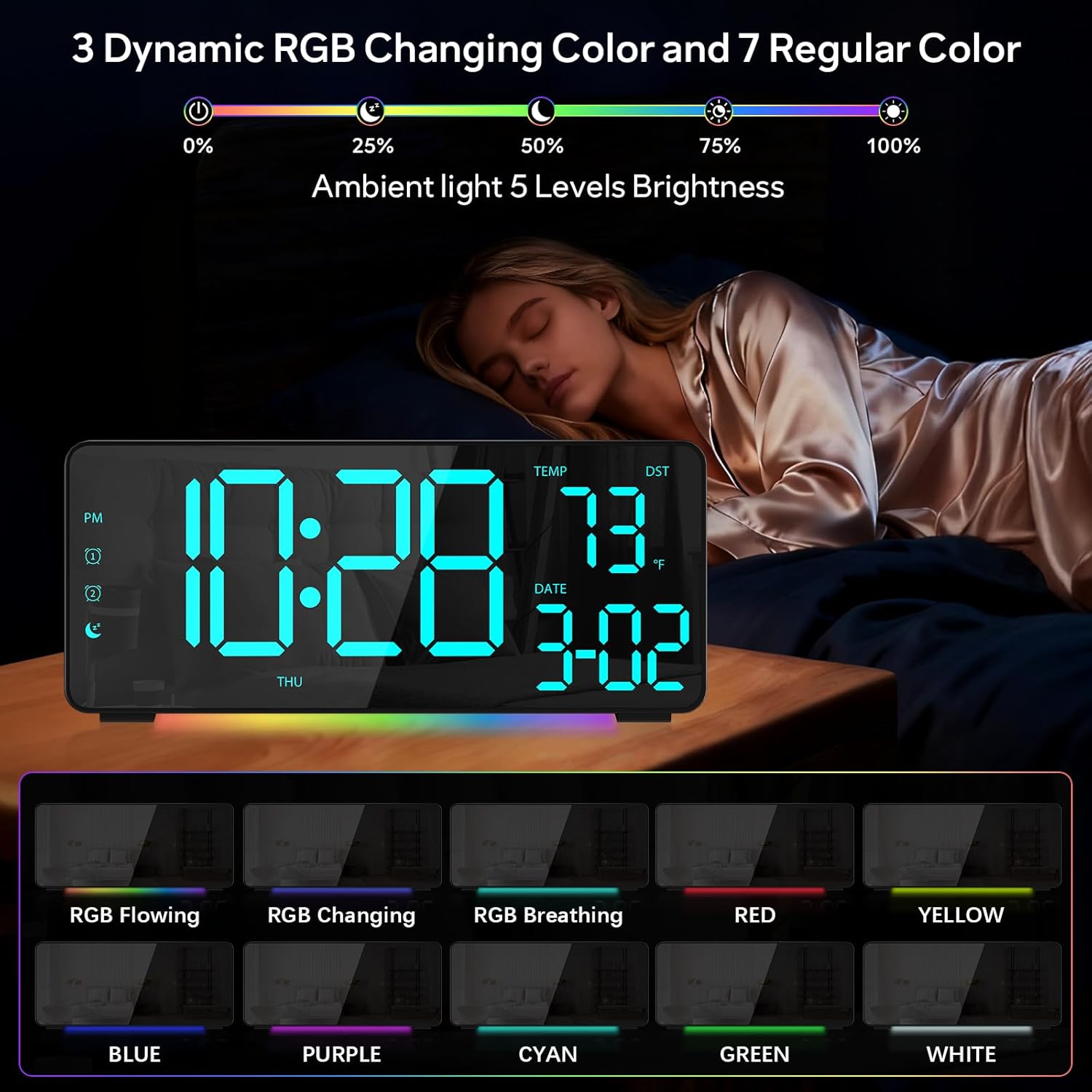
Figure 1: Front view of the EVILTO RGB Digital Alarm Clock, showing the time, temperature, date, and day of the week. The display features vibrant RGB colors.

Figure 2: Rear view of the EVILTO RGB Digital Alarm Clock, highlighting the control buttons for settings, alarms, display, and the USB-C input and USB output ports.
Control Buttons:
- SET Button: Enters/confirms settings.
- Brightness Button: Adjusts display brightness.
- RGB Button: Cycles through RGB display colors.
- Alarm 1/2 Buttons: Activates/deactivates and sets Alarm 1 or Alarm 2.
- Volume Button: Adjusts alarm volume.
- DST Button: Toggles Daylight Saving Time.
- 12/24H Button: Switches between 12-hour and 24-hour time format.
- °C/°F Button: Switches between Celsius and Fahrenheit for temperature display.
5. Setup
5.1 Powering the Device
The alarm clock operates via a corded electric connection. For power-outage memory, install 3 AAA batteries (not included).
- Connect the USB-C power cable to the INPUT port on the back of the clock.
- Plug the power adapter into a standard electrical outlet.
- For backup power, open the battery compartment on the back and insert 3 AAA batteries, ensuring correct polarity.

Figure 3: The clock connected via USB-C for power, demonstrating its USB output for charging other devices.

Figure 4: Illustration of the power-outage memory function, showing the battery compartment for AAA batteries to retain settings during power interruptions.
6. Operating Instructions
6.1 Setting Time and Date
- Press and hold the SET button on the back of the clock for 3 seconds to enter time setting mode. The hour digits will begin to flash.
- Use the + and - buttons to adjust the hour.
- Press SET again to move to minute setting. Use + and - to adjust minutes.
- Continue pressing SET to cycle through year, month, and day settings, adjusting each with + and -.
- Press SET one last time to exit setting mode.
- To switch between 12-hour and 24-hour format, short press the 12/24H button.
- To switch between Celsius and Fahrenheit, short press the °C/°F button.
6.2 Setting Alarms
The clock supports two independent alarms with four modes (Daily, Weekday 1, Weekday 2, Weekend).
- Press and hold the Alarm 1 or Alarm 2 button for 3 seconds to enter alarm setting mode. The hour digits will flash.
- Use the + and - buttons to set the desired alarm hour.
- Press the Alarm button again to set the minutes, adjusting with + and -.
- Press the Alarm button a third time to select the alarm mode (Daily, Weekday 1, Weekday 2, Weekend) using + and -.
- Press the Alarm button one last time to confirm and exit.
- To activate or deactivate an alarm, short press its respective Alarm 1 or Alarm 2 button. An icon will appear/disappear on the display.
- When an alarm sounds, press the SNOOZE button (top center) to activate snooze for 5 minutes. To turn off the alarm, press any other button.

Figure 5: The clock illustrating the setup for dual alarms with options for daily, weekday, or weekend modes.
6.3 Adjusting Display and Ambient Light
- Display Brightness: Short press the Brightness button on the back to cycle through 5 adjustable brightness levels for the main display.
- RGB Display Colors: Short press the RGB button on the back to cycle through 15 vibrant RGB display colors, including 4 dynamic RGB modes, 7 regular colors, and 4 specific color options.
- Ambient Lighting: The clock features 10 ambient lighting options. These can be adjusted independently from the main display colors. Refer to the specific instructions in the included manual for ambient light control.
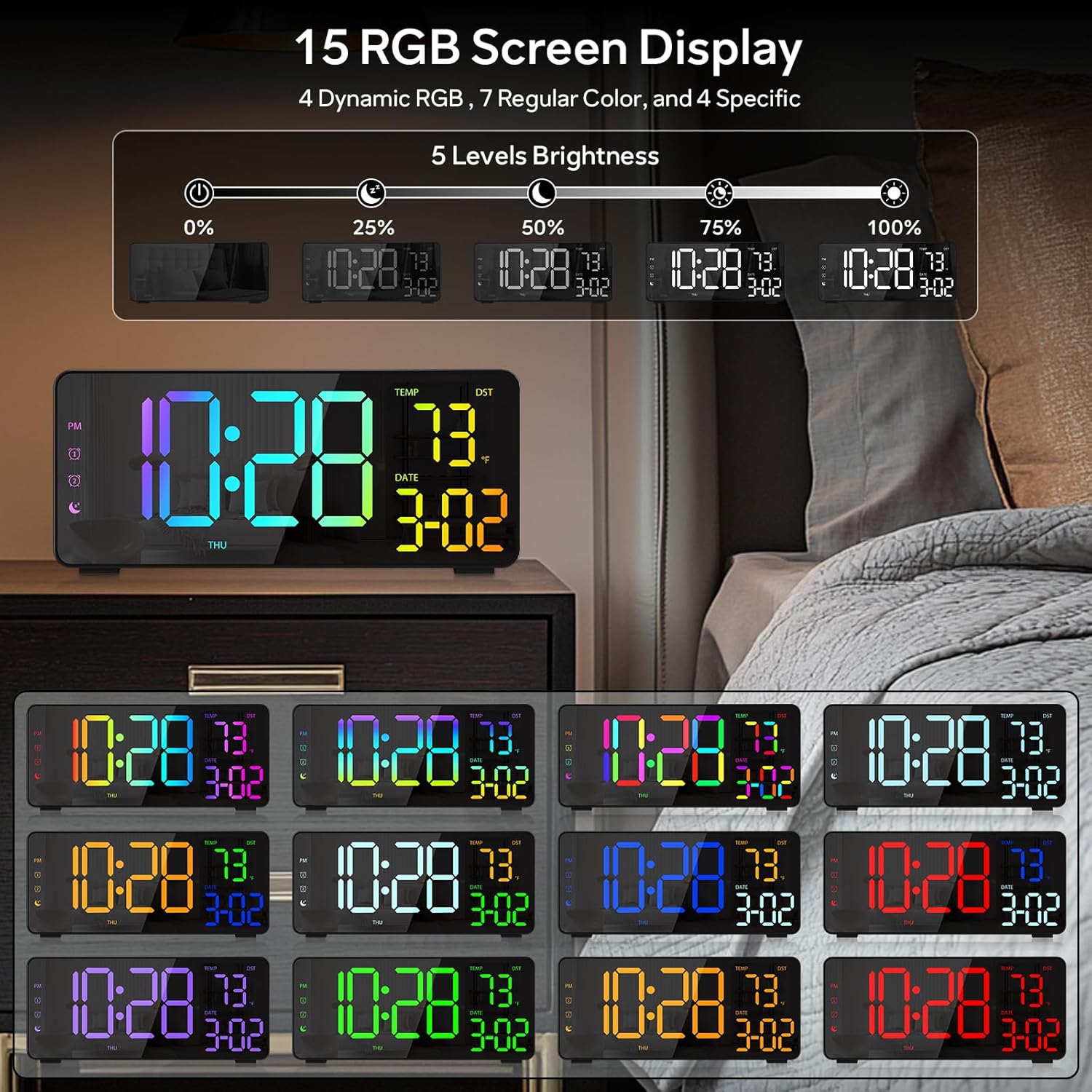
Figure 6: Various display color options and brightness levels of the digital alarm clock.
6.4 Daylight Saving Time (DST) Adjustment
To adjust for Daylight Saving Time, simply press the DST button on the back of the clock. This will move the time forward or backward by 1 hour, keeping your clock synchronized with seasonal changes.
7. Maintenance
- Clean the clock's surface with a soft, dry cloth. Avoid abrasive cleaners or solvents.
- If the display appears scratched, gently remove any protective film that may be present.
- Ensure the USB-C port and USB output port are free from dust and debris.
8. Troubleshooting
8.1 Display Not Lighting Up
- Check if the power cable is securely connected to both the clock and the power outlet.
- Ensure the power adapter is functioning correctly.
- If using battery backup, ensure batteries are correctly inserted and not depleted. Note that the display will not stay on continuously when running on battery power alone; it will only light up briefly when a button is pressed or an alarm sounds.
8.2 Alarm Not Sounding
- Verify that the alarm is activated (alarm icon visible on the display).
- Check the alarm volume setting using the Volume button.
- Ensure the alarm time and mode are set correctly.
8.3 Incorrect Time/Date
- Re-enter the time and date settings as described in Section 6.1.
- If DST is active, ensure it is correctly set for your region.
9. Specifications
| Feature | Detail |
|---|---|
| Brand | EVILTO |
| Model Number | RGBNZ |
| Color | Black |
| Display Type | Digital |
| Special Features | Adjustable Brightness, Adjustable Volume, Large Display, Loud Alarm, Temperature Display |
| Product Dimensions | 6.89"W x 3.1"H |
| Power Source | Corded Electric |
| Room Type | Bedroom, Home Office, Kid's Room, Living Room, Study Room |
| Material | Plastic |
| Number of Alarms | 2 |
| Screen Size | 8.1 Inches |
| Item Weight | 10.9 ounces |
10. Warranty and Support
For warranty information or technical support, please refer to the contact details provided in the product packaging or contact EVILTO customer service directly. Keep your purchase receipt for warranty claims.