1. Product Overview
The KeenPlus 16GB MP3 Player is a versatile portable media device running on Android 13. It features a 4-inch touch screen, Bluetooth 5.3, and Wi-Fi connectivity, allowing for music playback, video viewing, and access to various applications. The device offers 16GB of internal storage, expandable up to 1TB via a TF card.
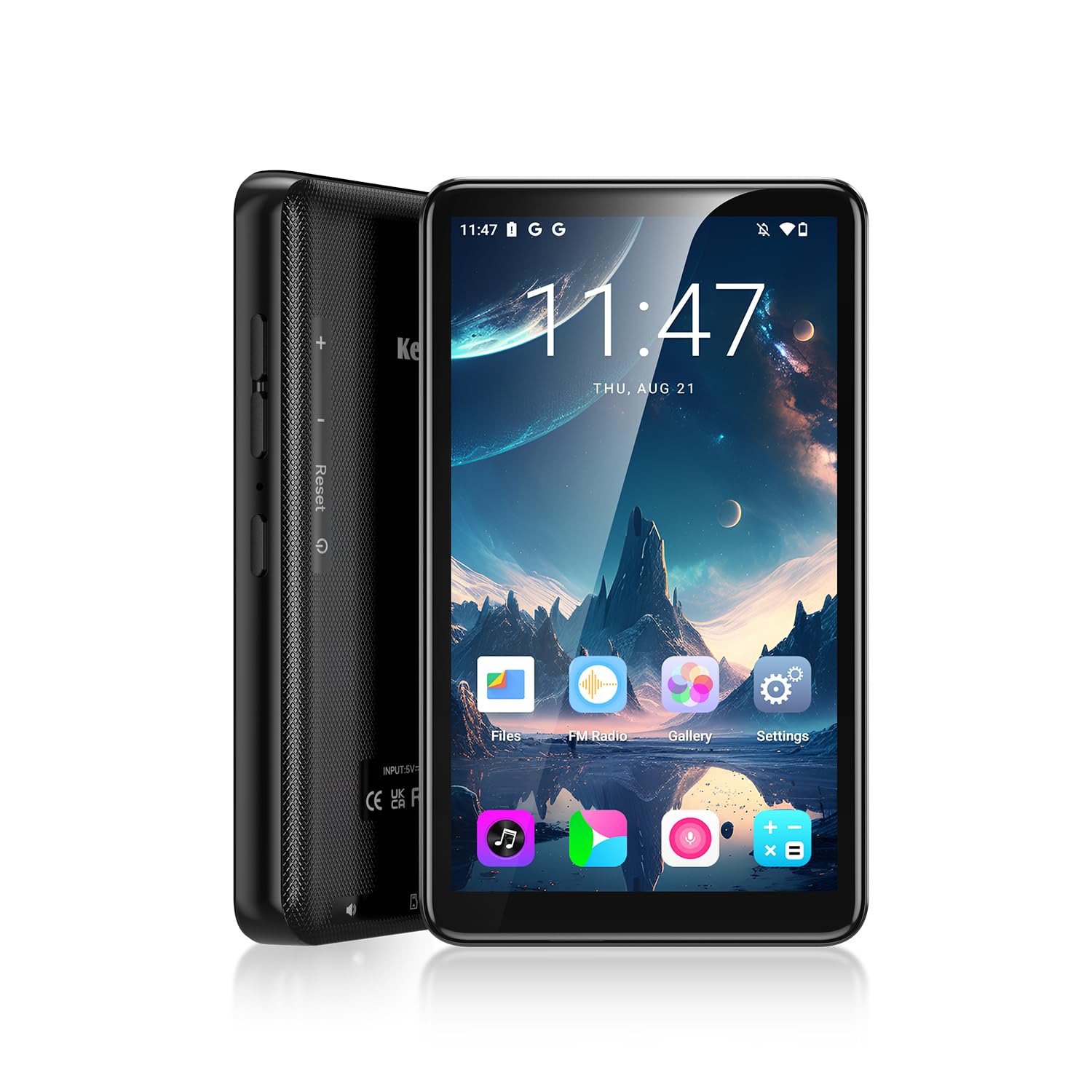
Image: Front view of the KeenPlus 16GB MP3 Player, highlighting its wireless and Wi-Fi capabilities.
Key Features:
- Operating System: Android 13
- Display: 4-inch HD Touch Screen (720*1080px IPS)
- Storage: 16GB Internal, expandable up to 1TB via TF card
- Connectivity: Bluetooth 5.3, Dual Band Wi-Fi (2.4G/5G)
- Processor: MTK 8-core
- RAM: 3GB
- Battery: 2000mAh (approx. 15 hours music, 5 hours video, 3 hours gaming)
- Audio Formats: MP3, OGG, FLAC, AAC, WMA, WAV, APE
- Video Playback: Supports HD MP4 video

Image: Diagram illustrating the key features and specifications of the KeenPlus MP3 Player, including its 4.02-inch display, 2.4GHz & 5GHz WiFi, 3GB RAM, 16GB ROM, 2000mAh battery, MTK 8-core processor, and 128GB TF card expansion.
2. What's in the Box
Please check the package contents upon unboxing to ensure all items are present:
- 1 x KeenPlus Music Player
- 1 x Screen Protector
- 1 x USB C Cable
- 1 x Protective Case
- 1 x Wired Earphones
- 1 x User Manual

Image: Contents of the KeenPlus MP3 Player package, including the player, protective case, screen protector, USB-C cable, wired earphones, and user manual.
3. Device Layout
Familiarize yourself with the physical components of your KeenPlus MP3 Player.
Front View:
- 4-inch HD Touch Screen: Main interface for interaction.

Image: Close-up of the KeenPlus MP3 Player's 4-inch HD touch screen, displaying a vibrant image.
Side and Bottom Views:
- Power Button: Located on the side, used to turn the device on/off or wake/sleep the screen.
- Volume Buttons: Located on the side, used to adjust audio volume.
- USB-C Port: Located at the bottom, for charging and data transfer.
- 3.5mm Headphone Jack: Located at the bottom, for wired audio output.
- MicroSD/TF Card Slot: Located on the side, for expandable storage.
- Reset Pinhole: Small hole for factory reset if needed.
4. Setup Guide
4.1 Charging the Device
Before first use, fully charge your MP3 player. Connect the included USB-C cable to the device's USB-C port and the other end to a compatible USB power adapter (not included) or a computer's USB port. The charging indicator will show the charging status.
4.2 Initial Power On
Press and hold the Power button on the side of the device until the KeenPlus logo appears on the screen. The device will boot up to the Android home screen.
4.3 Language Settings
If the device's language is not set to your preference, you can change it in the settings. Follow these steps:
- From the home screen, tap the 'Settings' icon.
- Scroll down to the bottom and tap 'System'.
- Tap 'Languages & input'.
- Tap 'Languages' (the first option).
- If your desired language is not listed, tap '+ Add a language' and select it.
- Once added, drag your preferred language to the top of the list to set it as the primary language.
Video: A demonstration of how to change the language settings on the KeenPlus MP3 Player.
4.4 Connecting to Wi-Fi
To access online features and download apps, connect your device to a Wi-Fi network:
- Go to 'Settings' > 'Network & internet' > 'Wi-Fi'.
- Toggle Wi-Fi 'On'.
- Select your desired Wi-Fi network from the list.
- Enter the password if prompted and tap 'Connect'.

Image: The KeenPlus MP3 Player displaying Wi-Fi connectivity, indicating support for both 2.4G and 5G networks.
4.5 Inserting a TF Card
To expand storage, insert a TF (MicroSD) card:
- Locate the TF card slot on the side of the device.
- Gently insert the TF card into the slot until it clicks into place.
- The device will recognize the new storage.

Image: Visual representation of the KeenPlus MP3 Player's 16GB ROM and 3GB RAM, with an inserted TF card demonstrating 1TB expansion capability.
5. Operating Instructions
5.1 Basic Navigation
The device uses a touch screen for navigation. Swipe left/right to switch between home screens, tap icons to open apps, and swipe down from the top for notifications and quick settings.
5.2 Music Playback
Use the pre-installed music player app or download a third-party app from the Google Play Store. The device supports various audio formats including MP3, OGG, FLAC, AAC, WMA, WAV, and APE.
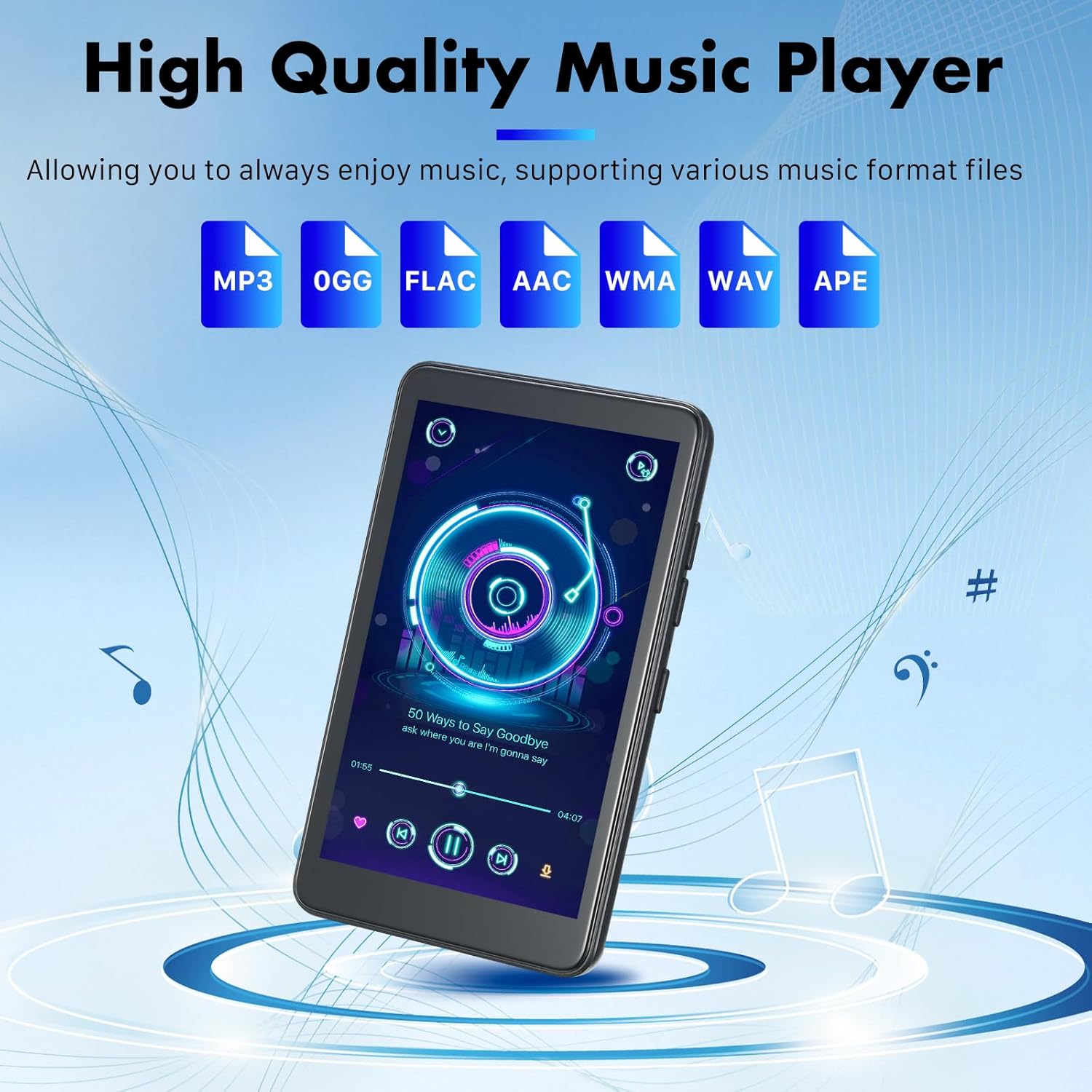
Image: The KeenPlus MP3 Player displaying a music playback interface, with icons for supported audio formats (MP3, OGG, FLAC, AAC, WMA, WAV, APE) above.
5.3 Video Playback
The 4-inch HD screen is suitable for video playback. Use the default video player or download alternatives. The device supports HD MP4 video formats.
5.4 App Management
As an Android 13 device, you can download, update, and uninstall applications via the Google Play Store.
- Download: Open the 'Play Store' app, search for your desired app, and tap 'Install'.
- Update: In the Play Store, go to 'Manage apps & device' to check for and install updates.
- Uninstall: Long-press the app icon on the home screen or app drawer, then drag it to 'Uninstall', or go to 'Settings' > 'Apps' > select the app > 'Uninstall'.

Image: The KeenPlus MP3 Player displaying various popular apps like Spotify, TikTok, and YouTube, indicating its app support capabilities.
Video: An overview of the U1 Smart MP3 Player with Android 13, demonstrating its features and app functionality.
5.5 Bluetooth Pairing
Connect your MP3 player to Bluetooth headphones, speakers, or other devices:
- Go to 'Settings' > 'Connected devices' > 'Bluetooth'.
- Toggle Bluetooth 'On'.
- Ensure your Bluetooth accessory is in pairing mode.
- Select the accessory from the list of available devices to pair.

Image: The KeenPlus MP3 Player connected wirelessly to headphones via Bluetooth, illustrating its two-way Bluetooth 5.3 capability.
5.6 Connecting to a Computer (Mac)
To transfer files between your MP3 player and a Mac computer, you may need to install a specific application:
- On your Mac, open the Apple App Store.
- Search for and install