1. Introduction
Welcome to the user manual for your ZWXYVUT X9 Retro Handheld Game Console. This manual provides essential information on setting up, operating, maintaining, and troubleshooting your device. Please read it thoroughly to ensure optimal performance and longevity of your console.
2. Safety Information
- Do not expose the device to extreme temperatures, direct sunlight, or high humidity.
- Avoid dropping or subjecting the device to strong impacts.
- Keep the device away from water and other liquids.
- Use only the provided or recommended charging cable.
- Do not attempt to disassemble or repair the device yourself. Contact customer support for assistance.
- Ensure proper ventilation during use and charging.
3. Package Contents
Please check the package for the following items:
- ZWXYVUT X9 Retro Handheld Game Console
- USB Type-C Charging Cable
- AV Cable (for TV connection)
- User Manual (this document)
4. Product Overview
Familiarize yourself with the console's layout and controls:

Figure 4.1: ZWXYVUT X9 Console Layout
- Indicator Light: Shows charging status or power on/off.
- Steering Button (D-pad): Directional input for games and menu navigation.
- Steering Joystick: Analog input for precise control.
- SELECT Button: Used for various in-game functions or menu selections.
- START/Coin-operated Keys: Used to start games or add credits in arcade emulators.
- Function Keys (X, Y, A, B): Primary action buttons for gameplay.
- Function Rocker: Additional analog input.
- R1/R2/L1/L2 Buttons: Shoulder buttons for additional in-game actions.
- System Card: Internal system memory (not user-removable).
- Volume Key: Adjusts audio output level.
- Headphone Jack/AV Cable Interface: Connect headphones or the AV cable for TV output.
- Charging Port/Handle Interface: USB Type-C port for charging and connecting external controllers.
- Switch Key: Power on/off button.
- Restart Key: Small recessed button to reset the device.
- TF Card Slot: For inserting a MicroSD card to expand storage.
5. Setup
5.1 Initial Charging
Before first use, fully charge the console. Connect the USB Type-C charging cable to the console's charging port and the other end to a compatible USB power adapter (not included) or a computer USB port. The indicator light will show charging status. A full charge typically takes 4-6 hours.
5.2 Powering On/Off
- To Power On: Press and hold the 'Switch Key' for a few seconds until the screen lights up.
- To Power Off: Press and hold the 'Switch Key' until a power-off option appears on the screen, then confirm. Alternatively, a long press will force shutdown.
5.3 Inserting/Removing TF Card
The console supports TF (MicroSD) cards for expanded storage of games, music, videos, and e-books.

Figure 5.1: Inserting a TF Card
- To Insert: Locate the TF card slot on the bottom of the console. Gently push the TF card into the slot until it clicks into place. Ensure the card is oriented correctly.
- To Remove: Gently push the TF card inwards until it clicks, then release. The card will spring out slightly, allowing you to pull it out.
5.4 TV Connection
You can connect your X9 console to a television for a larger display using the included AV cable.

Figure 5.2: Console Connected to TV
- Connect one end of the AV cable to the Headphone Jack/AV Cable Interface on the console.
- Connect the other end of the AV cable (typically yellow, white, and red RCA connectors) to the corresponding AV input ports on your television.
- Switch your television's input source to AV. The console's display should now appear on your TV screen.
6. Operating Instructions
6.1 Navigation
Use the Steering Button (D-pad) or Steering Joystick to navigate through menus and select options. The A button typically confirms selections, while the B button acts as a back or cancel function.
6.2 Playing Games
The X9 console comes with built-in emulators for various classic game systems. To play games:
- From the main menu, select the 'Games' or 'Emulator' option.
- Choose the desired emulator from the list.
- Browse the available game titles.
- Select a game and press the A button to start playing.
6.3 Multimedia Functions
The console supports various multimedia functions beyond gaming.
6.3.1 Music Playback
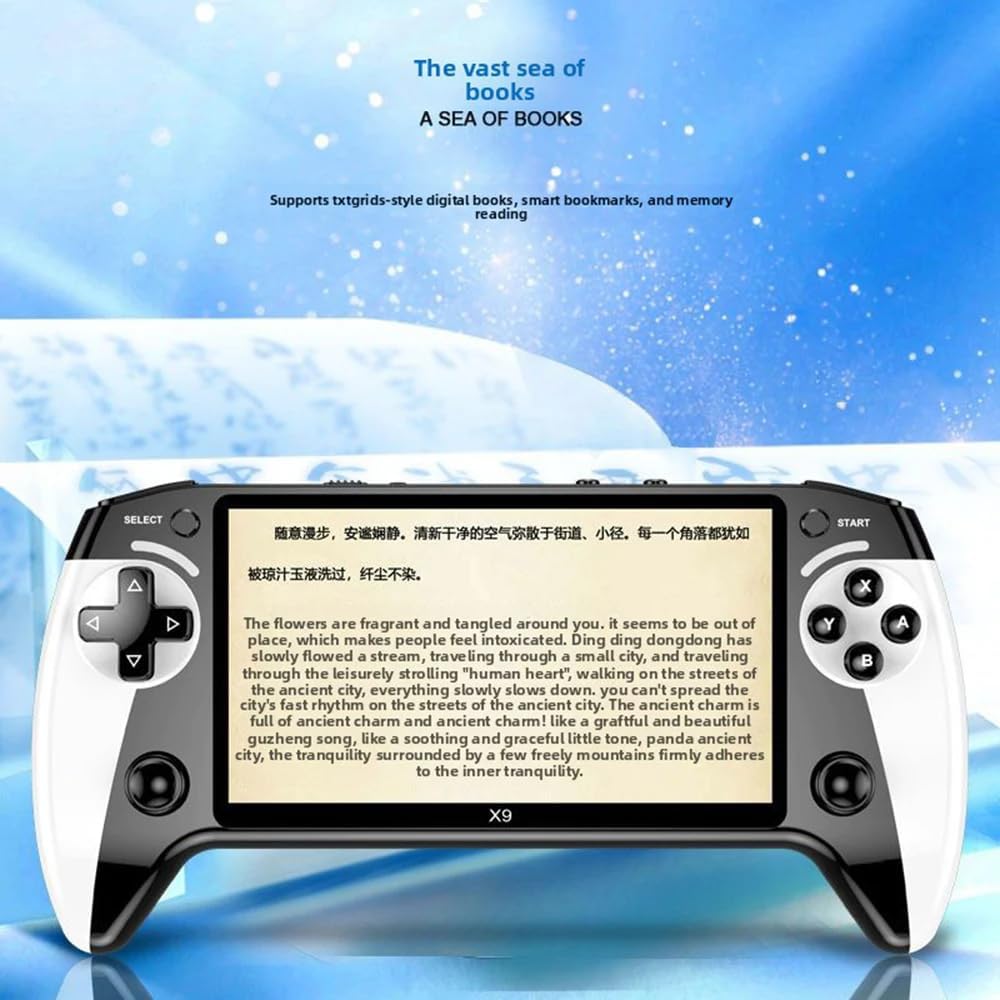
Figure 6.1: Music Player Interface
Access the 'Music' application from the main menu. The console supports lossless music, MP3, WMA, and other audio formats. You can create playlists and enjoy background music while performing other tasks.
6.3.2 E-book Reading

Figure 6.2: E-book Reader Interface
Navigate to the 'E-book' application. The console supports TXT format e-books. Features include bookmark memory and adjustable text display.
6.3.3 Video Playback
The console can play various video formats. Access the 'Video' application to browse and play video files stored on the device or TF card.
6.4 External Controller Connection
The X9 console supports Bluetooth-compatible external controllers for an enhanced gaming experience, especially when connected to a TV.
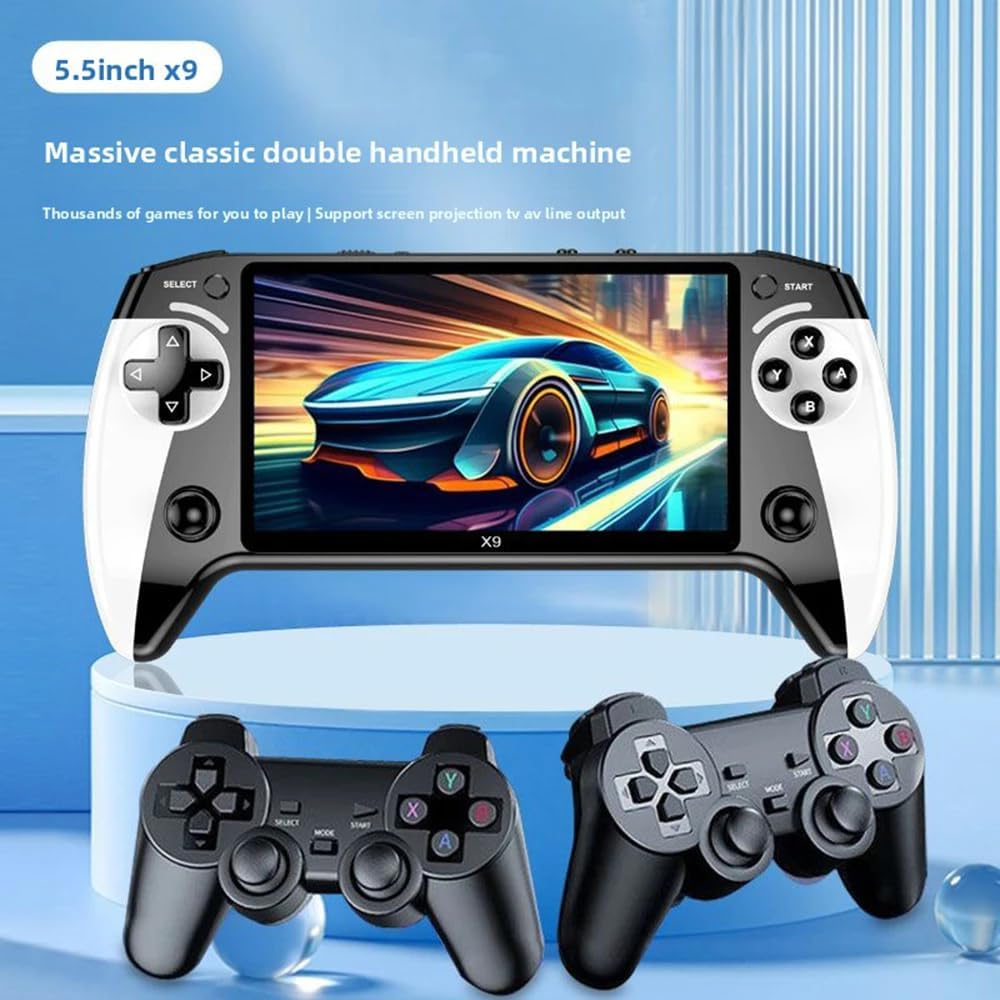
Figure 6.3: Console with External Controllers
- Ensure your external Bluetooth controller is in pairing mode.
- On the X9 console, navigate to 'Settings' and then 'Bluetooth'.
- Scan for available devices and select your controller to pair.
- Once paired, the controller can be used for navigation and gameplay.
7. Maintenance
7.1 Cleaning
Use a soft, dry cloth to clean the console's screen and body. Do not use liquid cleaners or abrasive materials, as they may damage the finish or screen.
7.2 Battery Care
- Avoid fully discharging the battery frequently.
- Charge the device regularly, even if not in use, to maintain battery health.
- Do not leave the device charging for extended periods after it is fully charged.
7.3 Storage
When not in use for extended periods, store the console in a cool, dry place, away from direct sunlight and extreme temperatures. It is recommended to charge the battery to about 50% before long-term storage.
8. Troubleshooting
| Problem | Possible Cause | Solution |
|---|---|---|
| Console does not power on. | Low battery; device frozen. | Charge the console for at least 30 minutes. If still unresponsive, press the 'Restart Key' with a thin object. |
| Screen is blank or flickering. | Software glitch; hardware issue. | Restart the console. If the problem persists, contact customer support. |
| Games are lagging or freezing. | Too many background applications; corrupted game file; low system resources. | Close unnecessary applications. Ensure the game file is not corrupted. Try restarting the console. |
| Cannot connect to TV. | Incorrect cable connection; wrong TV input. | Ensure AV cable is securely connected to both console and TV. Select the correct AV input on your television. |
| TF card not recognized. | Card not inserted correctly; incompatible card format; damaged card. | Reinsert the TF card. Ensure it is formatted to a compatible file system (e.g., FAT32). Try a different TF card. |
9. Specifications
| Feature | Detail |
|---|---|
| Model Name | X9 |
| Screen | 5.5-inch HD IPS Screen |
| Battery Capacity | 1500mAh (approx. 4-6 hours gaming) |
| Charging Port | USB Type-C |
| Connectivity | Bluetooth, HDMI (via AV cable) |
| Input Device | Gamepad (built-in), Bluetooth controllers |
| Supported Emulators | 9+ classic game emulators |
| Multimedia Support | Music (MP3, WMA, lossless), Video, E-book (TXT) |
| Storage Expansion | TF Card Slot |
| Product Dimensions | 1 x 1 x 1 inches |
| Item Weight | 12.8 ounces |
| Manufacturer Recommended Age | 4 years and up |
10. Warranty and Support
For warranty information or technical support, please refer to the contact details provided with your purchase or visit the official ZWXYVUT website. Keep your proof of purchase for any warranty claims.
If you encounter any issues not covered in this manual, please do not hesitate to contact our customer service team for assistance.


