
1. Introduction
The AOSU 2K Indoor Security Camera is designed to provide comprehensive home surveillance with advanced features for monitoring your home, pets, or children. This manual provides detailed instructions for setting up, operating, and maintaining your camera to ensure optimal performance and security.
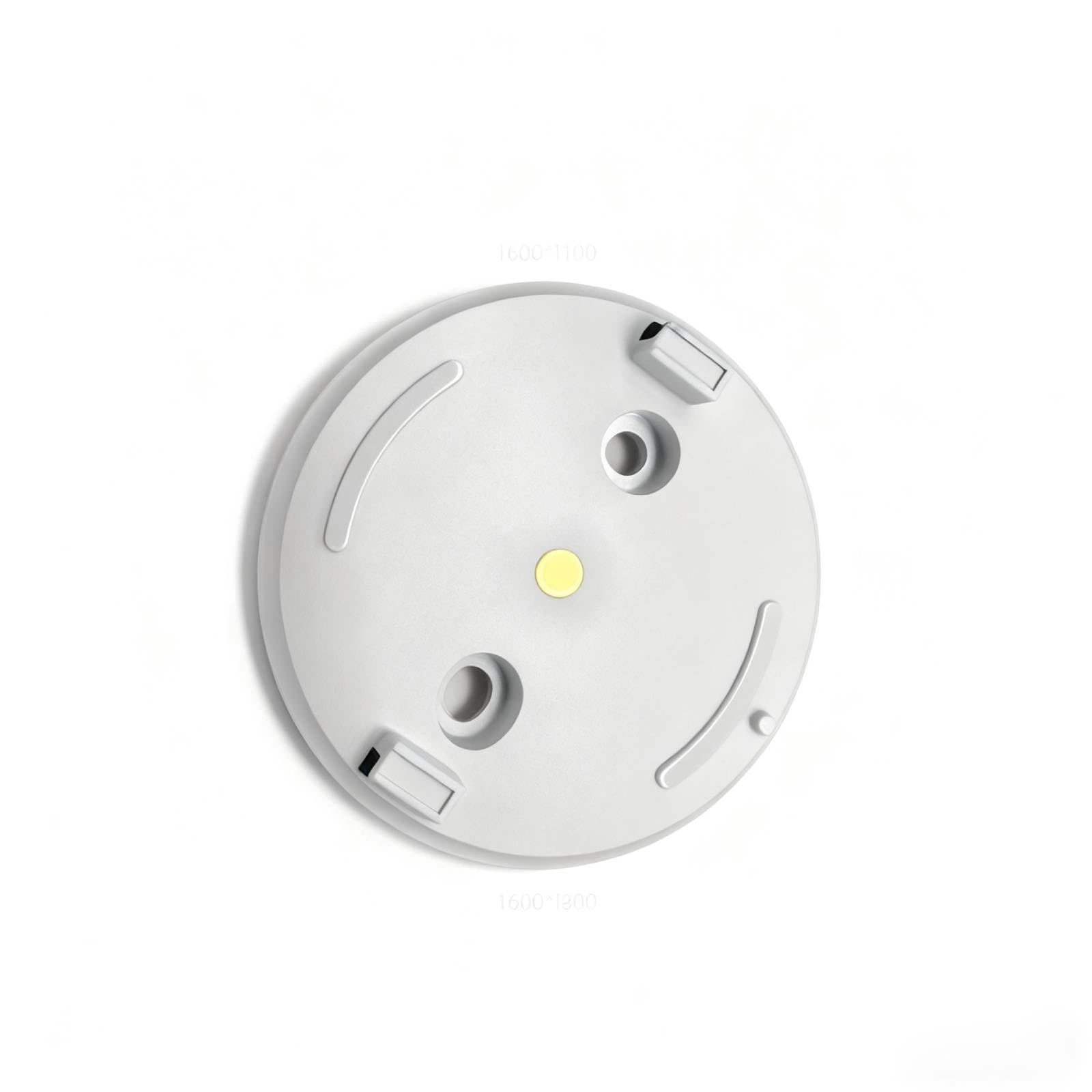
Figure 1: AOSU 2K Indoor Security Camera
2. Product Overview
The AOSU 2K Indoor Security Camera offers a range of features to enhance your home security:
- 2K QHD Resolution: Provides clear and detailed video footage.
- 360° Home View: Offers a comprehensive view of your room with 360° horizontal rotation and 155° vertical tilt.
- Smart Motion Tracking: Automatically tracks movement of people or pets within its field of view.
- One-Touch Calls: Built-in two-way audio for live communication, activated by a touch-to-talk button.
- IR Night Vision: Ensures clear visibility in low-light environments.
- Hassle-Free 2.4GHz Wi-Fi Connection: Simple and quick setup.
- Alexa Compatible: View video feed on Alexa-enabled screens.
Video 1: Overview of AOSU 4MP Indoor Security Camera features including 4MP resolution, 360 motion tracking, IR night vision, 2-way audio, and privacy mode.
3. Package Contents
Upon unboxing your AOSU 2K Indoor Security Camera, verify that all the following components are included:
- AOSU 2K Indoor Security Camera
- Power Adapter
- USB Charging Cable
- Mounting Bracket
- Mounting Screws and Wall Anchors
- Quick Start Guide
4. Setup
Follow these steps to set up your AOSU 2K Indoor Security Camera:
- Download the AOSU App: Scan the QR code provided in the Quick Start Guide or search for "AOSU" in your device's app store (available for Apple and Android).
- Create an Account: Open the app and follow the on-screen instructions to create a new user account.
- Power On the Camera: Connect the camera to a power source using the provided USB cable and power adapter. The camera will power on and indicate its status (e.g., blinking LED).
- Add Device in App: In the AOSU app, tap the "+" icon to add a new device. Select your camera model from the list.
- Pair the Camera: Follow the app's instructions to pair your camera. This typically involves scanning a QR code on the camera or connecting to a temporary Wi-Fi network created by the camera. Ensure your phone is connected to a 2.4GHz Wi-Fi network during setup.
- Placement: Choose a desired indoor spot for your camera. The app may offer a Wi-Fi strength test to help you find the best location.
- Mounting (Optional): If mounting, use the provided bracket, screws, and wall anchors. Ensure the camera is securely attached and positioned for optimal viewing.
5. Operating Instructions
Once your camera is set up, you can utilize its features through the AOSU app:
- Live View: Access real-time video streaming from your camera.
- Pan/Tilt Control: Use the app's controls to remotely adjust the camera's 360° horizontal and 155° vertical viewing angles.
- Two-Way Audio: Tap the microphone icon in the app to speak through the camera's speaker and listen through its microphone.
- Motion Tracking: Enable smart motion tracking in the app settings to have the camera automatically follow detected movement.
- IR Night Vision: The camera automatically switches to night vision in low-light conditions.
- Privacy Mode: Activate privacy mode to automatically cover the camera lens when not in use, ensuring your privacy.
- Event Recording: The camera records events when motion is detected. These recordings are stored on the onboard 32GB storage.
- Notifications: Configure push notifications in the app to receive alerts on your phone when motion is detected.
6. Maintenance
To ensure the longevity and optimal performance of your camera:
- Cleaning: Gently wipe the camera lens and body with a soft, dry cloth. Avoid using harsh chemicals or abrasive materials.
- Firmware Updates: Regularly check the AOSU app for available firmware updates. Updates often include performance improvements and security enhancements.
- Power Supply: Use only the provided power adapter and cable to prevent damage.
- Placement: Ensure the camera is placed in a stable location, away from direct sunlight, extreme temperatures, and moisture.
7. Troubleshooting
If you encounter issues with your AOSU 2K Indoor Security Camera, try the following solutions:
- Camera Not Connecting to Wi-Fi:
- Ensure your Wi-Fi network is 2.4GHz.
- Check Wi-Fi signal strength at the camera's location using the app's built-in test.
- Restart your Wi-Fi router and the camera.
- Poor Video Quality:
- Check your internet connection speed.
- Ensure the camera lens is clean.
- Adjust the camera's position for better lighting.
- Motion Detection Not Working:
- Verify motion detection settings are enabled in the app.
- Adjust motion sensitivity if necessary.
- Ensure there are no obstructions blocking the camera's view.
- Two-Way Audio Issues:
- Check volume settings on your phone and in the app.
- Ensure your phone's microphone is not muted.
- Camera Offline:
- Check if the camera is powered on.
- Verify your Wi-Fi network is active and accessible.
- Restart the camera and router.
8. Specifications
| Feature | Specification |
|---|---|
| Recommended uses for product | Indoor Security |
| Brand | aosu |
| Connectivity technology | Wired (for power), Wireless (for data) |
| Special feature | PTZ Technology (Pan/Tilt/Zoom) |
| Indoor/Outdoor usage | Indoor |
| Item dimensions L x W x H | 25 x 25 x 25 millimeters |
| Are Batteries Required | No |
| Item Weight | 1 Pounds |
| UPC | 699838752955 |
| Manufacturer | AOSU |
9. Warranty and Support
For warranty information and customer support, please refer to the documentation included with your product or visit the official AOSU website. Contact information for technical assistance can typically be found in the Quick Start Guide or on the manufacturer's support page.
