
1. Product Overview
The AOC Roku TV 50U7045/78G is a 50-inch 4K UHD Smart TV designed to deliver a modern and immersive viewing experience. Featuring a flat, borderless display, this television showcases images in stunning 4K resolution at a 60 Hz refresh rate. It integrates the Roku operating system, offering smart features like smartphone mirroring and voice commands. Equipped with a Quad Core processor, it ensures agile performance for all your entertainment needs.
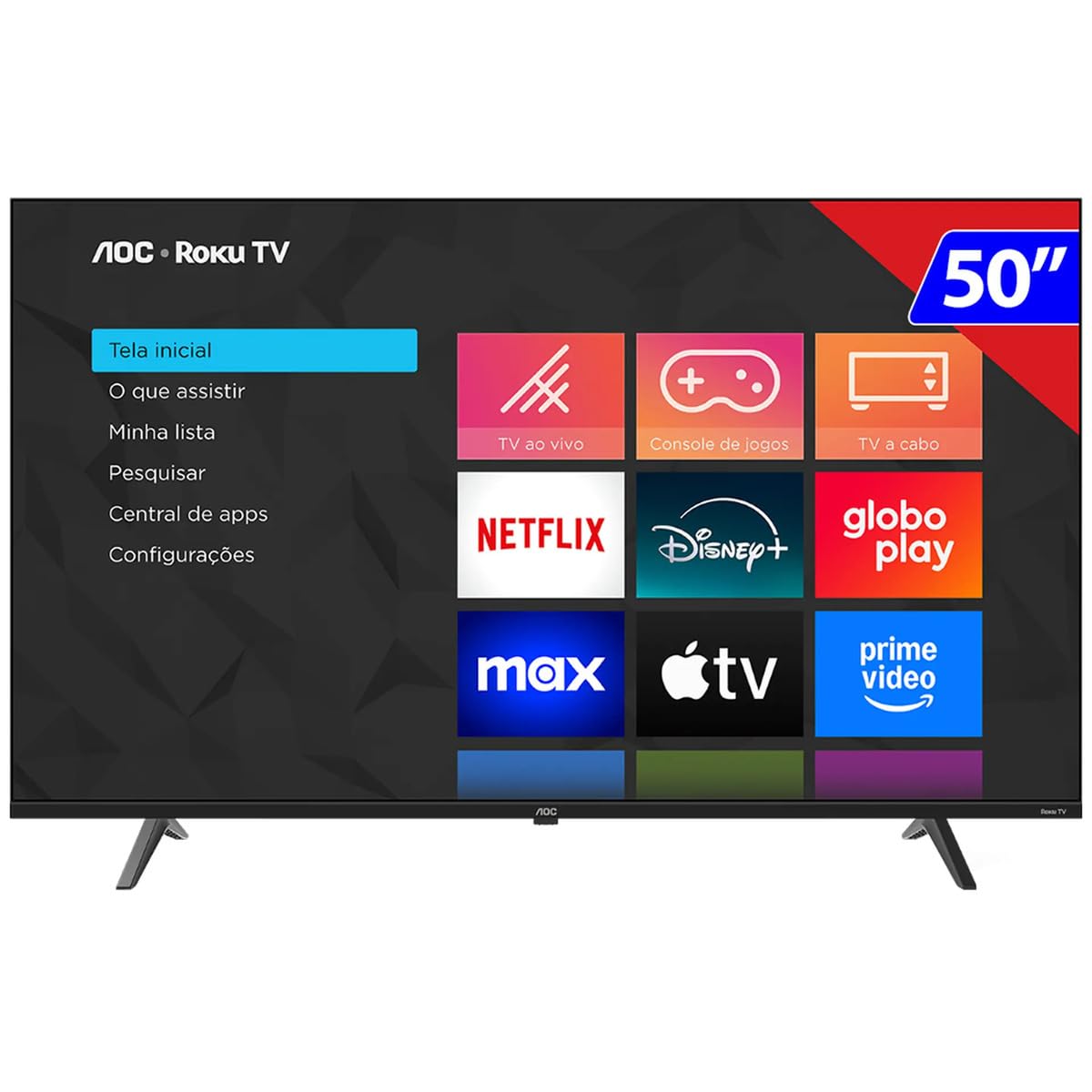
Image 1.1: Front view of the AOC Roku TV 50U7045/78G, showcasing the Roku home screen interface with options like 'Home', 'What to Watch', 'My List', 'Search', 'App Central', and 'Settings', alongside app icons for Netflix, Disney+, Globo Play, Max, Apple TV, and Prime Video.
Key Features:
- Display: 50-inch 4K UHD (3840 x 2160) LED display with a 60 Hz refresh rate.
- Design: Flat screen with a borderless design for an expansive view.
- Smart TV Platform: Integrated Roku OS for easy access to streaming services, smartphone mirroring, and voice control capabilities.
- Audio: 2.0 channel audio system with 16W total power output.
- Processor: Quad Core processor for smooth navigation and performance.
- Connectivity: 3 HDMI ports, 1 USB 2.0 port, 1 Ethernet RJ-45 port, Wi-Fi, Bluetooth, and AirPlay 2 support.
- Energy Efficiency: Eco mode and automatic shutdown timer for reduced power consumption.
2. Setup Guide
2.1 Unboxing and Inspection
Carefully remove the TV from its packaging. Inspect the TV and all included accessories for any signs of damage. Retain the packaging materials for future transport or service needs.
2.2 Stand Installation
If you plan to place the TV on a stand, follow these steps:
- Place the TV face down on a soft, clean surface to prevent screen damage.
- Align the TV stands with the corresponding slots on the bottom of the TV.
- Secure the stands using the provided screws. Ensure they are tightened firmly.
2.3 Wall Mounting (Optional)
If you intend to wall-mount your TV, refer to the wall mount kit instructions. This TV is compatible with VESA mounting standards. Ensure you use a compatible wall mount and follow all safety guidelines. Do not attempt to wall-mount the TV without proper tools and assistance.
2.4 Connecting Devices
Connect your external devices such as cable boxes, Blu-ray players, or gaming consoles to the appropriate ports on the back of the TV.

Image 2.1: Rear view of the AOC Roku TV 50U7045/78G, illustrating the location of connectivity ports including HDMI, USB, and Ethernet, typically found on the side or back panel for easy access.
- HDMI: Use HDMI cables for high-definition video and audio. This TV has 3 HDMI ports.
- USB: Connect USB devices for media playback. This TV has 1 USB 2.0 port.
- Ethernet (RJ-45): For a wired internet connection.
- Antenna/Cable In: Connect an antenna or cable TV feed.
- Optical Audio Out (SPDIF): For connecting to external audio systems.
2.5 Initial Power On and Roku Setup
After connecting all necessary cables:
- Plug the power cord into an electrical outlet.
- Press the power button on the remote control or the TV.
- Follow the on-screen instructions to complete the initial Roku setup, including language selection, network connection (Wi-Fi or Ethernet), and channel activation.
3. Operating Instructions
3.1 Remote Control Functions
The Roku TV remote control provides intuitive navigation. Key buttons include:
- Power: Turns the TV on or off.
- Home: Returns to the Roku home screen.
- Directional Pad (D-Pad): Navigates menus and selects items.
- OK/Enter: Confirms selections.
- Back: Returns to the previous screen.
- Volume Up/Down: Adjusts audio volume.
- Mute: Mutes or unmutes the sound.
- Input: Switches between connected input sources (HDMI, TV tuner).
- Voice Search: Activates voice command features (if supported by your remote).
3.2 Roku OS Navigation
The Roku home screen provides access to all your entertainment. Use the D-Pad on your remote to:
- Browse streaming channels (e.g., Netflix, Disney+, Prime Video).
- Select input sources for connected devices.
- Access TV settings for picture, sound, and network configurations.
- Utilize the 'Search' function to find movies, shows, or apps.
3.3 Network Connection
To access smart features and streaming content, ensure your TV is connected to the internet.
- Wi-Fi: Navigate to Settings > Network > Set up connection > Wireless and select your network.
- Ethernet: Connect an Ethernet cable from your router to the TV's RJ-45 port. The TV will automatically detect the wired connection.
3.4 Picture and Sound Settings
Customize your viewing and listening experience:
- Picture Modes: Access Settings > TV picture settings to adjust brightness, contrast, color, and sharpness. Select from predefined modes like 'Movie', 'Standard', or 'Vivid'.
- Sound Modes: Access Settings > Audio to adjust bass, treble, and balance. Choose from sound modes like 'Standard', 'Speech', or 'Music'.
3.5 Smart Features
- Smartphone Mirroring: Use compatible apps on your smartphone to cast content directly to your Roku TV.
- Voice Control: If your remote has a microphone button, press it and speak commands to search for content or control TV functions.
- AirPlay 2: Stream content directly from Apple devices to your TV.
4. Maintenance
4.1 Cleaning the TV
- Screen: Gently wipe the screen with a soft, dry, lint-free cloth. For stubborn marks, slightly dampen the cloth with water or a screen-cleaning solution specifically designed for TVs. Do not spray liquid directly onto the screen.
- Body: Use a soft, dry cloth to wipe the TV's frame and back panel. Avoid using abrasive cleaners or solvents.
4.2 Software Updates
Your Roku TV may receive automatic software updates to improve performance and add new features. Ensure your TV is connected to the internet to receive these updates. You can manually check for updates via Settings > System > System update.
5. Troubleshooting
If you encounter issues with your TV, refer to the following common solutions:
| Problem | Possible Solution |
|---|---|
| No power | Ensure the power cord is securely plugged into both the TV and a working electrical outlet. Try a different outlet. |
| No picture, but sound is present | Check the input source. Ensure the connected device is powered on and functioning correctly. Try a different HDMI cable. |
| No sound, but picture is present | Check the volume level and ensure the TV is not muted. Verify audio settings and external audio connections. |
| Remote control not working | Replace the batteries in the remote. Ensure there are no obstructions between the remote and the TV's IR sensor. |
| Cannot connect to Wi-Fi | Ensure your Wi-Fi router is on and broadcasting. Re-enter the Wi-Fi password carefully. Try restarting your router and the TV. |
| Picture quality is poor | Check the resolution of the content being played. Adjust picture settings (brightness, contrast, sharpness). Ensure cables are securely connected. |
If the problem persists after trying these solutions, please contact customer support.
6. Specifications
Detailed technical specifications for the AOC Roku TV 50U7045/78G:
| Feature | Detail |
|---|---|
| Brand | AOC |
| Model Number | 50U7045/78G |
| Screen Size | 50 Inches |
| Display Technology | LED |
| Resolution | 4K UHD (3840 x 2160) |
| Refresh Rate | 60 Hz |
| Aspect Ratio | 16:9 |
| Contrast Ratio | 1:200,000 |
| Processor | Quad Core |
| Operating System | Roku OS |
| Audio Output | 2.0 Channels, 16W |
| HDMI Ports | 3 |
| USB Ports | 1 (USB 2.0) |
| Ethernet (RJ-45) | 1 |
| Wireless Connectivity | Wi-Fi, Bluetooth, AirPlay 2 |
| Power Consumption | 130W (with Eco mode) |
| Special Features | Sleep Timer, Smartphone Mirroring, Voice Control |
| Product Dimensions (WxHxD) | 121.3 x 75.4 x 12.6 cm (with stand) |
| Product Weight | 11.5 kg |
| UPC | 7898620272616 |
7. Warranty & Support
7.1 Warranty Information
Manufacturer warranty information for this product is not available within this manual. Please refer to your purchase documentation, retailer's policy, or the official AOC website for detailed warranty terms and conditions.
7.2 Customer Support
For technical assistance, troubleshooting beyond this manual, or service inquiries, please contact AOC customer support through their official website or the contact information provided with your product purchase.


