
Introduction
This manual provides comprehensive instructions for the Boytond Bluetooth Headset V6.1 with USB Dongle, Model 520-2. It covers product features, setup, operation, maintenance, troubleshooting, and specifications to ensure optimal use of your device. This headset is designed for clear communication and comfortable wear, featuring advanced Bluetooth 6.1 technology and a dedicated USB dongle for stable PC connections.

Image: The Boytond Bluetooth Headset V6.1, showing the single-ear headset, USB dongle, and three sizes of ear tips.
Package Contents
Please verify that all items are present in your package:
- 1 x Single Ear Bluetooth Headset
- 1 x USB Dongle
- S/M/L Ear Tips (pre-installed or in packaging)
- Charging Cable (not explicitly listed but implied for battery operation)
- User Manual (this document)
Product Overview
The Boytond Bluetooth Headset features an ergonomic design for comfortable wear and intuitive controls for ease of use. Key components include the main headset unit, a flexible ear hook, a rotatable microphone boom, and control buttons.

Image: A detailed diagram illustrating the various buttons on the headset and their corresponding functions, such as volume control, call management, and mute.
Button Functions:
- MFB (Multi-Function Button): Power On/Off, Play/Pause, Answer/End Call, Redial, Mute.
- Volume Up Button: Increase volume, Next Song (hold for 1 second).
- Volume Down Button: Decrease volume, Previous Song (hold for 1 second).
Setup
1. Charging the Headset
Before first use, fully charge the headset. Connect the charging cable to the headset's charging port and a USB power source. The indicator light will show charging status and turn off when fully charged. A full charge takes approximately 1.5 hours.
2. Powering On/Off
- Power On: Press and hold the MFB button until the indicator light flashes.
- Power Off: Press and hold the MFB button until the indicator light turns off.
3. Bluetooth Pairing (for Mobile Devices)
- Ensure the headset is powered off.
- Press and hold the MFB button for approximately 5-7 seconds until the indicator light flashes red and blue alternately, indicating pairing mode.
- On your mobile device, enable Bluetooth and search for available devices.
- Select "Boytond 520-2" (or similar name) from the list.
- Once connected, the indicator light will flash blue periodically, and you may hear a voice prompt.
4. USB Dongle Connection (for Computers/Laptops)
The USB dongle provides a stable, plug-and-play connection for your computer, isolating interference and reducing latency.
- Ensure the headset is powered on and in pairing mode (red and blue flashing lights).
- Insert the USB dongle into an available USB port on your computer.
- The dongle's indicator lights will flash alternately.
- The headset will automatically connect to the dongle. You will hear a "connected" voice prompt, and the headset's indicator light will show a blue light.
- The headset is now ready for use with your computer.

Image: A three-step visual guide demonstrating how to connect the USB dongle to a computer and pair it with the headset.
5. Dual Device Connection
The headset supports simultaneous connection to two devices. After connecting to the first device, put the headset back into pairing mode and connect to the second device. The headset will maintain connection with both, allowing seamless switching between them.
Operating Instructions
1. Wearing the Headset
The headset features an ergonomic design with a 270° rotating ear hook and 180° swiveling mic boom, allowing it to be worn comfortably on either the left or right ear. Adjust the ear hook and microphone for the best fit and optimal microphone positioning.
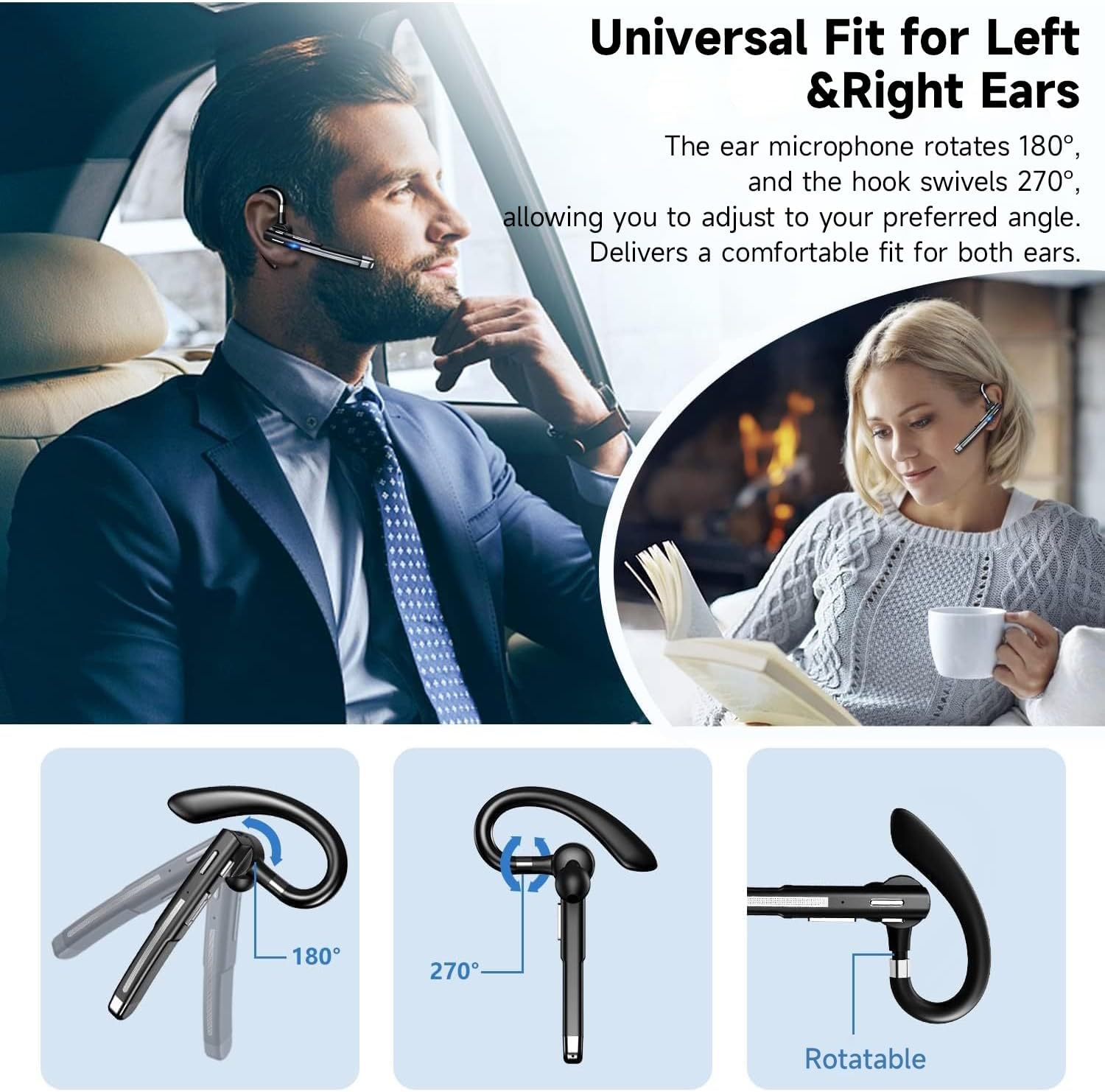
Image: Illustrations demonstrating the 180° rotation of the ear microphone and 270° swivel of the ear hook for universal fit on either ear.
2. Call Management
- Answer Call: Press the MFB button once.
- End Call: Press the MFB button once during a call.
- Reject Call: Press and hold the MFB button for 2 seconds.
- Redial Last Number: Double-press the MFB button.
- Mute/Unmute Microphone: Press the MFB button during a call to mute your voice. Press again to unmute.
3. Music Playback
- Play/Pause: Press the MFB button once.
- Next Song: Press and hold the Volume Up button for 1 second.
- Previous Song: Press and hold the Volume Down button for 1 second.
4. Volume Control
- Increase Volume: Press the Volume Up button.
- Decrease Volume: Press the Volume Down button.
5. Voice Assistant
To activate your device's voice assistant (e.g., Siri, Google Assistant), press the MFB button twice quickly when not on a call. This allows for hands-free control of your smartphone.
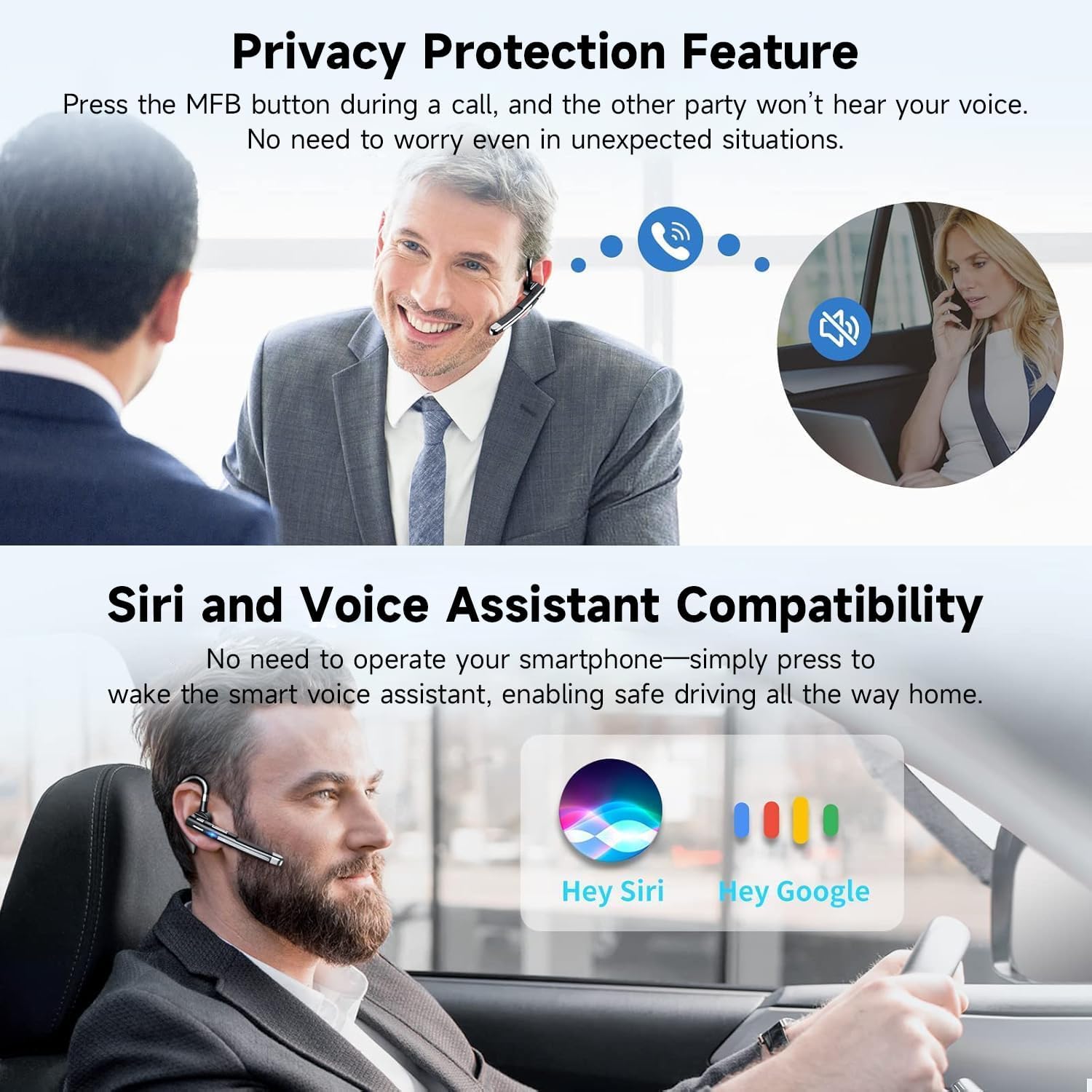
Image: A user in a car activating a voice assistant (Siri or Google Assistant) via the headset, highlighting the hands-free operation feature.
Maintenance
- Cleaning: Use a soft, dry cloth to clean the headset. Avoid using harsh chemicals or abrasive materials.
- Storage: Store the headset in a cool, dry place away from direct sunlight and extreme temperatures.
- Battery Care: To prolong battery life, avoid fully discharging the headset frequently. Charge it regularly, even if not in use for extended periods.
- Water Resistance: The headset is waterproof. However, avoid prolonged submersion in water.
Troubleshooting
| Problem | Possible Solution |
|---|---|
| Headset does not power on. | Ensure the headset is charged. Connect it to a power source and try again. |
| Cannot pair with a device. | Ensure the headset is in pairing mode (red and blue flashing lights). Turn off and on Bluetooth on your device. Move closer to the device. |
| No sound or poor sound quality. | Check headset and device volume levels. Ensure the headset is properly connected. For PC, check audio output settings. |
| USB dongle not connecting. | Ensure the headset is in pairing mode. Try a different USB port on your computer. Reinstall USB drivers if necessary. |
| Microphone not working. | Ensure the microphone is not muted. Check microphone input settings on your connected device. |
Specifications
| Feature | Detail |
|---|---|
| Model Name | 520-2&USB Dongle |
| Bluetooth Version | 6.1 |
| Bluetooth Range | Up to 10 meters (33 feet) |
| Call Time | Up to 10 hours |
| Music Playback Time | Up to 8 hours |
| Standby Time | Up to 180 hours |
| Charging Time | Approximately 1.5 hours |
| Item Weight | 2.39 ounces (approx. 67.7 grams) |
| Product Dimensions | 1.18 x 1.18 x 1.18 inches |
| Material | Plastic |
| Control Type | Touch Control (referring to button presses) |
| Water Resistance Level | Waterproof |
| Noise Control | Environmental Noise Cancellation (CVC8.0) |
Warranty and Support
Boytond products are manufactured to high-quality standards. For warranty information, please refer to the product packaging or contact your retailer. If you encounter any issues or require technical assistance, please contact Boytond customer support through the retailer's platform or the official Boytond website for prompt service.