
Introduction
Thank you for choosing the Kidsneed 5" Split Screen Baby Monitor. This device is designed to provide a secure and reliable way to monitor your baby with advanced features and ease of use. Please read this manual thoroughly before operation to ensure proper setup and functionality.

Image: The Kidsneed 5" Split Screen Baby Monitor system, including the monitor unit and two camera units.
Package Contents
- 1 x Kidsneed 5" HD Monitor Unit
- 2 x Kidsneed HD 720P Camera Units
- 3 x Power Adapters (one for monitor, two for cameras)
- 1 x User Manual
Setup
1. Charging the Monitor Unit
Connect the monitor unit to a power outlet using the provided power adapter. The monitor has a 4000mAh battery for portable use. Ensure it is fully charged before initial use for optimal battery life.
2. Powering the Camera Units
Connect each camera unit to a power outlet using the provided power adapters. The cameras require continuous power to operate.
3. Positioning the Cameras
Place the camera units in your baby's room(s) in a location that provides a clear view of the crib or play area. Ensure the camera is out of reach of children and that the power cord is securely routed to prevent entanglement. The cameras support tabletop, wall, and ceiling mounting.

Image: Camera unit displaying various mounting methods for optimal room coverage.
4. Pairing (if necessary)
The monitor and cameras are typically pre-paired at the factory. If pairing is required or if you are adding additional cameras (up to 4 supported), refer to the 'Settings' menu on the monitor unit for pairing instructions.
Operating Instructions
1. Power On/Off
Press and hold the power button on the monitor unit to turn it on or off.
2. Viewing Modes (Single/Split Screen)
The 5-inch HD display can show a single camera view or a split-screen view for monitoring two cameras simultaneously.

Image: Monitor displaying the split-screen feature, allowing simultaneous viewing of two camera feeds.
Use the navigation buttons on the monitor to switch between camera views or activate split-screen mode.
3. Remote Pan, Tilt, and Zoom (PTZ)
Use the directional buttons on the monitor to remotely pan (left/right), tilt (up/down), and zoom (up to 4x) the camera lens to get a better view of your baby.

Image: Illustrates the 4X zoom function, providing detailed views of the baby.
4. Night Vision
The camera automatically activates night vision in low-light conditions, providing clear greyscale infrared images of your baby.
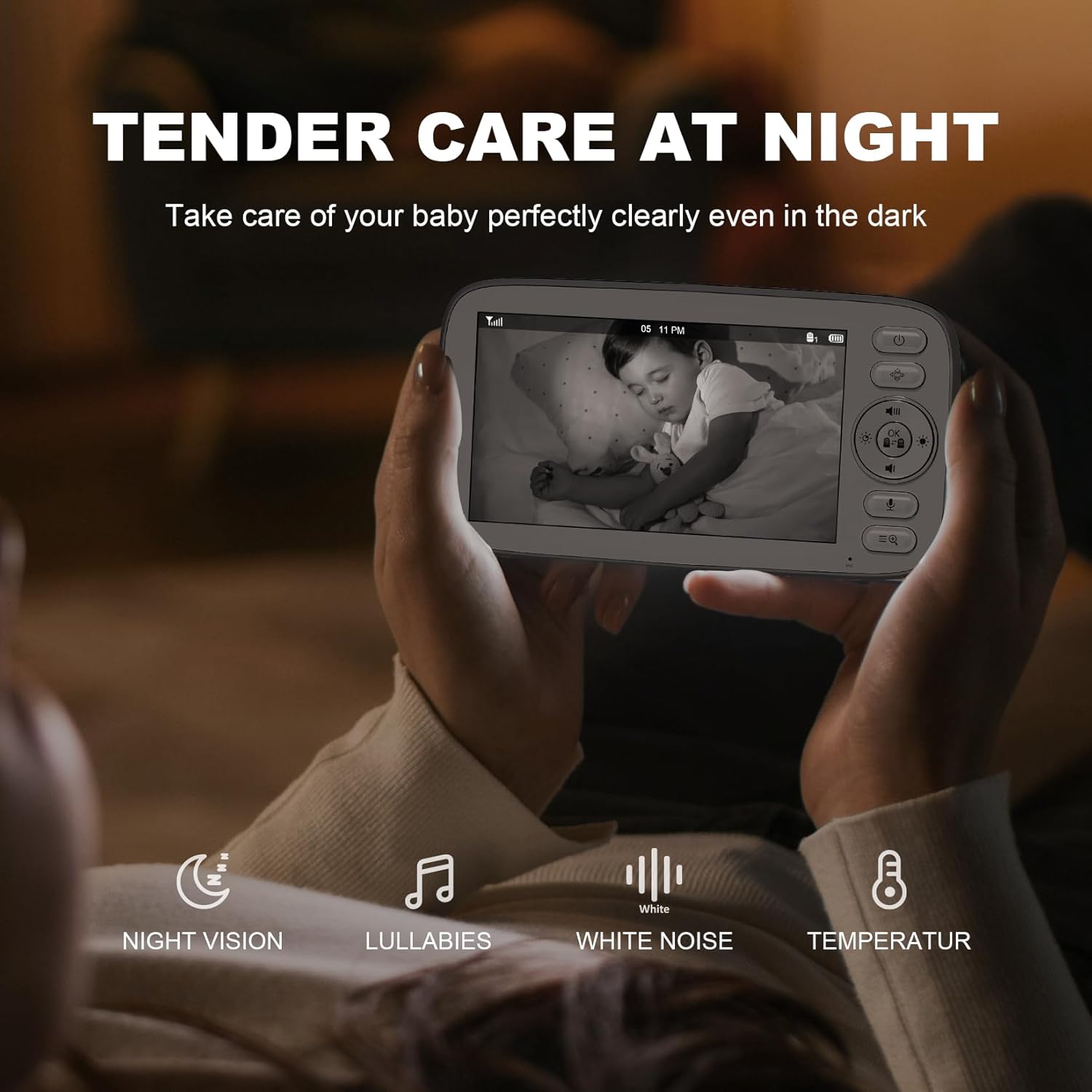
Image: Monitor screen showing a baby in night vision mode, highlighting clear visibility in the dark.
5. Two-Way Talk
Press and hold the microphone button on the monitor unit to speak to your baby through the camera's speaker.

Image: A user interacting with the two-way talk feature on the monitor.
6. Lullabies
Access the menu to select from 4 relaxing lullabies to play through the camera unit to soothe your baby.
7. Temperature Monitoring
The built-in temperature sensor on the camera unit monitors the room temperature and displays it on the monitor. Alerts can be set for temperature fluctuations.
8. ECO Mode
Activate ECO mode to conserve battery life. In this mode, the screen turns off and audio is muted when no sound is detected from the baby's room. The monitor will reactivate when sound is detected.
9. Feeding Timer
Set a feeding timer through the monitor's menu to remind you of feeding schedules.
Specifications
- Model: SM510FV2
- Screen Size: 5 inches HD
- Video Resolution: 720p
- Connectivity: 2.4G FHSS Wireless (No Wi-Fi/App Required)
- Range: Up to 960 feet (line of sight)
- Battery: 4000mAh (Monitor Unit)
- Features: Remote Pan/Tilt/Zoom (4x), Automatic Night Vision, Two-Way Talk, Lullabies, Temperature Sensor, ECO Mode, Feeding Timer, Split-Screen Viewing
- Expandability: Supports up to 4 cameras
- Dimensions: 4.9 x 5 x 7.6 inches
- Weight: 2.51 pounds
- Power Source: Corded Electric (Power Adapter included)
Maintenance
1. Cleaning
Wipe the monitor and camera units with a soft, dry cloth. Do not use abrasive cleaners or solvents. Keep the camera lens clean for optimal image quality.
2. Battery Care
To prolong battery life, avoid fully discharging the monitor unit frequently. Charge it regularly. If storing for an extended period, charge it to about 50% and store in a cool, dry place.
3. Storage
Store the device in a dry, dust-free environment away from extreme temperatures.
Troubleshooting
- No Signal/Disconnected: Ensure both the monitor and camera units are powered on and within range. Obstacles like thick walls or other electronic devices can interfere with the signal. Try repositioning the units.
- Poor Image Quality: Check if the camera lens is clean. Ensure adequate lighting for optimal day vision. In night vision, ensure no direct light sources are interfering.
- Audio Issues: Adjust the volume on the monitor unit. Ensure no obstructions are blocking the microphone or speaker on either unit.
- Battery Drains Quickly: Reduce screen brightness or activate ECO mode to conserve battery. Ensure the battery is fully charged before use.
Warranty and Support
For warranty information or technical support, please refer to the contact details provided in the included user manual or visit the Kidsneed official website. Keep your purchase receipt as proof of purchase.


