
1. Introduction
This manual provides essential information for the safe and efficient operation of your Jumper 15.4-inch Android 15 Tablet, Model Z3. Please read this manual thoroughly before using the device and retain it for future reference.
The Jumper Z3 tablet features a 15.4-inch Full HD IPS display, powered by a MediaTek Helio G99 Octa-Core processor. It includes 8GB RAM and 256GB ROM, a 10000mAh battery, and runs on Android 15. This 2-in-1 device comes with a detachable magnetic keyboard and a built-in adjustable stand, enhancing both productivity and entertainment experiences.
2. Package Contents
Verify that all items are present in your product package:
- 15.4 inch Tablet
- Magnetic Keyboard & Case
- Tablet Stand (built-in, non-removable)
- USB Cable & 20W Charger
- Ejection Pin
- User Manual (this document)
3. Product Overview
Familiarize yourself with the physical components and ports of your Jumper Z3 tablet.

Image: The Jumper 15.4-inch Android 15 Tablet shown with its detachable magnetic keyboard and the built-in stand extended, displaying the large screen and key features.
3.1 Buttons and Connectors

Image: A detailed diagram illustrating the location of the Power ON/OFF button, Volume +/- buttons, TF Card slot, USB-C port, and 3.5mm headset jack on the Jumper Z3 tablet.
- Power ON/OFF Button: Press and hold to power on/off or restart the tablet. Short press to turn the screen on/off.
- Volume +/- Buttons: Adjust the audio volume.
- TF Card Slot: Insert a microSD card for expandable storage.
- USB-C Port: Connect the charger for power or a USB-C cable for data transfer.
- 3.5mm Headset Jack: Connect headphones or external speakers.
- Front Camera: Located on the top bezel for video calls and selfies.
- Rear Camera: Located on the back of the tablet for taking photos and videos.
- Speakers: Four stereo speakers for enhanced audio output.
4. Setup
4.1 Initial Power On
- Ensure the battery is charged. If not, connect the provided USB cable and 20W charger to the USB-C port.
- Press and hold the Power ON/OFF button until the Jumper logo appears on the screen.
- Follow the on-screen prompts to complete the initial setup, including language selection, Wi-Fi connection, and Google account login.
4.2 Inserting a TF Card (MicroSD Card)
- Locate the TF card slot on the side of the tablet.
- Use the provided ejection pin to gently press into the small hole next to the slot to open the tray.
- Place the microSD card into the tray with the gold contacts facing down.
- Carefully reinsert the tray into the tablet until it clicks into place.
5. Operating Instructions
5.1 Basic Navigation
- Touch: Tap an icon or option to select it.
- Touch and Hold: Press and hold an item to access additional options or move it.
- Swipe: Drag your finger across the screen to scroll or navigate between screens.
- Pinch: Use two fingers to zoom in or out on images and web pages.
5.2 Connecting the Magnetic Keyboard
The Jumper Z3 tablet is designed for seamless integration with its magnetic keyboard and case.

Image: Illustration demonstrating the "Plug and Play" magnetic connection of the keyboard to the tablet, highlighting instant connection and no charging needed for the keyboard.
- Align the tablet with the magnetic connectors on the keyboard case.
- The tablet will snap into place, establishing an instant connection. The keyboard does not require separate charging or Bluetooth pairing.
- The keyboard case also features an auto wake/sleep function; opening the keyboard will wake the tablet, and closing it will put the tablet to sleep.

Image: The Jumper Z3 tablet with its magnetic keyboard attached, illustrating features such as instant connection, auto wake/sleep, a full-size keyboard for comfortable typing, and the protective cover.
5.3 Using the Built-in Adjustable Stand
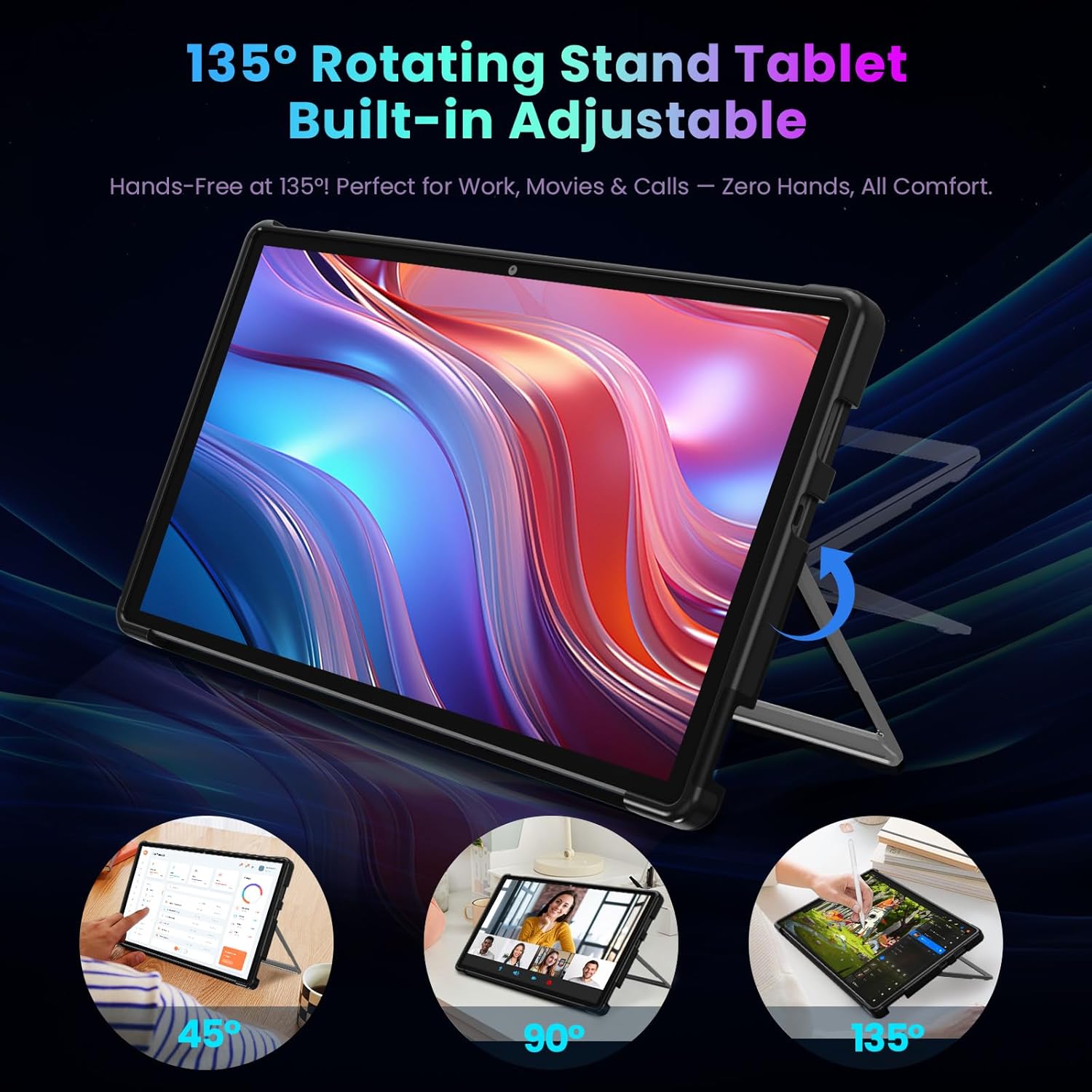
Image: The Jumper Z3 tablet demonstrating its 135-degree rotating stand, showing various viewing angles (45°, 90°, 135°) suitable for work, movies, and video calls.
The integrated stand allows for flexible viewing angles up to 135 degrees. Simply extend the stand from the back of the tablet and adjust it to your desired position for hands-free use.
6. Display and Performance
6.1 Display Features

Image: A visual comparison illustrating the size advantage of the 15.4-inch display of the Jumper Z3 tablet compared to smaller 11-inch and 14-inch tablets.
- Screen Size: 15.4 inches
- Resolution: 1920 x 1080 pixels (Full HD IPS)
- Color Gamut: 100% sRGB, 72% NTSC for vibrant and accurate colors.
6.2 Processor and Memory
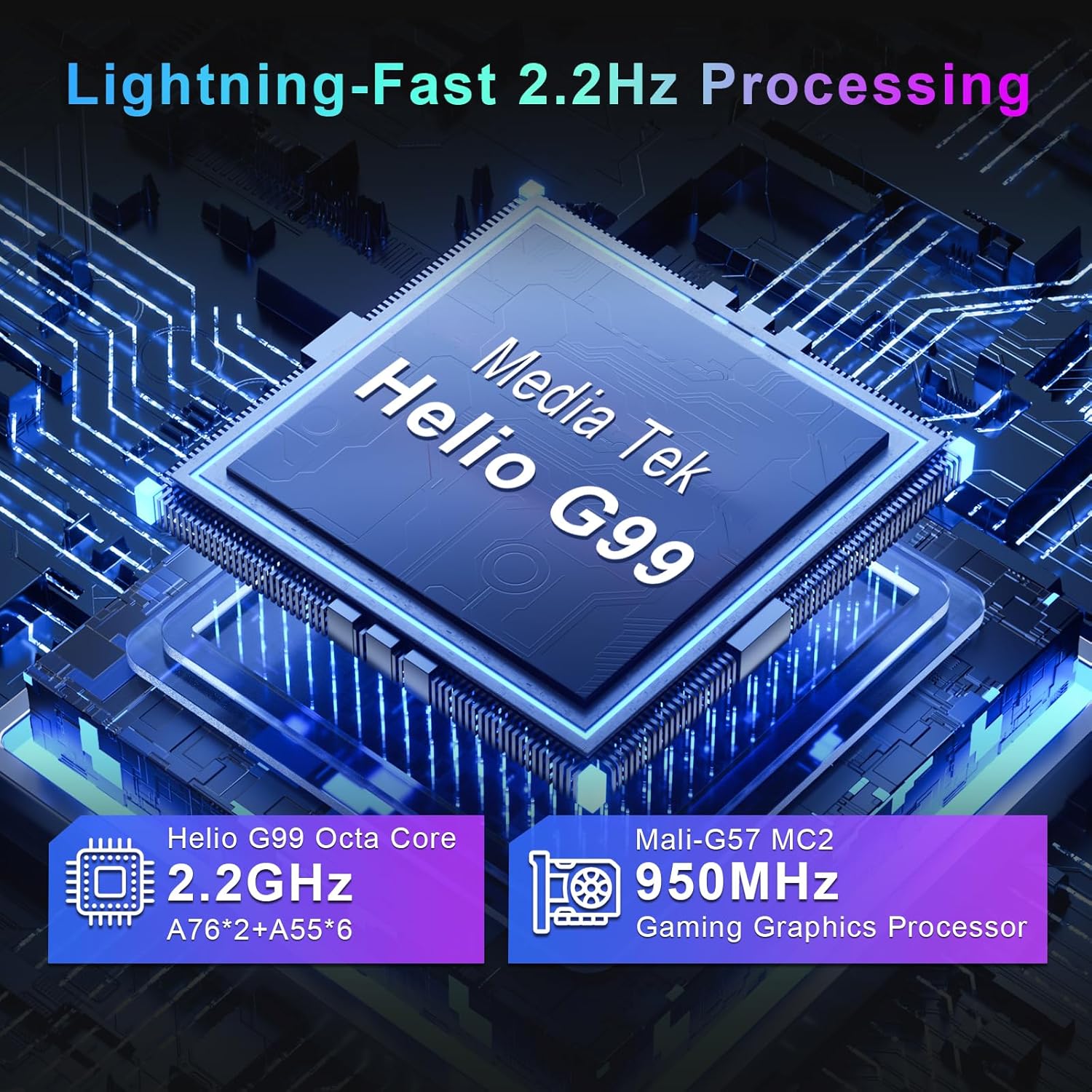
Image: A visual representation of the MediaTek Helio G99 Octa-Core processor, highlighting its 2.2GHz clock speed and Mali-G57 MC2 GPU for efficient performance.
- Processor: MediaTek Helio G99 Octa-Core (up to 2.2GHz)
- Graphics: Mali-G57 MC2 GPU
- RAM: 8GB for smooth multitasking.
- Operating System: Android 15, providing a responsive and secure user experience.
7. Battery Management
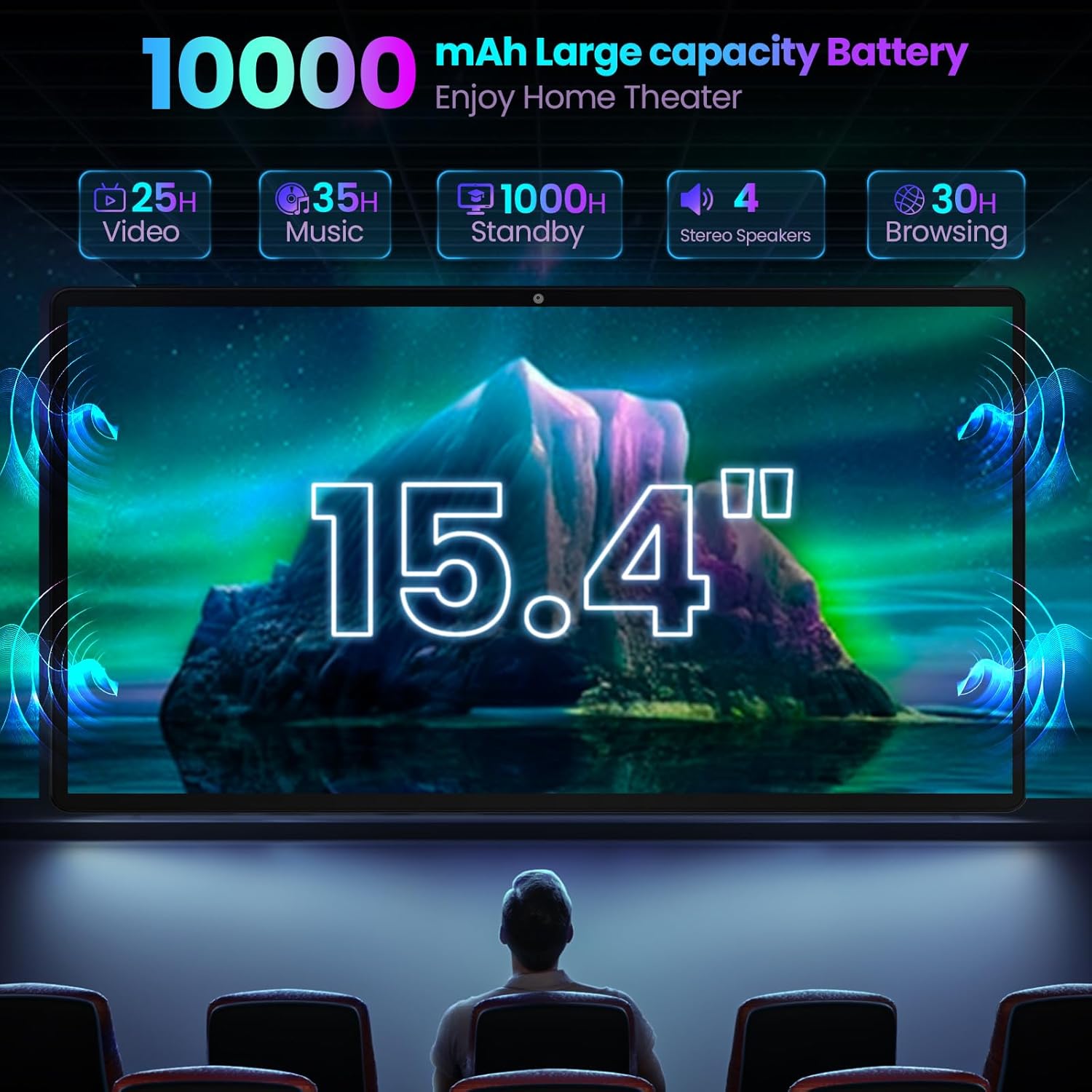
Image: The Jumper Z3 tablet showcasing its 10000mAh large capacity battery, with icons indicating approximately 25 hours of video, 35 hours of music, 1000 hours of standby, and 30 hours of browsing.
- Battery Capacity: 10000mAh
- Charging: Use the provided 20W charger and USB-C cable.
- Battery Life: Up to 8 hours of average use. Actual battery life may vary based on usage patterns and settings.
- Tips for extending battery life:
- Reduce screen brightness.
- Turn off Wi-Fi and Bluetooth when not in use.
- Close unused applications.
- Enable battery saver mode in settings.
8. Storage Management

Image: The Jumper Z3 tablet displaying its ample storage capabilities, including 8GB RAM, 256GB internal ROM, and support for up to 512GB expansion via a TF (microSD) card.
- Internal Storage: 256GB ROM
- Expandable Storage: Supports up to 512GB via TF (microSD) card.
- Managing Storage:
- Regularly delete unnecessary files and applications.
- Move large files (photos, videos) to the microSD card or cloud storage.
- Clear cache data for applications in the tablet's settings.
9. Connectivity
9.1 Wi-Fi Connection
- The tablet supports dual-band Wi-Fi (2.4G and 5G) for stable and fast internet access.
- To connect: Go to Settings > Network & Internet > Wi-Fi. Turn Wi-Fi on and select your desired network. Enter the password if prompted.
9.2 Bluetooth Connection
- The tablet features Bluetooth 5.2 for connecting wireless accessories like headphones or speakers.
- To connect: Go to Settings > Connected devices > Pair new device. Ensure your Bluetooth accessory is in pairing mode and select it from the list.
10. Cameras

Image: The Jumper Z3 tablet highlighting its dual camera system: a 5MP front camera for video calls and selfies, and a 13MP rear camera for capturing photos and videos.
- Front Camera: 5 Megapixels, suitable for video conferencing and self-portraits.
- Rear Camera: 13 Megapixels, for capturing higher-resolution photos and videos.
- Access the camera application from the home screen or app drawer to use.
11. GPS Navigation

Image: The Jumper Z3 tablet mounted in a car, showing a navigation application in use, emphasizing its support for GPS, BDS, Galileo, and GLONASS satellite positioning systems.
The tablet supports four major satellite positioning modes: GPS, BDS, Galileo, and GLONASS. This provides accurate global positioning and navigation services. Ensure location services are enabled in your tablet's settings to utilize navigation applications.
12. Maintenance
- Cleaning: Use a soft, lint-free cloth to clean the screen and body of the tablet. Avoid abrasive cleaners or solvents.
- Storage: Store the tablet in a cool, dry place away from direct sunlight and extreme temperatures.
- Protection: Always use the provided case and keyboard to protect the tablet from scratches and impacts.
- Software Updates: Regularly check for and install system updates to ensure optimal performance and security.
13. Troubleshooting
| Problem | Possible Solution |
|---|---|
| Tablet does not power on. | Ensure the battery is charged. Connect the charger and wait a few minutes before attempting to power on again. |
| Screen is unresponsive. | Perform a forced restart by pressing and holding the Power ON/OFF button for approximately 10-15 seconds. |
| Wi-Fi connection issues. | Restart the tablet and your Wi-Fi router. Ensure you are within range of the Wi-Fi signal and have entered the correct password. |
| Keyboard not responding. | Ensure the tablet is correctly aligned and securely connected to the magnetic keyboard. Disconnect and re-attach the keyboard. |
| Slow performance. | Close unused applications. Clear app cache. Check for available system updates. Consider moving large files to external storage. |
14. Specifications
| Feature | Detail |
|---|---|
| Brand | jumper |
| Model Name | Z3 |
| Operating System | Android 15 |
| Screen Size | 15.4 Inches |
| Screen Resolution | 1920 x 1080 pixels (Full HD IPS) |
| Processor | MediaTek Helio G99 Octa-Core (2 GHz) |
| Graphics Coprocessor | Mali-G57 MC2 |
| RAM | 8 GB |
| Flash Memory Size (ROM) | 256 GB |
| Expandable Storage | Up to 512GB via TF Card (MicroSD) |
| Wireless Type | 802.11ac, 802.11b, 802.11g, 802.11n (Dual-band 2.4G/5G WiFi) |
| Bluetooth | 5.2 |
| Battery Capacity | 10000mAh |
| Average Battery Life | 8 Hours |
| Front Camera | 5 MP |
| Rear Camera | 13 MP |
| Item Weight | 3.09 pounds |
| Product Dimensions | 13.23 x 8.74 x 0.43 inches |
| Color | Gray |
15. Warranty and Support
Your Jumper Z3 tablet comes with a 1-year warranty from the date of purchase, covering manufacturing defects. Please retain your proof of purchase for warranty claims.
For technical support, troubleshooting assistance, or warranty inquiries, please contact Jumper customer service through the official website or the retailer where the product was purchased.
For more information, visit the Jumper Store on Amazon.