
jumper Z3
Jumper 15.4-inch Android 15 Tablet (Model Z3) User Manual
Model: Z3
1. Introduction
Welcome to the user manual for your new Jumper 15.4-inch Android 15 Tablet. This guide provides essential information for setting up, operating, and maintaining your device. Please read it thoroughly to ensure optimal performance and longevity of your tablet.
2. What's in the Box
Upon unboxing your Jumper Z3 Tablet, verify that all the following items are included:
- 15.4 inch Tablet
- Magnetic Keyboard & Case
- Tablet Stand (built-in, non-removable)
- USB Cable & 20W Charger
- Ejection Pin
- User Manual (this document)
Video: Tablet Unboxing Demonstration. This video shows the unboxing process of the Jumper Z3 tablet, detailing all included accessories such as the tablet, magnetic keyboard, case, charger, USB cable, ejection pin, and user manual.
3. Product Overview
3.1 Key Features
- 15.4-inch Full HD IPS Display: Enjoy vibrant colors and sharp details with 1920x1080 resolution and 100% sRGB color gamut.
- 2-in-1 Functionality: Seamlessly switch between tablet and laptop modes with the detachable magnetic keyboard and built-in 135° adjustable stand.
- Powerful Performance: Equipped with a MediaTek Helio G99 Octa-Core Processor (up to 2.2GHz) and Mali-G57 MC2 GPU for smooth multitasking and gaming.
- Ample Storage: 8GB RAM for efficient multitasking and 256GB ROM for files, expandable via TF card (up to 512GB).
- Long-lasting Battery: A 10000mAh battery supports extended use for work and entertainment.
- Stable Connectivity: Dual-band WiFi (2.4G/5G) and Bluetooth 5.2 for reliable wireless connections.
- Android 15: Experience the latest Android operating system with enhanced features and security.
- Dual Cameras: 13MP rear camera and 5MP front camera for photos and video calls.
3.2 Device Layout and Ports
Familiarize yourself with the physical layout of your Jumper Z3 Tablet:
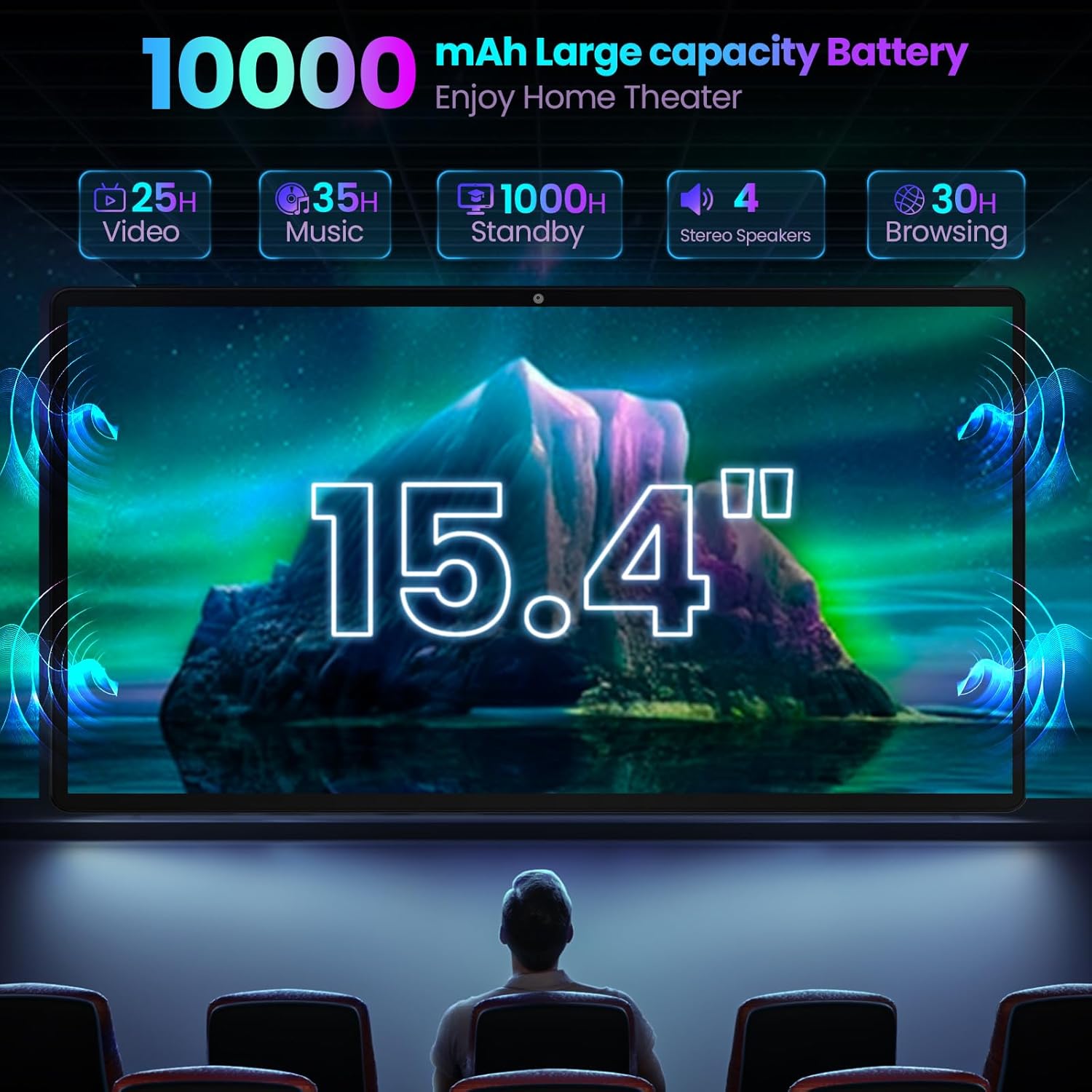
Image: Jumper Z3 Tablet in laptop mode. This image displays the tablet with its magnetic keyboard attached, highlighting the large screen and overall design.
- Left Side Ports: DC power input, USB Type-C port, HDMI port, USB 3.0 port (U1).
- Right Side Ports: Power On/Off button (with fingerprint sensor), MicroSD card slot, USB 3.0 port (U3), USB 2.0 port (U2), 3.5mm Headset jack.
- Top: Volume Up/Down buttons.
- Front: 5MP Front Camera.
- Rear: 13MP Rear Camera, Built-in 135° Adjustable Stand.

Image: Buttons and Connectors Diagram. This diagram illustrates the location of all buttons, ports, and cameras on the Jumper Z3 Tablet for easy identification.
4. Setup
4.1 Initial Charging
Before first use, fully charge your tablet. Connect the provided USB cable to the tablet's DC power input or USB Type-C port and the 20W charger to a power outlet. The charging indicator light will illuminate.
4.2 Attaching the Magnetic Keyboard
Align the magnetic connectors on the tablet's bottom edge with those on the magnetic keyboard. The keyboard will snap into place automatically. No complicated Bluetooth pairing is required.
Video: Install Magnetic Keyboard. This video demonstrates the simple process of attaching the magnetic keyboard to the Jumper Z3 tablet.
4.3 Inserting a MicroSD Card
To expand storage, locate the MicroSD card slot on the right side of the tablet. Use the provided ejection pin to open the tray, insert your MicroSD card (up to 512GB), and close the tray securely.
4.4 Initial Power On and Android 15 Setup
- Press and hold the Power On/Off button on the right side until the screen illuminates.
- Follow the on-screen prompts to select your language, connect to a Wi-Fi network, and set up your Google account.
- Complete any additional setup steps as guided by the Android 15 operating system.
Video: Installation and Removal of Protective Covers. This video demonstrates how to properly install and remove protective covers on the tablet, ensuring device safety.
5. Operating Instructions
5.1 Basic Navigation
- Touchscreen: Navigate the interface by tapping, swiping, pinching, and zooming directly on the 15.4-inch display.
- Magnetic Keyboard: Use the full-size keyboard for typing and the integrated trackpad for cursor control, similar to a laptop.
- Auto Wake & Sleep: Opening the keyboard cover will automatically wake the tablet, and closing it will put it to sleep.
5.2 Using 2-in-1 Modes
The Jumper Z3 Tablet offers versatile usage modes:
- Tablet Mode: Detach the keyboard for a pure tablet experience, ideal for browsing, reading, or media consumption.
- Laptop Mode: Attach the magnetic keyboard and use the built-in stand for a traditional laptop setup, perfect for productivity.
- Stand Mode: Utilize the 135° adjustable stand to prop up the tablet at various angles for comfortable viewing during video calls, movies, or presentations.
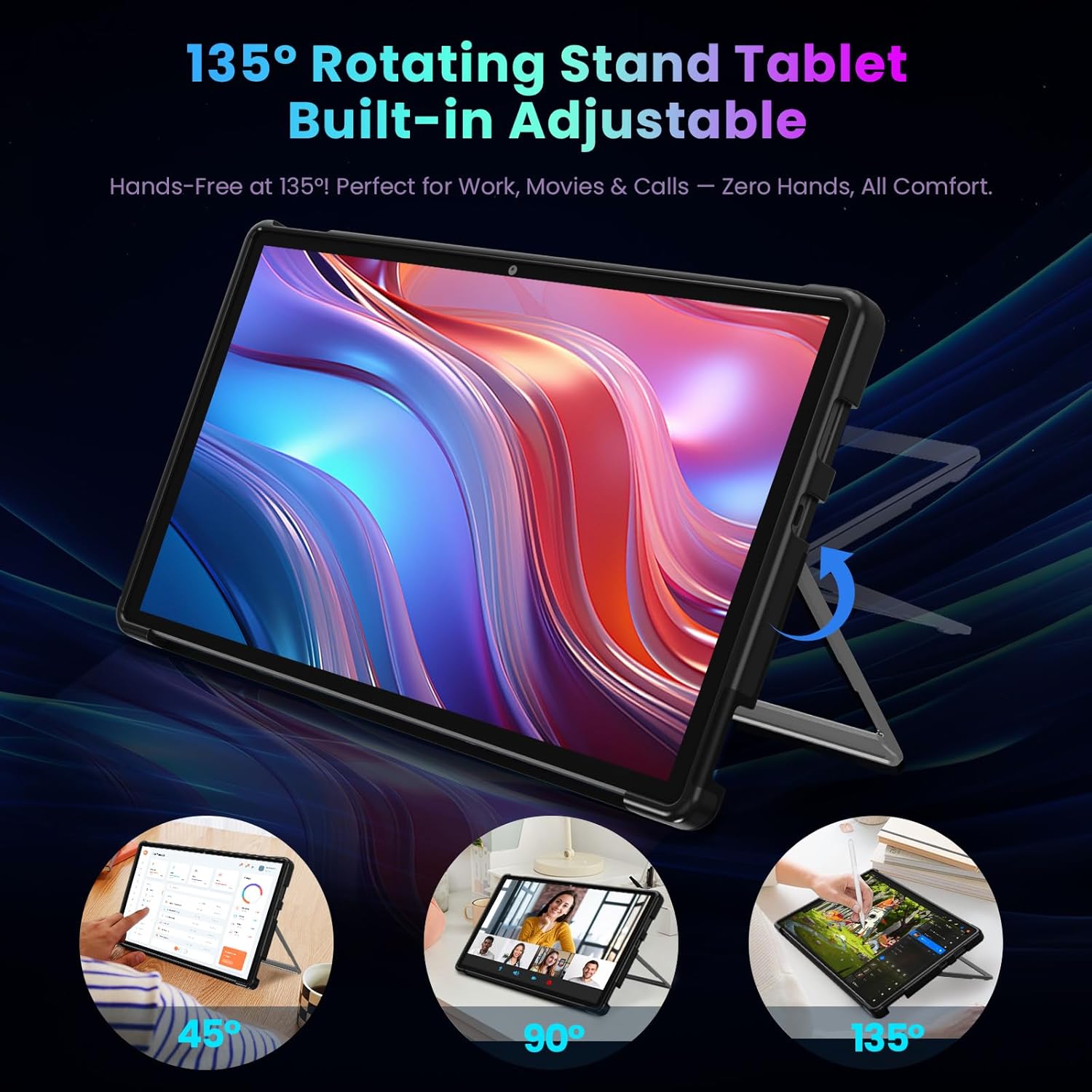
Image: 135° Rotating Stand Tablet. This image demonstrates the flexibility of the built-in adjustable stand, showcasing different viewing angles for various uses.
5.3 Multiple Split Screen Functions
Android 15 supports split-screen multitasking, allowing you to run two applications side-by-side. To activate:
- Open the first app you wish to use.
- Swipe up from the bottom of the screen to access the recent apps view.
- Tap the app icon at the top of the first app's card and select "Split screen."
- Choose the second app from your recent apps or app drawer to fill the other half of the screen.

Image: Multiple Split Screen Functions. This visual guide illustrates how to use two applications concurrently on the tablet's large display.
5.4 Taking Screenshots
There are two primary methods to capture a screenshot:
- Method 1 (Physical Buttons): Simultaneously press and hold the Power On/Off button and the Volume Down button for a moment. The screen will flash, indicating a screenshot has been taken.
- Method 2 (Software Gesture): Swipe up from the bottom of the screen and click the "Screenshot" option if available in your quick settings or navigation bar.

Image: Two Screenshot Methods. This image visually explains how to capture screenshots using both hardware buttons and software gestures.
6. Maintenance
- Cleaning: Use a soft, lint-free cloth to clean the screen and body. Avoid abrasive materials or harsh chemicals.
- Storage: Store the tablet in a cool, dry place away from direct sunlight and extreme temperatures.
- Battery Care: To prolong battery life, avoid fully discharging the battery frequently. Charge it regularly, ideally keeping it between 20% and 80%.
- Software Updates: Regularly check for and install system updates to ensure optimal performance and security.
7. Troubleshooting
| Problem | Possible Solution |
|---|---|
| Tablet does not power on. | Ensure the tablet is charged. Connect the charger and wait a few minutes before attempting to power on again. |
| Screen is unresponsive. | Perform a forced restart by holding the Power On/Off button for approximately 10-15 seconds. If the issue persists, ensure the screen is clean and free of debris. |
| Wi-Fi connection issues. | Restart your Wi-Fi router and the tablet. Check if other devices can connect to the network. Ensure the tablet is within range of the Wi-Fi signal. |
| Keyboard not responding. | Ensure the magnetic keyboard is securely attached to the tablet. Detach and reattach it. Clean the magnetic connectors on both the tablet and keyboard. |
| Slow performance. | Close unnecessary background applications. Clear cache for frequently used apps. Consider freeing up storage space. Restart the tablet. |
8. Specifications
| Feature | Detail |
|---|---|
| Brand | jumper |
| Model Name | Z3 |
| Operating System | Android 15 |
| Screen Size | 15.4 Inches |
| Screen Resolution | 1920 x 1080 Pixels (Full HD IPS) |
| Processor | MediaTek Helio G99 Octa-Core (up to 2.2 GHz) |
| Graphics Coprocessor | Mali-G57 MC2 |
| RAM | 8 GB |
| Flash Memory Size (ROM) | 256 GB |
| Expandable Storage | MicroSD (up to 512GB) |
| Wireless Type | 802.11ac, 802.11b, 802.11g, 802.11n (Dual-band 2.4G/5G WiFi) |
| Bluetooth | Bluetooth 5.2 |
| Battery Capacity | 10000mAh |
| Average Battery Life | 8 Hours (usage dependent) |
| Item Weight | 3.09 pounds |
| Product Dimensions | 13.23 x 8.74 x 0.43 inches |
| Color | Gray |
9. Warranty and Support
Your Jumper Z3 Tablet comes with a 1-year warranty from the date of purchase, covering manufacturing defects. For technical support, warranty claims, or further assistance, please contact Jumper customer service through their official website or the retailer where the product was purchased.
Additional protection plans may be available from third-party providers, such as the 4-Year Protection Plan or Complete Protect monthly plan offered by Amazon.
Related documentsZ3

Ask a question about this manual
Ask about setup, troubleshooting, compatibility, parts, safety, or missing instructions. Manuals+ will review the question and use this page’s manual context to help answer it.