1. Product Overview
The Eyoyo Mini Wireless Barcode Scanner (Model EY-023L) is a compact and portable device designed for efficient 1D barcode scanning. It offers versatile connectivity options and a user-friendly design for various applications.

Image 1.1: The Eyoyo Mini Wireless Barcode Scanner with its various connection cables.
Key Features:
- Portable Design: Weighing approximately 80g (2.82oz), this mini scanner is designed for comfort and portability, fitting easily into a pocket or palm.
- Versatile Connectivity: Supports three connection methods: Bluetooth, 2.4G wireless via USB dongle, and USB wired.
- Efficient 1D Scanning: Features a high-performance laser engine with a bright red aiming line for fast and reliable decoding of 1D barcodes on paper, even if damaged or poorly printed.
- Long Battery Life: Equipped with a 1500mAh rechargeable battery, providing up to 16 hours of continuous scanning and a 4-stage LED battery indicator.
- Convenient Controls: Includes a dedicated power switch and built-in volume control buttons for adjusting or muting the beep sound.
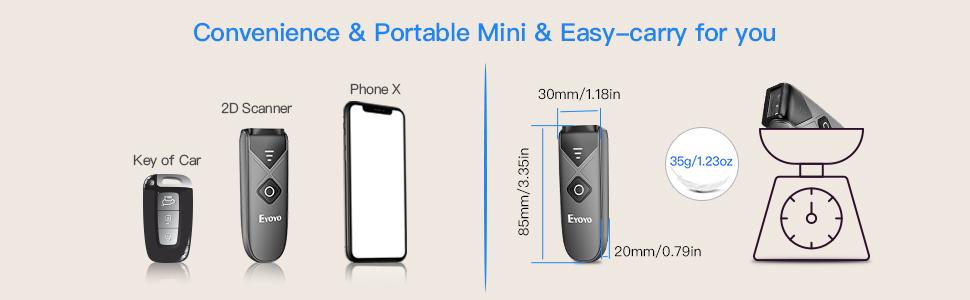
Image 1.2: The compact size and lightweight design of the scanner, with approximate dimensions of 85mm x 30mm x 20mm. Note: While some marketing materials indicate a weight of 35g, the product's feature bullets state approximately 80g.
2. Setup and Connection
The EY-023L scanner offers three connection modes: Bluetooth, 2.4G Wireless, and USB Wired. Choose the mode that best suits your device and environment.

Image 2.1: Overview of the three available connection methods.
2.1 Powering On/Off
Locate the dedicated power switch on the side of the scanner. Slide the switch to the "ON" position to power on the device. Slide it to "OFF" to power off.

Image 2.2: Detailed view of the scanner's controls and ports, including the On/Off switch.
2.2 Bluetooth Connection
- Ensure the scanner is powered on.
- On your host device (e.g., smartphone, tablet, computer), enable Bluetooth and search for available devices.
- Select "Eyoyo-XXXX" (or similar) from the list of found devices to pair. The scanner will indicate successful pairing.
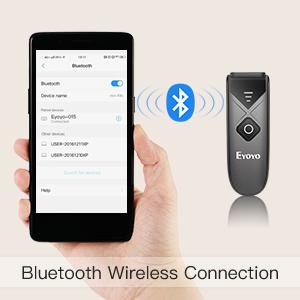
Image 2.3: Bluetooth wireless connection setup.
2.3 2.4G Wireless Connection
- Plug the provided 2.4G USB dongle into an available USB port on your computer.
- Power on the scanner. It should automatically connect to the dongle.
- The scanner is ready for use once connected.
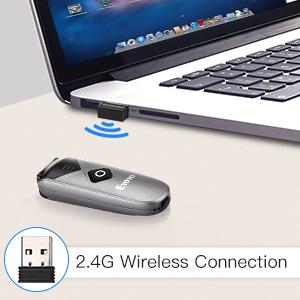
Image 2.4: 2.4G wireless connection setup.
2.4 USB Wired Connection
- Connect the scanner to your computer using the provided USB cable.
- The scanner will function as a wired device and also charge simultaneously.
- No additional drivers are typically required for most operating systems.
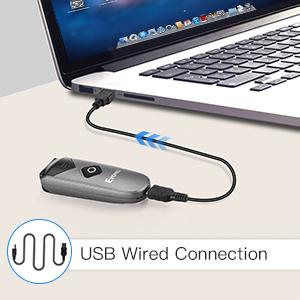
Image 2.5: USB wired connection setup.
2.5 System Compatibility
The Eyoyo EY-023L scanner is compatible with a wide range of operating systems and devices, including:
- Windows XP, 7, 8, 10
- Mac OS
- Linux
- Android devices (phones, tablets)
- iOS devices (iPhones, iPads)
- Most Point-of-Sale (POS) systems
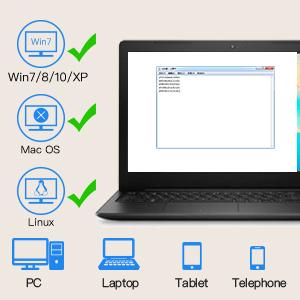
Image 2.6: System compatibility overview.
3. Operating Instructions
3.1 Scanning Barcodes
To scan a 1D barcode:
- Ensure the scanner is powered on and connected to your host device.
- Point the scanner's laser window at the barcode you wish to scan. A bright red laser line will appear, acting as an aiming guide.
- Press the scan button (the large orange button) on the top of the scanner.
- A successful scan will typically be indicated by a beep sound (if not muted) and the data being transmitted to your connected device.

Image 3.1: The scanner in action, demonstrating 1D barcode scanning.
The scanner is optimized for fast and reliable decoding of 1D barcodes, even those that are damaged, poorly printed, or distorted.
3.2 Adjusting Volume
The scanner features built-in volume control buttons on its side. Use these buttons to adjust the beep sound level or to mute it entirely, depending on your working environment.
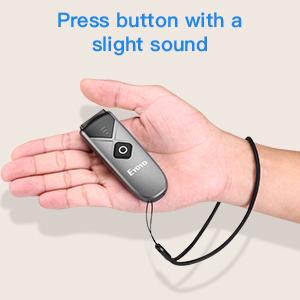
Image 3.2: The scanner's volume control buttons are located on the side.
3.3 Offline Scanning Mode
The scanner includes 16MB of internal storage, allowing it to store over 100,000 UPC/EAN barcodes when operating in offline mode. This is useful when out of range of a connected device. To upload stored data, connect the scanner to your device via USB or 2.4G wireless, and the data will be transferred.
4. Maintenance and Charging
4.1 Charging the Battery
The EY-023L scanner is equipped with a 1500mAh rechargeable battery. To charge the scanner:
- Connect the provided USB cable to the USB-C port on the scanner.
- Connect the other end of the USB cable to a power source (e.g., computer USB port, USB wall adapter).
- Charging typically takes approximately 4 hours for a full charge.
A full charge provides up to 16 hours of continuous scanning, allowing for extended use. The 4-stage LED battery indicator on the scanner displays the current power level (25/50/75/100%).
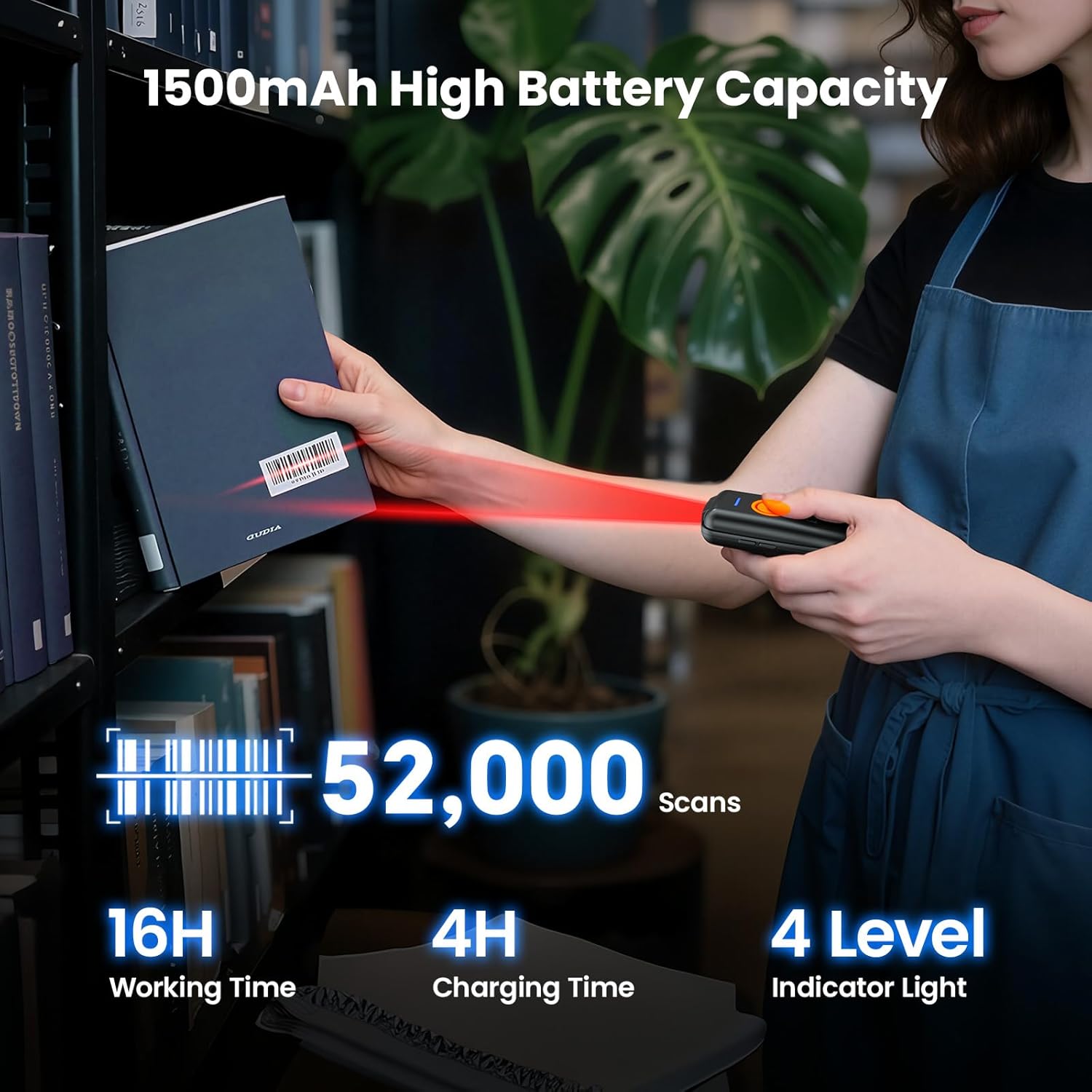
Image 4.1: Battery capacity and charging information.
4.2 Cleaning the Scanner
To maintain optimal performance, keep the scanner's laser window clean. Use a soft, lint-free cloth, slightly dampened with water or a mild cleaning solution, to gently wipe the surface. Avoid abrasive materials or harsh chemicals.
5. Troubleshooting
- Scanner not powering on: Ensure the battery is charged. Connect the scanner to a power source using the USB cable and try again. Verify the power switch is in the "ON" position.
- Scanner not connecting via Bluetooth:
- Ensure Bluetooth is enabled on your host device and the scanner is in pairing mode.
- Check if the scanner is already paired with another device. Disconnect from other devices if necessary.
- Restart both the scanner and your host device.
- Scanner not connecting via 2.4G Wireless:
- Ensure the 2.4G USB dongle is securely plugged into your computer.
- Try plugging the dongle into a different USB port.
- Restart the scanner and your computer.
- Scanner not reading barcodes:
- Ensure the barcode is a 1D type and not damaged or excessively faded.
- Verify the laser line is directly over the barcode.
- Clean the scanner's laser window if it appears dirty.
- Check if the scanner's battery is low.
- No sound from scanner: Check the volume control buttons on the side of the scanner to ensure the sound is not muted or set to a very low level.
6. Specifications
| Model | EY-023L |
| Scanning Capability | 1D Barcodes (Codabar, Code11, Code93, MSI, Code 128, UCC/EAN-128, Code 39, EAN-8, EAN-13, UPCA, ISBN, Industrial25, Interleaved 25, Standard 25, 2/5 Matrix, etc.) |
| Connectivity | Bluetooth, 2.4G Wireless, USB Wired |
| Battery | 1500mAh Rechargeable Lithium-ion |
| Continuous Working Time | Up to 16 hours |
| Charging Time | Approximately 4 hours |
| Internal Storage | 16MB (stores over 100,000 UPC/EAN barcodes) |
| Weight | Approx. 80g (2.82oz) |
| Dimensions (L x W x H) | 85mm x 30mm x 20mm (3.35in x 1.18in x 0.79in) |
| 2.4G Wireless Range | Up to 30m (98ft) in barrier-free environment; 15m (49ft) with obstacles |
| Bluetooth Range | Up to 50m (164ft) in barrier-free environment; 20m (66ft) with obstacles |
| Supported Operating Systems | Windows XP/7/8/10, Mac OS, Linux, Android, iOS |

Image 6.1: Wireless transmission range details.


