
1. Introduction
Thank you for choosing the Hodozzy Android 15 1-DIN Car Stereo. This device is designed to enhance your in-car entertainment and navigation experience with its advanced features, including a detachable 10-inch screen, wireless CarPlay and Android Auto, Bluetooth 5.0, DSP audio processing, and GPS navigation. This manual provides essential information for proper installation, operation, and maintenance to ensure optimal performance and longevity of your device.
2. Safety Information
- Professional Installation Recommended: Due to the complexity of car electrical systems, professional installation is highly recommended to prevent damage to the unit or your vehicle.
- Power Supply: Ensure the unit is connected to a 12V DC power supply with a negative ground. Incorrect voltage can cause damage.
- Wiring: Carefully follow all wiring diagrams. Incorrect wiring can lead to malfunctions or electrical hazards.
- Driving Safety: Do not operate the device in a manner that distracts you from driving. Always prioritize road safety.
- Temperature: Avoid exposing the unit to extreme temperatures or direct sunlight for prolonged periods.
- Moisture: Keep the unit away from water and excessive moisture to prevent electrical shock or damage.
3. Package Contents
Verify that all items listed below are included in your package:
- 1 x Android Player
- 1 x Power Cable
- 2 x USB Cables
- 1 x GPS Antenna
- 1 x Rear Camera Cable
- 1 x RCA Cable
- 1 x User Manual
- 2 x Mounting Brackets
- 1 x Radio Antenna
- 1 x Reversing Camera
- 1 x Microphone
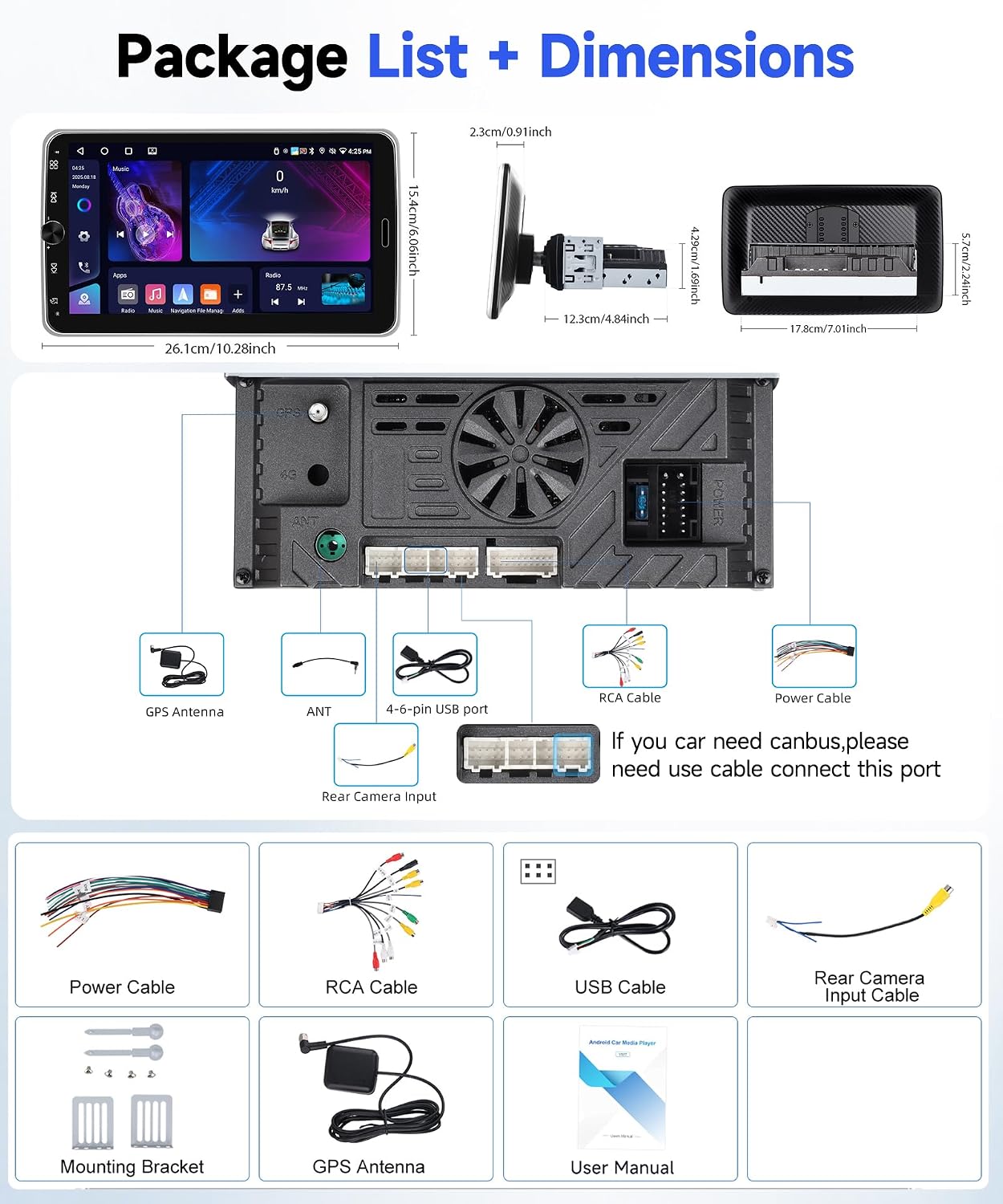
Image: Overview of the Hodozzy Android 15 Car Stereo package contents and unit dimensions.
4. Specifications
| Feature | Specification |
|---|---|
| System | Android 15 |
| Processor | RK3326S, 4 Cores |
| Screen Size | 10.1 inches (Detachable, Rotatable) |
| Screen Material | IPS HD Touchscreen |
| Memory | 4GB RAM + 64GB ROM |
| Screen Resolution | 1024*600 |
| Output Power | 4*45 W |
| Bluetooth Version | 5.0 |
| Radio Band | FM/RDS (87.5 MHz-107.5 MHz) |
| Connectivity | WiFi, Bluetooth, USB (Dual Interface, Type-C & USB-A) |
| Navigation | Built-in GPS, supports offline maps (Here We Go) and online maps |
| Smartphone Integration | Wireless CarPlay, Wireless Android Auto, Mirror Link (Wireless) |
| Audio Processing | DSP, 32-band EQ |
| Special Features | Detachable Screen, 360° Rotation, Landscape/Portrait Mode, Split Screen, Steering Wheel Control Support, Reversing Camera Input (AHD/CVBS), External Microphone Support, 7-Color Key Lighting |
| Supported Audio Formats | APE/FLAC/WAV/MP3/WMA, etc. |
| Supported Video Formats | MKV/RMVB/AVI/MP4/MDV, etc. |
| Supported Image Formats | PNG/JPEG/JPG/GIF/WBMP/BNP, etc. |
| Operating Temperature | -20 ℃ to 75 ℃ |
| Weight | 1 Kilogram |
5. Setup
5.1 Installation
The Hodozzy Android 15 Car Stereo is a 1-DIN unit with a detachable 10-inch screen. Ensure your vehicle's dashboard has a compatible 1-DIN slot. Due to the adjustable screen, consider the optimal viewing angle and clearance before final installation.
- Mounting: Use the provided mounting brackets to secure the main unit into the 1-DIN slot.
- Screen Attachment: The screen features a snap-in design for quick attachment and detachment. Align the screen with the main unit's connector and press firmly until it clicks into place.
- Screen Adjustment: The screen supports 360° rotation and adjustable angles. Adjust to your preferred orientation (landscape or portrait) and tilt for optimal visibility.

Image: Demonstrates the detachable screen feature, landscape/portrait mode support, and 360-degree rotation capability of the display.
5.2 Wiring Diagram
Refer to the following diagram for connecting the power, speakers, and accessories. It is crucial to connect all wires correctly to avoid damage.
- Power Cable: Connect the yellow wire to the constant 12V power, the red wire to the accessory (ACC) 12V power, and the black wire to ground.
- Speaker Wires: Connect the speaker wires to your vehicle's speakers, ensuring correct polarity.
- GPS Antenna: Connect the GPS antenna to the dedicated port and mount it in a location with a clear view of the sky.
- Radio Antenna: Connect the radio antenna.
- Reversing Camera: Connect the rear camera cable to the unit's input. The camera's power wires (Cable ① and Cable ④) connect to the positive pole of the car's reversing light, and the ground wire (Cable ②) connects to the negative pole. The video signal cable (Cable ③ and Cable ⑤) connects to the unit.
- External Microphone: Connect the external microphone for improved call quality.
- USB Ports: Utilize the dual USB interfaces for data transfer, media playback, and phone charging.
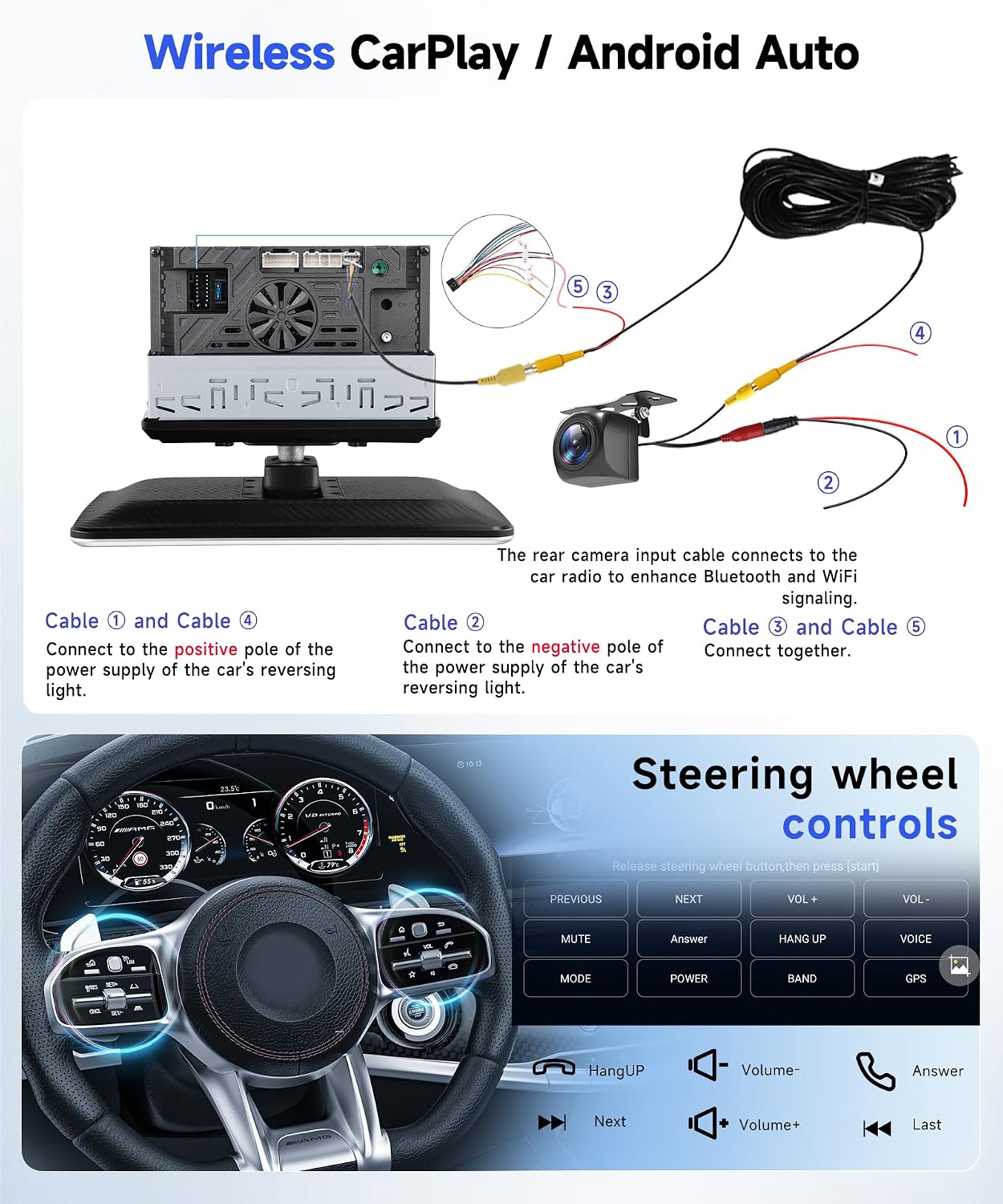
Image: Detailed wiring instructions for the reversing camera and an overview of steering wheel control button functions.
5.3 Initial Power On
After completing all connections, turn on your vehicle's ignition. The car stereo should power on automatically. Follow the on-screen prompts for initial setup, including language selection and time zone settings.
6. Operating Instructions
6.1 Screen Features: Detachable, Rotation, Landscape/Portrait Modes
The 10.1-inch IPS HD touchscreen offers flexibility:
- Detachable Screen: Press the two buttons on the side of the screen to detach it from the main unit. This allows for secure storage when not in use.
- Landscape/Portrait Mode: After rotating the screen, you can switch between landscape and portrait display modes by tapping the 'Portrait' or 'Landscape' option in the menu bar.
- 360° Rotation: The screen can be rotated 360 degrees and moved forward/backward to achieve the best viewing angle.
6.2 Wireless CarPlay and Android Auto
Connect your smartphone wirelessly to access navigation, music, calls, and messages directly on the car stereo display.
- Enable Bluetooth and Wi-Fi: On your smartphone, ensure Bluetooth and Wi-Fi are enabled.
- Pair Device: On the car stereo, go to the CarPlay/Android Auto application. Search for your phone via Bluetooth and pair them.
- Confirm Connection: Follow any on-screen prompts on both the stereo and your phone to establish the wireless connection.
Note: For Android phones, you may need to download the Android Auto app on your device. Compatible with iOS 6-18 and Android 4-14.

Image: Shows the wireless CarPlay/Android Auto interface displaying navigation, music, and voice assistant options.
6.3 Bluetooth 5.0
The integrated Bluetooth 5.0 module allows for hands-free calling and wireless audio streaming.
- Pairing: Go to the Bluetooth settings on the stereo, enable Bluetooth, and search for your phone. Select your phone from the list and confirm pairing.
- Hands-Free Calling: Once paired, you can make and receive calls directly through the stereo. The built-in microphone ensures clear communication.
- Bluetooth Music: Stream audio from your phone to the car stereo. Control playback (play/pause, skip tracks) from the stereo's interface.

Image: Illustrates Bluetooth 5.0 for calls and music, FM/RDS radio interface, and WiFi connectivity for various streaming apps.
6.4 FM/RDS Radio
Enjoy your favorite radio stations with the built-in FM/RDS tuner.
- Automatic Search: Access the Radio application and select 'Auto Search' to scan and save available stations.
- Manual Tuning: Manually tune to specific frequencies.
- RDS Function: The RDS (Radio Data System) feature displays station information, such as song titles or program names, where available.
6.5 GPS Navigation
The unit comes with an integrated GPS receiver and supports both offline and online navigation.
- Offline Maps: The unit includes pre-installed offline maps. To download map data, an internet connection is required. Access the 'Download Map' menu within the navigation app (e.g., Here We Go) to download regional maps.
- Online Maps: Connect to WiFi/Hotspot to use other online navigation applications available on the Android system.
6.6 DSP and EQ Music
Customize your audio experience with the Digital Sound Processor (DSP) and 32-band Equalizer (EQ).
- EQ Settings: Access the EQ settings to adjust frequency bands, creating a personalized sound profile.
- DSP Features: The DSP allows for advanced sound adjustments, including sound field positioning, bass enhancement, and surround sound modes.

Image: Displays the DSP and EQ music settings interface, allowing for precise audio adjustments and sound field customization.
6.7 Split Screen and Mirror Link
- Split Screen: This feature allows you to run two applications simultaneously on the screen, such as navigation and music playback.
- Mirror Link: Synchronize your smartphone screen with the car stereo display. For Android phones, this provides two-way control. For iOS phones, it offers one-way control (display only). Connection can be wired (USB) or wireless (WLAN).
6.8 Steering Wheel Controls
If your vehicle supports steering wheel controls, you can configure them to operate the car stereo for safer driving.
- Configuration: Access the 'Steering Wheel Control' settings in the system menu. Follow the on-screen instructions to map your vehicle's steering wheel buttons to the stereo's functions (e.g., volume, track skip, mode).
6.9 Multimedia Input
The unit supports various multimedia inputs:
- USB/Type-C: Use the dual USB ports for playing media files (audio, video, images) from USB drives or for fast charging your mobile devices.
- AUX Input: Connect external audio devices via the AUX input.
- Colorful Background Lights: Customize the button illumination with 7 different colors to match your vehicle's interior or your preference.

Image: Highlights multimedia input options including USB/Type-C charging, customizable background lights, and the IPS screen quality for video playback.
7. Maintenance
- Cleaning: Use a soft, dry cloth to clean the screen and unit. Avoid abrasive cleaners or solvents.
- Software Updates: Periodically check for software updates through the system settings or the manufacturer's website to ensure optimal performance and access to new features.
- Screen Care: When detaching the screen, handle it carefully to avoid scratches or damage to the connectors.
8. Troubleshooting
If you encounter issues with your Hodozzy car stereo, refer to the following common problems and solutions:
| Problem | Possible Cause | Solution |
|---|---|---|
| No Power | Incorrect wiring, blown fuse, loose connection. | Check power cable connections (yellow, red, black). Inspect vehicle's fuse box and the unit's fuse. Ensure all connections are secure. |
| No Sound | Speaker wires disconnected, volume too low, mute activated, incorrect audio source. | Check speaker wiring. Increase volume. Deactivate mute function. Select the correct audio input source. |
| Bluetooth Not Connecting | Bluetooth not enabled, device not in pairing mode, interference. | Ensure Bluetooth is enabled on both devices. Put the stereo in pairing mode. Delete previous pairings and try again. Move closer to the unit. |
| GPS Not Working | GPS antenna not connected, poor signal, map data not downloaded. | Ensure GPS antenna is securely connected and placed with a clear view of the sky. Download necessary offline map data or ensure internet connection for online maps. |
| Touchscreen Unresponsive | System crash, temporary software issue. | Restart the unit by turning off the vehicle's ignition and then restarting. If the issue persists, perform a factory reset (refer to system settings, note this will erase all user data). |
| Reversing Camera Not Displaying | Incorrect wiring, camera malfunction, wrong input selected. | Verify the rear camera wiring (power and video signal). Ensure the camera is functioning. Check if the unit automatically switches to the camera input when reversing. |
9. Warranty Information
Warranty information for this product should be obtained directly from the seller or the point of purchase. Please retain your proof of purchase for any warranty claims. Information regarding spare parts availability and software update guarantees is not available in the provided product details.
10. Support
For technical assistance, troubleshooting beyond this manual, or warranty inquiries, please contact the seller directly through the platform where you purchased the product. You can typically find seller contact information on your order details page or by navigating to the seller's profile.
