
1. Introduction and Overview
This manual provides detailed instructions for the installation, operation, and maintenance of your Hodozzy 9.7-inch Android Carplay Autoradio. This unit is specifically designed for Chevrolet Cruze J300 models manufactured between 2009 and 2014. It features an 8-core processor, 6GB RAM, and 128GB ROM, ensuring a powerful and stable user experience. Key functionalities include wireless CarPlay and Android Auto, Bluetooth 5.0, FM RDS radio, integrated DSP, GPS navigation, Wi-Fi connectivity, split-screen capability, and support for original vehicle functions like steering wheel controls and reverse assistance.
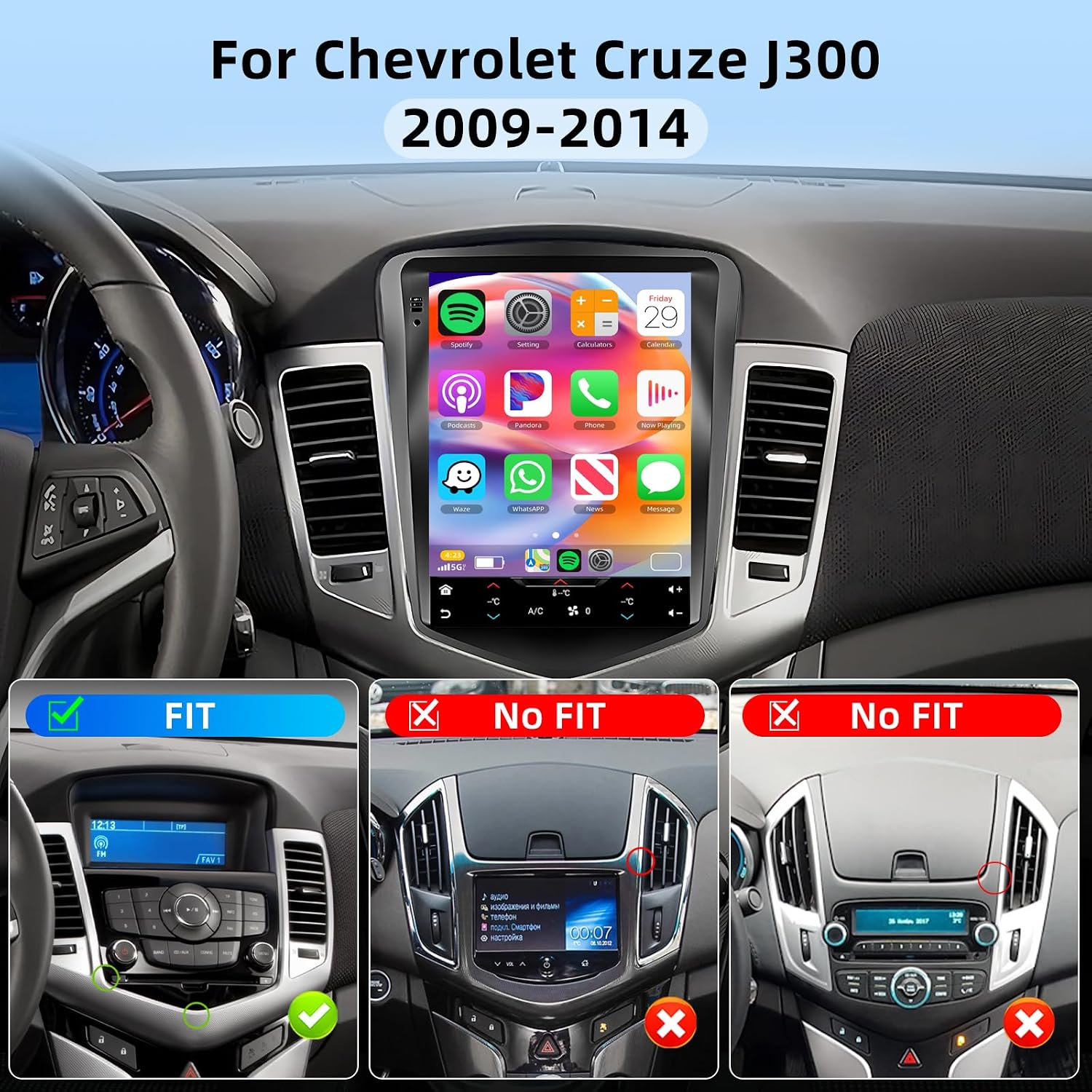
Image 1.1: The Hodozzy 9.7-inch Android Carplay Autoradio seamlessly integrated into a Chevrolet Cruze J300 dashboard, displaying various application icons.
2. Package Contents
Please verify that all components listed below are included in your package:
- Radio Housing × 1
- Power Cable × 1
- Installation Tool × 1
- Canbus × 1
- Antenna Adapter × 1
- Radio Antenna × 1
- Accessories × 1
- Autoradio Unit × 1
- RCA Cable × 1
- Rear Camera Input Cable × 1
- GPS Antenna × 1
- 4-pin USB Cable × 1
- User Manual × 1

Image 2.1: Detailed view of the Hodozzy Autoradio package contents, including the main unit, various cables (power, RCA, USB, camera input), GPS and radio antennas, Canbus, installation tools, and the user manual.
3. Setup and Installation
3.1 Compatibility Check
Before proceeding with installation, it is crucial to confirm the compatibility of this autoradio with your specific Chevrolet Cruze J300 model (2009-2014). Please refer to the image below to ensure your vehicle's original car system configuration matches the 'FIT' example. Incompatibility may lead to installation issues or improper functionality.

Image 3.1: Visual guide for checking dashboard compatibility. The 'FIT' example shows the correct original car system configuration for installation, while 'No FIT' examples illustrate incompatible layouts.
3.2 General Installation Steps
- Preparation: Disconnect the vehicle's battery before starting any electrical work. Gather all necessary tools, including those provided in the package.
- Remove Original Unit: Carefully remove the existing car radio unit and trim panels. Refer to your vehicle's service manual for specific instructions on panel removal.
- Connect Wiring: Connect the provided power cable, RCA cable, USB cables, GPS antenna, and radio antenna to the new autoradio unit. Ensure all connections are secure. If your vehicle requires a Canbus decoder, connect it as per the wiring diagram.
- Test Functionality: Before fully reassembling the dashboard, temporarily reconnect the battery and test the basic functions of the autoradio (power on, audio, touch screen, GPS signal, Bluetooth).
- Install Rear Camera (Optional): If installing the optional rear camera, route the camera cable from the rear of the vehicle to the autoradio unit. Connect the camera input cable and ensure the trigger wire is connected to the reversing light positive.
- Secure Unit and Reassemble: Once all functions are verified, secure the autoradio unit in the dashboard opening. Reinstall all trim panels and reconnect the battery permanently.
4. Operating Instructions
4.1 Wireless CarPlay and Android Auto
This autoradio supports both wireless CarPlay for Apple phones and Android Auto for Android phones. Connect your smartphone via Bluetooth for wireless connection or use a USB data cable for a wired connection. This allows access to navigation, calls, messages, music, and other compatible applications directly on the autoradio's screen.
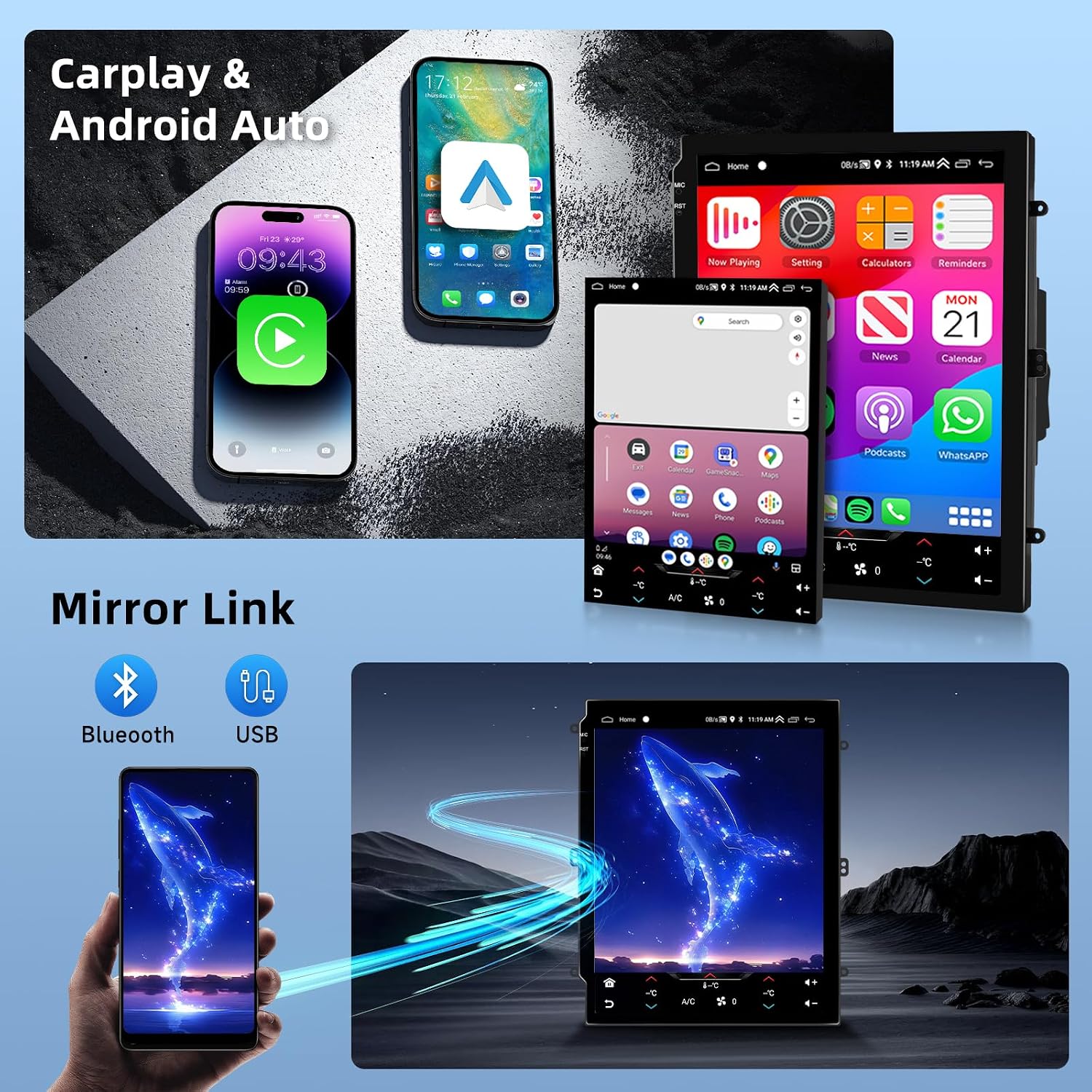
Image 4.1: The display shows a smartphone connected via CarPlay and Android Auto, mirroring its interface onto the car stereo. Below, a phone is shown connected via Mirror Link, displaying content on the car's screen.
4.2 GPS Navigation and Wi-Fi
The unit features an integrated GPS receiver. You can download offline maps using the 'Here We Go' app or use other online navigation applications. Connect to a Wi-Fi hotspot to access online maps, download additional apps, and browse the internet.

Image 4.2: The top section illustrates Wi-Fi connectivity with various app icons. The bottom section displays GPS navigation with options for both online and offline maps, showing a car on a road with map overlays.
4.3 Bluetooth 5.0, FM RDS Radio, and DSP
Utilize Bluetooth 5.0 for stable, hands-free calling with the built-in microphone and for streaming music. The FM RDS radio allows automatic or manual tuning of stations (87.5 MHz-107.5 MHz). The integrated Digital Signal Processor (DSP) enhances sound quality by reducing noise, distortion, and interference.

Image 4.3: This image displays three key features: Bluetooth 5.0 with signal stability indicators and phone interface, the FM RDS radio interface showing frequency tuning, and the DSP settings for audio enhancement.
4.4 Split Screen Function and Audio/Video Output
The autoradio supports a split-screen function, allowing you to run two applications simultaneously, such as navigation and music playback. It also provides video output for connecting external monitors (e.g., headrest screens) and comprehensive audio output options for external amplifiers and subwoofers.

Image 4.4: The image shows the split-screen feature in action, displaying two apps concurrently. It also illustrates video output to rear-seat entertainment screens and a diagram of the audio output connections for external sound systems.
4.5 Retaining Original Vehicle Functions
This unit is designed to integrate with and retain several original vehicle functions, including steering wheel controls, door open hints, factory amplifier support, radar systems, lane watch/right camera, and A/C information display. This ensures a seamless upgrade without losing essential car features.

Image 4.5: A circular diagram highlighting various original vehicle functions that are retained and integrated with the new autoradio, including steering wheel controls, door status, factory amplifier, radar, camera views, and climate control information.
4.6 Reverse Assistance (AHD Rear Camera)
The system supports an AHD (Analog High Definition) rear camera for enhanced reverse assistance. The waterproof camera provides clear night vision and a wide-angle view, automatically displaying the reverse image when the vehicle is in reverse gear. This feature significantly improves parking safety.

Image 4.6: This image illustrates the reverse assistance system, featuring a rear camera with night vision, waterproof design, and wide-angle capabilities. It also includes a wiring diagram for connecting the camera to the backup light power and the autoradio unit.
5. Maintenance
To ensure the longevity and optimal performance of your Hodozzy Autoradio, follow these maintenance guidelines:
- Cleaning: Use a soft, dry cloth to clean the touchscreen and exterior surfaces. Avoid abrasive cleaners or solvents that could damage the screen or finish.
- Software Updates: Periodically check for available software updates from Hodozzy to ensure you have the latest features and bug fixes. Follow the instructions provided with the update package carefully.
- Environmental Conditions: Avoid exposing the unit to extreme temperatures, direct sunlight for prolonged periods, or excessive moisture.
- Cable Connections: Ensure all cables are securely connected and free from damage. Loose connections can lead to intermittent functionality.
6. Troubleshooting
If you encounter issues with your autoradio, refer to the following common troubleshooting steps:
- No Power: Check all power cable connections. Ensure the vehicle's battery is charged and properly connected. Verify the fuse for the autoradio.
- No Sound: Check speaker connections. Ensure the volume is not muted or set to minimum. Verify audio output settings and external amplifier connections if applicable.
- Touchscreen Unresponsive: Try restarting the unit. If the issue persists, a factory reset might be necessary (refer to settings menu).
- GPS Signal Lost: Ensure the GPS antenna is properly installed and has a clear view of the sky. Check GPS settings in the unit.
- Bluetooth/Wi-Fi Connectivity Issues: Ensure Bluetooth/Wi-Fi is enabled on both the autoradio and your device. Try re-pairing devices or reconnecting to the Wi-Fi network.
- CarPlay/Android Auto Not Connecting: Ensure your phone's operating system is up to date. Try using a different USB cable if connecting wired. Re-enable CarPlay/Android Auto on your phone and the autoradio.
- Rear Camera Not Displaying: Check the camera input cable connection. Ensure the trigger wire is correctly connected to the reversing light positive. Verify camera settings in the autoradio menu.
If these steps do not resolve the issue, please contact Hodozzy customer support.
7. Specifications
| Feature | Specification |
|---|---|
| Brand | Hodozzy |
| Screen Size | 9.7 Inches |
| Screen Resolution | 768*1024 |
| Processor | 8 Core |
| RAM | 6 GB |
| ROM | 128 GB |
| Connectivity Technology | Bluetooth 5.0, Wi-Fi |
| Special Features | RDS, Touchscreen, GPS, DSP, CarPlay, Android Auto, Mirror Link, Split Screen |
| Compatible Vehicle Type | Automobile (Chevrolet Cruze J300 2009-2014) |
| Mounting Type | In-dash, On-panel |
| Supported Navigation System | GPS |
| Compatible Flash Memory | microSD |
| Item Weight | 1 Kilogram |
8. Warranty Information
The Hodozzy Autoradio comes with a 2-year product warranty from the date of purchase. This warranty covers manufacturing defects and malfunctions under normal use. Please retain your proof of purchase for warranty claims. For detailed terms and conditions, refer to the warranty card included in your package or contact Hodozzy customer support.
9. Customer Support
For any questions, technical assistance, or warranty claims, please contact Hodozzy customer support. You can typically reach support through the seller's page on the platform where you purchased the product.
To contact Hodozzy support:
- Navigate to the product page or your order history.
- Click on the seller's name, typically listed as "Sold by Hodozzy".
- Look for a "Contact Seller" or similar option to send a message directly to Hodozzy support.

Image 9.1: A visual guide demonstrating the steps to contact Hodozzy customer support via the online marketplace, highlighting where to click on the seller's name and the 'Contact Seller' button.


