
Introduction
Thank you for choosing the Canal Toys Photo Creator 3-in-1 Instant Camera. This device is designed to provide hours of creative fun, allowing users to capture moments, print photos instantly, and customize them. This manual provides essential information for setup, operation, maintenance, and troubleshooting to ensure optimal use of your camera.
Setup
1. Unboxing and Initial Inspection
Carefully remove all components from the packaging. Ensure all items listed below are present and undamaged:
- 1 x Photo Creator 3-in-1 Instant Camera
- 1 x USB Charging Cable
- 1 x Wrist Strap
- 4 x Rolls of Thermal Paper (BPA-free)
- 4 x Markers
- 1 x Sticker Sheet
- 1 x 1GB Micro SD Card (pre-installed or included separately)
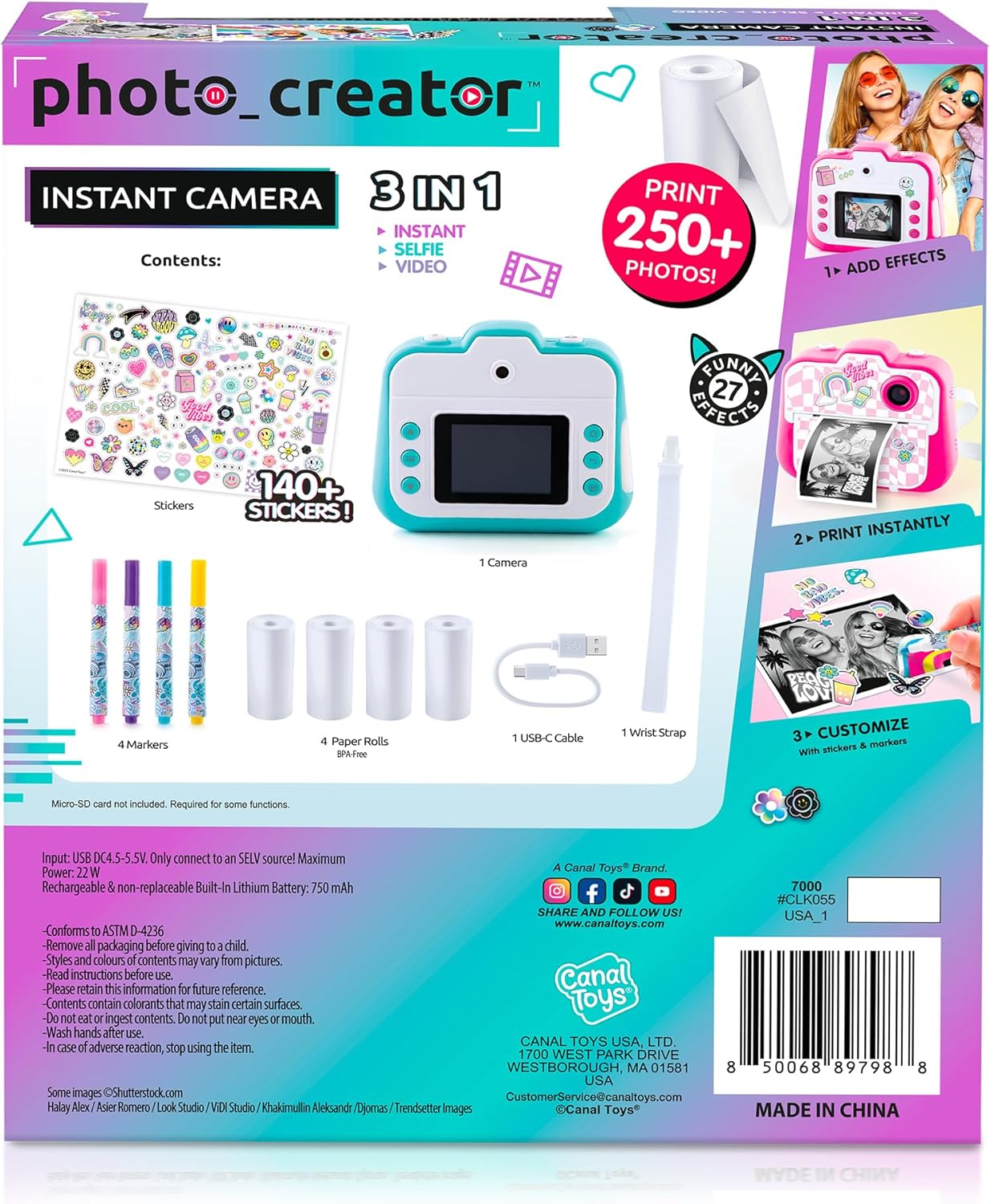
Image: The Photo Creator Instant Camera box contents, showing the camera, four rolls of thermal paper, four markers, a USB-C charging cable, and a wrist strap.
2. Charging the Camera
The camera features a built-in rechargeable Lithium Ion battery. Before first use, fully charge the camera using the provided USB-C charging cable. Connect the cable to the camera's charging port and a compatible USB power adapter (not included). The charging indicator light will signal when charging is complete.
3. Inserting Thermal Paper
To load thermal paper:
- Open the paper compartment cover on the camera.
- Insert a roll of thermal paper, ensuring the paper edge is positioned correctly to feed over the print head. Refer to the diagram inside the compartment for correct orientation.
- Close the paper compartment cover securely.

Image: A hand demonstrating how to load thermal paper into the instant camera's dedicated compartment.
4. Inserting Micro SD Card
The camera comes with a 1GB Micro SD card. Insert the memory card into the card slot with the metal contacts facing up. Press the card inward until it automatically releases to remove it.
5. Attaching the Wrist Strap
Attach the provided wrist strap to the designated loop on the camera for secure handling and to prevent accidental drops.
Operating Instructions
1. Power On/Off
Press and hold the Power button (usually located on the top or side) to turn the camera on or off. The screen will display a welcome message upon startup.
2. Menu Navigation
Use the arrow buttons (Up/Down/Left/Right) to navigate through the menu options displayed on the IPS color screen. Press the 'OK' or 'Confirm' button to select an option.
3. Taking Photos
In Photo Mode, aim the camera and press the Camera Button (shutter button) to capture an image. The camera supports both front and rear lenses for regular photos and selfies. You can apply various frames and color filters before taking a picture.

Image: Two children using the Photo Creator Instant Camera, highlighting its ease of use for young users.
4. Recording Videos
Select Video Mode from the main menu. Press the Camera Button to start recording and press it again to stop. Videos are saved to the Micro SD card in MP4 format with 720p resolution.
5. Instant Printing
After taking a photo, you can choose to print it instantly. The camera uses thermal transfer technology, meaning no ink is required. Prints are in black and white. You can select print density (Low, Medium, High) and print modes (grayscale, dot matrix) from the settings.

Image: A close-up view of the instant camera as it dispenses a freshly printed black and white photo.
6. Viewing Photos and Videos (Playback)
Access the Playback option from the main menu to review your captured photos and videos. Use the arrow buttons to browse through your media.
7. Games and Music Playback
The camera includes several built-in games for entertainment. It also supports MP3 music playback. Note that sound quality may be basic, and there is no headphone jack.
8. Zoom and Flash
The camera features 1.0x optical zoom. While in Photo Mode, you can activate the fill light (flash) for better illumination in low-light conditions.
Maintenance
1. Cleaning
Wipe the camera's surfaces with a dry microfiber cloth only. Avoid using liquids or corrosive cleaners on the camera or print parts.
2. Replacing Thermal Paper
When the thermal paper runs out, simply open the compartment, remove the empty roll, and insert a new one as described in the Setup section. Ensure the paper is correctly aligned to avoid printing issues.
3. Battery Care
The camera uses a Lithium Ion battery. Recharge it regularly to maintain performance. Avoid fully draining the battery frequently to prolong its lifespan. Do not attempt to replace the non-removable battery.
4. Storage
Store the camera in dry environments to prevent fluid damage. Keep it away from extreme temperatures.
Troubleshooting
1. Poor Print Quality
If prints appear unclear or grainy, check the print density settings in the camera menu. Ensure the thermal paper is correctly loaded and is not damaged. Avoid using poor quality paper as it can damage the print head.
2. Speaker Issues
Some users may experience scratchy or distorted sound from the speaker. This is a known characteristic of the device's audio output. If the speaker completely stops working, ensure the volume is not muted in the settings. If the issue persists, contact customer support.
3. Camera Not Turning On
Ensure the battery is sufficiently charged. Connect the camera to a power source using the USB cable and allow it to charge for at least 30 minutes before attempting to power it on again.
4. Paper Jam
If paper gets jammed, gently open the paper compartment and carefully remove any obstruction. Ensure the paper roll is inserted correctly and not too tightly.
Specifications
| Feature | Detail |
|---|---|
| Brand | Canal Toys |
| Model Number | CLK055 |
| Model Name | Photo Creator 3-in-1 Instant Camera - Pink |
| Connectivity Technology | USB |
| Photo Sensor Technology | CMOS |
| Effective Still Resolution | 12 MP |
| Video Resolution | 720p |
| Screen Size | 2 Inches (IPS Color Screen) |
| Optical Zoom | 1.0x |
| Battery Type | Lithium Ion (Rechargeable) |
| Supported File Format | JPEG (for photos), MP4 (for videos) |
| Built-In Media | 1GB Micro SD Card |
| Item Weight | 0.52 Kilograms |
| Age Range Description | Big Kid (Recommended for ages 8+) |
Warranty
For warranty information, please refer to the documentation included with your product or visit the official Canal Toys website. Warranty terms and conditions may vary by region and product.
Support
If you require further assistance or have questions regarding your Photo Creator 3-in-1 Instant Camera, please visit the Canal Toys USA Ltd. website or contact their customer service department. Contact information can typically be found on the product packaging or the official brand website.
Video: Official product video from Canal Toys USA Ltd. showcasing the Photo Creator Insta Camera features and functionality.