
Limtula ZHIsxin
Limtula Type-C Fingerprint Flash Drive ZHIsxin User Manual
Model: ZHIsxin
1. Introduction
Thank you for choosing the Limtula Type-C Fingerprint Flash Drive. This device offers a secure and convenient way to store and transfer your sensitive data. Featuring advanced fingerprint encryption, a durable metal casing, and a versatile Type-C interface, it ensures your information remains protected while providing reliable performance. This manual will guide you through the setup, operation, and maintenance of your flash drive.

Image 1.1: The Limtula Type-C Fingerprint Flash Drive, showcasing its sleek metal design and illuminated fingerprint sensor.
2. Package Contents
- 1 x Limtula Type-C Fingerprint Flash Drive
Please inspect the package contents upon receipt. If any items are missing or damaged, contact your retailer.
3. Setup
The Limtula Type-C Fingerprint Flash Drive is designed for plug-and-play convenience. However, to utilize its advanced fingerprint security features, initial setup involving fingerprint registration is required. This process typically involves dedicated software.
3.1 Connecting the Device
- Locate an available USB Type-C port on your computer or compatible device.
- Insert the Limtula Type-C Fingerprint Flash Drive firmly into the USB Type-C port. The device should be recognized automatically by your operating system.
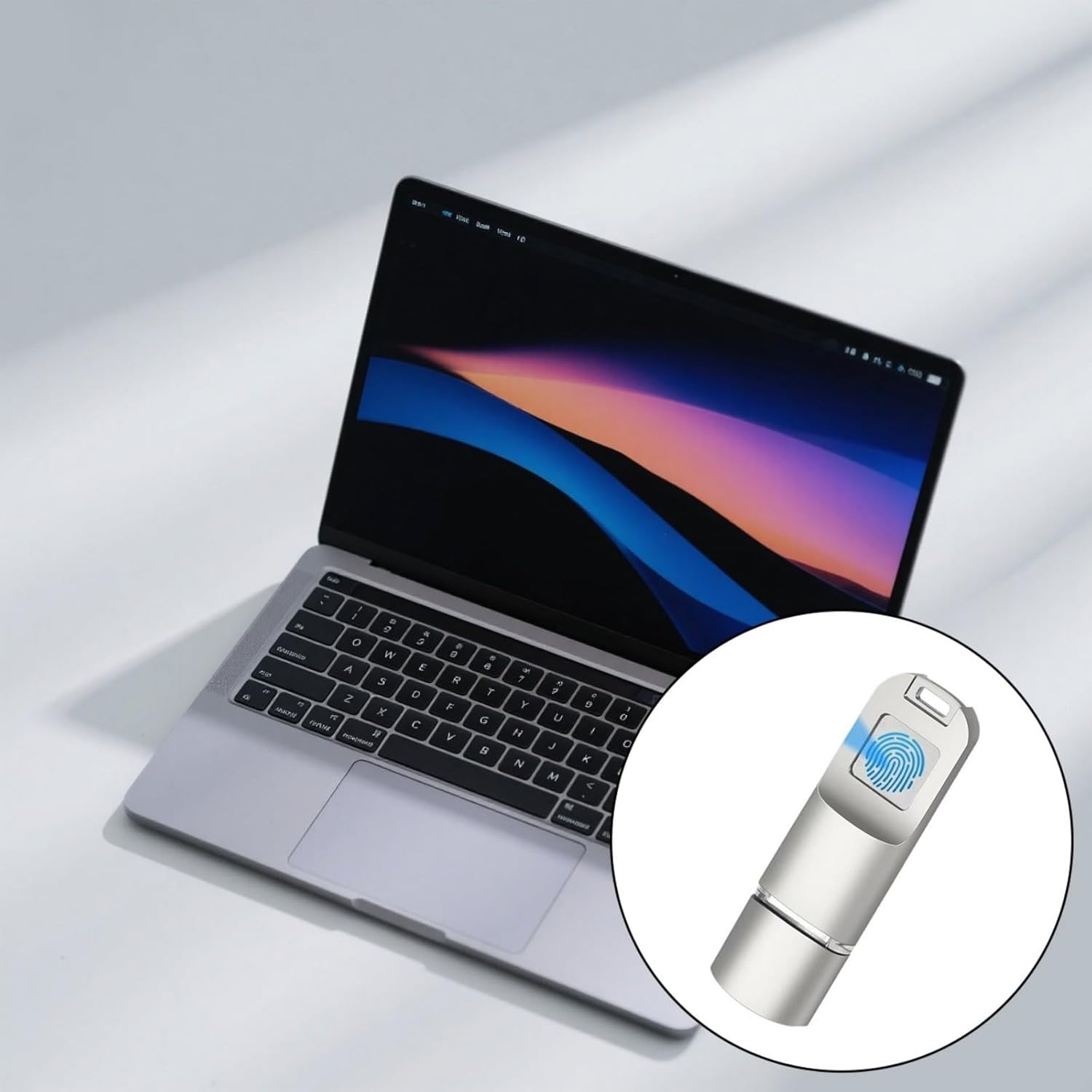
Image 3.1: The flash drive connected to a laptop, illustrating its compact size and Type-C interface.
3.2 Fingerprint Registration (Initial Setup)
For secure access, you must register your fingerprints. The specific steps for fingerprint registration may vary depending on the operating system and any pre-installed software on the drive. Generally, the process involves:
- Upon first connection, your operating system may prompt you to install a driver or software for the fingerprint reader. Follow the on-screen instructions.
- If no prompt appears, check the drive for an executable file (e.g., "Setup.exe" or "Fingerprint_Utility.exe") or visit the manufacturer's support website for the necessary software.
- Launch the fingerprint management software.
- Follow the software's instructions to enroll your fingerprints. This typically involves repeatedly placing your finger on the sensor from different angles until the scan is complete.
- You may be prompted to set up an administrator password or a backup access method in case fingerprint access is unavailable.
Important: Ensure you register at least one fingerprint for secure access. Without registered fingerprints, the secure partition of the drive may not be accessible.
4. Operating Instructions
Once your fingerprints are registered, operating the Limtula Type-C Fingerprint Flash Drive is straightforward.
4.1 Accessing Data
- Connect the flash drive to your device's USB Type-C port.
- Place your registered finger on the fingerprint sensor. The sensor will illuminate, indicating it is active.
- Upon successful authentication, the secure partition of the drive will become accessible, appearing as a removable drive in your file explorer (e.g., "My Computer" on Windows, "Finder" on macOS).
- You can now open, save, and transfer files to and from the drive as you would with any standard USB drive.

Image 4.1: Illustrating the use of the flash drive for storing various types of personal data on a laptop.
4.2 Managing Fingerprints
To add or remove fingerprints, or to change security settings, use the fingerprint management software installed during the setup process. Refer to the software's help documentation for detailed instructions.
4.3 Safe Removal
Always safely eject the flash drive from your operating system before physically removing it. This prevents data corruption.
- Windows: Right-click the drive icon in "This PC" or the system tray and select "Eject."
- macOS: Drag the drive icon to the Trash or click the Eject button next to the drive in Finder.
5. Maintenance
Proper care will extend the lifespan and ensure the reliable performance of your Limtula Type-C Fingerprint Flash Drive.
- Cleaning: Use a soft, dry, lint-free cloth to gently wipe the metal casing and fingerprint sensor. Avoid using liquid cleaners or abrasive materials.
- Protection: While the drive features a durable metal construction and is shockproof, avoid dropping it or subjecting it to extreme physical impact. Keep the Type-C connector free from dust and debris.
- Environment: Store the drive in a cool, dry place, away from direct sunlight, extreme temperatures, and strong magnetic fields.
- Data Backup: Regularly back up important data stored on the flash drive to another storage medium. While the drive offers robust security, no storage solution is infallible.
6. Troubleshooting
If you encounter issues with your flash drive, refer to the following common troubleshooting steps:
- Drive Not Recognized:
- Try plugging the drive into a different USB Type-C port.
- Restart your computer and try again.
- Ensure your operating system's USB drivers are up to date.
- Check if the drive appears in your computer's Disk Management (Windows) or Disk Utility (macOS).
- Fingerprint Not Authenticating:
- Ensure your finger is clean and dry.
- Place your finger firmly and completely on the sensor.
- Try using a different registered finger.
- If multiple attempts fail, use your backup password (if configured) to access the drive and re-register your fingerprints via the management software.
- Slow Transfer Speeds:
- Ensure you are using a USB 3.0 or higher Type-C port for optimal performance. Older USB 2.0 ports will result in slower speeds.
- Avoid transferring many small files simultaneously; compressing them into an archive can sometimes improve speed.
- Close other applications that might be using system resources or accessing the drive.
If these steps do not resolve the issue, please refer to the manufacturer's support website or contact customer service.
7. Specifications
| Brand | Limtula |
| Model Number | ZHIsxin |
| Component | Metal |
| Capacities | 16GB, 32GB, 64GB, 128GB, 256GB |
| Interface | USB Type-C |
| Read Speed | 15 MB/s |
| Write Speed | 5 MB/s |
| Security Feature | Advanced Fingerprint Encryption |
| Durability | Shockproof, Durable Metal Casing |
| Dimensions (Approx.) | 55 mm (Length) |
8. Warranty and Support
For information regarding warranty coverage, technical support, or customer service, please refer to the documentation included with your purchase or visit the official Limtula website. Keep your proof of purchase for warranty claims.