
1. Introduction
This manual provides detailed instructions for the installation, operation, and maintenance of your GEYILO WiFi Extender, Model WD-R1200U. This device is designed to expand your existing wireless network coverage, providing a stable and high-speed internet connection to areas with weak or no signal.

Figure 1: GEYILO WiFi Extender WD-R1200U. This image shows the front view of the black WiFi extender with its four adjustable antennas extended upwards, displaying indicator lights and the 'WiFi Repeater' logo.
2. Key Features
- Flexible Operation Options: Supports AP Mode, Repeater Mode, and includes 2 Ethernet Ports for versatile network setups.
- Quick WPS Installation: Features a WPS button for fast and simplified network expansion.
- Wide Coverage Range: Extends WiFi coverage up to 12880 Sq.Ft with 4 high-gain antennas, eliminating dead zones.
- Dual Band Stability: Operates on both 2.4GHz (long-range, wall-penetrating) and 5GHz (stable, low-interference) bands.
- Multi-Device Support: Connects up to 105 devices simultaneously without congestion.

Figure 2: Broad Compatibility. This image illustrates the WiFi extender's ability to connect to various devices such as smartphones, smart TVs, game controllers, security cameras, and laptops, highlighting its multi-device support.
3. Package Contents
Upon unpacking, please verify that all items listed below are present and in good condition:
- GEYILO WiFi Extender (Model WD-R1200U)
- Ethernet Cable
- Quick Installation Guide
4. Setup Instructions (WPS Method)
The GEYILO WiFi Extender offers a simple setup process using the WPS (Wi-Fi Protected Setup) button. Ensure your main router supports WPS.
- Power On the Extender: Plug the WiFi Extender into a power outlet near your main router.
- Wait for Indicator Lights: Allow a few moments for the extender to power on. The 2.4G and 5G indicator lights on the extender should illuminate.
- Activate WPS on Router: Press the WPS button on your main WiFi router. Refer to your router's manual for the exact location of the WPS button.
- Activate WPS on Extender: Within two minutes of pressing the WPS button on your router, press the 'Reset/WPS' button located on the side of the GEYILO WiFi Extender.
- Connection Confirmation: The indicator lights on the extender will flash and then become solid, indicating a successful connection with your router.
- Relocate and Connect: Once connected, you can unplug the extender and move it to a desired location within your home where WiFi signal is weak. Plug it into a power outlet, wait for the lights to stabilize, and then connect your devices to the new extended WiFi network (usually named with '_EXT' or '_PRO' appended to your original network name).
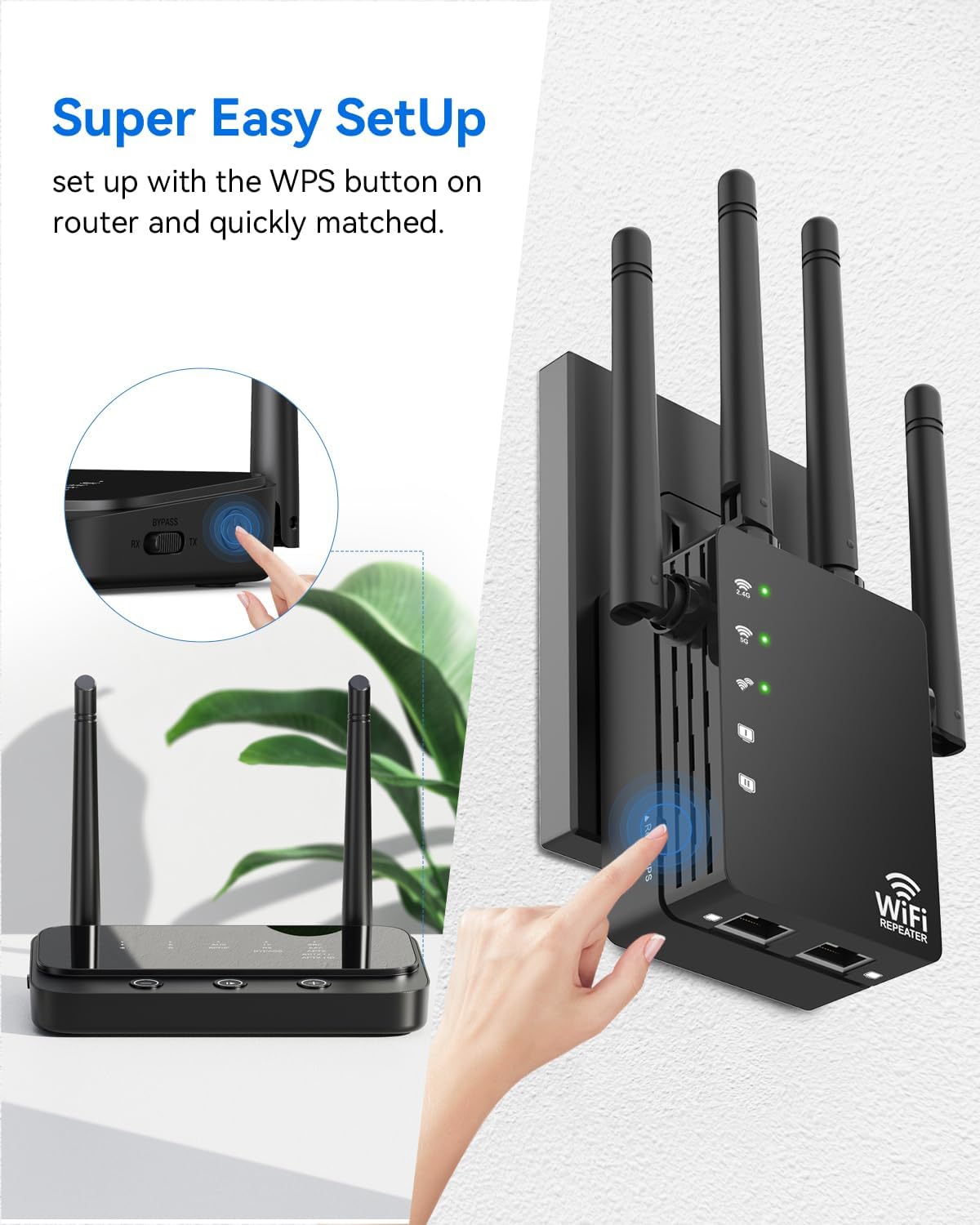
Figure 3: WPS Setup. This image demonstrates the simple WPS setup process, showing a hand pressing the WPS button on both a router and the GEYILO WiFi Extender.
Video 1: WiFi Extender Signal Booster for Home. This video provides a visual guide on how to set up the GEYILO WiFi Extender using the WPS method, demonstrating the steps to connect it to a router and extend the WiFi signal.
5. Operating Modes
The GEYILO WiFi Extender supports three primary operating modes to suit various networking needs:
- Repeater Mode: Extends the coverage of an existing wireless network. This is the most common mode for boosting WiFi signal.
- AP (Access Point) Mode: Converts a wired network connection into a wireless one. Ideal for creating a new WiFi hotspot from an Ethernet port.
- Router Mode: Functions as a primary router, creating a new private network. This mode is typically used when you don't have an existing router.

Figure 4: Three Working Modes. This diagram illustrates the three operational modes: AP Mode, Repeater Mode, and Router Mode, showing how the extender can be integrated into different network configurations.
6. Maintenance
To ensure optimal performance and longevity of your GEYILO WiFi Extender, consider the following maintenance tips:
- Placement: Position the extender in an open area, away from obstructions like large metal objects, thick walls, or other electronic devices that may cause interference.
- Cleaning: Regularly clean the device with a soft, dry cloth. Avoid using liquid cleaners or aerosols.
- Ventilation: Ensure the ventilation holes are not blocked to prevent overheating.
- Firmware Updates: Check the manufacturer's website periodically for any available firmware updates to improve performance and security.
7. Troubleshooting
If you encounter issues with your WiFi Extender, refer to the following common problems and solutions:
| Problem | Possible Solution |
|---|---|
| No internet access after setup. | Ensure the extender is successfully connected to your main router (indicator lights are solid). Try restarting both the router and the extender. Verify your device is connected to the extender's network. |
| Slow connection speed. | Reposition the extender closer to your main router or to a more central location. Check for interference from other electronic devices. Ensure your main internet connection is stable. |
| Cannot connect to the extender's network. | Confirm the extender is powered on and its indicator lights are active. Try resetting the extender to factory defaults (press and hold the Reset/WPS button for 5-10 seconds) and repeat the setup process. |
| WPS setup fails. | Ensure you press the WPS button on both the router and extender within the specified time frame (usually 2 minutes). If WPS continues to fail, try manual setup via a web browser (refer to the Quick Installation Guide for details). |
8. Specifications
| Feature | Detail |
|---|---|
| Model Number | WD-R1200U |
| Product Dimensions | 6.8 x 3.66 x 2 inches |
| Item Weight | 5.6 ounces |
| Wireless Communication Standard | 802.11a/b/g/n/ac |
| Data Transfer Rate | 1200 Megabytes Per Second |
| Special Features | 1-Tap Setup, 360 Degree Coverage, Directional Antenna, Firewall, WiFi Mesh |
| Manufacturer | Shenzhen Century Xinyang Tech Co.,Ltd |
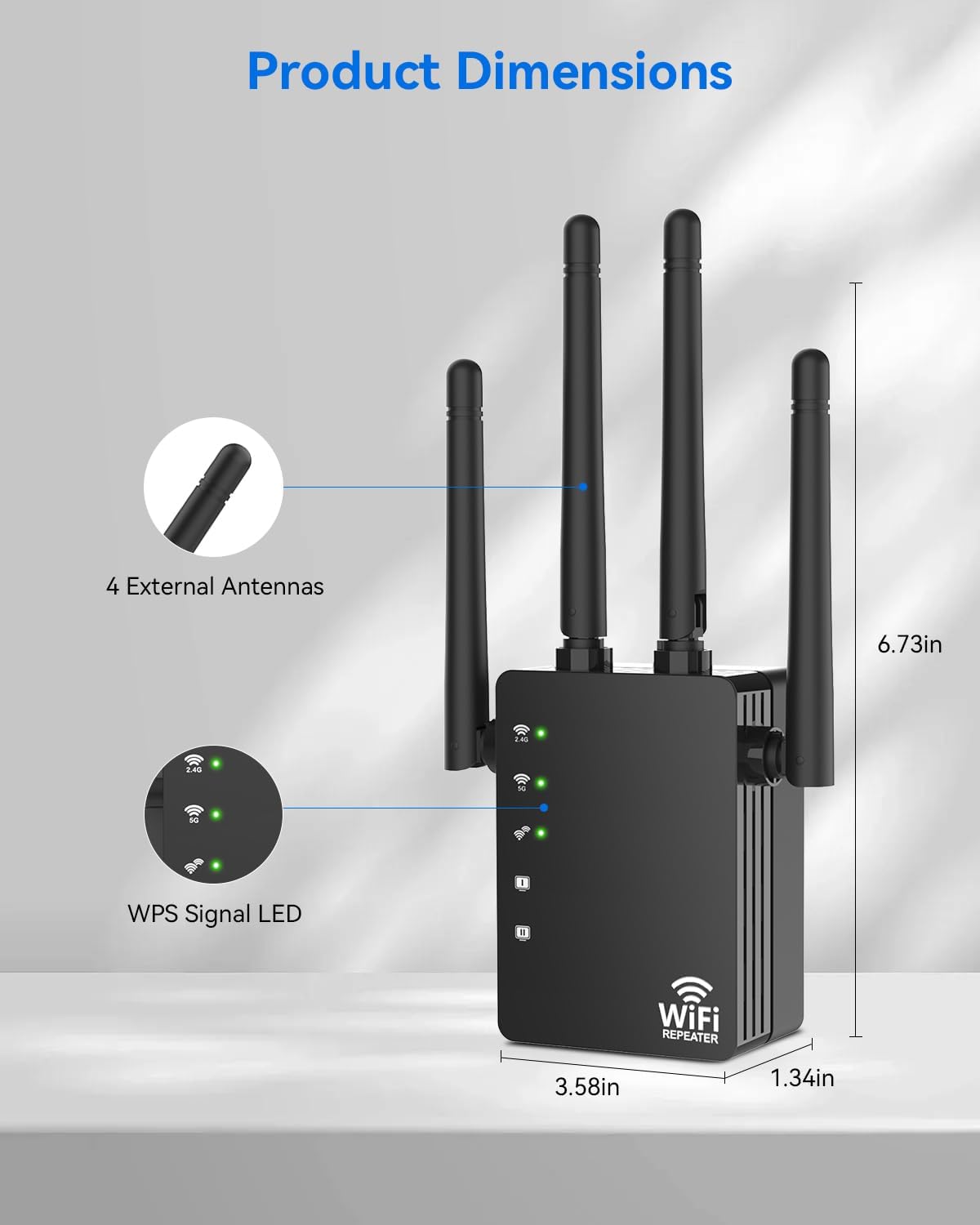
Figure 5: Product Dimensions. This image displays the GEYILO WiFi Extender with its physical dimensions (height, width, depth) clearly labeled, along with callouts for its 4 external antennas and WPS signal LED indicators.
9. Warranty and Support
For warranty information, technical support, or further assistance, please contact GEYILO customer service. Details can typically be found on the product packaging or the official GEYILO website.