
1. Introduction
Thank you for choosing the deli SECURITY Smart Deadbolt Lock. This manual provides detailed instructions for the installation, setup, operation, and maintenance of your new smart lock. Please read this manual thoroughly before installation and use to ensure proper function and security.

Image: A family standing by a door equipped with the smart lock, highlighting the convenience of keyless entry.

Image: A man checking his phone with the smart lock and a house in the background, representing enhanced home security and remote monitoring.
2. Product Overview
The deli SECURITY Smart Deadbolt Lock offers advanced security and convenience with multiple unlocking methods and smart features. It is designed for easy integration into your home or office security system.
2.1 Key Features
- 5-in-1 Unlocking Methods: Fingerprint, Passcode, Key Card, Mobile App (Bluetooth), and Mechanical Key.
- Advanced Fingerprint Recognition: High-precision biometric sensor for quick and secure access.
- App Control: Manage users, generate temporary passcodes, view access history, and control the lock remotely via the Tuya app (Bluetooth connection required).
- Auto-Lock Function: Customizable auto-lock timer for enhanced security.
- Durable Design: Constructed with aluminum material and IP65 waterproof rating for outdoor use.
2.2 Package Contents
Verify that all components are present before beginning installation:
- Exterior Keypad Assembly
- Interior Deadbolt Assembly
- Deadbolt Latch
- Strike Plate
- Mounting Hardware (Screws)
- Mechanical Keys (2)
- Key Cards (2)
- AA Batteries (4)
- Installation Template
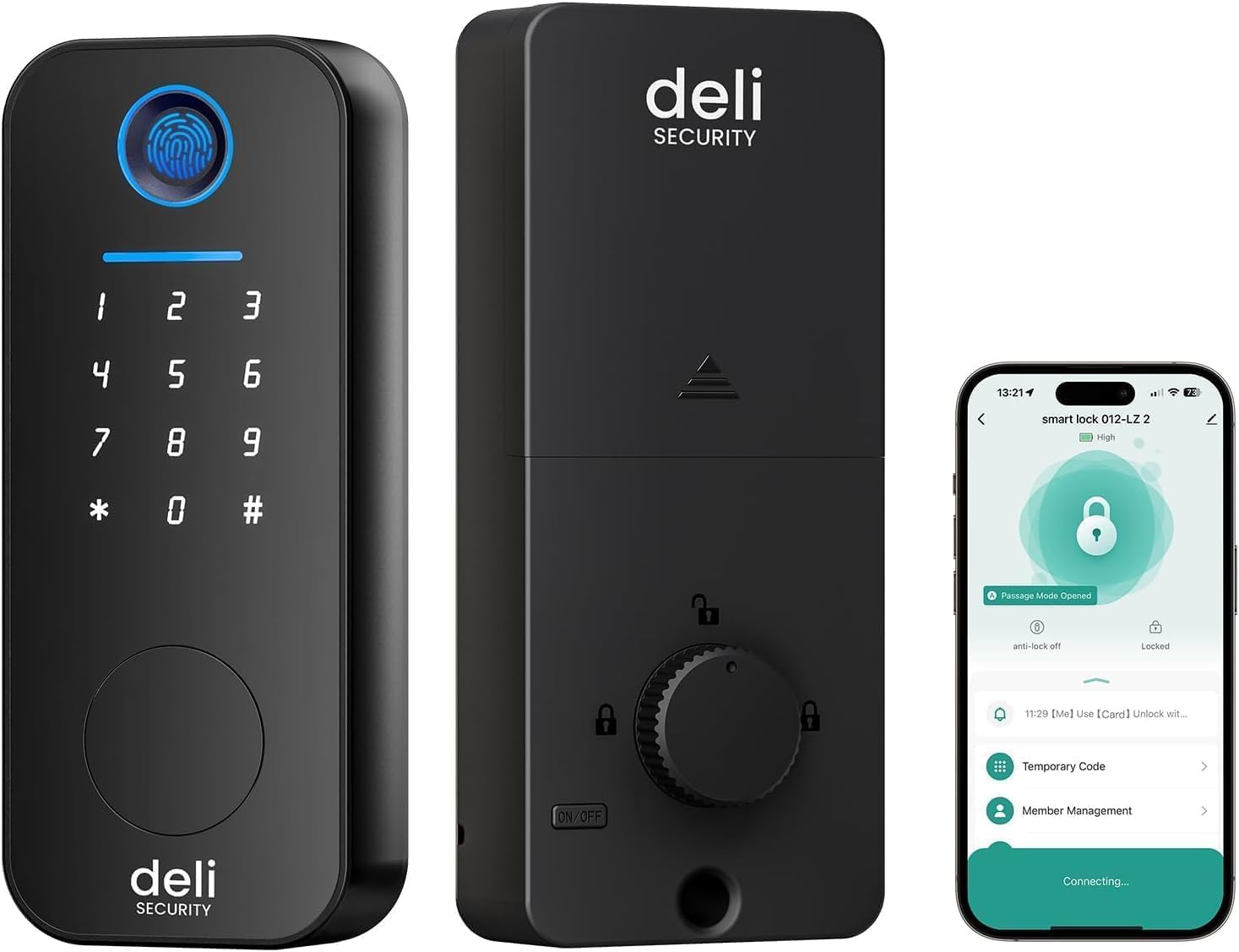
Image: Overview of the deli SECURITY Smart Deadbolt Lock, showing the exterior keypad, interior unit, and a smartphone displaying the control app.

Image: The smart lock shown installed on different types of doors, including a front door, bedroom door, storehouse door, and office door, illustrating its versatility.

Image: Illustration of the five unlocking methods: App, Fingerprint, Passcode, Key Fob (Card), and Mechanical Keys.
3. Installation Guide
The deli SECURITY Smart Deadbolt Lock is designed for easy installation. A cross screwdriver is typically the only tool required. Follow these steps carefully:
3.1 Prepare Your Door
- Ensure your door thickness is between 1-3/8" to 2" (35 mm to 50 mm).
- Verify the hole diameter for the deadbolt is 2-1/8" (54 mm).
- Check the backset measurement (distance from door edge to center of the hole) is either 2-3/8" or 2-3/4" (60 mm or 70 mm).
- Remove any existing deadbolt hardware.
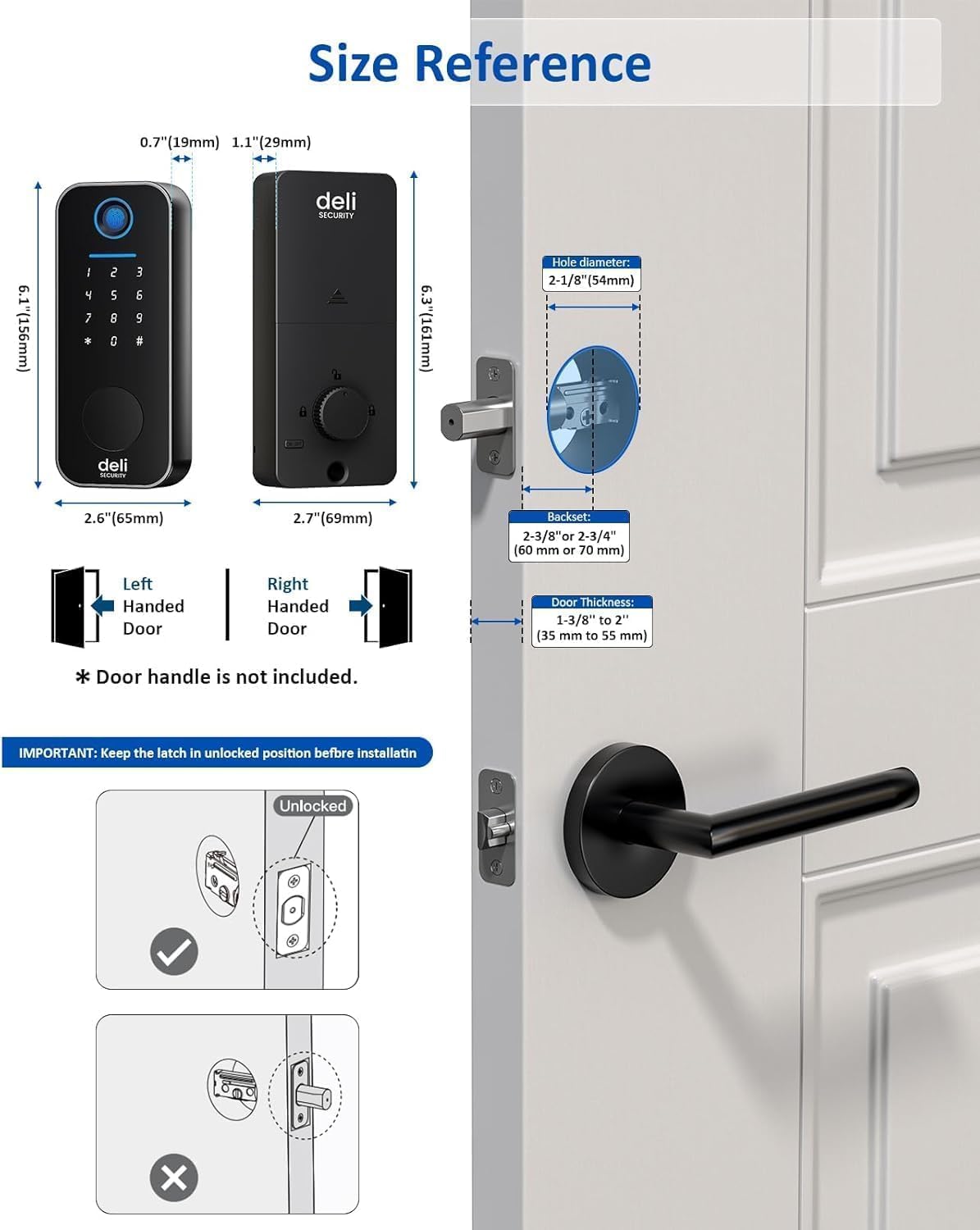
Image: Diagram showing door dimensions for installation and the correct orientation for installing the deadbolt latch in an unlocked position.
3.2 Install the Deadbolt Latch
- Insert the deadbolt latch into the door edge. Ensure the latch is in the unlocked position before installation.
- Secure the latch with screws.
3.3 Install the Exterior Keypad Assembly
- Feed the cable from the exterior keypad through the hole in the door.
- Align the exterior keypad with the deadbolt latch and secure it to the door.
3.4 Install the Interior Deadbolt Assembly
- Connect the cable from the exterior keypad to the interior assembly.
- Align the interior assembly with the mounting plate and secure it with screws. Ensure the thumb turn operates smoothly.
- Install the 4 AA batteries (included) into the battery compartment.

Image: A person using a screwdriver to install the interior deadbolt assembly, highlighting the ease of installation.

Image: The mobile app interface demonstrating how to quickly set the door's opening direction (left or right-handed) during setup.
4. Setup and Configuration
After physical installation, configure your smart lock using the mobile app and register your preferred access methods.
4.1 Mobile App Setup (Tuya App)
- Download the Tuya Smart app from your smartphone's app store (iOS or Android).
- Register for an account or log in if you already have one.
- Open the app and tap "Add Device" or the "+" icon.
- Select "Security & Video Surveillance" > "Door Lock (Bluetooth)".
- Follow the on-screen instructions to connect your lock via Bluetooth. Ensure Bluetooth is enabled on your phone and you are within range of the lock.
- Once connected, you can name your lock and access its settings.

Image: A smartphone screen showing the Tuya app interface, indicating a successful connection to the smart lock.
4.2 Registering Fingerprints
- In the Tuya app, navigate to the lock's settings and select "Member Management" or "Fingerprint Management".
- Tap "Add Fingerprint" and follow the app's prompts to place your finger on the lock's sensor multiple times until registration is complete.
- You can register up to 50 unique fingerprints.

Image: A person placing their finger on the smart lock's fingerprint sensor for quick unlocking, illustrating the 0.35-second recognition time.
4.3 Setting Up Passcodes
- From the Tuya app, go to "Member Management" or "Passcode Management".
- You can create various types of passcodes:
- Permanent Passcodes: For regular users (up to 100 user PIN codes).
- One-Time Passcodes: Valid for a single use, then automatically deleted.
- Time-Limited Passcodes: Valid for a specific duration (e.g., for guests or service providers).
- Periodic Passcodes: Valid during recurring time slots (e.g., for cleaning staff).
- Follow the app's instructions to generate and assign passcodes.

Image: A smartphone displaying the access management interface within the app, showing options to add fingerprints, codes, and cards for various users.

Image: The smart lock keypad with an overlay indicating the "One-Time Pin Code" feature and options for managing users and 100 user codes.
4.4 Registering Key Cards
- In the Tuya app, select "Member Management" or "Card Management".
- Tap "Add Card" and follow the app's instructions to present the key card to the lock's sensor until it is registered.
5. Operating Instructions
5.1 Unlocking the Door
- Fingerprint: Place your registered finger on the fingerprint sensor. The lock will unlock in approximately 0.3 seconds.
- Passcode: Enter your 6-8 digit passcode on the touchscreen keypad, then press '#'.
- Key Card: Present a registered key card to the card reader area on the lock.
- Mobile App: Open the Tuya app, select your lock, and tap the unlock icon. Ensure Bluetooth is active on your phone.
- Mechanical Key: Insert the physical key into the hidden keyhole (located at the bottom of the exterior unit) and turn to unlock. This is for emergency access or when batteries are depleted.

Image: A hand pressing the fingerprint sensor on the smart lock to gain entry.

Image: A hand entering a passcode on the illuminated touchscreen keypad of the smart lock.

Image: A hand holding a key card near the smart lock for card-based entry.

Image: A hand inserting a mechanical key into the hidden keyhole of the smart lock for manual unlocking.
5.2 Locking the Door
- Automatic Locking: The lock will automatically engage after a set period (see Auto-Lock settings below).
- Manual Locking (from outside): To lock the door from the outside, press and hold the '#' key on the keypad for 2 seconds, or use the mobile app to lock.
- Manual Locking (from inside): Turn the thumb turn on the interior assembly to the locked position.
5.3 Auto-Lock Feature
The auto-lock feature automatically locks the deadbolt after a specified delay. This feature can be configured via the Tuya app.
- In the Tuya app, navigate to your lock's settings.
- Find the "Auto-Lock" setting.
- Set the desired delay time, typically between 5 and 180 seconds.

Image: A couple leaving their home, with an illustration indicating the smart lock's auto-lock function engaging after a set time.
6. Maintenance
6.1 Battery Replacement
The lock requires 4 AA alkaline batteries (included). When the battery level is low, the lock will provide an audible or visual alert. Replace all four batteries simultaneously for optimal performance.
- Remove the battery cover from the interior assembly.
- Remove the old batteries.
- Insert new AA alkaline batteries, ensuring correct polarity.
- Replace the battery cover.

Image: A visual representation of the smart lock's battery compartment and the battery level indicator within the mobile app, emphasizing long-lasting power.
6.2 Cleaning
Clean the lock's exterior surfaces with a soft, damp cloth. Avoid abrasive cleaners or solvents that could damage the finish or electronic components.
7. Troubleshooting
| Problem | Possible Cause | Solution |
|---|---|---|
| Lock does not respond. | Dead batteries. | Replace all 4 AA batteries. Use the mechanical key for immediate access. |
| Fingerprint not recognized. | Finger is wet/dirty, or fingerprint not properly registered. | Ensure finger is clean and dry. Try re-registering the fingerprint in the app. Try a different registered finger. |
| Passcode not working. | Incorrect passcode entered, or passcode expired (for temporary codes). | Verify the passcode. Check the passcode validity in the Tuya app. |
| Cannot connect to app via Bluetooth. | Bluetooth is off, phone is too far, or app issue. | Ensure Bluetooth is enabled on your phone. Move closer to the lock. Restart the app or your phone. |
| Lock does not auto-lock. | Auto-lock feature is disabled or timer is set too long. | Check auto-lock settings in the Tuya app and adjust the timer. |
| Difficulty locking from outside without app/key. | User unaware of manual locking method. | To manually lock from the outside, press and hold the '#' key on the keypad for 2 seconds. |
8. Specifications
| Feature | Detail |
|---|---|
| Brand | deli SECURITY |
| Model | Fingerprint Lock |
| Lock Type | Smart Deadbolt, Combination Lock |
| Unlocking Methods | Fingerprint, Passcode, Key Card, Mobile App (Bluetooth), Mechanical Key |
| Special Features | Fingerprint, Touchscreen, Auto-Lock, App Control (Tuya) |
| Material | Aluminum |
| Dimensions (L x W x H) | 8.7 x 5.9 x 3.9 inches |
| Item Weight | 2.53 pounds |
| Power Source | 4 AA Batteries (included) |
| Battery Cell Type | Alkaline |
| Door Thickness Compatibility | 1-3/8" to 2" (35 mm to 50 mm) |
| Hole Diameter Required | 2-1/8" (54 mm) |
| Backset Compatibility | 2-3/8" or 2-3/4" (60 mm or 70 mm) |
| UPC | 752625857131 |
9. Warranty and Support
deli SECURITY products are designed for reliability and performance. For warranty information, please refer to the documentation included with your purchase or contact deli SECURITY customer support.
9.1 Customer Support
If you encounter any issues or have questions regarding your deli SECURITY Smart Deadbolt Lock, please contact our customer support team. Contact details can typically be found on our official website or on the product packaging.