
Samsung E1SAMUN58U7900
Samsung UN58U7900F Series 58-inch UHD 4K Smart Tizen TV User Manual
Model: UN58U7900F (E1SAMUN58U7900)
1. Introduction
Welcome to the user manual for your Samsung UN58U7900F Series 58-inch UHD 4K Smart Tizen TV. This guide provides essential information for setting up, operating, maintaining, and troubleshooting your television to ensure an optimal viewing experience. Please read this manual thoroughly before using your TV.

Image 1.1: Front view of the Samsung UN58U7900F Series 58-inch 4K Smart TV. The screen displays vibrant, abstract blue and purple shapes, with "Samsung" and "Crystal UHD" logos visible.
The Samsung UN58U7900F Series TV features a Crystal Processor 4K for enhanced picture quality, a sleek MetalStream Design, and the Tizen operating system for smart functionality. It includes Samsung Knox Security for data protection and offers access to a wide range of content through Samsung TV Plus and other streaming applications.
2. Important Safety Information
Before using your TV, please read all safety instructions carefully. Failure to do so may result in personal injury or damage to your TV.
- Power Source: Only connect the TV to an AC power outlet that matches the voltage specified on the product label.
- Ventilation: Ensure proper ventilation around the TV. Do not block ventilation openings.
- Water and Moisture: Do not expose the TV to rain or moisture. Do not place objects filled with liquids, such as vases, on the TV.
- Cleaning: Unplug the TV from the power outlet before cleaning. Use a soft, dry cloth. Do not use liquid cleaners or aerosol cleaners.
- Mounting: When mounting the TV on a wall, ensure the wall mount is installed correctly by a qualified professional.
- Children: Do not allow children to climb on or play with the TV or its stand.
For detailed safety guidelines, refer to the separate safety guide included with your product.
3. What's in the Box
Carefully unpack your TV and check that all the following items are included:
- Samsung 58-inch U7900F Series UHD 4K Smart Tizen TV
- SolarCell Remote Control
- Power Cable
- User Manual (this document)
- Quick Setup Guide
- Stand Components (if applicable)
- Note: If purchased as a bundle, additional accessories such as HDMI cables may be included.
4. Setup
4.1 Stand Assembly or Wall Mounting
Follow the instructions provided in the Quick Setup Guide for assembling the TV stand or for preparing the TV for wall mounting. Ensure all screws are securely fastened.
4.2 Connecting Peripherals
Connect your external devices (e.g., cable box, Blu-ray player, game console) to the TV's ports. Refer to the diagram below for port locations.

Image 4.1: Rear view of the Samsung TV's connectivity panel. Visible ports include HDMI (eARC), USB (5V 0.5A), and LAN (Ethernet). A zoomed-in section highlights the HDMI and LAN ports.
- HDMI: Connect devices like set-top boxes, game consoles, or Blu-ray players. The HDMI (eARC) port supports enhanced audio return channel functionality.
- USB: Connect USB storage devices to view photos, videos, or listen to music.
- LAN (Ethernet): Connect an Ethernet cable for a wired internet connection.
- ANT IN: Connect an antenna or cable for broadcast TV.
4.3 Initial Power On and First-Time Setup
- Connect the power cable to the TV and a wall outlet.
- Press the Power button on the remote control or the TV.
- Follow the on-screen instructions to complete the initial setup, including language selection, network connection (Wi-Fi or wired), and channel scanning.
- Log in to your Samsung account or create a new one to access all Smart TV features.
5. Operating Your TV
5.1 Remote Control Overview
The SolarCell Remote Control allows you to navigate your TV's features. Familiarize yourself with the buttons for power, volume, channel, home, and navigation.
- Power Button: Turns the TV on or off.
- Volume Buttons: Adjusts the sound level.
- Channel Buttons: Changes TV channels.
- Home Button: Accesses the Smart Hub for apps and settings.
- Navigation Pad: Used to move through menus and select items.
5.2 Smart TV Features (Tizen OS)
Your TV runs on the Tizen operating system, providing access to a variety of smart features:
- Smart Hub: Your central access point for apps, connected devices, and settings.
- Samsung TV Plus: Enjoy over 400 premium channels and 2,700+ free channels, including live news, sports, movies, and more, without additional subscriptions.
- App Store: Download and install additional streaming apps and services.
- Samsung Knox Security: This feature protects your TV from unauthorized access, phishing websites, and safeguards connected IoT devices and personal information.
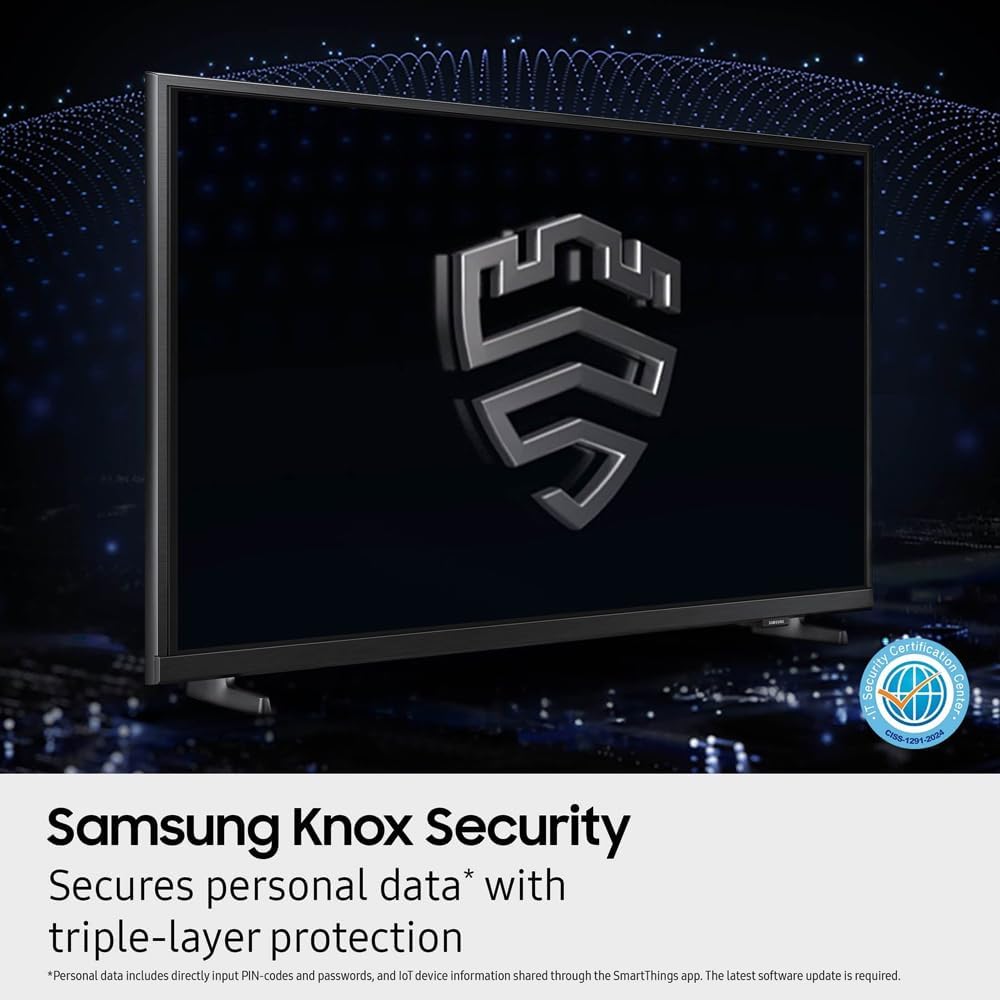
Image 5.1: The Samsung Knox Security logo is displayed prominently on the TV screen, illustrating the security feature.
5.3 Picture and Sound Settings
Customize your viewing and listening experience through the TV's settings menu.
- Crystal Processor 4K: This processor enhances picture quality by optimizing color, contrast, and upscaling lower-resolution content to near 4K.
- 4K Upscaling: Automatically upgrades content to near 4K resolution, revealing enhanced details.
- Motion Xcelerator: Improves motion clarity for fast-paced content like sports and video games by estimating and predicting frames.
- HDR (High Dynamic Range): Provides expanded contrast and a wider spectrum of colors for enhanced detail and depth in compatible content.
- Color Booster: Adjusts color saturation for richer, more vibrant hues.
- Object Tracking Sound Lite: Creates a virtual top channel to make sound follow on-screen action, enhancing immersion.
- Q-Symphony: When paired with a compatible Samsung soundbar, this feature allows both the TV speakers and soundbar to operate simultaneously for a more robust audio experience.

Image 5.2: A close-up view of the Samsung Crystal UHD Processor 4K chip, illustrating the technology responsible for picture enhancement.
6. Maintenance
6.1 Cleaning Your TV
- Always unplug the TV before cleaning.
- Use a soft, dry microfiber cloth to gently wipe the screen and frame.
- Do not use water, liquid cleaners, or chemical sprays, as these can damage the screen or electronics.
6.2 Software Updates
To ensure optimal performance and access to the latest features, regularly check for and install software updates. You can usually find this option in the TV's settings menu under "Support" or "Software Update."
6.3 Remote Control Care
The SolarCell Remote Control charges via indoor lighting or USB-C. Keep the solar panel exposed to light for charging. Avoid exposing the remote to liquids or extreme temperatures.
7. Troubleshooting
If you encounter issues with your TV, try the following solutions before contacting support:
| Problem | Possible Solution |
|---|---|
| No power | Check if the power cable is securely connected to the TV and the wall outlet. Ensure the outlet is working. |
| No picture, but sound is present | Check the input source. Ensure external devices are powered on and connected correctly. |
| No sound, but picture is present | Check the volume level and mute settings. Verify audio cables for external devices. |
| Remote control not working | Ensure there are no obstructions between the remote and the TV. Check the remote's charge level (SolarCell). |
| Cannot connect to Wi-Fi | Restart your router and modem. Check Wi-Fi password. Try a wired LAN connection if available. |
| Smart Hub not loading apps | Check internet connection. Try restarting the TV. Perform a Smart Hub reset in settings if necessary. |
For more comprehensive troubleshooting, refer to the e-Manual accessible through your TV's settings menu or visit the Samsung support website.
8. Specifications
| Feature | Detail |
|---|---|
| Brand | Samsung |
| Model Number | E1SAMUN58U7900 |
| Screen Size | 58 Inches |
| Display Technology | LED |
| Resolution | 4K UHD (3840 x 2160) |
| Refresh Rate | 60 Hz |
| Product Dimensions (WxHxD) | 50.6" x 31.5" x 8.7" (with stand) |
| Aspect Ratio | 16:9 |
| Connectivity Technology | Wi-Fi, Ethernet |
| Special Features | Crystal Processor 4K, MetalStream Design, Samsung Knox Security, Tizen OS, Samsung TV Plus, Motion Xcelerator, HDR, Color Booster, Object Tracking Sound Lite, Q-Symphony |
9. Warranty and Support
Your Samsung UN58U7900F Series TV comes with a limited manufacturer's warranty. Please refer to the warranty card included with your product for specific terms and conditions, including coverage duration and limitations.
- Standard Warranty: Typically includes a limited 1-year protection plan from the date of purchase.
- Extended Protection: If purchased as part of a bundle, your product may include additional extended protection (e.g., 26 months). Refer to your purchase documentation for details on any extended plans.
For technical support, service requests, or further assistance, please visit the official Samsung support website or contact Samsung customer service. Have your TV's model number (E1SAMUN58U7900) and serial number ready when contacting support.
Samsung Support Website: www.samsung.com/us/support/
Ask a question about this manual
Ask about setup, troubleshooting, compatibility, parts, safety, or missing instructions. Manuals+ will review the question and use this page’s manual context to help answer it.