
Introduction
This manual provides detailed instructions for the installation, operation, and maintenance of your ANKEWAY BH60 Car Radio. Designed specifically for BMW 3 Series E46 and M3 models from 1999 to 2005, this Android-based stereo system enhances your driving experience with modern connectivity and entertainment features. Please read this manual thoroughly before installation and use to ensure proper function and safety.

Image: Front view of the ANKEWAY BH60 Car Radio unit, showcasing its display and control buttons.
Package Contents
Verify that all items listed below are included in your package. If any components are missing or damaged, please contact customer support.

Image: Visual representation of the ANKEWAY BH60 Car Radio and its complete set of accessories.
- ANKEWAY BH60 Car Radio Unit
- CANBUS Decoder
- Power Cable
- Radio Antenna
- GPS Antenna
- Microphone
- AHD Reversing Camera
- Camera Cables (various types)
- RCA Cable
- USB Cable
- Panel Removal Tool
Setup and Installation
The ANKEWAY BH60 Car Radio is designed for direct fitment into BMW 3 Series E46 and M3 models (1999-2005). The installation process involves replacing the original car radio with the new unit and connecting the provided accessories.
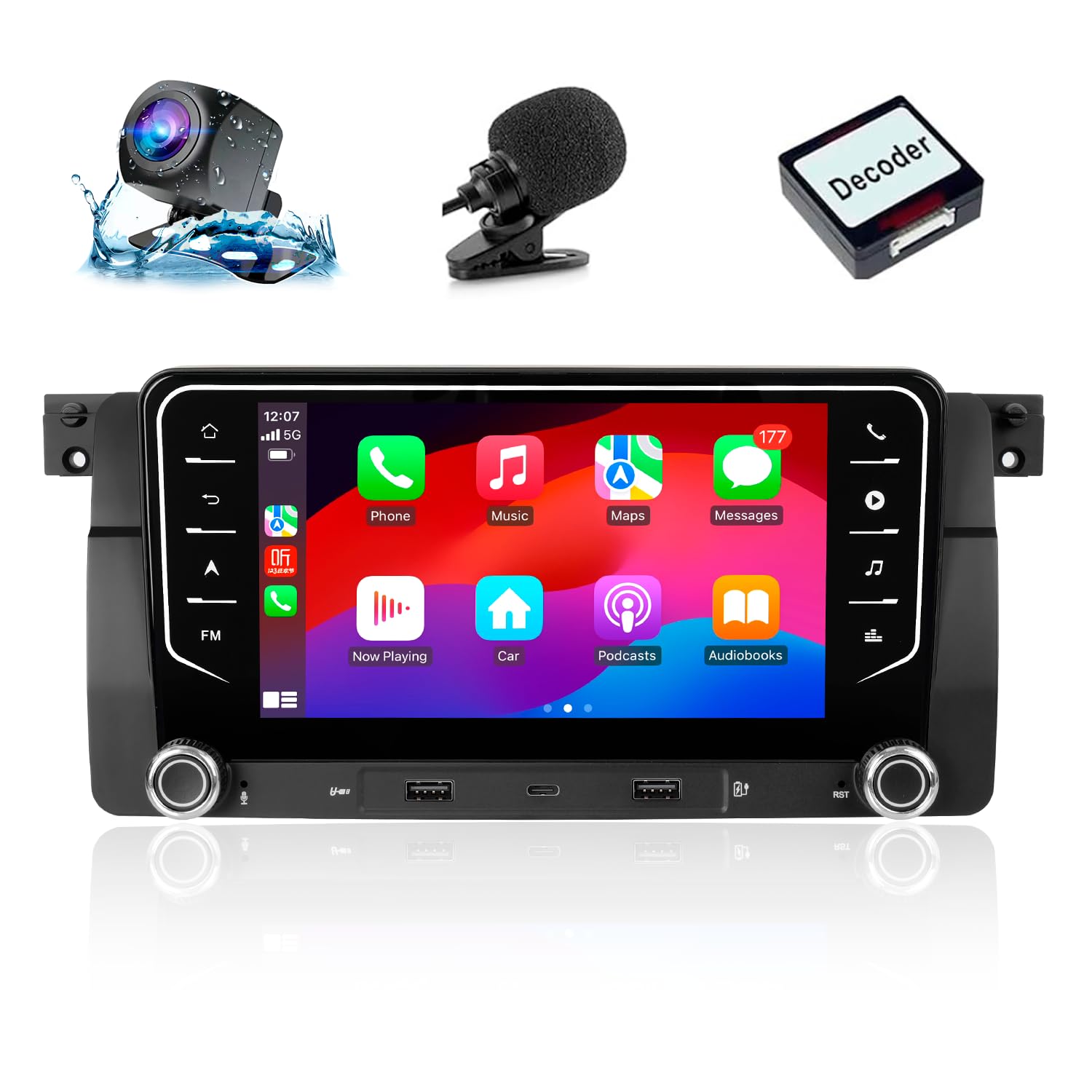
Image: Comparison showing the original BMW E46 dashboard radio (Before) and the ANKEWAY BH60 Car Radio installed (After).
Installation Steps:
- Preparation: Ensure the vehicle's ignition is off and the battery is disconnected to prevent electrical shorts.
- Remove Original Radio: Use the provided panel removal tool to carefully pry off the trim surrounding the original radio. Unscrew and remove the existing radio unit. Disconnect all cables from the back of the original radio.
- Connect CANBUS Adapter: The included CANBUS adapter is crucial for maintaining original steering wheel controls and vehicle protocol compatibility. Connect the CANBUS adapter to the vehicle's wiring harness and then to the ANKEWAY BH60 unit.
- Connect Power and Antenna Cables: Connect the main power cable, radio antenna, and GPS antenna to their respective ports on the new car radio.
- Connect Accessories: Connect the reversing camera cable, microphone, and any USB cables as needed. Route these cables neatly to their intended locations.
- Test Functionality: Before fully securing the unit, reconnect the vehicle battery and turn on the ignition. Test basic functions such as power, audio, radio, and steering wheel controls.
- Secure New Radio: Once tested, carefully slide the ANKEWAY BH60 unit into the dashboard opening and secure it with screws. Reattach the trim panels.
Note: The wiring harnesses are pre-grouped for easier connection. If you are unsure about any step, it is recommended to seek professional installation.
Operating Instructions
Your ANKEWAY BH60 Car Radio offers a range of features to enhance your in-car experience. Below are instructions for key functionalities.
1. CarPlay and Android Auto (Wireless & Wired)
This unit supports both wireless and wired CarPlay for iOS devices and Android Auto for Android devices. This allows seamless integration of your smartphone for navigation, music, calls, and more.
- Wireless Connection: Enable Bluetooth and Wi-Fi on your smartphone. On the car radio, navigate to the CarPlay/Android Auto application and follow the on-screen prompts to pair your device.
- Wired Connection: Connect your smartphone to one of the USB ports on the car radio using a compatible USB cable. The system should automatically detect and launch CarPlay or Android Auto.
- Voice Assistant: Use your device's voice assistant (Siri or Google Assistant) for hands-free control of navigation, music playback, and messaging.

Image: The car radio screen displaying both Apple CarPlay and Android Auto interfaces, showing various compatible applications.
2. GPS Navigation & Voice Control
The unit comes with built-in GPS and supports offline map functionality. You can also use voice commands for navigation.
- Navigation App: Access the pre-installed navigation application or download your preferred app from the app store.
- Offline Maps: Download map data for your region to enable navigation without an internet connection.
- Voice Control: Activate voice control through the system or connected smartphone to input destinations or search for points of interest.

Image: The car radio screen displaying a GPS navigation map and a voice command prompt for interaction.
3. Online Content & App Store
Connect to the internet via Wi-Fi to access online content and download applications.
- Wi-Fi Connection: Go to Settings > Network & Internet > Wi-Fi. Select your mobile hotspot or a local Wi-Fi network and enter the password.
- App Installation: Once connected to the internet, open the pre-installed app store (e.g., Google Play Store) to download and install various applications like Spotify, YouTube, Waze, Netflix, etc.
- Split Screen: The Android system supports split-screen functionality, allowing you to run two applications simultaneously (e.g., navigation and music player).

Image: The car radio screen displaying online content (YouTube) and indicating Wi-Fi connectivity with a smartphone.
4. FM RDS Radio
Enjoy your favorite radio stations with RDS (Radio Data System) support.
- Station Tuning: Use the radio application to scan for available FM stations. You can manually tune or use the auto-scan feature.
- Station Presets: Save your favorite stations for quick access.
- Audio Customization: Utilize the built-in equalizer and DSP (Digital Signal Processor) functions to adjust sound style and spatial positioning for an optimal listening experience.
5. Steering Wheel Control
The included CANBUS adapter ensures compatibility with your vehicle's original steering wheel controls, allowing you to manage the radio without taking your hands off the wheel.
- Functionality: Control volume, track skipping, mode switching, and answer/end calls directly from your steering wheel buttons.
- Configuration: In most cases, the controls will work automatically. If not, check the system settings for steering wheel control mapping options.
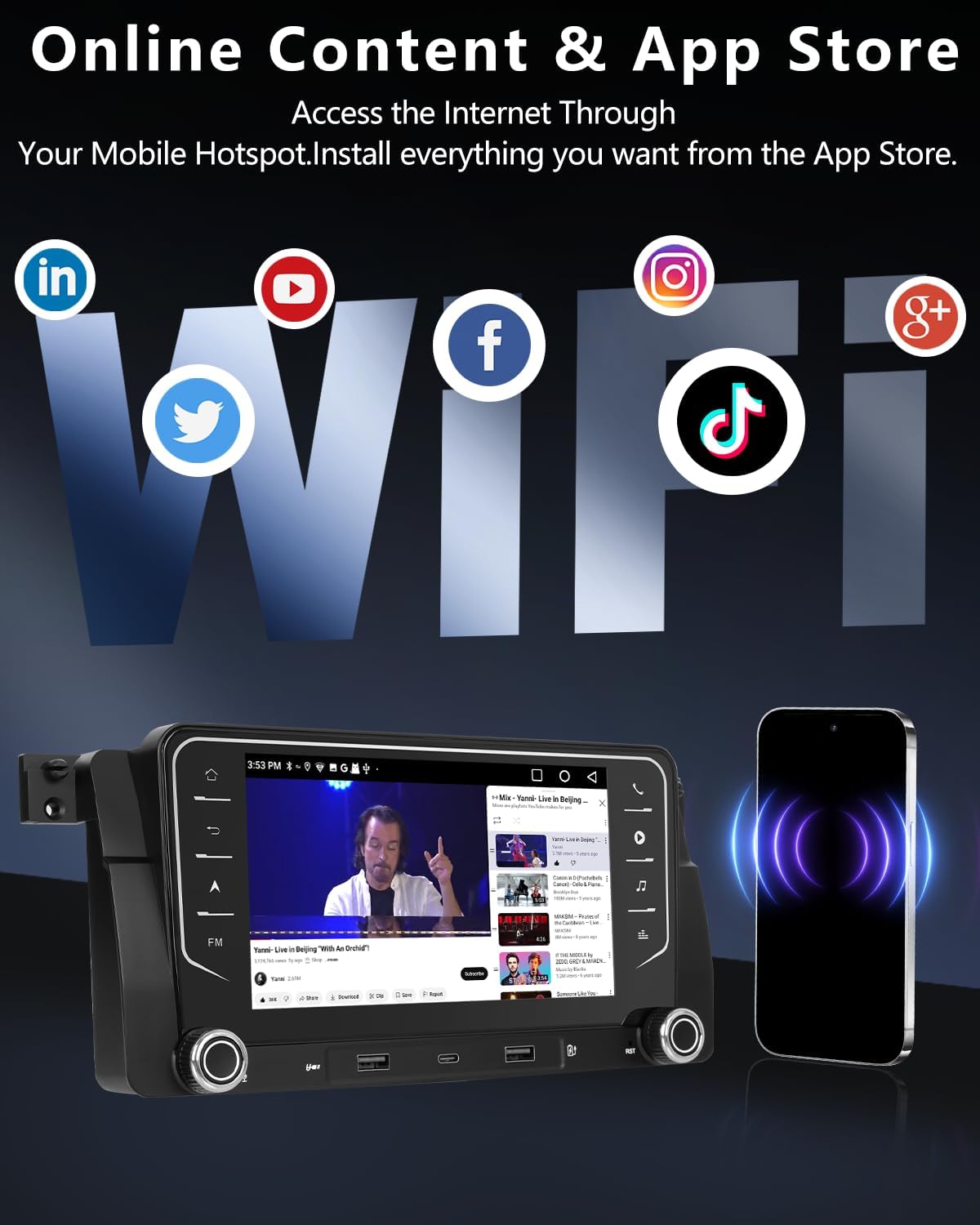
Image: The car radio screen displaying the FM radio interface and an illustration of steering wheel control integration.
6. Rear View Camera
The included high-quality AHD reversing camera provides a clear view of the area behind your vehicle.
- Automatic Display: When the vehicle is shifted into reverse gear, the car radio automatically switches to the camera feed.
- Features: Supports high-resolution images, night vision, and a wide 120-degree viewing angle to assist with parking and maneuvering.
- Connection: Ensure the camera is properly connected to the reverse light power source for automatic activation.

Image: Diagram illustrating the connection of the AHD reversing camera to the car radio and its display during reverse.
7. Multiple USB Ports
The control panel features 2 USB-A ports and 1 USB-C port.
- Charging: Use the USB ports to charge various electronic devices.
- Media Playback: Connect USB flash drives to play audio or video files directly on the car radio.
8. System Updates
Regular firmware updates are released to optimize the system experience.
- Online Update: Connect the stereo to your mobile hotspot or a Wi-Fi network. Navigate to System Settings > About Device > System Update to check for and install available updates.
Maintenance
Proper maintenance ensures the longevity and optimal performance of your car radio.
- Cleaning the Screen: Use a soft, lint-free cloth to gently wipe the screen. For stubborn smudges, slightly dampen the cloth with water or a screen-safe cleaner. Avoid abrasive materials or harsh chemicals.
- Cleaning the Unit: Wipe the exterior of the unit with a dry or slightly damp cloth. Ensure no liquids enter the unit's openings.
- Cable Management: Periodically check all connected cables to ensure they are secure and not pinched or damaged.
- Software Updates: Keep the system software updated as recommended in the operating instructions to benefit from performance improvements and new features.
Troubleshooting
If you encounter issues with your ANKEWAY BH60 Car Radio, refer to the following common problems and solutions.
| Problem | Possible Cause | Solution |
|---|---|---|
| No Power | Loose power connection, blown fuse, vehicle battery issue. | Check all power cable connections. Inspect vehicle fuses. Ensure vehicle battery is charged. |
| No Sound | Speaker wires disconnected, volume too low, incorrect audio output setting. | Verify speaker wire connections. Increase volume. Check audio settings in the system. |
| CarPlay/Android Auto Not Connecting | Bluetooth/Wi-Fi off on phone, incorrect USB cable, software glitch. | Ensure phone's Bluetooth and Wi-Fi are on. Try a different, high-quality USB cable. Restart both phone and car radio. |
| Steering Wheel Controls Not Working | CANBUS adapter not connected correctly, system settings. | Check CANBUS adapter connection. Review steering wheel control settings in the car radio menu. |
| Reversing Camera Not Displaying | Camera cable loose, camera power issue, incorrect input selection. | Verify camera cable connections. Ensure camera is receiving power from the reverse light. Check system settings for camera input. |
If the problem persists after attempting these solutions, please contact ANKEWAY customer support for further assistance.
Specifications
Below are the technical specifications for the ANKEWAY BH60 Car Radio.
| Feature | Detail |
|---|---|
| Brand | ANKEWAY |
| Model Number | BH60 |
| Connectivity Technology | Bluetooth, USB, Wi-Fi |
| Controller Type | Android, iOS |
| Special Features | Android Auto, Apple CarPlay, RDS Radio |
| Compatible Devices | Smartphone, Tablet, Personal computer |
| Audio Output Mode | Stereo |
| Supported Internet Services | Spotify, YouTube, Waze, Netflix, Hulu |
| Audio Output Type | USB, Bluetooth |
| Wireless Technology | Wi-Fi |
| Manufacturer | Shenzhen Cheluzhe technology co., LTD |
Warranty and Support
For warranty information and technical support, please refer to the documentation provided with your purchase or contact ANKEWAY customer service directly. Ensure you have your product model number (BH60) and purchase details available when seeking support.