
1. Product Overview
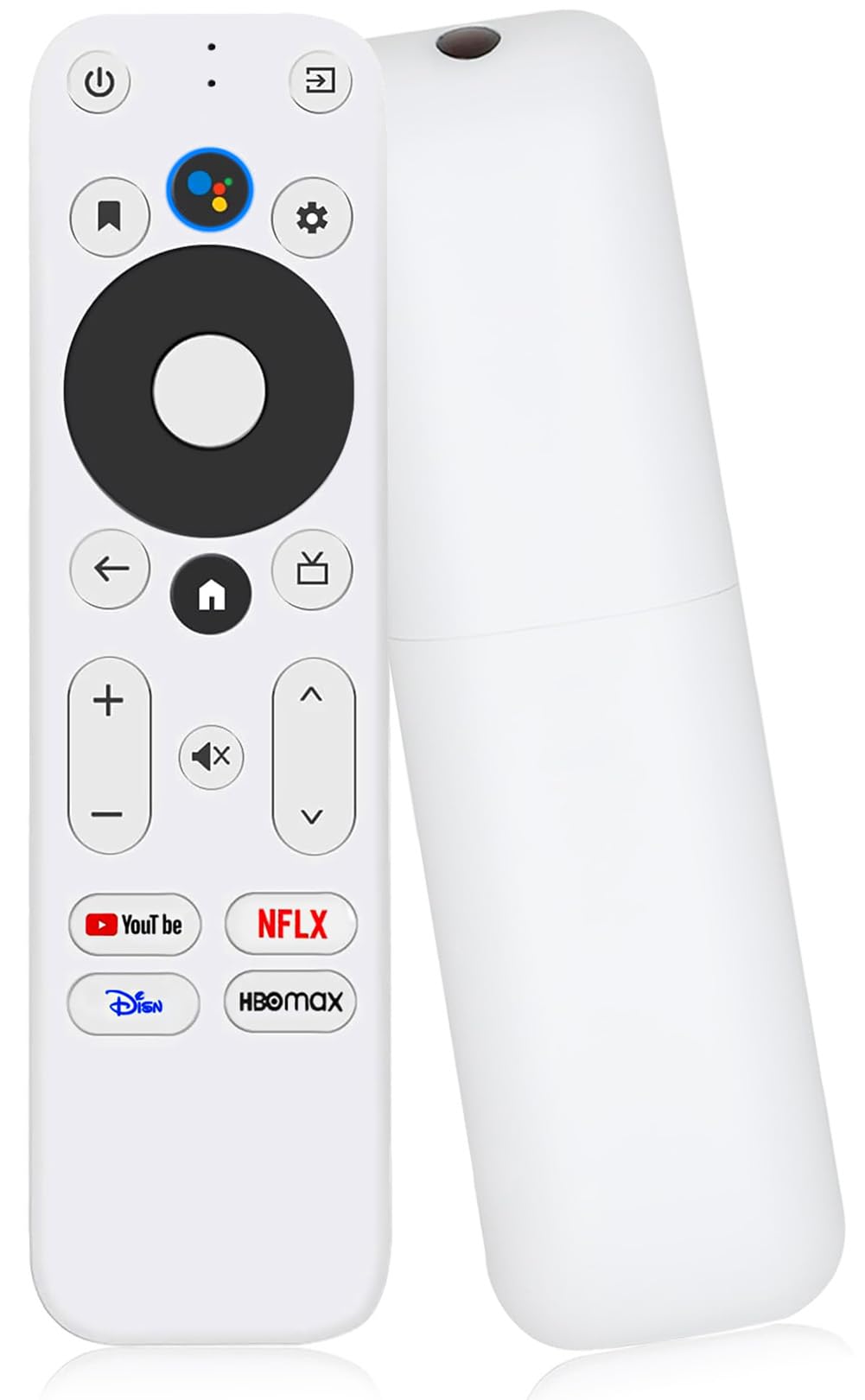
This manual provides instructions for the Griscen Replacement Voice Remote Control, designed for use with Onn TV FHD 4K UHD Streaming Stick TV Box models 100026240 and 100024646. This remote offers voice control functionality and dedicated shortcut buttons for popular streaming services.
Note: This remote is not compatible with Mecool TV boxes or TCL TVs.

Image 1.1: Front view of the Griscen Replacement Voice Remote Control.
2. Key Features
- Wide Compatibility: Specifically designed for Onn TV FHD 4K UHD Streaming Stick TV Box 100024646 and 100026240.
- Voice Intelligent Control: Supports voice commands for content search and system navigation.
- 4 Shortcut Buttons: Direct access to popular streaming channels.
- Durable Construction: Made from rugged ABS plastic with upgraded internal chips for improved performance.
- Extended Range: Reliable voice command operation up to approximately 10 meters (33 feet).

Image 2.1: Illustration of the remote control's stable transmission, durable ABS material, smart chips, 39-foot range, and quick response time.
3. Setup Instructions
3.1 Battery Installation
The remote control requires two AAA batteries (not included). To install:
- Locate the battery compartment cover on the back of the remote control.
- Slide the cover downwards to open.
- Insert two AAA batteries, ensuring the positive (+) and negative (-) terminals match the markings inside the compartment.
- Slide the cover back into place until it clicks securely.

Image 3.1: The remote control with its battery compartment open, illustrating how to insert AAA batteries.
3.2 Initial Pairing with Onn TV Box
To pair the replacement remote control with your Onn TV FHD 4K UHD Streaming Stick TV Box:
- First, use your original TV remote control (if available) to turn on your Onn TV.
- Navigate to the TV's Settings menu.
- Select Remote Control Settings.
- Once the TV screen displays the remote control name "ONN Remote", press the pairing button on the side of your streaming box for a few seconds. The streaming box should then prompt for pairing.
- Alternatively, press and hold the "RETURN" (
 ) and "HOME" () buttons on the replacement remote control simultaneously for 3 seconds. The LED on the remote will start blinking. Release the buttons when the TV screen indicates that pairing is complete.
Important: This replacement remote cannot be used at the same time as the original remote control.
3.3 Programming TV Power Control
If the replacement remote control cannot turn off your TV after initial pairing, you may need to program its power button:
- Using the replacement remote, navigate to your TV's Settings.
- Go to Remote Control Settings.
- Select Remote Control Button Settings.
- Find your specific TV brand from the list.
- Follow the on-screen prompts to allow the replacement remote control to learn the power button function from your TV's original remote.
4. Operating Instructions
4.1 Basic Remote Functions
The remote control features standard buttons for navigation and control:
- Power Button: Turns the TV box on or off.
- Navigation Ring (Up, Down, Left, Right, OK): Used to navigate menus and select items.
- Back Button: Returns to the previous screen or menu.
- Home Button: Returns to the main home screen of the TV box.
- Volume Up/Down: Adjusts the audio volume.
- Mute Button: Mutes or unmutes the audio.
4.2 Voice Control Function
The integrated voice control allows for hands-free operation and content search:
- Press the dedicated Voice Button (often indicated by a microphone icon) on the remote control.
- Speak clearly into the remote control's microphone.
- You can use voice commands to:
- Search for specific content (e.g., "Find Super Bowl highlights on Netflix").
- Adjust settings (e.g., "Set volume to 10").
- Launch applications (e.g., "Play The Office on Prime Video").

Image 4.1: Examples of voice commands for the remote control.
Video 4.1: A demonstration of the remote control's features, including voice control and compatibility with Onn TV FHD 4K UHD Streaming Stick TV Box.
4.3 Shortcut Buttons
The remote includes four dedicated shortcut buttons for quick access to popular streaming applications. Simply press the desired button to launch the corresponding service.
5. Maintenance
To ensure the longevity and optimal performance of your remote control:
- Keep the remote clean by wiping it with a soft, dry cloth. Avoid using liquid cleaners or abrasive materials.
- Do not expose the remote to extreme temperatures, direct sunlight, or high humidity.
- If the remote will not be used for an extended period, remove the batteries to prevent leakage.
- Avoid dropping the remote or subjecting it to strong impacts.
6. Troubleshooting
If you encounter issues with your remote control, refer to the following common solutions:
| Problem | Possible Cause / Solution |
|---|---|
| Remote is unresponsive or not pairing. |
|
| Voice control is not working. |
|
| Buttons feel sticky or unresponsive. |
|
| Remote drains batteries quickly. |
|
7. Specifications
| Feature | Detail |
|---|---|
| Brand | Griscen |
| Model Name | B0FR439732 |
| Compatible Devices | Onn TV FHD 4K UHD Streaming Stick TV Box 100026240, 100024646 |
| Connectivity Technology | Wireless (TV remote) |
| Color | White |
| Button Quantity | 24 |
| Maximum Range | Approximately 39 feet (10 meters) |
| Power Source | 2 x AAA Batteries (not included) |

Image 7.1: Physical dimensions of the remote control.
8. Warranty and Support
This product comes with a limited warranty. For specific warranty details and support inquiries, please refer to the product packaging or contact Griscen customer service directly. Contact information can typically be found on the manufacturer's website or through your point of purchase.