
1. Introduction
The Clouree 107-L Home Security Alarm System is a comprehensive wireless security solution designed to protect your home. Featuring a 4.3-inch color touch screen, dual network connectivity (2.4GHz WiFi and GSM/3G/4G), and support for various sensors, this system provides reliable monitoring and alerts. It integrates with popular smart home platforms like Tuya and Smart Life, and offers convenient control options including remote, app, RFID tag, voice, and the main display.
2. Package Contents
The 20-piece kit typically includes the following components:
- 1 x Clouree 107-L Main Alarm Panel (with 4.3-inch touch screen)
- PIR Motion Sensors
- Window/Door Sensors
- Remote Controls
- RFID Tags
- Siren
- Power Adapter for Main Panel
- Mounting Hardware
- User Manual
Note: The exact number and type of sensors may vary based on the specific kit purchased.
3. System Setup
3.1 Initial Power-Up
- Connect the main alarm panel to a power outlet using the provided power adapter.
- The panel will power on automatically. Follow the on-screen prompts for initial language selection and basic settings.
3.2 Network Connection
The system supports both 2.4GHz WiFi and GSM/3G/4G networks for communication. 5G SIM cards are not supported.
3.2.1 WiFi Connection
- On the main panel, navigate to Settings > Network > WiFi.
- Select your 2.4GHz WiFi network from the list.
- Enter your WiFi password and confirm. The panel will connect to the network.
3.2.2 GSM/3G/4G Connection
- Insert a compatible GSM/3G/4G SIM card into the designated slot on the main panel. Ensure the panel is powered off before inserting the SIM card.
- Power on the panel. The system will automatically detect the SIM card and attempt to connect to the cellular network.
3.3 App Installation and Pairing
The Clouree 107-L system is compatible with the Tuya Smart and Smart Life applications.
- Download the Tuya Smart or Smart Life app from your smartphone's app store (iOS App Store or Google Play Store).
- Register for an account or log in if you already have one.
- In the app, tap the "+" icon to add a new device. Select "Security & Video" and then "Alarm (Wi-Fi)" or similar.
- Follow the in-app instructions to pair your main alarm panel. This usually involves putting the panel into pairing mode and confirming the WiFi network.

Image: Smartphone displaying the alarm system control app. The app allows remote control of all system functions.
3.4 Adding Sensors and Devices
The system supports up to 99 wireless zones and 4 wired zones.
- On the main panel, navigate to Settings > Accessories > Add Device.
- Trigger the sensor you wish to add (e.g., separate the two parts of a door/window sensor, or wave your hand in front of a motion sensor).
- The panel will detect the sensor. Assign it to a specific zone and configure its type (e.g., out zone, home zone, perimeter zone, 24-hour zone, doorbell zone).
- Repeat for all additional sensors, remote controls, and RFID tags.

Image: A man installing a motion sensor on a wall. The system is designed for easy installation without professional assistance.

Image: A high-sensitivity door/window sensor installed on a door frame. These sensors monitor door/window status in real-time and trigger an alarm if opened.
4. System Operation
4.1 Arming and Disarming
The system can be armed or disarmed using five methods: RFID tag, remote control, mobile app, voice commands, or directly via the touch screen display.

Image: The Clouree alarm panel illustrating five methods for arming and disarming the system: RFID tag, remote control, mobile app, voice commands, and direct display interaction.
4.1.1 Touch Screen Control
Tap the 'Arm' or 'Disarm' icons on the 4.3-inch IPS color capacitive touch screen. You may need to enter your security code.
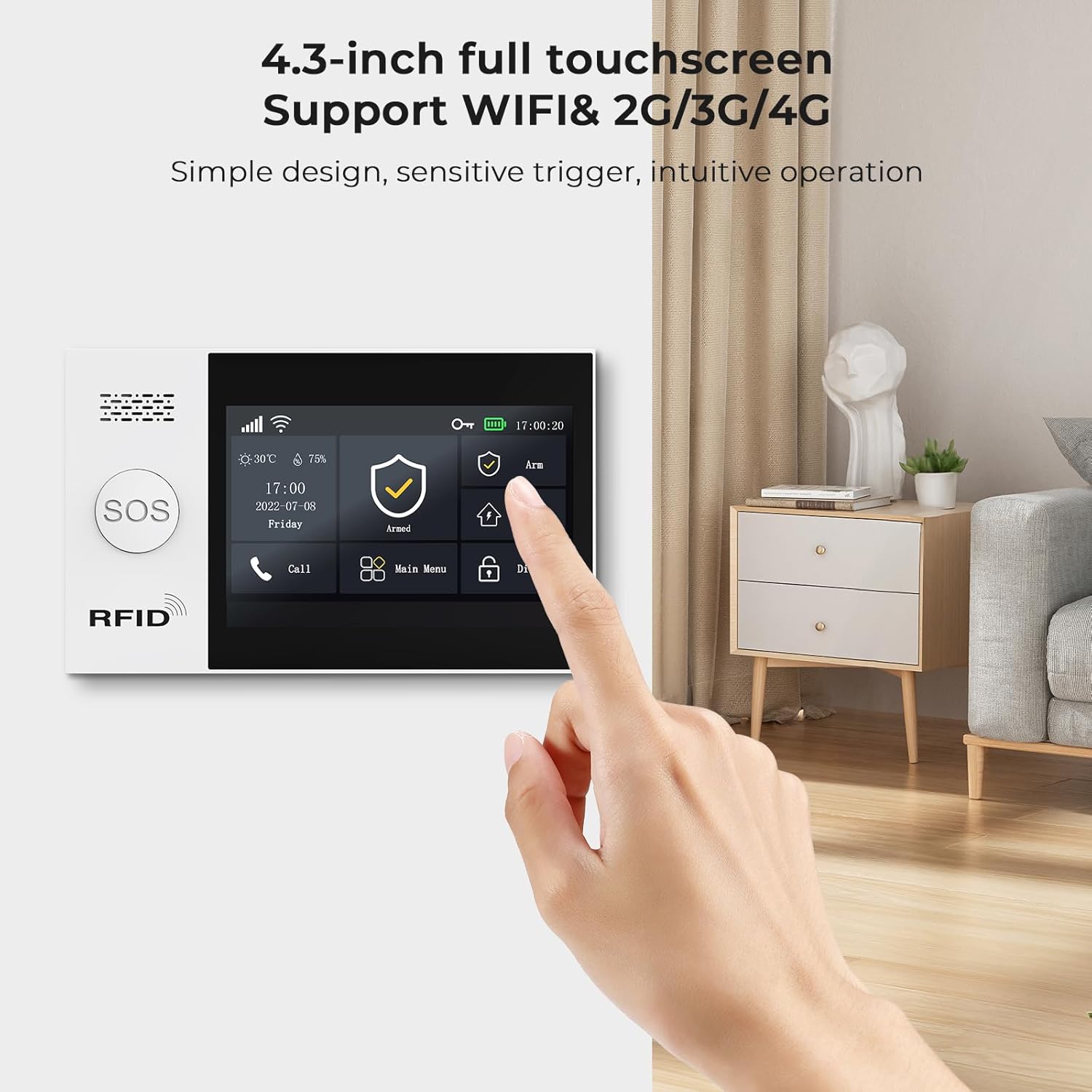
Image: A hand interacting with the 4.3-inch touch screen of the alarm system, demonstrating its intuitive operation.
4.1.2 Remote Control
Use the provided remote controls to arm (Away/Home modes) or disarm the system. The remote also features an SOS button for emergencies.

Image: Two white remote controls for the alarm system on a wooden surface. These remotes offer instant safety with arm, disarm, home, and SOS functions.
4.1.3 RFID Tag
Tap an RFID tag on the designated area of the main panel to quickly arm or disarm the system without needing a password.

Image: Two black RFID tags on a wooden desk. These tags provide a simple, code-free method to switch your home security system status.
4.1.4 Mobile App
Use the Tuya Smart or Smart Life app to remotely arm, disarm, or monitor your system from anywhere.
4.1.5 Voice Control
The system supports voice commands via Amazon Alexa and Google Home. Link your Clouree system to your smart assistant and use commands like "Alexa, arm my home!" or "OK Google, disarm the alarm system."

Image: A woman in bed with an Amazon Echo device, illustrating the voice control feature. Users can arm or disarm the alarm system using voice commands like "Alexa, arm my home!".
4.2 Zone Types
The system allows configuration of multiple zone types to suit different security needs:
- Out Zone: Triggers alarm when armed in Away mode.
- Home Zone: Triggers alarm when armed in Home mode (typically bypasses interior motion sensors).
- Perimeter Zone: Protects the exterior of your property.
- 24-Hour Zone: Always active, triggers alarm regardless of arming status (e.g., smoke detectors, carbon monoxide detectors).
- Doorbell Zone: Functions as a doorbell chime when triggered.
4.3 Timed Arming and Disarming
Set schedules for automatic arming and disarming of the system. This feature eliminates the need for manual daily adjustments.
- On the main panel, navigate to Settings > Timed Arm/Disarm.
- Set desired times and days for the system to arm (Away or Home mode) or disarm.
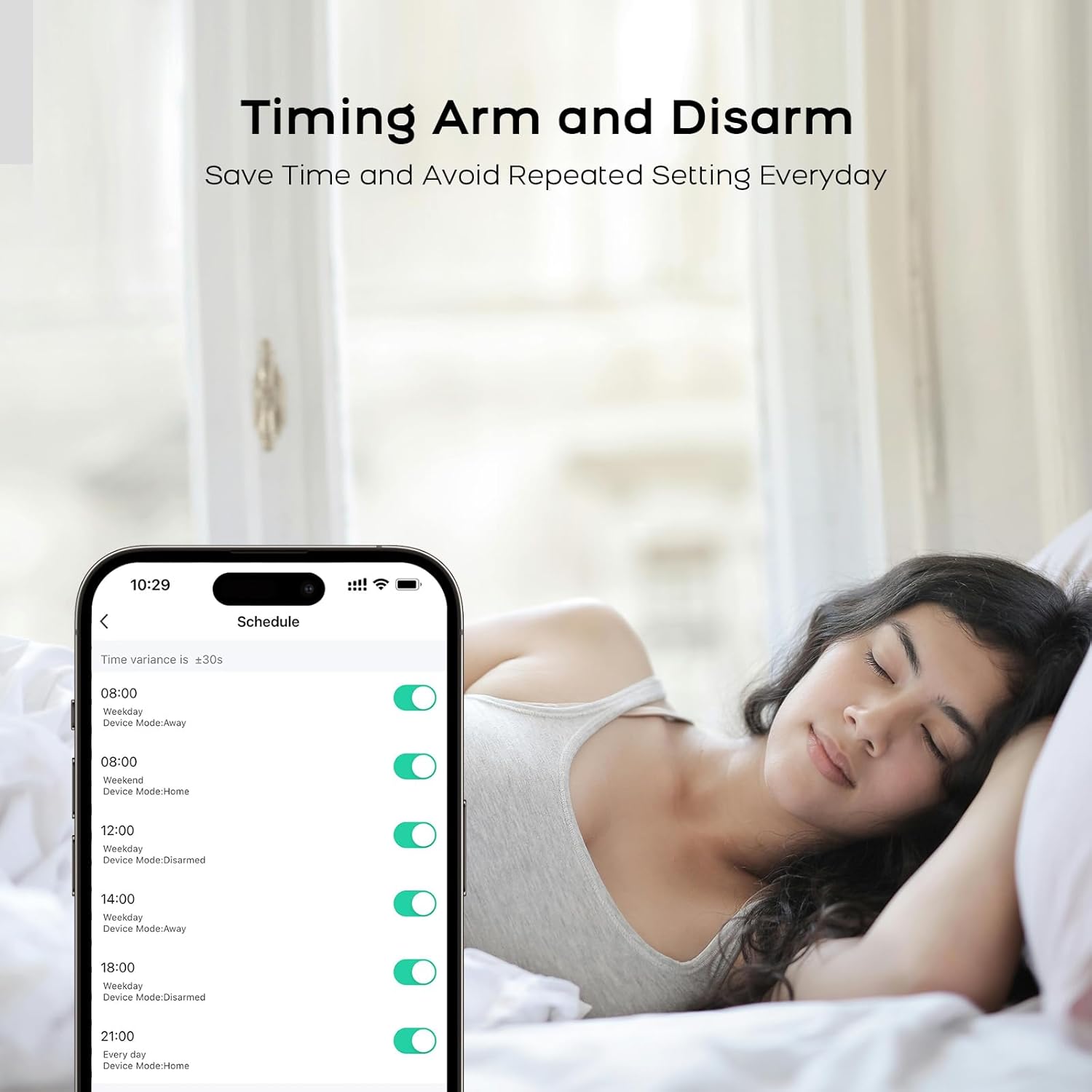
Image: A smartphone screen displaying a schedule for timed arming and disarming. This feature allows users to save time by automating daily security settings.
4.4 Two-Way Voice Intercom
The Clouree Alarm System supports two-way voice communication, allowing you to make and answer calls directly from the panel. It also supports voice messages and SMS remote operation.
4.5 SOS Function
In case of an emergency, press the SOS button on the main panel or remote control. The system will trigger an alarm and send alerts to pre-programmed emergency contacts.

Image: An elderly man holding an SOS pendant. In an unexpected situation, pressing the SOS button sends a reminder to your phone, providing elderly care support.
5. Maintenance
5.1 Battery Replacement
The main alarm panel includes 2 Lithium Polymer batteries. Sensors are typically powered by standard batteries (e.g., AA, AAA, CR2032) which will need periodic replacement. The system will provide low battery alerts for connected sensors.
- When a low battery alert is received, identify the specific sensor.
- Carefully open the sensor casing.
- Replace the old battery with a new one of the same type and voltage.
- Close the sensor casing securely.
5.2 Cleaning
To maintain optimal performance, periodically clean the main panel and sensors.
- Use a soft, dry, lint-free cloth to wipe the touch screen and panel surfaces.
- For sensors, gently wipe away dust or debris. Avoid using abrasive cleaners or excessive moisture.
6. Troubleshooting
| Issue | Possible Cause | Solution |
|---|---|---|
| Main panel not powering on or holding charge | Power adapter issue, internal battery fault. | Ensure power adapter is securely connected and functional. If issue persists, contact customer support. |
| Cannot connect to WiFi | Incorrect password, 5GHz network selected, weak signal. | Verify WiFi password. Ensure you are connecting to a 2.4GHz network. Move panel closer to router or check router settings. |
| GSM/3G/4G network not working | SIM card not inserted correctly, incompatible SIM card (5G), no signal. | Reinsert SIM card. Ensure it is a 2G/3G/4G compatible SIM. Check cellular signal strength in the area. |
| Sensor not triggering alarm | Low battery, sensor not paired, incorrect zone type, sensor out of range. | Check sensor battery. Re-pair the sensor. Verify zone type settings. Ensure sensor is within wireless range of the main panel. |
| App remote control not working | Panel not connected to internet, app not logged in, incorrect device pairing. | Check panel's WiFi/GSM connection. Log out and back into the app. Re-pair the panel with the app if necessary. |
| False alarms | Improper sensor placement, environmental factors (pets, drafts). | Review sensor placement. For motion sensors, ensure optimal installation height (1.8 to 2.2 meters) and avoid areas with direct sunlight or strong air currents. Adjust sensitivity if available. |
7. Specifications
- Brand: Clouree
- Model: 107-L (CL107-4GUS-L)
- Display: 4.3-inch IPS Color Capacitive Touch Screen
- Connectivity: 2.4GHz WiFi, GSM/3G/4G (5G SIM cards not supported)
- Power Source: Corded Electric
- Battery: 2 x Lithium Polymer batteries (included, for main panel)
- Dimensions (L x W x H): 8 x 2 x 5 inches
- Item Weight: 2 pounds
- Alert Type: Audio & Motion
- Wireless Zones: 99
- Wired Zones: 4
- Supported Languages: English, Italian, Polish, Spanish, Russian, Greek, German, French, Portuguese, Chinese, Romanian
- Smart Home Integration: Tuya, Smart Life, Amazon Alexa, Google Home
8. Warranty and Support
8.1 Warranty Information
Clouree products are covered by a manufacturer's warranty. Please refer to the warranty card included with your product or visit the official Clouree website for detailed warranty terms and conditions. Keep your purchase receipt as proof of purchase for warranty claims.
8.2 Customer Support
For technical assistance, troubleshooting, or any questions regarding your Clouree 107-L Home Security Alarm System, please contact Clouree customer support. Contact information can typically be found on the product packaging, the official Clouree website, or through your retailer.