
1. Introduction
This manual provides detailed instructions for the installation, operation, and maintenance of your IIWEY C4 PRO 4-Channel Dash Cam and its accompanying hardwire kit. The C4 PRO system is designed to provide comprehensive video surveillance for your vehicle, offering multi-channel recording and advanced parking monitoring features.
2. Package Contents
Please verify that all items listed below are included in your package:
- C4 PRO Dash Cam Set (Main unit with front, interior, and rear cameras)
- Type C Port Hardwire Kit
- Installation Crowbar
- 8 x Fuse Tap Cables (various types: LP, Mini, ATO, Micro2)
- 4 x Cable Hiding Clips

Image: Contents of the hardwire kit, including the main cable, various fuse taps, and a pry tool.
3. Setup and Installation
3.1 Dash Cam Installation
- Mounting the Main Unit: Choose a suitable location on your windshield, typically behind the rearview mirror, that does not obstruct your view. Clean the area thoroughly before attaching the dash cam mount.
- Connecting Cameras: Connect the interior and rear cameras to the main unit. Ensure cables are routed neatly and securely, using the provided cable hiding clips.
- Power Connection: For continuous power and parking mode functionality, connect the dash cam to the hardwire kit.

Image: Overview of the IIWEY C4 PRO dash cam system, illustrating its multi-camera setup and connectivity.
3.2 Hardwire Kit Installation
The hardwire kit enables 24-hour parking surveillance and protects your vehicle's battery from draining.
- Identify Fuse Box: Locate your vehicle's fuse box, typically found under the dashboard or in the engine bay.
- Connect Wires: The hardwire kit has three wires:
- Red (BAT): Connect to a constant power fuse (always on, even when the ignition is off).
- Yellow (ACC): Connect to an accessory power fuse (on only when the ignition is on).
- Black (GND): Connect to a metal bolt or screw on the vehicle's chassis for ground.
- Use Fuse Taps: Select the appropriate fuse tap cable (LP/Mini/ATO/Micro2) that matches your vehicle's fuse type. Insert the original fuse into the lower slot of the tap, and a new fuse (same amperage) for the dash cam into the upper slot.
- Route Cables: Use the installation crowbar to neatly tuck the cables along the vehicle's trim and headliner to conceal them.

Image: Detailed view of the hardwire kit's ACC, GND, and BAT wires for proper connection.

Image: Illustration of different fuse tap types and a typical hardwire kit installation in a vehicle's fuse box.
4. Operating Instructions
4.1 Basic Operation
Once properly installed and powered, the dash cam will typically power on and begin recording automatically when your vehicle starts. It will power off shortly after the vehicle is turned off, unless parking mode is active via the hardwire kit.
4.2 Parking Modes (with Hardwire Kit)
The hardwire kit enables 24-hour surveillance with two distinct parking modes:
- Time-lapse Parking Mode: The dash cam records footage at a low frame rate (e.g., 1 frame per second) to conserve memory while continuously monitoring your parked vehicle. This allows for extended recording periods.
- Collision Detection Parking Mode: The dash cam remains in standby mode and automatically activates to record and lock video footage upon detecting a significant impact or collision.

Image: Explanation of 24-hour parking modes, including time-lapse and collision detection.
4.3 Multi-Channel Recording
The C4 PRO supports various recording configurations:
| Mode | Front Camera | Right Camera | Left Camera | Rear Camera |
|---|---|---|---|---|
| 4-Channel | 2.7K (1440P) | 1080P | 1080P | 1440P |
| 3-Channel | 1944P | 1080P | / | 1440P |
| 2-Channel | 1944P | / | / | 1440P |
| Single Front | 1944P | / | / | / |
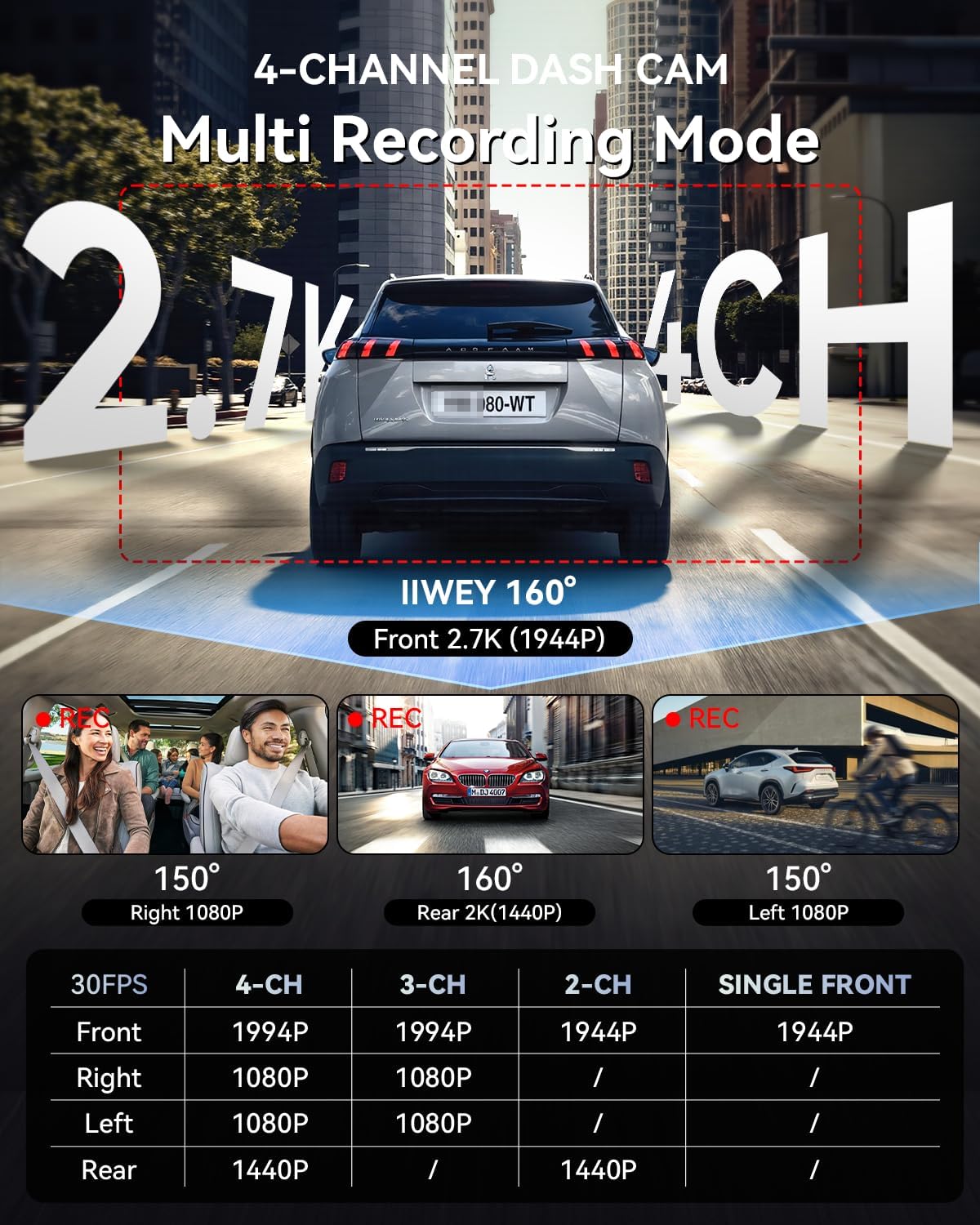
Image: Multi-recording mode options and corresponding resolutions for the C4 PRO dash cam.
4.4 Low Voltage Protection
The hardwire kit includes a smart power management chip that monitors your vehicle's battery voltage. If the voltage drops below 11.6V, the kit will automatically cut off power to the dash cam, ensuring sufficient power remains to start your engine.

Image: Illustration of the hardwire kit's low voltage protection mechanism.
5. Maintenance
- SD Card Management: Regularly format the microSD card (at least once a month) to ensure optimal performance and prevent data corruption. Use a high-quality, high-endurance microSD card.
- Lens Cleaning: Keep camera lenses clean using a soft, lint-free cloth to ensure clear video recordings.
- Firmware Updates: Check the official IIWEY website periodically for firmware updates to improve performance and add new features.
6. Troubleshooting
- Dash Cam does not power on:
- Check all power connections. Ensure the hardwire kit is correctly installed and receiving power from the fuse box. Verify the vehicle's battery voltage is above the low voltage protection threshold (11.6V).
- Parking Mode is not working:
- Confirm the hardwire kit is correctly installed with the ACC and BAT wires connected to their respective constant and accessory power sources. Ensure parking mode is enabled in the dash cam's settings.
- Video footage is blurry or unclear:
- Clean the camera lenses. Ensure the protective film has been removed from the lenses. Check if the dash cam is securely mounted and not vibrating.
- SD card error:
- Format the microSD card. If the issue persists, try a different high-quality microSD card.
7. Specifications
| Feature | Detail |
|---|---|
| Brand | IIWEY |
| Model Name | C4 PRO |
| Video Capture Resolution | 2.7K 1440P (Front) |
| Frame Rate | 30 FPS |
| Special Features | Parking Assistant, Time Lapse, Low Voltage Protection |
| Hardwire Kit Input | 12V-24V |
| Hardwire Kit Output | 5V/3A |
| Low Voltage Cutoff | 11.6V |
| Compatible Vehicle Type | Car, Truck, Van |
| Display Type | LCD |
| Color | Black |
8. Warranty and Support
For warranty information, technical support, or any inquiries regarding your IIWEY C4 PRO Dash Cam, please refer to the contact information provided with your purchase or visit the official IIWEY website. Keep your purchase receipt as proof of purchase for warranty claims.
A video guide for installation may be available by scanning a QR code provided in the physical manual or on the product packaging.

Image: Reference to a video guide and manual for wiring the dash cam.


