
1. Product Overview
This manual provides instructions for the Inefala 5Ghz WiFi Android 15 Car Radio, a 9-inch HD touchscreen car stereo designed for Toyota Corolla models from 2009 to 2013. It features wireless CarPlay/Android Auto, GPS navigation, Bluetooth 5.0, FM/RDS radio, EQ sound customization, steering wheel control compatibility, and support for a backup camera.
2. Compatibility
This car radio is specifically designed for Toyota Corolla models manufactured between 2009 and 2013. Before installation, confirm that your vehicle's center console matches the 'Model A' configurations shown below. This product is not compatible with 'Model B' consoles.

Image: Compatibility guide for Toyota Corolla 2009-2013 center consoles. Ensure your console matches 'Model A' for proper fit.
3. Package Contents
Verify that all components are present in the package:
- 1 x Android Car Stereo
- 1 x Power Cable
- 1 x GPS Antenna
- 1 x Rear Camera Input Cable
- 1 x RCA Cable
- 2 x USB Cable
- 2 x Mounting Bracket
- 4 x Screw
- 1 x User Manual
- 1 x External Microphone
- 1 x Backup Camera

Image: Product dimensions and a visual representation of all included accessories.
4. Setup and Installation
Installation requires basic automotive electrical knowledge. If you are unsure, consult a professional installer.
4.1 General Installation
- Carefully remove the original car radio and trim panels.
- Connect the provided power cable, GPS antenna, and other necessary cables to the new car stereo.
- Secure the unit using the mounting brackets and screws.
- Reinstall the trim panels.
4.2 Steering Wheel Control (SWC) Wiring
If your original steering wheel controls are not functioning correctly after installation, it may be necessary to modify the wiring. Locate the two specific wires as indicated in the diagram, cut them, and insulate them with electrical tape. Then, retest the steering wheel controls.

Image: Steering Wheel Control wiring diagram, including a note for troubleshooting non-functional controls.
4.3 Backup Camera Wiring
Connect the backup camera according to the following steps:
- Connect the camera's power cable (red wire) to the vehicle's reversing lamp positive (+) and the black wire to ground (-).
- Connect the camera's video output (yellow RCA) to the 'Rear Camera Input' on the car stereo.
- Ensure the 'Pink or brown wire' from the stereo's harness is connected to the reversing lamp signal.
- The white plug must be connected to the car radio for Bluetooth and WiFi signals to function.

Image: Reversing camera wiring diagram for proper installation.
5. Operating Instructions
5.1 Wireless CarPlay / Android Auto & Mirror Link
This unit supports wireless CarPlay for iOS devices and Android Auto for Android devices. It also features Mirror Link for screen mirroring. Connect your smartphone wirelessly via Bluetooth to access navigation, make calls, send messages, and play music directly on the car stereo display.

Image: Wireless CarPlay, Android Auto, and Mirror Link functionality.
5.2 WiFi & GPS Navigation
Connect the car radio to a WiFi hotspot (e.g., from your smartphone) to access online content, download apps, and use real-time online navigation. The built-in GPS module supports both online and offline mapping applications like Google Maps and Waze, providing accurate location and route guidance.

Image: GPS navigation and WiFi connectivity features.
5.3 EQ, Bluetooth, FM/RDS
- Bluetooth 5.0: Pair your phone for hands-free calling and audio streaming. An external microphone is included for clear audio during calls.
- FM/RDS Radio: Tune into FM radio stations. RDS (Radio Data System) provides station information and traffic updates where available.
- EQ Settings: Customize your audio experience with the built-in equalizer. Adjust sound effects (Pop, Rock, User Defined, etc.) to your preference.

Image: Bluetooth 5.0, FM/RDS radio, and EQ settings interfaces.
5.4 Backup Camera
When the vehicle is shifted into reverse gear, the display automatically switches to the backup camera view. This provides a wide-angle (170°), waterproof (IP69), night vision image to assist with safe reversing.
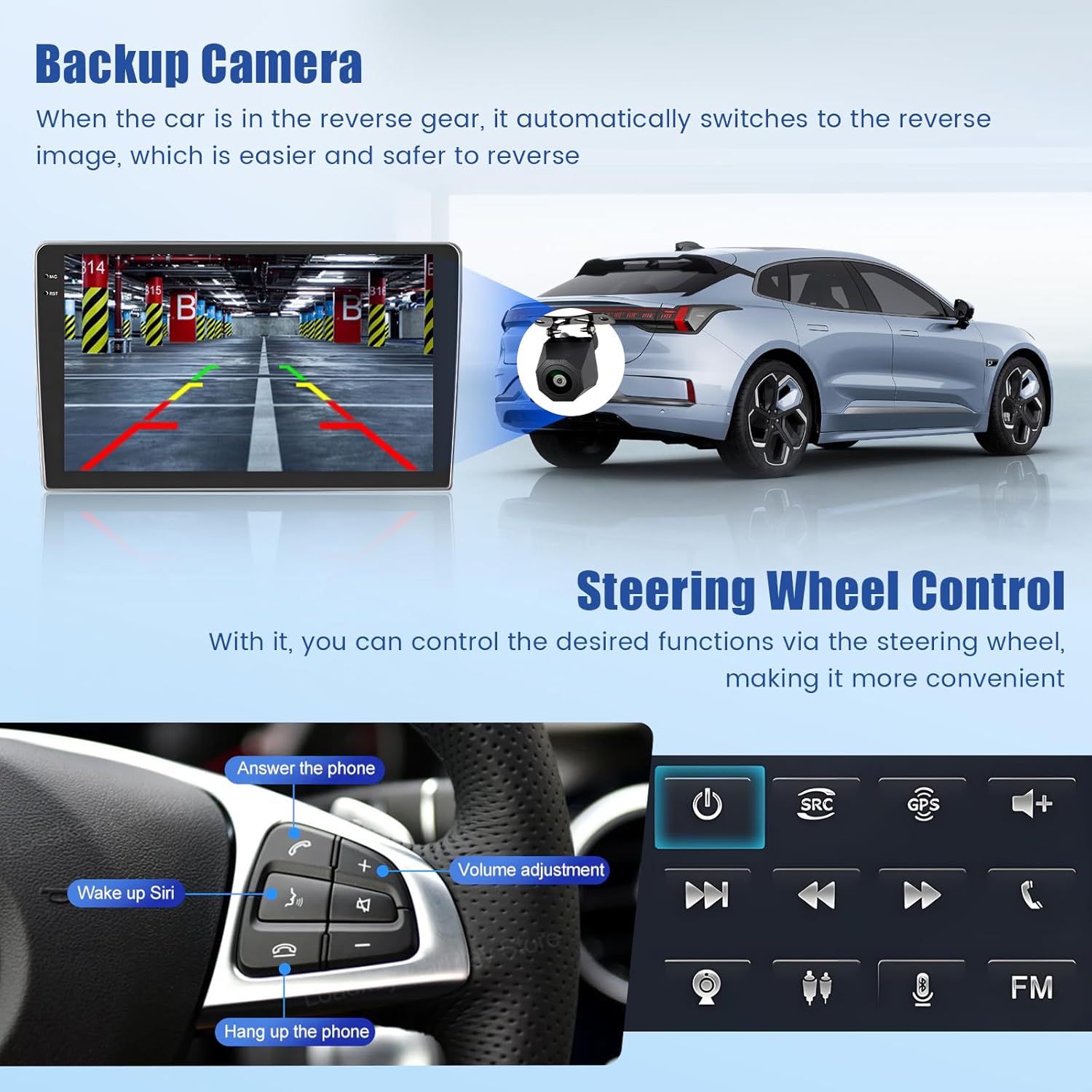
Image: Backup camera display and steering wheel control functions.
6. Features
6.1 9-Inch HD Touchscreen
The unit features a 9-inch HD touchscreen with a 1280x720 resolution. The in-cell touch display technology integrates the touch panel directly into the screen, resulting in a thinner and brighter display.

Image: Explanation of the in-cell touchscreen technology and display features.
6.2 Split Screen Display
The split-screen function allows you to run two applications simultaneously on the display, such as navigation and music playback. Long-press an app icon to activate the split-screen mode.

Image: Split screen display functionality, showing two apps simultaneously.
7. Troubleshooting
- No Sound: If you experience no audio output, ensure the AMP wire in the power cable is correctly connected to the red ACC wire.
- Steering Wheel Controls Not Working: Refer to Section 4.2 for specific wiring instructions regarding steering wheel control functionality.
- Screen Flickering or Lines: Check all cable connections to ensure they are secure. If the issue persists, contact customer support.
- Bluetooth/WiFi Issues: Ensure the white plug is securely connected to the car radio as indicated in the backup camera wiring diagram (Section 4.3).
8. Specifications
| Product Dimensions | 28 x 15 x 6 cm |
| Weight | 1.34 kg |
| Screen Size | 9 Inches |
| Screen Resolution | 1280*720 |
| Operating System | Android 15, iOS (via CarPlay) |
| Memory Storage Capacity | 64 GB |
| Connectivity Technology | Bluetooth 5.0, USB, Wi-Fi (5Ghz) |
| Special Features | EQ, FM/RDS, SWC, Backup Camera, Touchscreen, GPS Navigation, Wireless CarPlay/Android Auto, Mirror Link |
| Compatible Vehicle Type | Toyota Corolla 2009-2013 |
| Map Type | Worldwide |
9. Warranty and Support
Inefala provides comprehensive support for its products.
- Warranty: This product comes with a 24-month warranty.
- Returns: A 30-day free return policy is available.
- Customer Service: Online consultation support is available, with responses typically provided within 24 hours.
For any questions or assistance, please contact Inefala customer support:
Email: Inefalatech@163.com


Images: Warranty details and customer support contact information.