
Introduction
This manual provides essential information for setting up, operating, maintaining, and troubleshooting your YLEEBG P30 10-inch Android 15 Tablet. Please read it thoroughly to ensure proper use and to maximize your device's performance.
What's in the Box
Your YLEEBG P30 Tablet package includes the following items:
- 1 x 10.1 inch YLEEBG Android Tablet
- 1 x Bluetooth keyboard
- 1 x Bluetooth mouse
- 1 x Stylus pen
- 1 x Tablet case
- 1 x USB charger
- 1 x USB-C cable
- 1 x User manual

The tablet case color may vary. The tablet itself is silver.
Setup
1. Initial Charging
Before first use, fully charge your tablet using the provided USB charger and USB-C cable. Connect the USB-C cable to the tablet's charging port and the charger to a power outlet. The charging indicator will show the charging status.
2. Powering On/Off
- To Power On: Press and hold the Power button until the screen lights up.
- To Power Off: Press and hold the Power button, then select 'Power off' from the options on the screen.
3. Initial Android Setup
Follow the on-screen prompts to complete the initial setup, including language selection, Wi-Fi connection, and Google account login.
4. Connecting Accessories
The YLEEBG P30 tablet comes with a Bluetooth keyboard, wireless mouse, and stylus for enhanced functionality.
Bluetooth Keyboard and Mouse:
- Ensure the keyboard and mouse are charged and powered on.
- On your tablet, go to Settings > Connected devices > Bluetooth.
- Turn on Bluetooth. The tablet will scan for available devices.
- Select the keyboard or mouse from the list of available devices to pair. Follow any on-screen prompts.
Stylus:
The stylus is a passive device and does not require Bluetooth pairing. Simply use it directly on the tablet screen for navigation, drawing, or writing.
Operating the Tablet
1. Basic Navigation
The YLEEBG P30 tablet uses standard Android touch gestures:
- Tap: Select an item or open an app.
- Swipe: Scroll through pages or lists.
- Pinch: Zoom in or out on images and web pages.
- Long Press: Access contextual menus or move icons.
2. Split-Screen Function
The tablet supports split-screen mode, allowing two applications to run simultaneously. To activate:
- Open the first app you wish to use.
- Tap the recent apps button (usually a square icon) to view open applications.
- Long-press the icon of the first app at the top of its card, then select 'Split screen'.
- Choose a second app from the recent apps list or app drawer to fill the other half of the screen.
3. Installing Applications
The tablet is GMS certified and comes with the Google Play Store pre-installed. You can download and install a wide variety of applications directly from the Play Store.
4. Storage Management
The tablet features 26GB RAM (4GB physical + 22GB virtual memory) and 256GB internal storage. Storage can be expanded up to 2TB using a MicroSD card (not included).

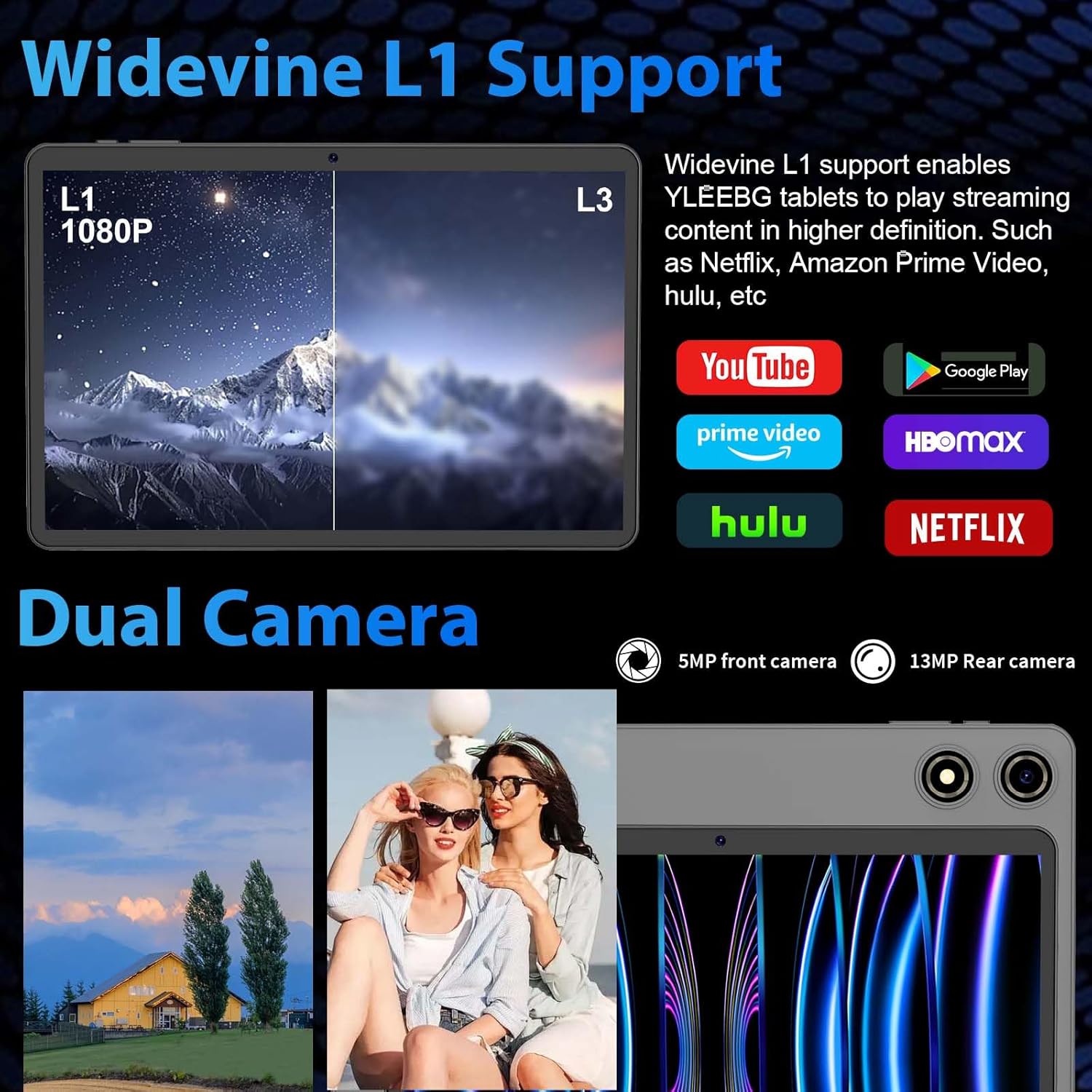
5. Widevine L1 Support
The YLEEBG P30 supports Widevine L1, enabling high-definition content playback on streaming platforms such as Netflix, Amazon Prime Video, YouTube, HBO Max, and Hulu.

Camera Functions
The tablet is equipped with dual cameras: a 5MP front camera and a 13MP rear camera. You can switch between cameras within the camera application.
Battery and Charging
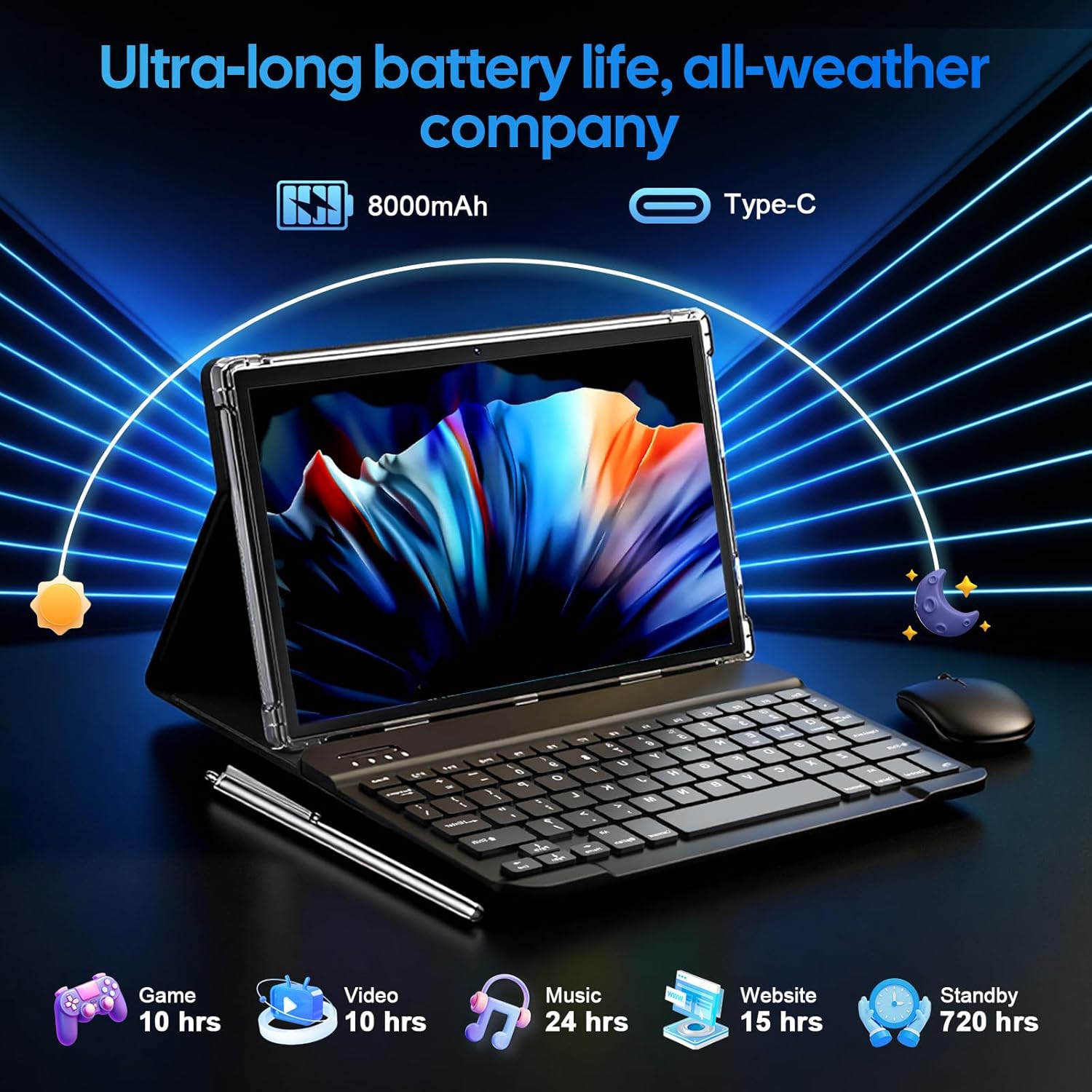
The YLEEBG P30 features an 8000mAh battery, providing extended usage times. Battery life can vary based on usage patterns and settings.
- Charging: Use the provided USB-C cable and charger.
- Battery Optimization: To extend battery life, reduce screen brightness, close unused apps, and disable unnecessary background processes.
Connectivity
- Wi-Fi: Supports dual-band 2.4GHz/5GHz Wi-Fi for stable internet connection. Access Wi-Fi settings via Settings > Network & internet > Wi-Fi.
- Bluetooth: Equipped with Bluetooth 5.0 for connecting wireless accessories like headphones, speakers, and other devices. Manage Bluetooth connections via Settings > Connected devices > Bluetooth.
Maintenance
- Cleaning: Use a soft, lint-free cloth to clean the screen and body of the tablet. Avoid abrasive materials or harsh chemicals.
- Software Updates: Regularly check for system updates to ensure optimal performance and security. Go to Settings > System > System update.
- Storage Optimization: Periodically clear cache, uninstall unused apps, and transfer large files to external storage to maintain device speed.
Troubleshooting
Device Not Powering On:
Ensure the tablet is sufficiently charged. Connect it to the charger for at least 30 minutes before attempting to power on again.
Wi-Fi Connection Issues:
Check if your Wi-Fi router is working correctly. Restart the tablet and the router. Ensure you have entered the correct Wi-Fi password.
Apps Crashing or Freezing:
Close and reopen the app. If the issue persists, clear the app's cache (Settings > Apps > [App Name] > Storage & cache > Clear cache). Consider uninstalling and reinstalling the app.
Slow Performance:
Close background applications. Free up storage space. Restart the tablet. If problems continue, a factory reset may be considered (back up your data first).
Specifications
| Feature | Specification |
|---|---|
| Model | P30 |
| Operating System | Android 15 |
| Screen Size | 10.1 Inches |
| Screen Resolution | 1280 x 800 pixels |
| RAM | 26GB (4GB + 22GB virtual) |
| Internal Storage | 256GB |
| Expandable Storage | Up to 2TB via MicroSD card |
| Battery Capacity | 8000mAh |
| Front Camera | 5MP |
| Rear Camera | 13MP |
| Wireless Connectivity | 2.4G/5G WiFi, Bluetooth 5.0 |
| Dimensions (LxWxH) | 10.7 x 7.5 x 2.5 inches |
| Item Weight | 2.9 pounds |
Warranty and Support
For warranty information, please refer to the documentation included with your purchase or contact YLEEBG customer support directly. Keep your proof of purchase for warranty claims.
For further assistance or technical support, please visit the official YLEEBG website or contact their customer service department.