
Daguaika B0FQVBKZDP
Daguaika USB C to HDMI Cable (4K@60Hz) User Manual
Model: B0FQVBKZDP
1. Product Overview
The Daguaika USB C to HDMI Cable facilitates direct connection from your USB-C enabled device to an HDMI display, supporting resolutions up to 4K at 60Hz. This cable is designed for high-speed data transfer and stable audio-visual performance, enabling extended or mirrored display modes for various applications.
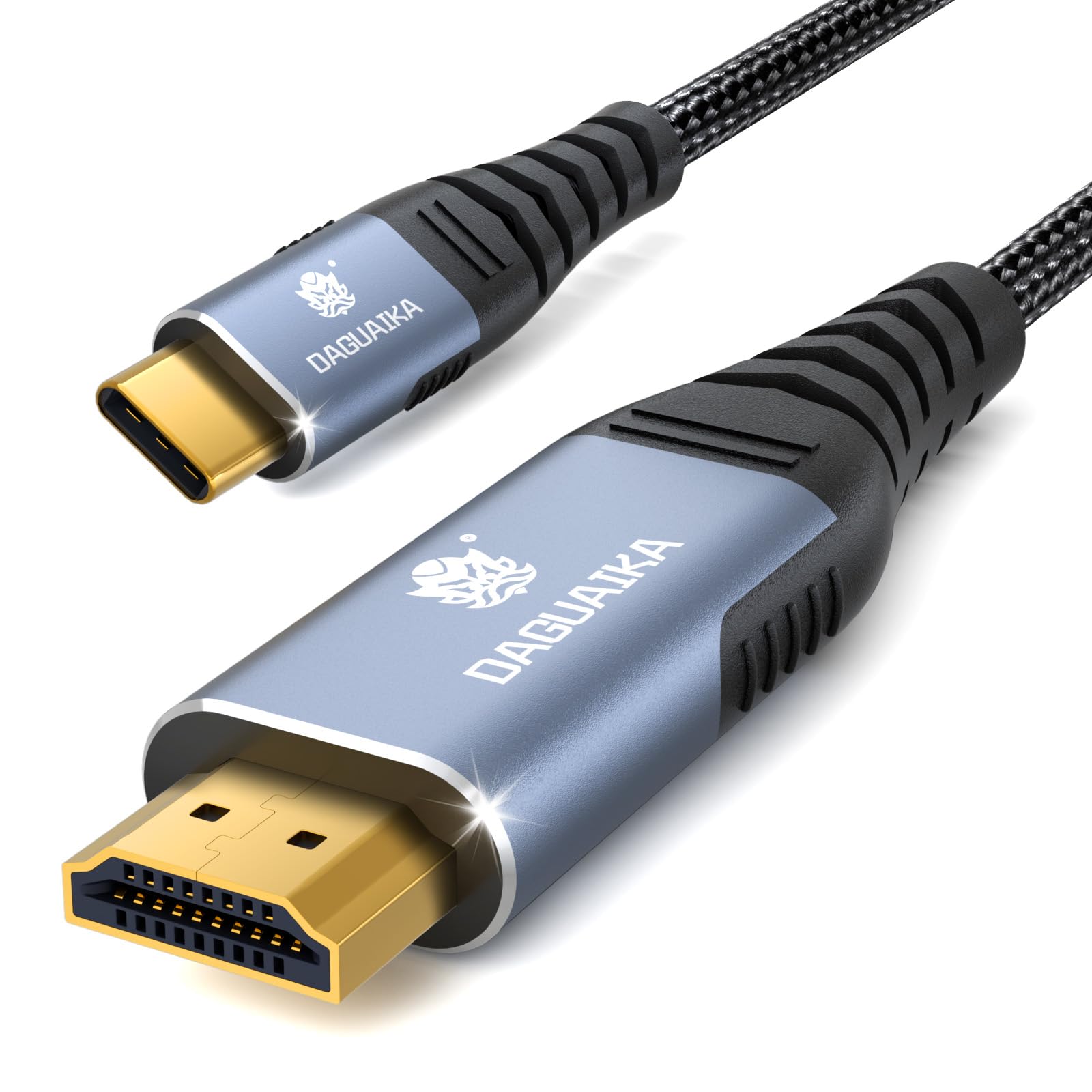
Image: Daguaika USB C to HDMI Cable, showcasing both USB-C and HDMI connectors.
Key Features:
- 4K@60Hz Resolution: Supports seamless 3840x2160 (4K UHD) resolution transmission, backward compatible with lower resolutions.
- Gold-Plated Connectors: Ensures stable, high-speed data transfer and interference-free operation.
- Durable Construction: Features one-piece molding, an aluminum enclosure for efficient thermal management, and thickened copper conductors for optimal conductivity.
- Plug-and-Play: No drivers or complex setup required.

Image: Detailed view of the cable's aluminum case, gold-plated connectors, and braided nylon cord, highlighting its robust construction.
2. Setup Instructions
This USB C to HDMI cable is designed for simple plug-and-play operation. Follow these steps to connect your device to an HDMI display:
- Identify Ports: Locate the USB-C port on your source device (e.g., laptop, tablet, phone) and an available HDMI input port on your display (e.g., monitor, TV, projector).
- Connect USB-C: Insert the USB-C connector of the cable into the USB-C port of your source device. Ensure it is fully seated.
- Connect HDMI: Insert the HDMI connector of the cable into an HDMI input port on your display. Ensure it is fully seated.
- Select Input: On your display, use the remote control or on-screen menu to select the corresponding HDMI input source (e.g., HDMI 1, HDMI 2) to which the cable is connected.
- Verify Display: Your device's screen should now be mirrored or extended to the connected display.
Important Note: This is a one-way cable, transmitting signals only from USB-C host devices to HDMI displays. Ensure your USB-C source device supports video output capability (DisplayPort Alternate Mode or Thunderbolt 3/4/5).
3. Operating Instructions
Display Modes:
Once connected, your operating system typically allows you to configure how the external display functions:
- Mirror Mode: Duplicates your device's screen onto the external display. This is useful for presentations or sharing content.
- Extend Mode: Extends your desktop across both your device's screen and the external display, providing more screen real estate for multitasking.
Settings for these modes are usually found in your device's display settings (e.g., System Preferences > Displays on macOS, Display Settings on Windows).

Image: Illustration of a laptop connected to two external monitors, showing the difference between Mirror Mode (duplicate display) and Extend Mode (expanded desktop).
Resolution and Refresh Rate:
The cable supports up to 4K@60Hz resolution. The actual resolution and refresh rate achieved will depend on the capabilities of both your source device and your display. Ensure both devices are configured to output and receive the desired resolution and refresh rate.

Image: A laptop connected to a large screen TV displaying 4K@60Hz content, illustrating seamless streaming.
4. Compatibility
This cable is designed for USB-C ports that support video output (DisplayPort Alternate Mode, also known as DP Alt Mode) and Thunderbolt 3, 4, or 5 ports.
Compatible Devices (Examples):
- Mobile Phones: iPhone 15/16/17 Series, Samsung Galaxy S8/S9/S10/S20/S21/S22/S23, Note 8/9/10/20, LG V40.
- Laptops: Apple MacBook Pro (2016 and later), MacBook Air (2018 and later), iMac (2017 and later), Mac Studio, Mac Pro, Dell XPS 15/13, HP Chromebook x360, Surface Book 2/3, Surface Laptop 3.
- Tablets: iPad Pro (2021 and later).
- Gaming: Steam Deck.
Incompatible Devices/Ports (Examples):
- USB-C ports that only support data transfer or charging, without DP Alt Mode.
- Devices without USB-C ports or with USB-A ports.
- Gaming consoles like PlayStation, Xbox, Nintendo Switch.
- Devices such as Fire Tablets, GoPro, Kindle, Cameras, TV Sticks.
- Older iPhone models (14 and earlier).

Image: Visual guide to checking USB-C port compliance, distinguishing between ports that support display output (Thunderbolt, DP Alt Mode) and those that only support data transfer or charging.

Image: Comprehensive compatibility chart for the USB C to HDMI cable, showing examples of compatible and incompatible devices and ports.
5. Specifications
| Brand | Daguaika |
| Model | B0FQVBKZDP (3FT 1 Pack) |
| Connector Type | HDMI, USB Type C |
| Cable Type | HDMI |
| Compatible Devices | Laptop, iPad, iPhone (with DP Alt Mode/Thunderbolt) |
| Special Feature | Data Transfer (Video/Audio) |
| Connector Gender | Male-to-Male |
| Data Transfer Rate | 60 Hz (for 4K) |
| Max Resolution Supported | 4K@60Hz (3840x2160) |
| Backward Compatibility | 4K@30Hz, 2K@144Hz/120Hz/60Hz/30Hz, 1080p@240Hz/144Hz/120Hz/60Hz/30Hz |
| Item Weight | 3.2 ounces |
| Indoor/Outdoor Usage | Indoor |
| Manufacturer | Dongguan Daguaika Electronics Co., Ltd. |
6. Maintenance
To ensure the longevity and optimal performance of your Daguaika USB C to HDMI cable, follow these maintenance guidelines:
- Handle with Care: Avoid excessive bending, twisting, or pulling of the cable, especially near the connectors.
- Store Properly: When not in use, coil the cable loosely and store it in a clean, dry place away from direct sunlight and extreme temperatures.
- Keep Connectors Clean: Periodically inspect the connectors for dust or debris. If necessary, gently clean them with a soft, dry cloth or compressed air. Avoid using liquids.
- Avoid Strain: Do not let the cable hang freely from ports, as this can put strain on the connectors and potentially damage your device's ports.
7. Troubleshooting
If you encounter any issues while using your USB C to HDMI cable, refer to the following common troubleshooting steps:
- No Display/Signal:
- Check Connections: Ensure both the USB-C and HDMI connectors are fully and securely plugged into their respective ports.
- Verify Input Source: Confirm that your display is set to the correct HDMI input channel.
- Restart Devices: Disconnect the cable, restart both your source device and the display, then reconnect the cable.
- Check USB-C Port Compatibility: Ensure your device's USB-C port supports video output (DP Alt Mode or Thunderbolt). Not all USB-C ports support this function. Refer to your device's manual or manufacturer's specifications.
- Flickering or Intermittent Signal:
- Cable Integrity: Inspect the cable for any visible damage or kinks.
- Port Condition: Check the USB-C and HDMI ports on both devices for any debris or damage.
- Resolution/Refresh Rate: Try lowering the resolution or refresh rate in your device's display settings. Some older displays or specific device combinations may not fully support 4K@60Hz.
- No Audio:
- Audio Output Settings: On your source device, check the sound settings to ensure the HDMI output is selected as the primary audio device.
- Display Volume: Increase the volume on your external display.
- 4K@60Hz Not Working (e.g., screen goes black):
- While the cable supports 4K@60Hz, some specific device and display combinations may have limitations. If selecting 60Hz results in a black screen, try setting the refresh rate to 30Hz. This can occur with certain TVs or older HDMI versions on the display.
8. Warranty and Support
The Daguaika USB C to HDMI Cable comes with a Lifetime Warranty.
If you encounter any problems during use or have questions, please contact our customer support team. We aim to provide a response within 24 hours.
How to Contact Support:
You can typically contact the seller through the platform where you purchased the product. For Amazon purchases, navigate to your order history, find the Daguaika USB C to HDMI Cable, and select the option to "Contact Seller" or "Ask a question".

Image: Guide on how to contact the seller for support on Amazon, showing steps to find the "Contact Seller" option.