
1. Introduction
This manual provides comprehensive instructions for the SakerPlus 3-in-1 Portable High Speed USB 3.0 Memory Storage 128GB. This device is designed to expand storage and facilitate high-speed data transfer between various devices, including iPhones, iPads, Android phones, and computers (Mac/Windows).
2. Product Overview
The SakerPlus 3-in-1 Flash Drive features a compact, retractable design with multiple connectors for broad compatibility.

Figure 2.1: SakerPlus 3-in-1 Portable High Speed USB 3.0 Memory Storage 128GB. This image shows the overall design of the flash drive, highlighting its compact and portable nature.
Key Features:
- 3-in-1 Connectivity: Equipped with Lightning, USB-A 3.0, and Micro USB connectors.
- High-Speed Data Transfer: Utilizes USB 3.0 technology for fast file transfers.
- Space Expansion: Provides additional storage for mobile devices.
- File Management: Supports basic file operations via a companion app.
- Advanced Security: Features password and Touch ID protection for data.
- Retractable Design: Protects connectors when not in use.

Figure 2.2: The flash drive connected to both an iPhone and a laptop, demonstrating its versatile connectivity options.
Video 2.1: This video demonstrates the various ports (Type-C, USB-A 3.0, Micro USB) of a similar 3-in-1 flash drive, showcasing its multi-device compatibility.
3. Setup
- Download the Companion App: For mobile device functionality (iPhone/iPad/Android), download the "Easy Flash Pro" app from your device's app store.
- Connect the Flash Drive:
- For iPhone/iPad: Slide the toggle button to reveal the Lightning connector and plug it into your device.
- For Android (Micro USB): Slide the toggle button to reveal the Micro USB connector and plug it into your device.
- For PC/Laptop (USB-A 3.0): Slide the toggle button to reveal the USB-A 3.0 connector and plug it into your computer's USB port.
- Initial Recognition: Your device should automatically recognize the flash drive. If prompted, allow the companion app to access the drive.

Figure 3.1: An iPhone with the SakerPlus flash drive connected, illustrating the 'Plug and Play' functionality for instant storage expansion.
4. Operating Instructions
4.1. File Transfer and Management (via App)
- Open the "Easy Flash Pro" app on your mobile device.
- Select "Internal Storage" to access your device's files or "External Storage" to access the flash drive.
- To transfer files from your device to the flash drive:
- Navigate to the desired files on your device.
- Select the files you wish to transfer.
- Choose the "Copy" or "Move" option and select a destination folder on the "External Storage" (flash drive). You can create new folders as needed.
- To transfer files from the flash drive to your device:
- Navigate to the desired files on the "External Storage".
- Select the files you wish to transfer.
- Choose the "Copy" or "Move" option and select a destination folder on your "Internal Storage" (device).
- The app also supports basic file operations such as creating new folders, copying, cutting, and deleting files directly on the flash drive.
4.2. Using the In-App Camera/Recorder
- Within the "Easy Flash Pro" app, select the "Camera" or "Recorder" icon.
- You can directly capture photos or record videos/audio, and these will be saved directly to the flash drive, bypassing your device's internal storage.

Figure 4.1: An iPhone using the in-app camera feature to capture a photo directly to the connected SakerPlus flash drive, saving internal phone storage.
4.3. Security Features
The companion app allows you to protect your data on the flash drive:
- Password Protection: Set a 6-digit password for the flash drive to prevent unauthorized access.
- Touch ID: For compatible devices, enable Touch ID for quick and secure access to your protected files.
Video 4.1: This video demonstrates the process of connecting a 3-in-1 USB 3.0 flash drive to an Android phone and an iPhone, showing file transfer and backup functionalities through a companion app.
5. Maintenance
- Keep the flash drive in a dry environment and avoid extreme temperatures.
- Ensure connectors are fully retracted when not in use to prevent damage.
- Regularly back up important data to multiple locations for added security.
- Avoid physical impact or dropping the device.
6. Troubleshooting
6.1. Device Not Recognized
- Check Connection: Ensure the flash drive is fully and correctly inserted into the device port.
- Toggle Switch: Verify the correct connector (Lightning, Micro USB, USB-A) is extended using the toggle switch.
- Restart Device: Try restarting your phone, tablet, or computer.
- App Permissions: For mobile devices, ensure the "Easy Flash Pro" app has necessary permissions to access external storage.
- Compatibility: Confirm your device's operating system and hardware are compatible with the flash drive.
6.2. Slow Transfer Speeds
- USB 3.0 Port: For optimal speeds, ensure you are connecting to a USB 3.0 port on your computer (usually indicated by a blue insert).
- File Size: Transferring many small files can be slower than transferring one large file of the same total size.
- Device Performance: The speed of your host device (phone/computer) can affect transfer rates.
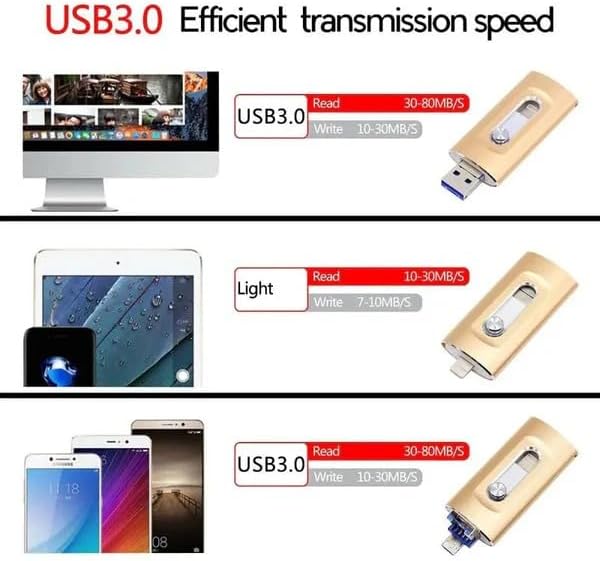
Figure 6.1: An illustration detailing typical read/write speeds for USB 3.0, Lightning, and Micro USB connections, emphasizing the high-speed capability of USB 3.0.
6.3. App Issues
- Update App: Ensure the "Easy Flash Pro" app is updated to the latest version.
- Reinstall App: If issues persist, try uninstalling and reinstalling the app.
7. Specifications
| Feature | Detail |
|---|---|
| Brand | SakerPlus |
| Model | B0FQTP9911 |
| Memory Storage Capacity | 128 GB |
| Hardware Interface | USB 3.0 |
| Hardware Connectivity Technology | Lightning, USB Type A |
| Special Feature | Dual USB Connector, Retractable Design |
| Compatible Devices | iPhone, iPad, Android, Mac, Windows |
8. Warranty and Support
For warranty information and customer support, please refer to the product packaging or contact SakerPlus directly through their official channels. Keep your purchase receipt for warranty claims.