
Introduction
Thank you for purchasing the EasySMX S10 Wireless Game Controller. This manual provides essential information for the proper setup, operation, maintenance, and troubleshooting of your device. Please read this manual thoroughly before use to ensure optimal performance and longevity of your controller.
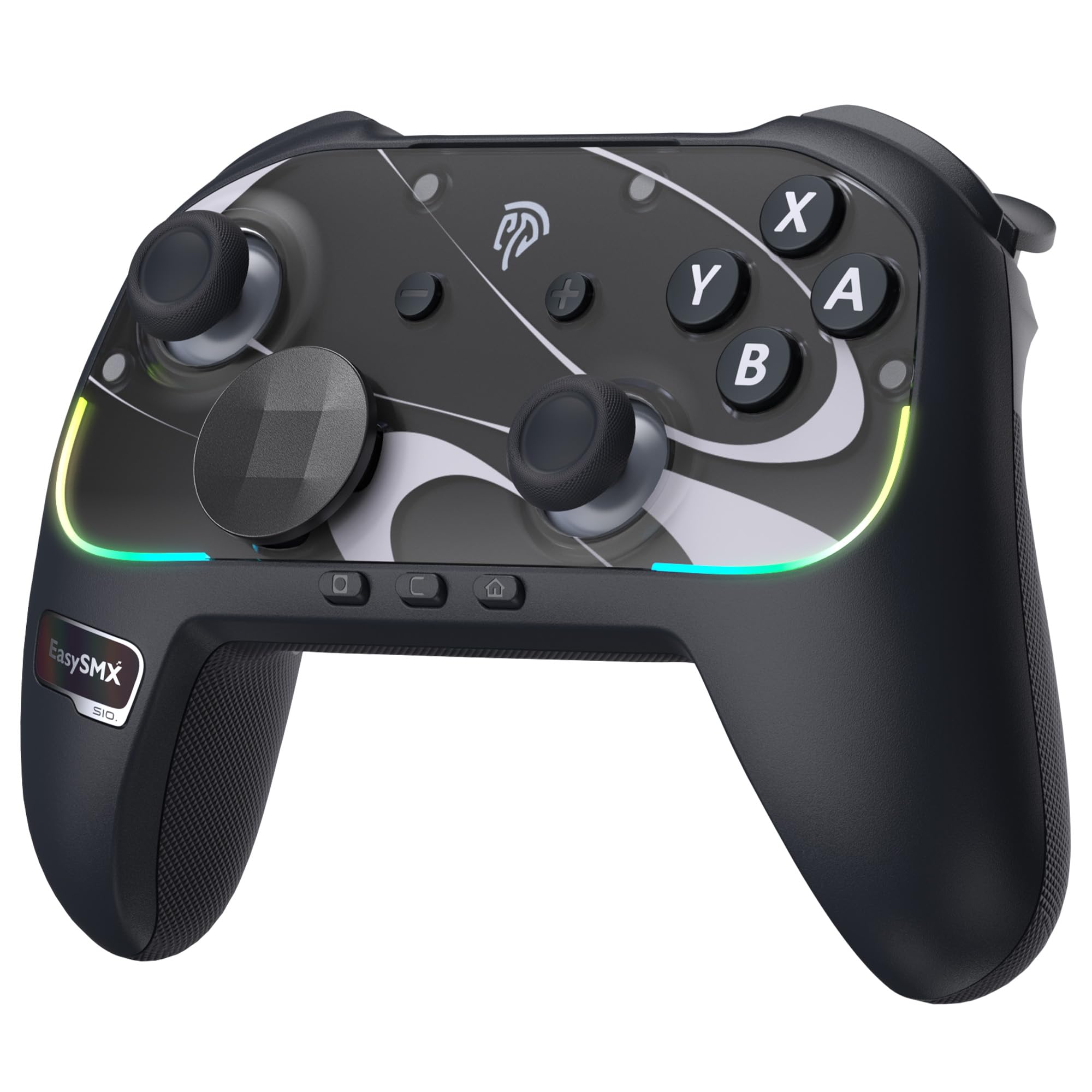
Figure 1: EasySMX S10 Wireless Game Controller
Package Contents
Verify that all items are present in your package:
- EasySMX S10 Wireless Game Controller
- USB-C Charging Cable
- User Manual
- Exchangeable Magnetic Faceplate (Clear/Light Blue)
- Decoration Stickers
- Exchangeable D-pad (Cross-shaped)
Product Overview
The EasySMX S10 controller features a robust design with advanced functionalities for an enhanced gaming experience across multiple platforms.
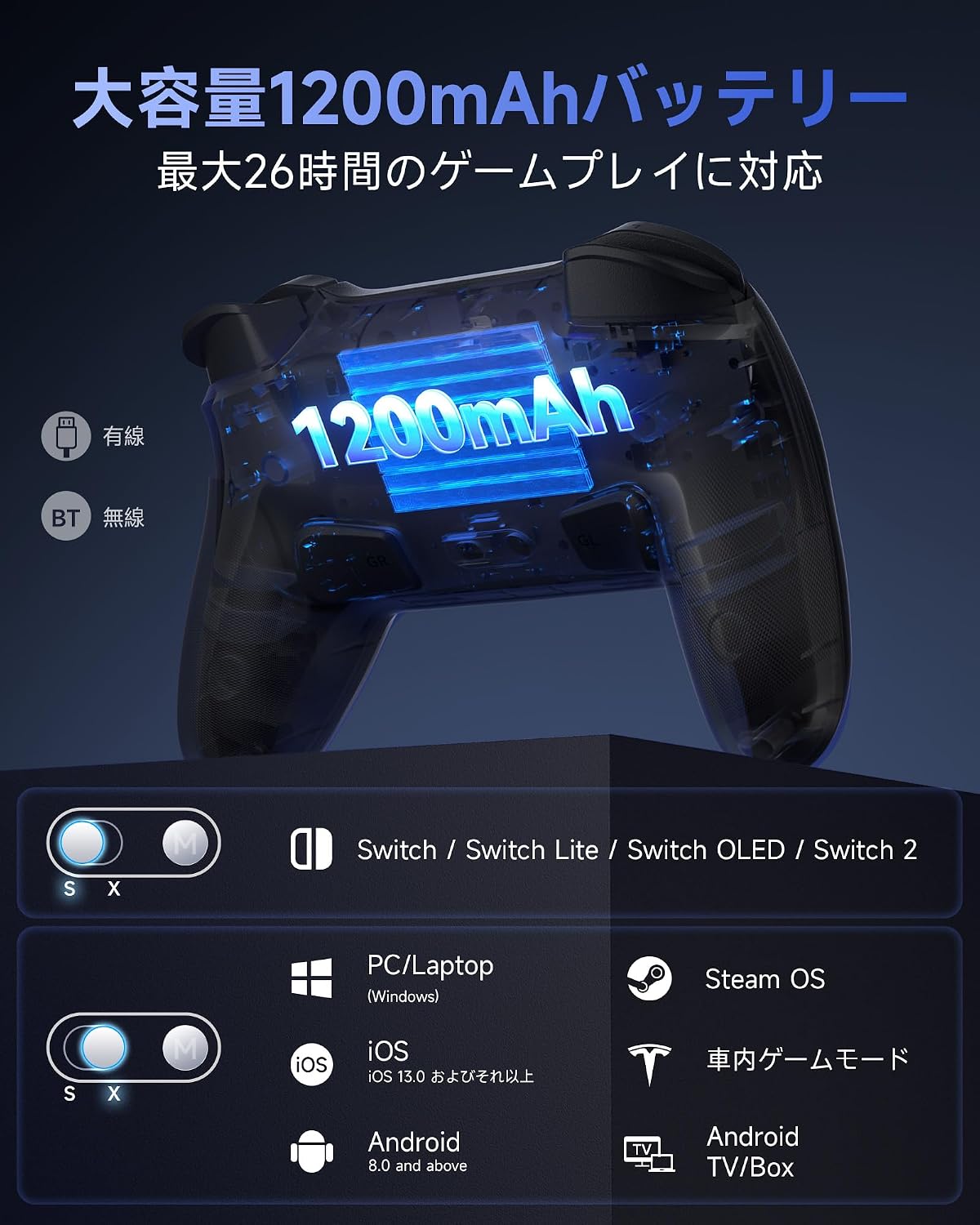
Figure 2: Controller features a 1200mAh battery and multi-platform compatibility.
Key Features:
- Multi-Platform Compatibility: Supports Switch 2, Switch, Switch Lite, Switch OLED, PC, iOS, Android, and Steam Deck.
- One-Tap Startup: Instantly wakes up your Switch console.
- Advanced HD Vibration: Immersive, multi-layered haptic feedback powered by ALPS linear motors.
- TMR Joystick: High precision and durability with zero drift.
- Customizable RGB Lighting: 5 modes and various color combinations for personalization.
- DIY Exchangeable Components: Magnetic faceplate and D-pad can be swapped to suit preferences.
- Programmable Buttons: Two customizable back buttons (GR, GL).
- Long-Life Battery: Built-in 1200mAh lithium battery provides up to 26 hours of gameplay.
- NFC Function: Compatible with Amiibo.
Setup
1. Charging the Controller
Before first use, fully charge the controller using the provided USB-C cable. Connect the USB-C end to the controller and the USB-A end to a power source (e.g., console, PC, or USB wall adapter).
2. Initial Pairing with Nintendo Switch / Switch 2
Follow these steps for the first-time connection to a Nintendo Switch or Switch 2 console:
- Ensure the Joy-Con controllers are attached to your Switch console.
- Power on your Switch console.
- On the Switch HOME Menu, navigate to Controllers > Change Grip/Order.
- On the EasySMX S10 controller, long-press the Home button for approximately 3 seconds. The indicator lights will flash, then flash rapidly.
- The Switch console will recognize and display the controller.
- Within 20 seconds of the controller being recognized, detach both Joy-Cons from the Switch console and then reattach them. This action enables the wireless wake-up function for future use.
After this procedure, your EasySMX S10 controller can wake up the Switch console from sleep mode by pressing the Home button.
3. Pairing with PC, Steam Deck, iOS, and Android Devices
For other compatible devices, follow standard Bluetooth pairing procedures:
- Ensure the controller is charged.
- Activate Bluetooth on your device (PC, Steam Deck, iOS, Android).
- Put the EasySMX S10 controller into pairing mode (usually by long-pressing the Home button or a dedicated pairing button, refer to the specific device's Bluetooth settings for confirmation).
- Select "EasySMX S10" from the list of available Bluetooth devices on your screen.
- Once connected, the indicator lights on the controller will stabilize.
Operating Instructions
1. One-Tap Startup (Switch)
Once paired with your Nintendo Switch, you can wake up the console from sleep mode by simply pressing the Home button on the EasySMX S10 controller.

Figure 3: One-Tap Startup for Switch Console
2. Customizable RGB Lighting
The controller features customizable RGB lighting with 5 modes and various color combinations. To adjust the lighting effects, refer to the specific button combinations detailed in the quick start guide or the full digital manual available on the EasySMX website.
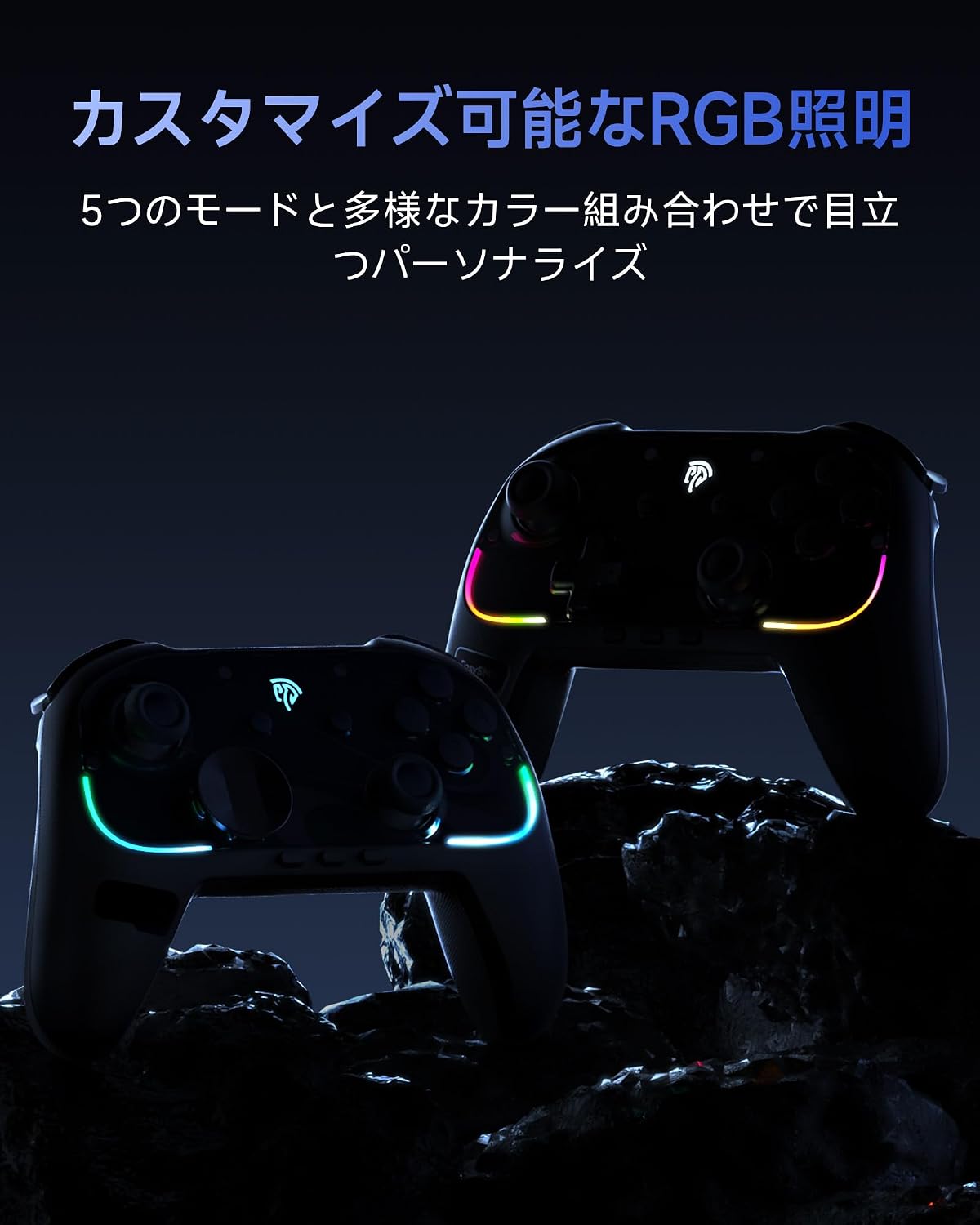
Figure 4: Customizable RGB Lighting
3. Exchangeable Faceplate and D-pad
The EasySMX S10 allows for personalization with its magnetic exchangeable faceplate and D-pad. You can switch between a circular D-pad for smooth control and a cross-shaped D-pad for precise directional input, adapting to different game genres and playstyles.

Figure 5: Magnetic Exchangeable Faceplates

Figure 6: Exchangeable D-pad for versatile control
4. Programmable Buttons (GR/GL)
The controller features two programmable back buttons, GR and GL, allowing you to map complex commands or frequently used actions for quick access. To program these buttons, long-press the M button and follow the on-screen instructions or refer to the detailed programming guide.

Figure 7: Programmable GR and GL Buttons
5. NFC Function
The EasySMX S10 controller includes an NFC function, allowing you to use Amiibo figures and cards with compatible games on your Nintendo Switch console. Simply place the Amiibo on the designated NFC touchpoint on the controller to activate its in-game features.

Figure 8: NFC Function for Amiibo Compatibility
6. Advanced HD Vibration
Experience immersive feedback with the controller's advanced HD vibration system, powered by ALPS linear motors. This provides multi-layered, real-time haptic feedback for every in-game action, from subtle textures to powerful impacts.

Figure 9: Advanced HD Vibration System
7. TMR Joystick and Mechanical Buttons
The S10 features TMR (Hall Effect) joysticks for superior precision and durability, eliminating stick drift. The ABXY buttons utilize an improved mechanical structure with micro-switches and liquid silicone pads, offering consistent, responsive feedback and extended lifespan.

Figure 10: TMR Joystick for Precision and Durability

Figure 11: Mechanical Buttons and Triggers
Maintenance
Proper care and maintenance will extend the life of your EasySMX S10 controller.
- Cleaning: Use a soft, dry cloth to clean the controller. Avoid using liquid cleaners, solvents, or abrasive materials, as these can damage the surface and internal components.
- Storage: Store the controller in a cool, dry place away from direct sunlight, extreme temperatures, and high humidity.
- Battery Care: To maintain battery health, charge the controller regularly, even if not in frequent use. Avoid completely draining the battery or leaving it uncharged for extended periods.
- Physical Protection: Avoid dropping the controller or subjecting it to strong impacts.
Troubleshooting
If you encounter issues with your EasySMX S10 controller, refer to the following common solutions:
| Problem | Solution |
|---|---|
| Controller does not connect/pair. | Ensure the controller is charged. Re-attempt the pairing process as described in the Setup section. Check if Bluetooth is enabled on your device. Try restarting both the controller and the device. |
| Switch wake-up function is not working. | This function requires a specific initial pairing procedure. Please repeat the "Initial Pairing with Nintendo Switch / Switch 2" steps carefully, especially step 6 regarding detaching and reattaching Joy-Cons. |
| Buttons are unresponsive or delayed. | Check for any physical obstructions around the buttons. Ensure the controller's battery is not low. Try resetting the controller (if a reset button is available, otherwise power cycle). Ensure there is no significant wireless interference. |
| Vibration is not working or is too strong/weak. | Check in-game settings for vibration options. Some games allow adjustment of vibration intensity. Ensure the controller's HD vibration feature is enabled (refer to the full manual for specific button combinations if available). |
| NFC (Amiibo) function is not working. | Ensure the Amiibo is placed correctly on the NFC touchpoint. Verify that the game you are playing supports Amiibo and that the NFC function is enabled in the game or console settings. |
Specifications
| Feature | Detail |
|---|---|
| Model Number | S10 |
| Connectivity | Wireless (Bluetooth) |
| Compatibility | Switch 2, Switch, Switch Lite, Switch OLED, PC, iOS, Android, Steam Deck |
| Battery | 1200mAh Lithium Ion (included) |
| Battery Life | Up to 26 hours (approximate) |
| Dimensions | 18.1 x 14.3 x 7.1 cm |
| Weight | 540 g |
| Polling Rate | 1000Hz |
| Joystick Type | TMR (Hall Effect) |
| Buttons | Mechanical ABXY, Programmable GR/GL |
| Special Features | RGB Lighting, HD Vibration, NFC, Exchangeable Faceplate/D-pad |
| Country of Origin | China |
| ASIN | B0FQTG4N23 |
| Release Date | 2025/09/20 |
This product complies with Japanese technical standards. For details, refer to the technical compliance certificate.

Figure 12: Technical Compliance Mark
Warranty and Support
This EasySMX S10 Wireless Game Controller comes with a standard manufacturer's warranty. Please refer to the warranty card included in your package for specific terms and conditions, including warranty period and coverage details.
For technical support, troubleshooting assistance, or any inquiries regarding your product, please visit the official EasySMX website or contact their customer service department. Contact information can typically be found on the EasySMX website or on the product packaging.


