

1. Introduction
The HI-REEKE Art Projector is designed to assist artists and creative individuals in tracing, sketching, and projecting images onto various surfaces. With its high-resolution projection and versatile connectivity, it serves as a valuable tool for both beginners and experienced artists. This manual provides comprehensive instructions for setting up, operating, and maintaining your projector.
Key Features:
- Function: 1280×720 resolution for clear, vivid images.
- Compatibility: Works with both iOS and Android devices for seamless projection.
- Connectivity: Supports 2.4G WiFi, USB drive, or computer connection for flexible image import.
- Application: Use as an art projector for tracing on walls, a drawing projector for kids, or a projector for art tracing on canvas.
- Portability: Lightweight and stable design, functioning as an image projector for tracing and a smart sketcher projector.
2. Package Contents
Please ensure all items are present before proceeding with setup:
- HI-REEKE Art Projector Unit
- Adjustable Robotic Arm
- Desk Clamp Base
- Power Cable
- Remote Control
- Hex Key
- Cable Management Clips
- HDMI Cable (may be included, check packaging)
3. Setup Guide
Follow these steps to assemble and prepare your HI-REEKE Art Projector for use.
Physical Assembly:
- Attach Linking Components: Take the linking components and attach them to each end of the robotic arm. Ensure they are securely fastened.
- Secure the Base: Use the desk clamp base to firmly secure the projector arm to your desk or desired surface. Tighten the screw until the base is stable.
- Insert Arm into Base: Carefully insert the robotic arm into the secured base.
- Position and Lock Arm: Adjust the arm to your desired angle. Use the included hex key to tighten the joints and lock the arm securely in place.
- Mount Projector Unit: Mount the projector unit onto the linking component at the end of the robotic arm. Ensure it is tightly secured.
- Connect Power: Plug the power cable into the projector unit and then into a power outlet.
- Cable Management: Use the provided cable management clips to neatly run the projector's cable along the arm for a clean and organized setup. There is a dedicated storage spot for the hex key on the arm when not in use.
Video: A comprehensive video guide detailing the assembly and setup process of the HI-REEKE Art Projector, including attaching the arm, securing the base, and managing cables.

The projector features a highly flexible 5-axis free-rotating arm, allowing for precise adjustment of projection angles from 0 to 180 degrees for diverse artistic needs.
4. Operating Instructions
4.1 Power On/Off
Press the power button on the projector unit or the remote control to turn the device on or off.
4.2 Focus Adjustment
Rotate the focus ring on the projector lens until the projected image appears sharp and clear on your surface.
4.3 Image Orientation & Keystone Correction
Utilize the adjustable robotic arm to position the projector for optimal image placement. The 5-axis rotation allows for projection at various angles (0°, 45°, 90°, 135°, 180°). If the image appears trapezoidal, use the keystone correction settings in the projector's menu to adjust it to a rectangular shape.

This visual guide demonstrates the projector's capability to create screen sizes ranging from 9.5 inches to a large 150 inches, with corresponding projection distances for optimal viewing.
4.4 Device Connectivity
The projector offers multiple ways to connect your devices:
- Wired HDMI (Windows PC/Mac):
Plug an HDMI cable into your PC/Mac and the projector. Use the remote to select 'HDMI' input. - Wireless (Wi-Fi/Bluetooth) for Android Phone:
First, pair your phone with the projector via Bluetooth. Then, ensure both devices are connected to the same Wi-Fi network. Tap "Cast" on your phone and press the cast button on the remote. Select the projector from the device list. - Wireless (Wi-Fi) for iPhone:
Connect both your iPhone and the projector to the same Wi-Fi network. Open Control Center on your iPhone, tap "Screen Mirroring," and select the projector's name. - Wireless (Wi-Fi) for Mac:
Ensure both your Mac and the projector are on the same Wi-Fi network. Click the Control Center icon in your Mac's menu bar, then click "Screen Mirroring" and select the projector.
Video: Tutorial on connecting a Windows PC to the HI-REEKE Art Projector via HDMI.
Video: Guide for connecting a Mac to the HI-REEKE Art Projector using an HDMI cable.
Video: Instructions for connecting an Android phone to the HI-REEKE Art Projector via Bluetooth and Wi-Fi screen mirroring.
Video: Step-by-step guide for connecting an iPhone to the HI-REEKE Art Projector using Wi-Fi screen mirroring.
Video: Instructions for connecting a Mac to the HI-REEKE Art Projector wirelessly via Wi-Fi screen mirroring.
4.5 Using the Remote Control
The included remote control allows you to navigate the projector's menu, adjust settings, switch input sources, and control media playback. Familiarize yourself with the buttons for power, navigation, input selection, and volume.
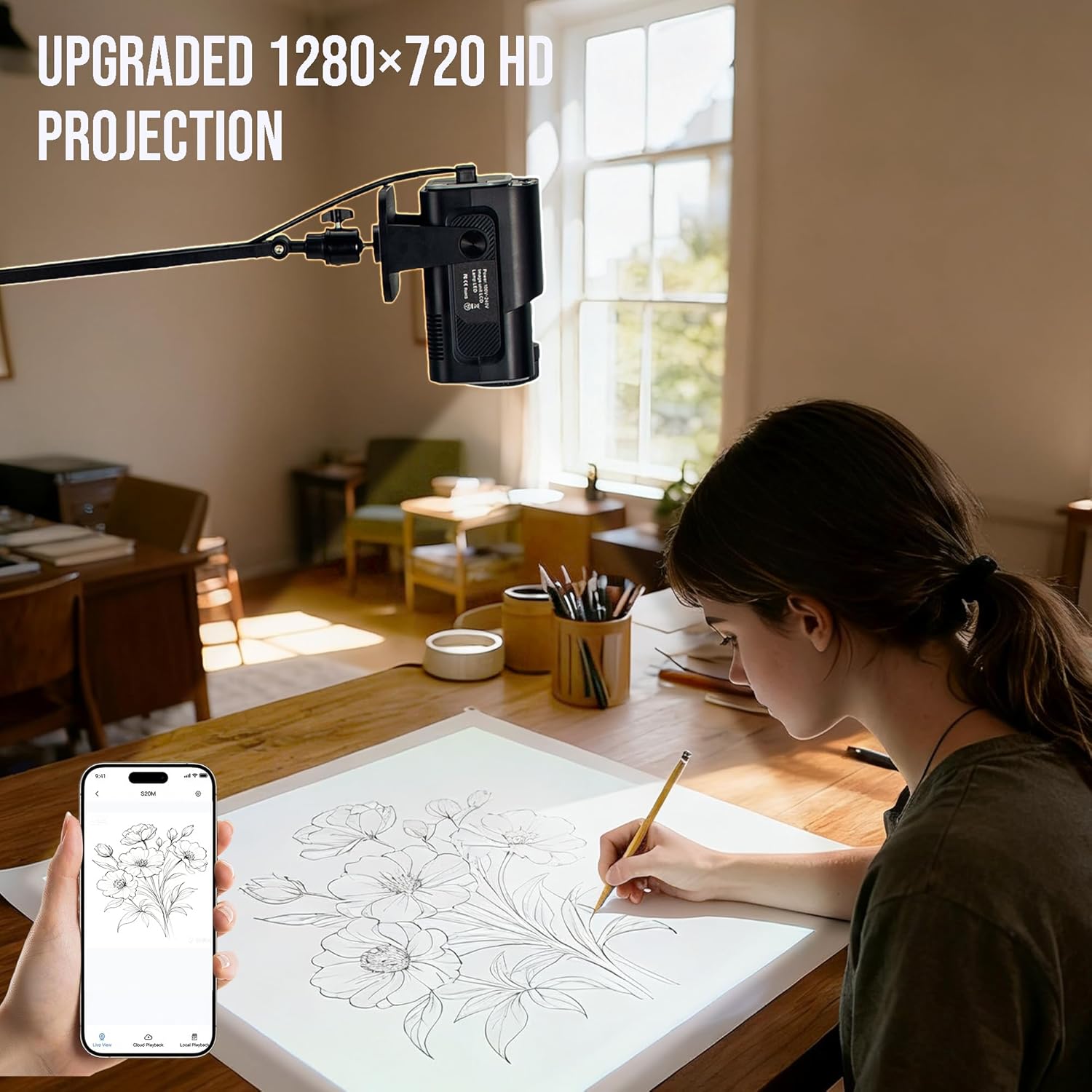
An artist uses the HI-REEKE Art Projector to trace a complex floral pattern onto paper, demonstrating its use for detailed artwork.

The HI-REEKE Art Projector in various creative settings: projecting onto a wall for large-scale art, onto a floor canvas for detailed work, and on a table for children's drawing activities.
5. Maintenance
Proper maintenance ensures the longevity and optimal performance of your projector.
- Cleaning the Lens: Use a soft, lint-free cloth specifically designed for optical lenses to gently wipe the projector lens. Avoid abrasive materials or harsh chemicals.
- Cleaning the Exterior: Wipe the exterior of the projector with a soft, dry cloth. Do not use liquid cleaners directly on the device.
- Ventilation: Ensure the projector's ventilation ports are clear of dust and obstructions to prevent overheating.
- Storage: When not in use, store the projector in a cool, dry place, away from direct sunlight and extreme temperatures. It is recommended to cover the lens to protect it from dust.
6. Troubleshooting
If you encounter issues with your projector, refer to the following common problems and solutions:
| Problem | Possible Cause | Solution |
|---|---|---|
| No Signal Displayed | Incorrect input source selected; loose cable connection; device not outputting signal. | Ensure the correct input source (e.g., HDMI, Wi-Fi) is selected on the projector. Check all cable connections for tightness. Verify your source device is powered on and outputting a signal. |
| Unable to Connect Wirelessly | Devices not on the same Wi-Fi network; Bluetooth not paired; incorrect mirroring settings. | Confirm both the projector and your device are connected to the same 2.4G Wi-Fi network. For Android, ensure Bluetooth is paired. Check screen mirroring settings on your device and the projector. Restart both devices. |
| Image is Blurry | Focus not adjusted; projector too close/far from surface. | Rotate the focus ring on the projector lens until the image is clear. Adjust the distance of the projector from the projection surface. |
| Image is Trapezoidal | Projector not perpendicular to the surface. | Adjust the projector's angle using the robotic arm. Use the keystone correction feature in the projector's settings menu to correct the image shape. |
7. Specifications
Detailed technical specifications for the HI-REEKE Art Projector.
- Model Name: 0911+WSY+ZYH+TYY-2
- Color: Black
- Material: Acrylic
- Resolution: 1280x720
- Light Source Type: Light Emitting Diode (LED)
- Connectivity: 2.4G WiFi, USB, HDMI, Bluetooth
- Recommended Uses: Indoor
- Product Dimensions: 7.48 x 3.94 x 17.13 inches (projector unit and arm)
- Item Weight: 2.95 Pounds
- Manufacturer: HI-REEKE
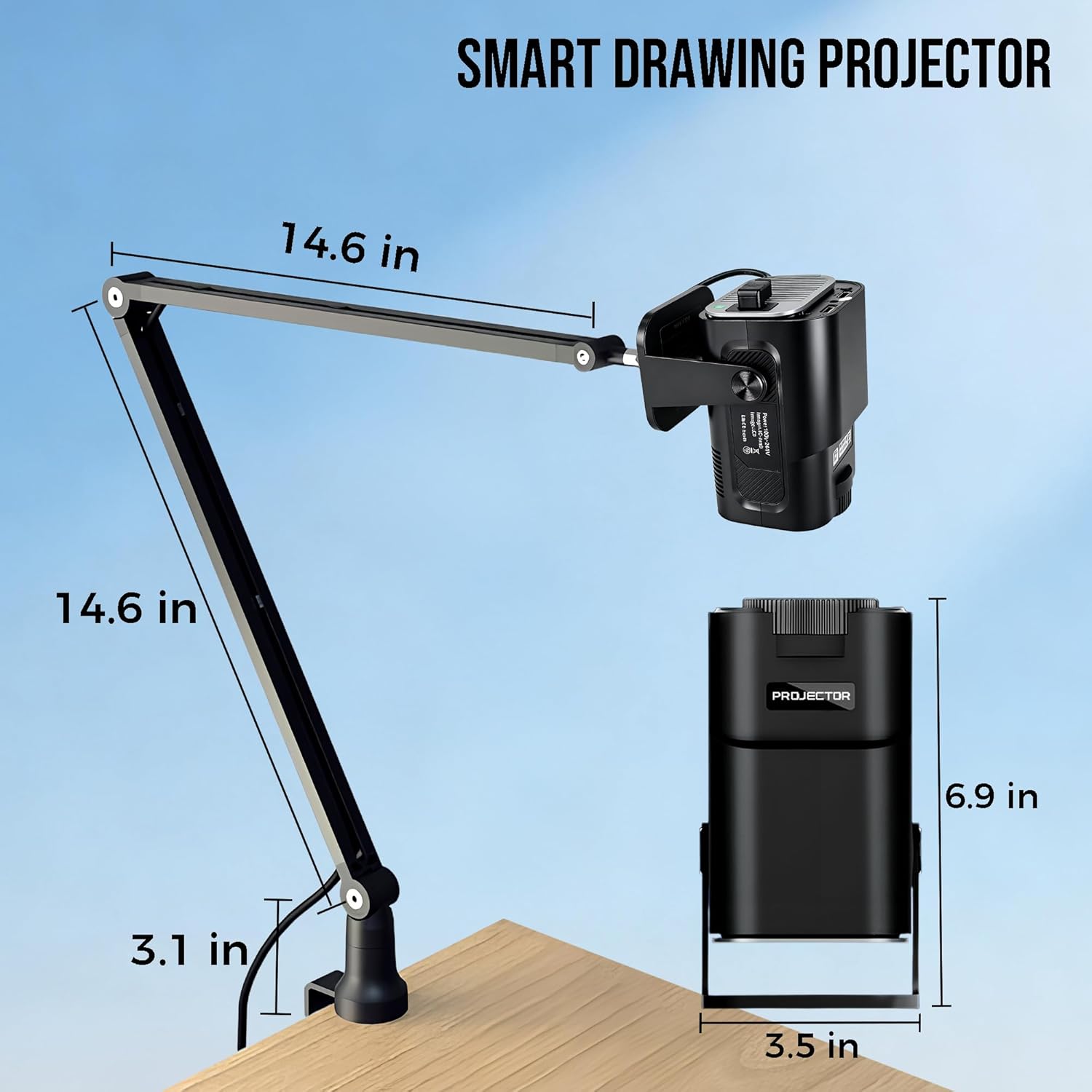
Detailed dimensions of the HI-REEKE Art Projector, including the arm length (14.6 inches), projector unit height (6.9 inches), width (3.5 inches), and clamp width (3.1 inches).


