
1. Introduction
Thank you for choosing the RK ROYAL KLUDGE C61 HE Magnetic Keyboard. This compact 60% AZERTY wired keyboard is designed for competitive gaming, featuring Hall Effect magnetic switches, Rapid Trigger technology, an 8000 Hz polling rate, and 0.01mm actuation precision. It offers advanced customization through a web driver and supports hot-swappable switches. This manual provides detailed instructions for setup, operation, maintenance, and troubleshooting to ensure an optimal user experience.
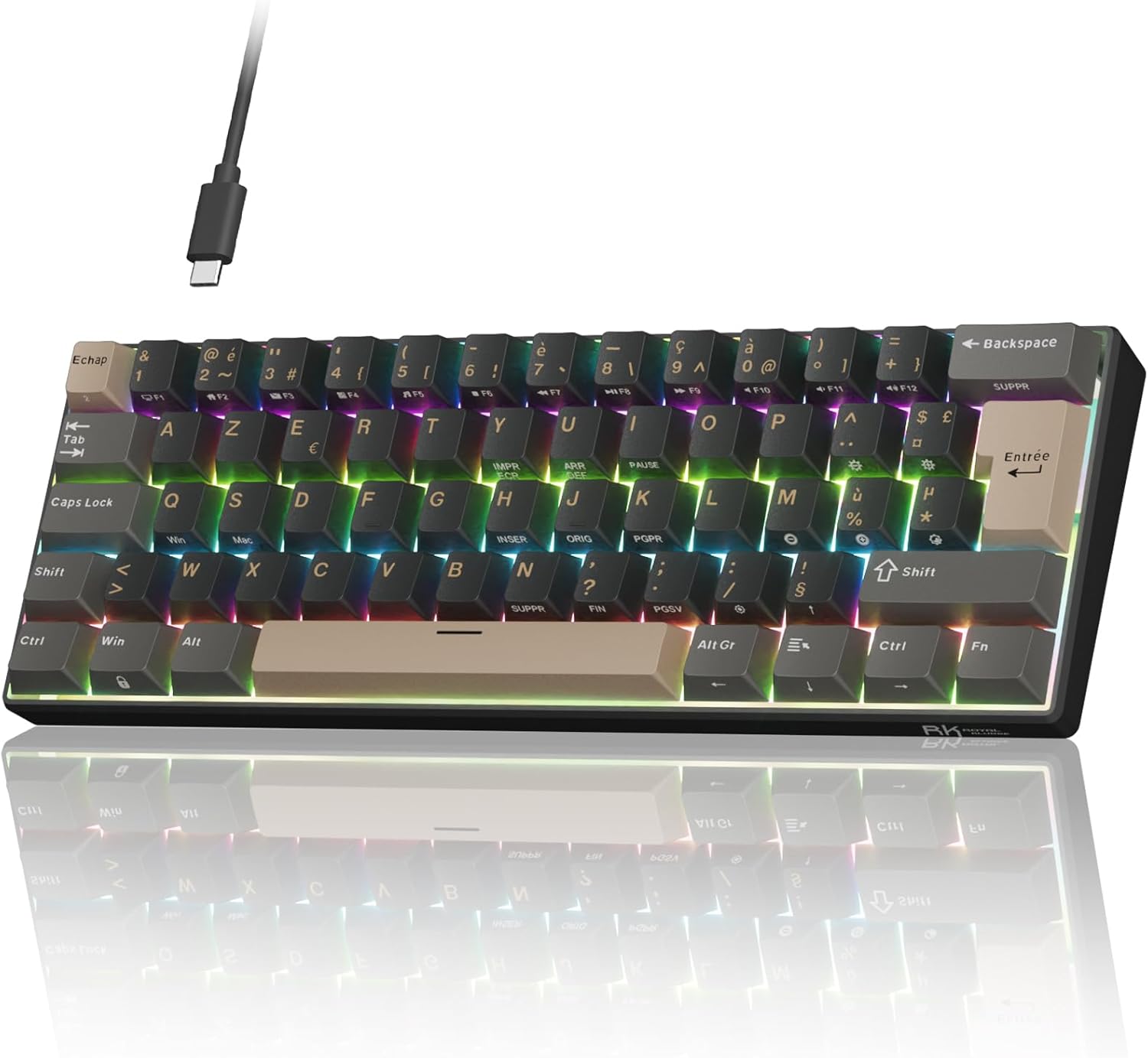
Image: The RK ROYAL KLUDGE C61 HE Magnetic Keyboard, showcasing its compact design and RGB lighting.
2. Setup
2.1 Package Contents
- RK ROYAL KLUDGE C61 HE Magnetic Keyboard
- USB-C to USB-A Cable
- Keycap/Switch Puller (if included)
- User Manual (this document)
2.2 Connecting the Keyboard
- Locate the USB-C port on the back or side of the keyboard.
- Connect the USB-C end of the provided cable to the keyboard.
- Connect the USB-A end of the cable to an available USB port on your PC or Mac.
- The keyboard will be automatically recognized by your operating system.
2.3 Web Driver Installation and Firmware Update
For advanced customization and optimal performance, it is recommended to use the dedicated web driver. Access the web driver through the official RK ROYAL KLUDGE website or the link provided in the product documentation.
Important Note: Do not click the "Update" button within the C61 software, as this may temporarily slow down the software and affect keyboard usage. The current version is fully functional. If you have already clicked "Update" and are experiencing difficulties, please update the firmware using the following link: drive.google.com/drive/folders/1jU8Xk41eQnimjG05DmiVhIxCKnTH7CL3?usp=sharing. After updating, restart your computer to restore full functionality.

Image: Screenshot of the advanced web driver interface for keyboard customization.
3. Operating Instructions
3.1 Basic Keyboard Functions
The C61 HE keyboard features a standard AZERTY 60% layout. All primary keys function as labeled. For keys with secondary functions, refer to the key combination table below.
3.2 Fn Key Combinations
The Fn key is used to access secondary functions printed on the keycaps. Press and hold the Fn key, then press the desired function key.
| Primary Key | Secondary Function (Fn + Primary Key) |
|---|---|
| ESC | ~ (Tilde) |
| 1 | F1 |
| 2 | F2 |
| 3 | F3 |
| 4 | F4 |
| 5 | F5 |
| 6 | F6 |
| 7 | F7 |
| 8 | F8 |
| 9 | F9 |
| 0 | F10 |
| ) | F11 |
| = | F12 |
| Backspace | Delete |
| P | Pause |
| I | Insert |
| H | Home |
| J | Page Up |
| K | Page Down |
| N | End |
| , | Print Screen |
| ; | Scroll Lock |
| / | Page Down |
Example: To type 'F1', press Fn + 1. To type '!', press Shift + 1.

Image: A visual representation of the keyboard's key functions, including Fn combinations.
3.3 RGB Lighting Control
The C61 HE keyboard features customizable RGB backlighting. Use the following Fn key combinations to adjust the lighting:
- Fn + M: Change RGB lighting mode.
- Fn + ,: Change RGB lighting color.
- Fn + [ {: Decrease backlight brightness.
- Fn + ] }: Increase backlight brightness.
- Fn + ; :: Decrease backlight speed.
- Fn + ' ": Increase backlight speed.

Image: Visual guide for controlling RGB backlighting modes, colors, brightness, and speed using Fn key combinations.
3.4 Rapid Trigger and Actuation Point Adjustment
The Hall Effect magnetic switches allow for precise actuation point adjustment from 0.01mm to 3.4mm and Rapid Trigger functionality. These features are configured via the web driver software.
- Actuation Point: Adjust the distance a key needs to travel before registering a press. A shorter actuation point (e.g., 0.1mm) provides faster response, while a longer one (e.g., 3.4mm) can help prevent accidental presses.
- Rapid Trigger: This feature allows keys to activate and deactivate based on movement rather than a fixed point, enabling ultra-fast repeated inputs and immediate resets.

Image: Diagram illustrating the adjustable actuation range from 0.1mm to 3.4mm.

Image: Illustration demonstrating the Rapid Trigger function, showing key press, bottom-out, release, and rebound actions.

Image: A comparison diagram showing the adjustable actuation point of a magnetic switch versus the fixed actuation point of a mechanical switch.
4. Maintenance
4.1 Cleaning the Keyboard
To maintain optimal performance and appearance, regularly clean your keyboard:
- Disconnect the keyboard from your computer before cleaning.
- Use a soft, lint-free cloth slightly dampened with water or a mild cleaning solution to wipe down the keycaps and chassis.
- For dust and debris between keys, use compressed air.
- Avoid using harsh chemicals or abrasive materials.
4.2 Hot-Swappable Switches
The C61 HE features hot-swappable magnetic switches, allowing you to easily replace or customize them without soldering. Use the provided keycap and switch puller tool:
- Gently remove the keycap using the keycap puller.
- Use the switch puller to carefully grip the top and bottom clips of the switch.
- Pull the switch straight up to remove it from the PCB.
- Align the pins of the new switch with the holes on the PCB.
- Press the new switch firmly until it clicks into place. Ensure it is seated correctly.
- Replace the keycap.

Image: A close-up view of the keyboard demonstrating the hot-swappable magnetic switches.
5. Troubleshooting
5.1 Keyboard Not Responding
- Ensure the USB-C cable is securely connected to both the keyboard and your computer.
- Try connecting the keyboard to a different USB port on your computer.
- Test the keyboard on another computer to rule out system-specific issues.
- Check if the cable is damaged; try using a different USB-C cable if available.
5.2 RGB Lighting Not Working or Incorrect
- Verify that the RGB lighting is enabled using the Fn key combinations (refer to section 3.3).
- Check the web driver software for any lighting configuration issues.
- Ensure the keyboard firmware is up to date (refer to section 2.3).
5.3 Keys Not Registering or Double-Typing
- This could be related to the actuation point settings. Adjust the actuation point via the web driver.
- If a specific key is affected, try removing and re-seating the switch for that key (refer to section 4.2).
- Ensure the keyboard firmware is up to date (refer to section 2.3).
5.4 Web Driver Software Issues
If you experience issues with the web driver, such as slow performance or incorrect settings:
- Ensure your internet connection is stable when accessing the web driver.
- Clear your browser's cache and cookies, then try accessing the web driver again.
- As mentioned in section 2.3, avoid clicking the "Update" button within the software. If you have, perform the firmware update from the provided Google Drive link and restart your computer.
6. Specifications
| Feature | Description |
|---|---|
| Brand | RK ROYAL KLUDGE |
| Model Number | C61 HE |
| Connectivity Technology | Wired (USB-C) |
| Keyboard Description | Mechanical, 60% Compact |
| Switch Type | Linear Magnetic (Hall Effect) |
| Actuation Point | Adjustable from 0.01 mm to 3.4 mm |
| Polling Rate | 8000 Hz |
| Latency | 0.125 ms |
| Keycap Material | PBT |
| Backlight | RGB |
| Layout | AZERTY |
| Compatible Devices | PC, Mac |
| Dimensions (L x W x H) | 29.1 cm x 10.1 cm x 4 cm (approx.) |
| Internal Material | Aluminum, Plastic |
| Keyboard Plate Material | Aluminum |
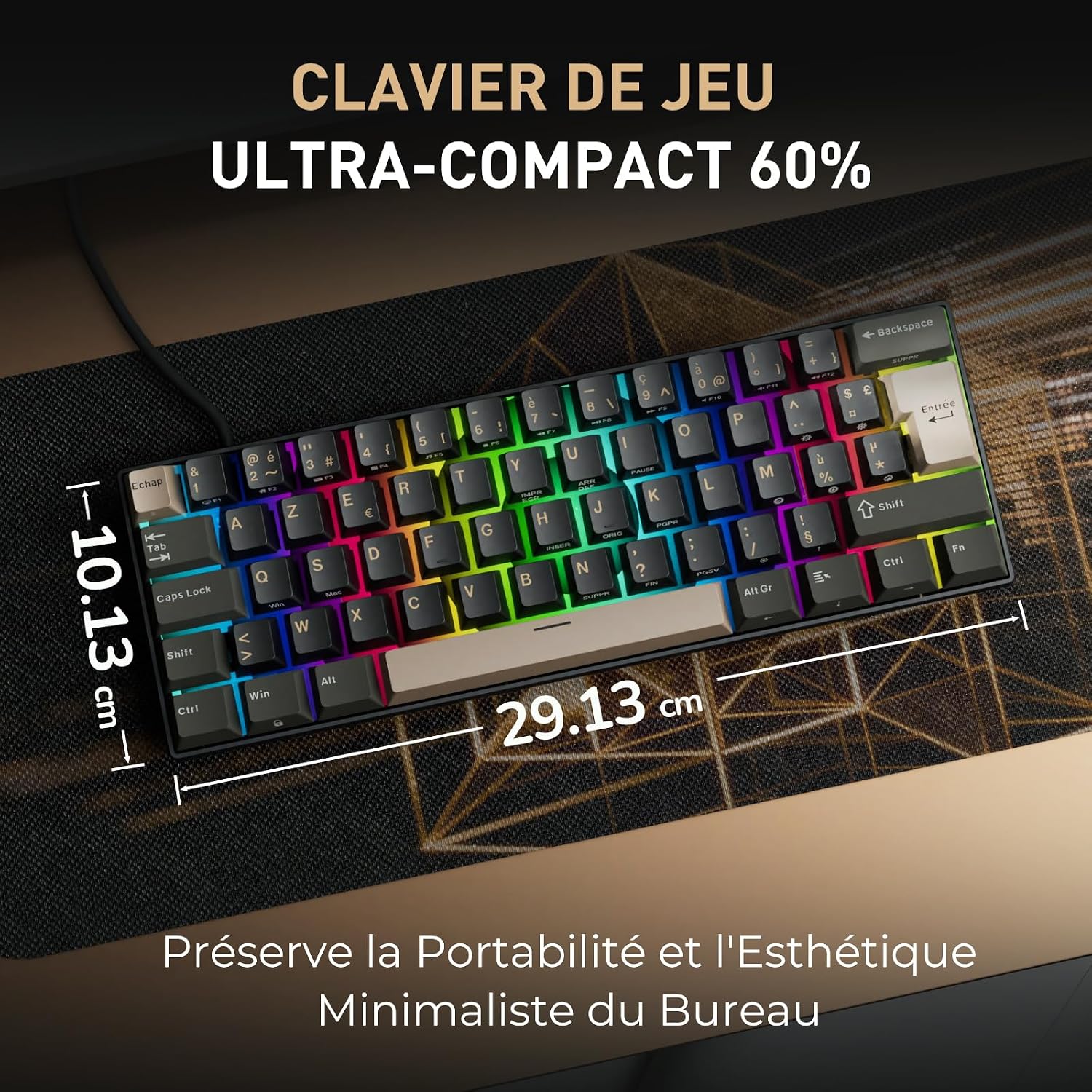
Image: The RK ROYAL KLUDGE C61 HE keyboard with its dimensions (29.13 cm length, 10.13 cm width) highlighted.

Image: An exploded view illustrating the internal structure of the keyboard, including the aluminum plate, EVA acoustic cotton, foam acoustic cotton, and silicone bottom pad.
7. Warranty and Support
7.1 Product Warranty
RK ROYAL KLUDGE products typically come with a limited warranty. Please refer to the warranty card included with your product or visit the official RK ROYAL KLUDGE website for detailed warranty terms and conditions. Keep your proof of purchase for warranty claims.
7.2 Customer Support
For technical assistance, troubleshooting, or any questions regarding your RK ROYAL KLUDGE C61 HE keyboard, please contact RK ROYAL KLUDGE customer support through their official website. You can usually find contact information in the 'Support' or 'Contact Us' section of their site.
For firmware updates or specific driver issues, please refer to the link provided in section 2.3: drive.google.com/drive/folders/1jU8Xk41eQnimjG05DmiVhIxCKnTH7CL3?usp=sharing.