
1. Introduction
This manual provides detailed instructions for the SENGBIRCH Keyboard Case, designed for the iPad Pro 13-inch (M5 2025/M4 2024 models A2925/A2926/A3007). This product combines a protective case with a detachable wireless Bluetooth keyboard, enhancing the functionality and portability of your iPad.
Please read this manual thoroughly before using the product to ensure proper operation and to maximize its features.

Image 1.1: SENGBIRCH Keyboard Case with iPad Pro 13-inch.
2. Package Contents
Verify that all items listed below are included in your package:
- 1 x SENGBIRCH Case for iPad Pro 13-inch (M4) 2024
- 1 x SENGBIRCH Keyboard for iPad Pro 13-inch (M4) 2024
- 1 x USB Charging Cable
- 1 x User Manual
Note: The iPad tablet and Apple Pencil are not included.
3. Product Overview
3.1 Key Features
- Compatibility: Specifically designed for iPad Pro 13-inch (M5) 2025 and iPad Pro 13-inch (M4) 2024 (Models: A2925/A2926/A3007).
- Detachable Keyboard: Wireless Bluetooth keyboard can be used attached to the case or independently.
- Integrated Pencil Holder: Allows for secure storage and charging of the Apple Pencil.
- Multi-Angle Adjustment: Supports 3 viewing angles (110°, 120°, 130°) for various tasks.
- Long Battery Life: Up to 90 hours of continuous use on a single 2.5-hour charge.
- 360° Protection: Durable PU leather cover and shock-resistant TPU interior protect your iPad from scratches and drops.
- Stable Bluetooth Connection: Reliable connection up to 10 meters with automatic re-connection memory function.
- Shortcut Keys: Includes hotkeys and media keys for enhanced productivity.
- Multi-OS Support: Compatible with iOS, Windows, and Android operating systems.
3.2 Component Identification
Familiarize yourself with the different parts of your keyboard case:
- Protective Case: Outer shell made of PU leather with a soft TPU interior, designed to hold the iPad.
- Detachable Bluetooth Keyboard: Wireless keyboard with 81 comfortably spaced, mechanical scissors keys.
- Pencil Holder Slot: Located at the top edge of the case, designed for the Apple Pencil.
- Charging Port (Keyboard): USB-C port for charging the keyboard.
- Power Indicator (Keyboard): LED light indicating power status.
- Bluetooth Indicator (Keyboard): LED light indicating Bluetooth connection status.
- Connect Button (Keyboard): Button to initiate Bluetooth pairing.

Image 3.1: Keyboard Case Features and Dimensions.

Image 3.2: Keyboard Layout and Connectivity Features.
4. Setup
4.1 Charging the Keyboard
- Locate the USB-C charging port on the keyboard.
- Connect the provided USB charging cable to the keyboard's charging port and a suitable USB power adapter (not included).
- The charging indicator light will illuminate. A full charge typically takes 2-3 hours.
- Once fully charged, the indicator light may change color or turn off, depending on the keyboard model.
It is recommended to fully charge the keyboard before first use.
4.2 Installing the iPad into the Case
- Ensure your iPad model is compatible with this case (iPad Pro 13-inch M5 2025/M4 2024, models A2925/A2926/A3007).
- Gently align your iPad with the case, ensuring the camera cutout and port openings match.
- Press the iPad firmly but carefully into the soft TPU interior of the case until it is securely seated.
- Verify that all buttons and ports are accessible and not obstructed.
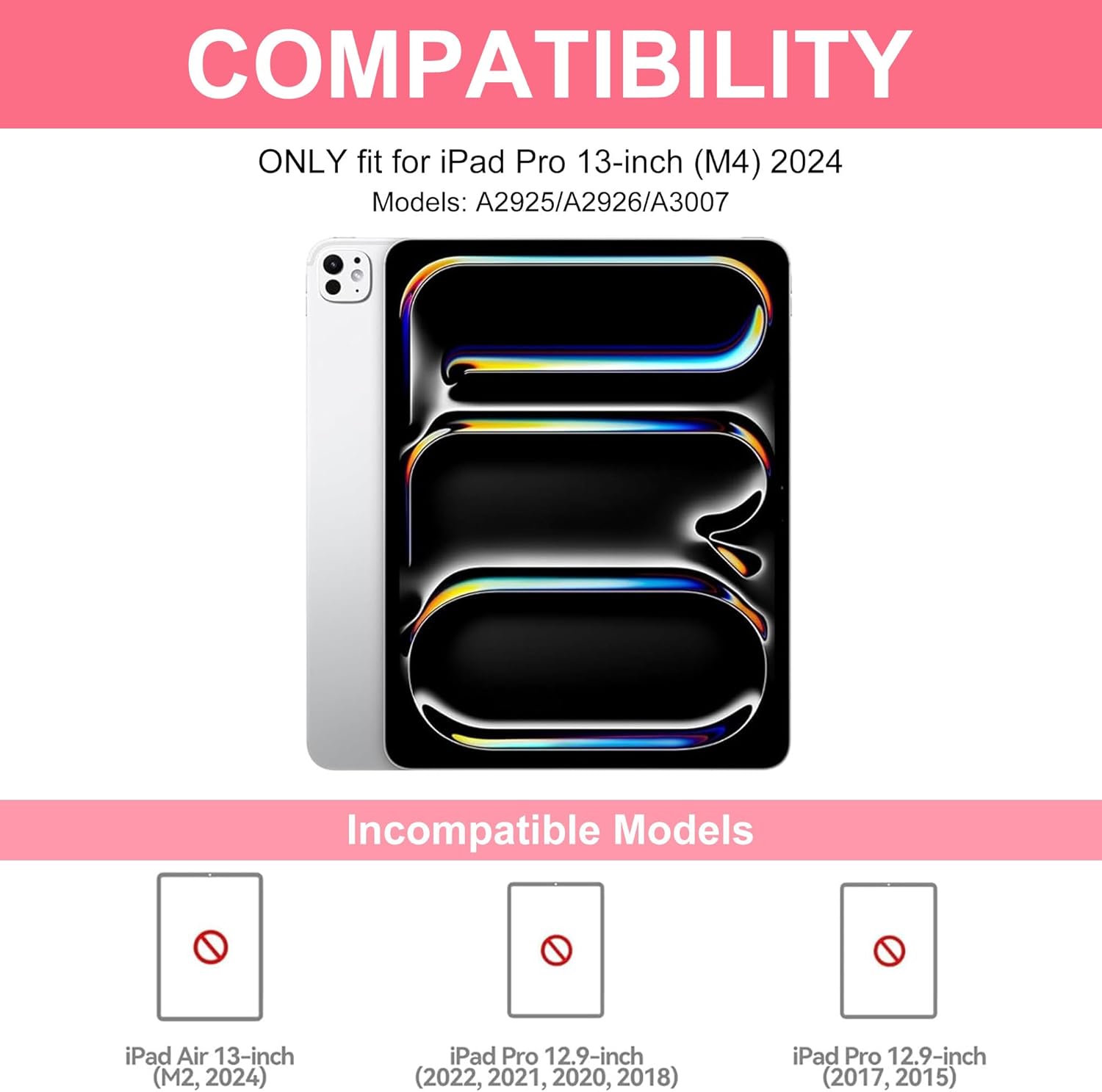
Image 4.1: Compatibility Information for iPad Pro 13-inch.
4.3 Pairing the Bluetooth Keyboard
- Charge the Keyboard: Ensure the keyboard is fully charged.
- Power On: Turn on the keyboard using its power switch.
- Activate Pairing Mode: Press the "Connect" button on the keyboard. The Bluetooth indicator light will start blinking, indicating it is in pairing mode.
- Enable iPad Bluetooth: On your iPad, go to Settings > Bluetooth and turn Bluetooth ON.
- Select Keyboard: Your iPad will search for available devices. Locate and select "Bluetooth 3.0 keyboard" from the list.
- Confirm Connection: Once connected, the Bluetooth indicator light on the keyboard will stop blinking and remain solid (or turn off, depending on the model). The iPad will show the keyboard as "Connected".
The keyboard has a memory function and will automatically connect to your iPad when Bluetooth is enabled on both devices after the initial pairing.
5. Operating Instructions
5.1 Using the Detachable Keyboard
The keyboard is magnetically attached to the case and can be easily removed for independent use. Simply pull the keyboard gently away from the magnetic strip in the case. To reattach, align the keyboard with the magnetic strip until it snaps into place.

Image 5.1: User operating the keyboard case.
5.2 Adjusting Viewing Angles
The case supports three adjustable viewing angles (110°, 120°, 130°). To adjust, position the iPad's bottom edge into one of the grooves on the case's interior. This allows for comfortable viewing and typing in various scenarios.

Image 5.2: iPad Pro 13-inch in viewing stand mode.
5.3 Using the Pencil Holder
The integrated pencil holder slot is located at the top of the case. Insert your Apple Pencil into this slot for secure storage. The design ensures that the Apple Pencil can charge wirelessly while stored in the holder, without hindering its connection to the iPad.

Image 5.3: Upper Pen Slot Design.
5.4 Keyboard Shortcut Keys
The keyboard includes various shortcut and media keys to enhance productivity. Refer to the key labels for specific functions. Common shortcuts include:
- Fn + Function Keys (F1-F12): Access media controls, volume, screen brightness, and other system functions.
- Command (⌘) Key: Used for various shortcuts on iOS, similar to the Control key on Windows.
- Multi-OS Switch: The keyboard supports iOS, Windows, and Android. Use the dedicated keys (e.g., Fn + Q for iOS, Fn + W for Android, Fn + E for Windows) to switch between operating system layouts if available, or the keyboard will automatically adapt.
6. Maintenance
- Cleaning the Case: Wipe the exterior of the case with a soft, damp cloth. Avoid harsh chemicals or abrasive cleaners.
- Cleaning the Keyboard: Use a soft, dry cloth to clean the keyboard keys. For dust or debris between keys, use compressed air. Do not immerse the keyboard in water or any liquid.
- Storage: When not in use for extended periods, store the keyboard case in a cool, dry place. Ensure the keyboard is turned off to conserve battery life.
- Battery Care: To prolong battery life, avoid fully discharging the keyboard frequently. Charge it regularly.
7. Troubleshooting
7.1 Keyboard Not Connecting via Bluetooth
- Check Battery: Ensure the keyboard is fully charged. Low battery can prevent connection.
- Power Cycle: Turn the keyboard off and then on again.
- Re-enter Pairing Mode: Press the "Connect" button on the keyboard to put it back into pairing mode.
- iPad Bluetooth: Verify that Bluetooth is enabled on your iPad (Settings > Bluetooth).
- Forget Device: If the keyboard was previously paired but isn't connecting, go to your iPad's Bluetooth settings, tap the "i" icon next to "Bluetooth 3.0 keyboard", and select "Forget This Device". Then, repeat the pairing process from Section 4.3.
- Distance: Ensure the keyboard is within 10 meters (33 feet) of your iPad.
- Interference: Move away from other wireless devices that might cause interference.
7.2 Keys Not Responding
- Check Connection: Ensure the keyboard is properly connected via Bluetooth (refer to 7.1).
- Battery Level: A low battery can cause intermittent key response. Charge the keyboard.
- Restart iPad: Sometimes restarting your iPad can resolve input issues.
7.3 iPad Not Fitting Correctly in Case
- Verify Model: Double-check that your iPad is the correct model: iPad Pro 13-inch (M5 2025/M4 2024, models A2925/A2926/A3007). This case is not compatible with other iPad models, including iPad Air 13-inch (M2, 2024) or older iPad Pro 12.9-inch models.
- Proper Alignment: Ensure the iPad is aligned correctly with the camera cutout and all ports before gently pressing it into the case.
8. Specifications
| Model Name | Keyboard Case for iPad Pro 13-inch (M4) 2024 (Models: A2925/A2926/A3007) |
| Brand | SENGBIRCH |
| Compatible Devices | iPad Pro 13-inch (M5) 2025, iPad Pro 13-inch (M4) 2024 (Models: A2925/A2926/A3007) |
| Connectivity Technology | Bluetooth, USB-C (for charging) |
| Keyboard Description | Multi-functional, Detachable, Wireless, Shortcut Keys, Mechanical Scissors Keys |
| Special Features | Auto Wake/Sleep, Detachable Keyboard, Hotkeys and Media Keys, Lightweight, Portable, Built-in Pencil Holder |
| Material | Acrylonitrile Butadiene Styrene (ABS), Polyurethane (PU) |
| Item Weight | Approximately 1.2 pounds (0.54 kg) |
| Battery Life (Keyboard) | Up to 90 hours continuous use |
| Charging Time (Keyboard) | 2-3 hours |
| Bluetooth Range | Up to 10 meters (33 feet) |
9. Warranty and Support
SENGBIRCH products are designed with quality and customer satisfaction in mind. For specific warranty information, please refer to the documentation included with your purchase or visit the official SENGBIRCH website.
If you encounter any issues or have questions regarding your SENGBIRCH Keyboard Case, please contact SENGBIRCH customer support through the retailer where you purchased the product or via the contact information provided on the official SENGBIRCH website.
For more information, you may visit the SENGBIRCH Store on Amazon.