
OTTOCAST CP88
Ottocast Mini Slim 2025 Wireless CarPlay & Android Auto Adapter User Manual
Model: CP88
1. Introduction
The Ottocast Mini Slim 2025 Wireless CarPlay & Android Auto Adapter (Model CP88) is designed to convert your vehicle's factory-installed wired CarPlay or Android Auto system into a wireless connection. This device enables seamless access to your smartphone's navigation, music, calls, and applications directly on your car's infotainment screen without the need for a USB cable.
This manual provides detailed instructions for setting up, operating, and maintaining your Ottocast Mini Slim adapter, along with troubleshooting tips and product specifications.
2. Package Contents
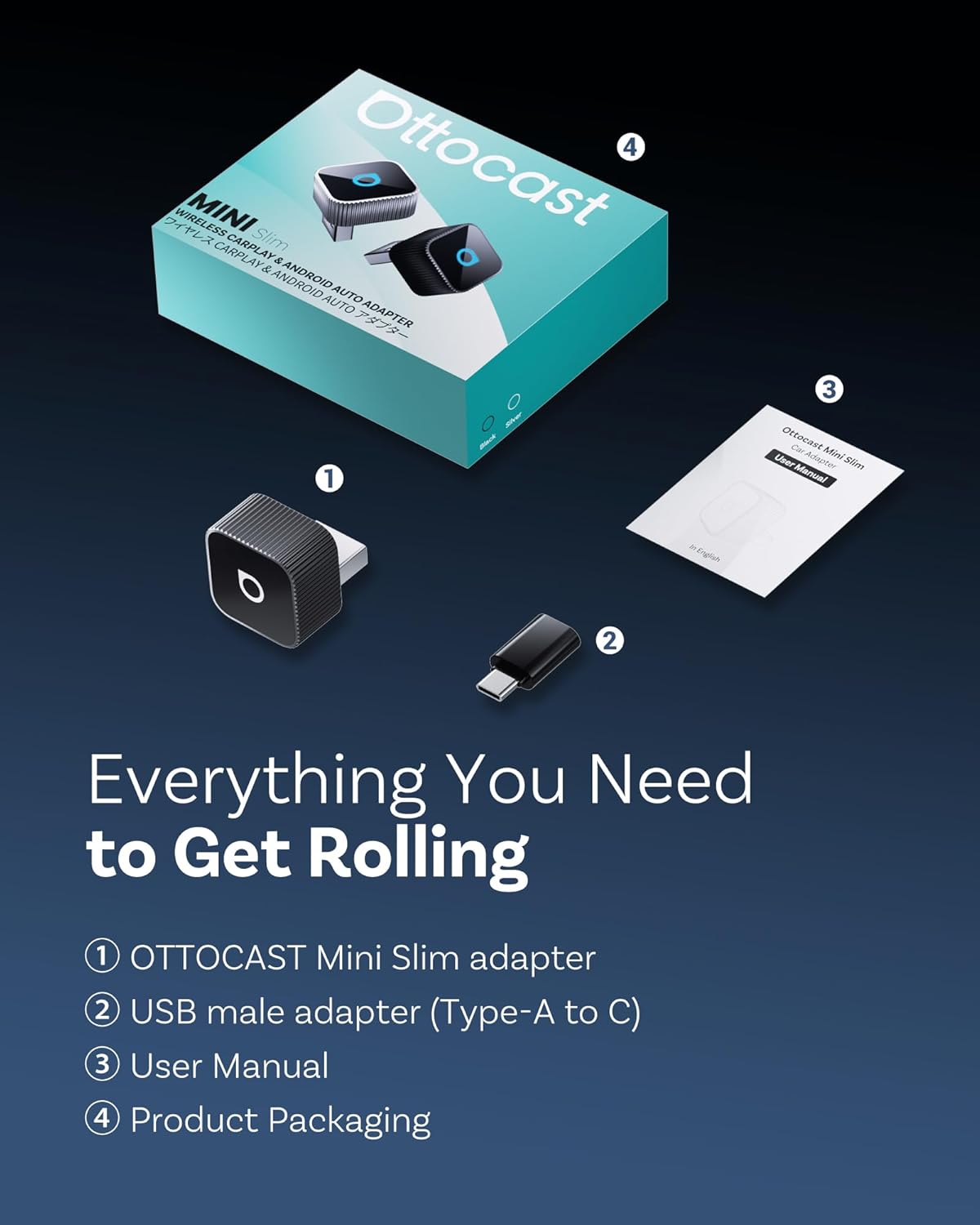
Please verify that all items are present in your package:
- 1 x Ottocast Mini Slim Wireless Adapter
- 1 x USB-A to Type-C Adapter
- 1 x User Manual
3. Specifications
| Feature | Detail |
|---|---|
| Model Number | CP88 |
| Product Dimensions | 0.79 x 0.91 x 0.79 inches (0.92"D x 0.81"W x 0.81"H) |
| Item Weight | 0.3 ounces |
| Color | Black |
| Connectivity Technology | Bluetooth 5.0, 5GHz Wi-Fi |
| Compatible Devices | Apple iPhone (iOS 10.0+), Android (Android 11.0+) |
| Connector Type | USB Type-A, USB Type-C (via included adapter) |
| Audio Output Mode | Stereo |
| Special Features | CD-quality Audio, Hands-Free Calling, Low Latency, Fast Auto-Reconnect |


4. Compatibility
The Ottocast Mini Slim adapter is compatible with vehicles that have a factory-installed wired CarPlay or wired Android Auto system. It supports:
- Apple iPhone: Running iOS 10.0 or later.
- Android Smartphones: Running Android 11.0 or later.
Important Note: This adapter is NOT compatible with BMW or Tesla vehicles.
To confirm your vehicle's compatibility, please visit the official compatibility checker:
Check Vehicle Compatibility Here

5. Setup Instructions
Follow these steps for a quick and easy setup:
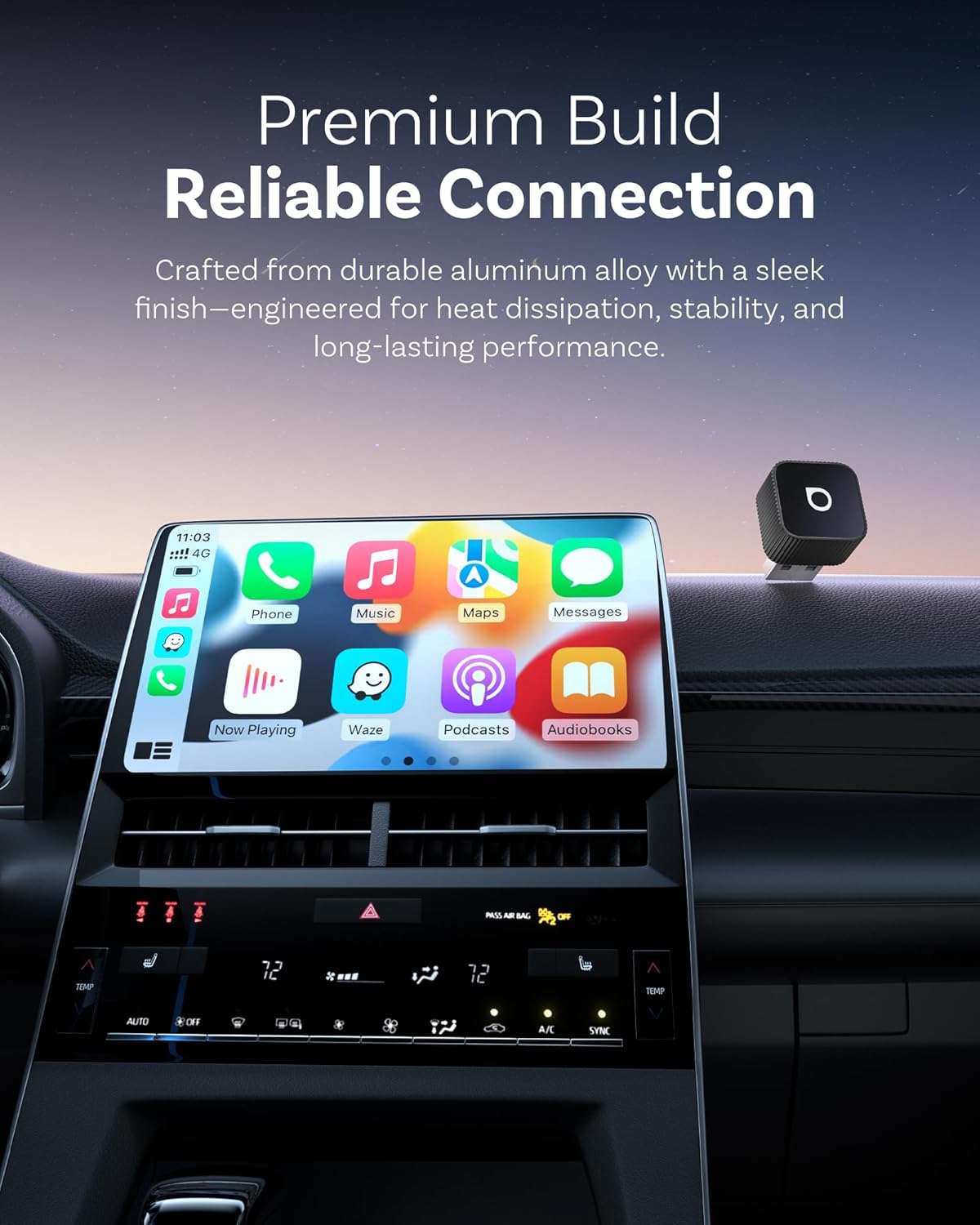
- Plug into Car: Locate your car's USB port that supports wired CarPlay or Android Auto. Insert the Ottocast Mini Slim adapter directly into this port. If your car has a USB-C port, use the included USB-A to Type-C adapter. The adapter's LED indicator will illuminate.
- Enable Wi-Fi and Bluetooth: On your smartphone, ensure both Wi-Fi and Bluetooth are turned on. Do not manually connect to any Wi-Fi network from the adapter at this stage.
- Pair via Bluetooth: On your car's infotainment screen, navigate to the Bluetooth settings. On your smartphone, search for available Bluetooth devices and select the device named "CAR-XXXX" (where XXXX is a unique identifier for your adapter). Confirm the pairing request on both your phone and car screen if prompted.
- Connect to CarPlay/Android Auto: Once Bluetooth is paired, your car's screen should automatically prompt you to use CarPlay or Android Auto. Confirm the connection. The adapter will then establish a Wi-Fi connection for data transmission.
The first connection may take approximately 15 seconds. Subsequent reconnections will be faster, typically within 5 seconds, as the adapter automatically connects when you start your car.


6. Operating Instructions
Once successfully set up, the Ottocast Mini Slim adapter provides a seamless wireless experience:
- Automatic Reconnection: After the initial setup, the adapter will automatically connect to your smartphone when you start your car, provided your phone's Bluetooth and Wi-Fi are enabled.
- Accessing Apps: All your compatible CarPlay or Android Auto applications (navigation, music, messaging, etc.) will be displayed on your car's infotainment screen.
- Control Methods: You can control the interface using your car's original controls, including:
- Steering Wheel Controls
- Voice Control (e.g., Siri, Google Assistant)
- OEM Knob Control
- Touch Screen Control (if your car has a touchscreen)
- Audio Quality: Enjoy high-fidelity audio for music and clear calls through the wireless connection.
- Multi-Device Sharing: The adapter allows for easy switching between multiple paired phones, making it convenient for families or shared vehicles.


7. Maintenance
The Ottocast Mini Slim adapter requires minimal maintenance:
- Cleaning: Use a soft, dry cloth to wipe the adapter if it gets dusty. Avoid using liquid cleaners or abrasive materials.
- Storage: When not in use for extended periods, you may unplug the adapter and store it in a cool, dry place.
- Firmware Updates: Periodically check the Ottocast official website or app (if available) for firmware updates to ensure optimal performance and compatibility.
8. Troubleshooting
If you encounter issues with your Ottocast Mini Slim adapter, try the following solutions:
- Adapter Not Powering On:
- Ensure the adapter is fully inserted into the USB port.
- Try a different USB port in your car, if available.
- Verify that the USB port provides power (some older car USB ports may be for charging only).
- No Connection to CarPlay/Android Auto:
- Confirm your car supports wired CarPlay or Android Auto.
- Ensure your phone's iOS version (10.0+) or Android version (11.0+) is compatible.
- Check that both Bluetooth and Wi-Fi are enabled on your phone.
- Forget the Bluetooth connection on your phone and car, then repeat the setup process from Step 1.
- Restart your phone and your car's infotainment system.
- Intermittent Connection or Lag:
- Ensure there are no other strong Wi-Fi or Bluetooth interference sources nearby.
- Keep your phone close to the adapter for optimal signal strength.
- Check for any available firmware updates for the adapter.
- Audio Issues:
- Verify your car's audio input is set correctly (e.g., to USB or Bluetooth audio).
- Adjust volume levels on both your phone and car system.
9. Warranty and Support
Specific warranty details for the Ottocast Mini Slim 2025 Wireless CarPlay & Android Auto Adapter are not provided in this manual. Please refer to the product packaging or the official OTTOCAST website for the most current warranty information.
For technical support, customer service, or further inquiries, please visit the official OTTOCAST support channels or contact their customer service department. Contact information is typically available on the product packaging or the manufacturer's website.
Related Documents - CP88
 |
OTTOCAST CP88-T5 Mini Wireless CarPlay & Android Auto Adapter User Manual Comprehensive user manual for the OTTOCAST CP88-T5 Mini adapter, detailing installation, wireless CarPlay, Android Auto, and screen mirroring setup, system updates, and troubleshooting. Includes technical specifications and compatibility information. |
 |
Ottocast Mini Slim Car Adapter: Manuale Utente e Guida all'Uso Guida completa al manuale utente per l'adattatore Ottocast Mini Slim Car Adapter, che converte CarPlay e Android Auto cablati in wireless. Include istruzioni di installazione, configurazione, aggiornamento firmware e risoluzione problemi. |
 |
Ottocast MINI Slim: Wireless CarPlay & Android Auto Adapter for Seamless In-Car Connectivity Enhance your driving experience with the Ottocast MINI Slim, a compact USB adapter that brings wireless Apple CarPlay and Android Auto to your car. Enjoy easy setup, automatic connection, and cable-free convenience. |
 |
Ottocast Mini Slim Car Adapter User Manual User manual for the Ottocast Mini Slim Car Adapter, providing instructions for installation, usage, firmware updates, and troubleshooting for wireless CarPlay and Android Auto connectivity. |
 |
Ottocast Mini Slim Car Adapter User Manual - Wireless CarPlay & Android Auto User manual for the Ottocast Mini Slim Car Adapter, enabling wireless CarPlay and Android Auto. Includes installation, setup, features, and troubleshooting guides. |
 |
Ottocast Mini Slim : Manuel d'utilisation pour Adaptateur Voiture CarPlay/Android Auto Sans Fil Manuel d'utilisation détaillé pour l'adaptateur Ottocast Mini Slim. Guidez-vous pour installer, connecter et utiliser CarPlay et Android Auto sans fil dans votre véhicule. Inclut des instructions de mise à jour et de dépannage. |
Ask a question about this manual
Ask about setup, troubleshooting, compatibility, parts, safety, or missing instructions. Manuals+ will review the question and use this page’s manual context to help answer it.