
1. Introduction
The Elektron Tonverk is a powerful polyphonic multisampler and audio processor designed for advanced music production. It features 16 tracks, subtracks, and an auto sampler, providing extensive capabilities for sound design, sequencing, and performance. This manual provides essential information for setting up, operating, and maintaining your Tonverk unit.
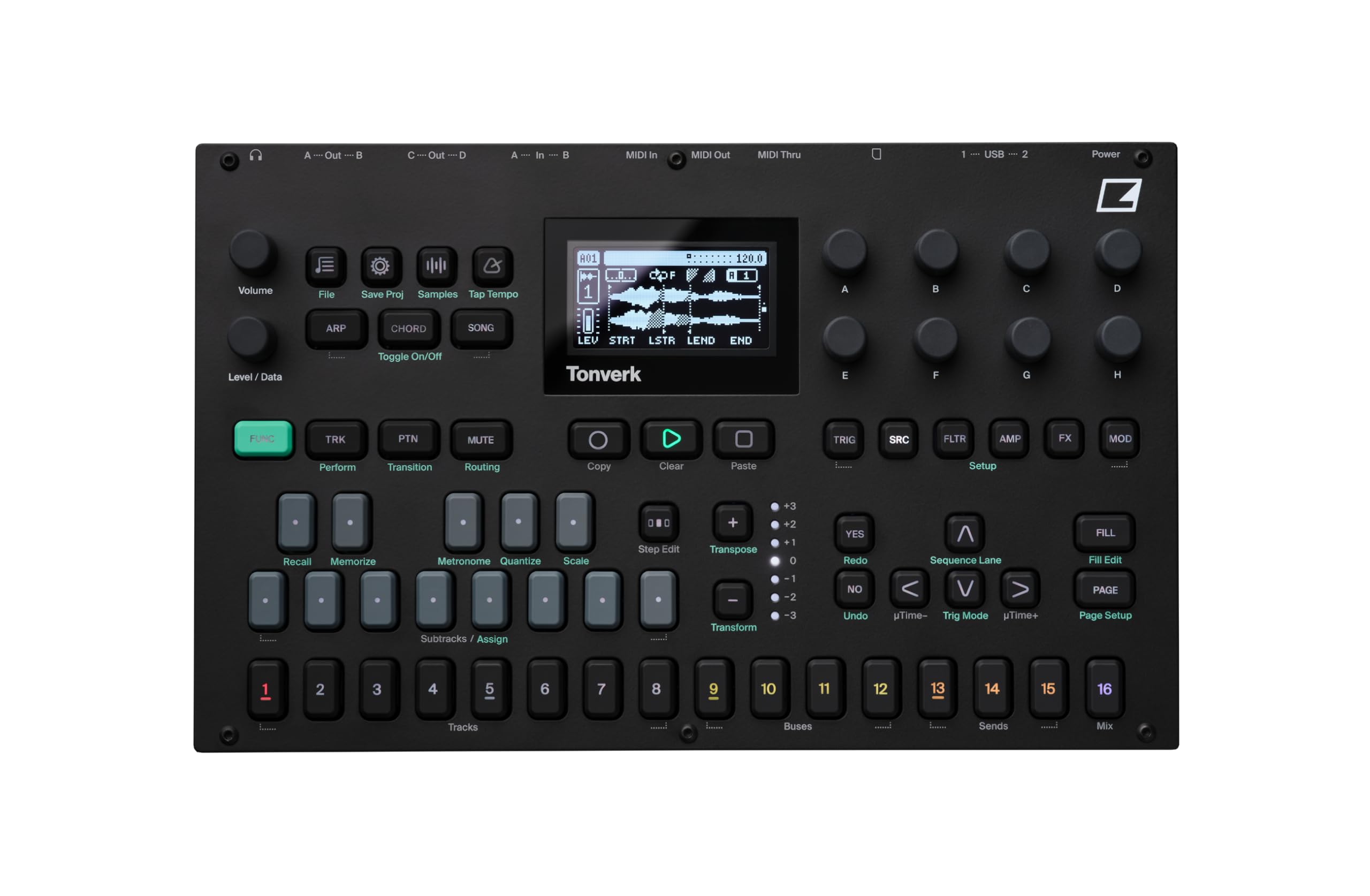
Image: Top view of the Elektron Tonverk unit, showcasing its controls, screen, and layout.
2. Setup
2.1 Unpacking and Inspection
Carefully remove the Tonverk unit from its packaging. Inspect the unit for any signs of damage that may have occurred during transit. Ensure all included components are present.
2.2 Included Components
- Elektron Tonverk unit
- Power Supply
2.3 Power Connection
Connect the provided power supply to the DC input on the rear panel of the Tonverk. Plug the power supply into a suitable electrical outlet. Ensure the power switch is in the OFF position before connecting power.
2.4 Audio and MIDI Connections
The Tonverk offers various audio and MIDI connectivity options:
- Audio Outputs: Connect the A/Left, B/Right, C, and D audio outputs to your mixer, audio interface, or monitoring system.
- Audio Inputs: Connect external audio sources to the In A and In B inputs for sampling or processing.
- MIDI In/Out/Thru: Use standard 5-pin DIN MIDI cables to connect the Tonverk to other MIDI devices for synchronization and control.
- USB: Connect the USB 1 or USB 2 ports to a computer for MIDI over USB, audio streaming, and file transfer.
- SD Card: Insert an SD card into the slot for storage of samples, projects, and system backups.

Image: Rear panel of the Elektron Tonverk, showing power input, USB ports, SD card slot, MIDI In/Out/Thru, and audio inputs/outputs.
3. Operating Instructions
3.1 Powering On/Off
To power on the unit, ensure all connections are secure, then flip the power switch on the rear panel to the ON position. To power off, save your work, then flip the power switch to the OFF position.
3.2 Basic Navigation
The Tonverk features a central display screen and a combination of buttons and rotary encoders for navigation and parameter adjustment. Use the Function (Fn) button in combination with other buttons to access secondary functions.
3.3 Track Management
The Tonverk provides 16 tracks for sequencing and audio processing. These include 8 audio tracks, 4 bus tracks, 3 send tracks, and 1 mix track. Each track features its own 256-step sequencer.
- Audio Tracks: For playing and manipulating samples.
- Bus Tracks: For routing and processing groups of tracks.
- Send Tracks: For applying effects to multiple tracks via send/return.
- Mix Track: For overall mix control and master effects.
3.4 Polyphony
Each step in the sequencer supports 16-note polyphony, allowing for complex melodic and harmonic arrangements.
4. Key Features
4.1 Subtracks
Subtracks add 8 monophonic, multi-timbral subtracks to a single main track. This expands the sound design possibilities by allowing a single track to control multiple distinct sound elements.
4.2 Auto Sampler
The Auto Sampler function allows you to automatically multi-sample external instruments via MIDI. This streamlines the process of creating playable instrument patches from your hardware synthesizers or other sound sources.

Image: The Tonverk's screen displaying the "AUTO SAMPLER" setup, indicating MIDI and audio input configuration.
4.3 Recorder
The dedicated Recorder function provides straightforward audio sampling capabilities. Capture external audio directly into the Tonverk for immediate use in your projects.
4.4 Single Player
The Single Player allows you to play individual WAV files (mono or stereo) polyphonically. This is ideal for using one-shot samples or short loops as melodic or harmonic elements.

Image: The Tonverk's screen showing the "Source" menu with "SINGLE PLAYER" selected, indicating options for sound playback.
4.5 Multi Player
The Multi Player enables loading and playing multisampled instruments from the Tonverk's library polyphonically. This feature is crucial for working with complex, velocity-layered, or key-mapped instrument sounds.
4.6 Effects and Modulation
The Tonverk includes a massive list of effects and extensive modulation capabilities. These tools allow for detailed sound shaping and dynamic processing of your audio.

Image: The Tonverk's screen showing various effect parameters such as BR, OVER, SRR, DROP, LEV, RATE, DEP, FREZ, and F.TIM, indicating extensive sound manipulation options.
4.7 Routing Possibilities
The unit offers extensive routing possibilities, both internally within the device and externally with other gear. This flexibility allows for complex signal flows and integration into diverse studio setups.
5. Maintenance
5.1 Cleaning
To clean the Tonverk, use a soft, dry, lint-free cloth. For stubborn dirt, slightly dampen the cloth with water. Avoid using abrasive cleaners, solvents, or alcohol, as these can damage the finish and components. Do not spray liquids directly onto the unit.
5.2 Storage
When not in use for extended periods, store the Tonverk in a dry, dust-free environment away from direct sunlight and extreme temperatures. Disconnect the power supply.
5.3 Firmware Updates
Periodically check the Elektron website for firmware updates. Firmware updates can introduce new features, improve performance, and fix bugs. Follow the instructions provided by Elektron carefully when performing updates.
6. Troubleshooting
6.1 No Power
- Ensure the power supply is securely connected to both the Tonverk and a working electrical outlet.
- Verify the power switch on the rear panel is in the ON position.
- Test the electrical outlet with another device to confirm it is functional.
- Ensure you are using the original Elektron power supply.
6.2 No Sound Output
- Check all audio cable connections from the Tonverk outputs to your mixer or audio interface.
- Verify the volume knob on the Tonverk is turned up.
- Ensure the master volume on your mixer/interface is not muted or set too low.
- Check individual track volumes and mute status within the Tonverk.
- Confirm that samples are loaded and assigned to tracks correctly.
6.3 MIDI Not Responding
- Check MIDI cable connections (MIDI In/Out/Thru).
- Verify MIDI settings on both the Tonverk and the connected device (MIDI channels, clock sync).
- Ensure the correct MIDI input/output ports are selected in your DAW or external sequencer.
6.4 Unit Freezes or Behaves Erratically
- Try restarting the unit by powering it off and then on again.
- Perform a factory reset if the issue persists (refer to the Elektron website for specific instructions, as this may erase user data).
- Ensure the firmware is up to date.
7. Specifications
| Feature | Detail |
|---|---|
| Model Name | Tonverk |
| Brand | Elektron |
| Item Model Number | TONVERK |
| Product Dimensions (L x W x H) | 11.25 x 6.92 x 2.48 inches |
| Item Weight | 4.07 pounds |
| Color | Black |
| Material Type | Alloy Steel |
| Included Components | Power Supply |
| Tracks | 16 (8 audio, 4 bus, 3 send, 1 mix) |
| Sequencer Steps | 256 per track |
| Polyphony | 16 notes per step |
| Subtracks | 8 monophonic, multi-timbral per track |
| Sampling | Auto Sampler, Recorder |
| Playback | Single Player (WAV), Multi Player (multisampled instruments) |
| Connectivity | MIDI In/Out/Thru, USB 1/2, Audio In (A/B), Audio Out (A/Left, B/Right, C, D), SD Card |
8. Warranty and Support
8.1 Product Warranty
Elektron products typically come with a limited manufacturer's warranty. For detailed information regarding the warranty period, coverage, and terms and conditions for your Tonverk unit, please refer to the warranty card included with your product or visit the official Elektron website.
8.2 Technical Support
If you encounter any issues or have questions not covered in this manual, please contact Elektron technical support. Support resources, including FAQs, knowledge bases, and contact information, are available on the official Elektron website. When contacting support, please have your product model (TONVERK) and serial number ready.
Official Elektron Website: www.elektron.se


