
1. Introduction and Overview
The Samsung Galaxy Tab S11 Ultra is a high-performance tablet designed for seamless multitasking and productivity. Featuring a 14.6-inch Dynamic AMOLED 2X display with a 120Hz refresh rate, it offers a vibrant and responsive visual experience. The device is built with durability in mind, boasting IP68 water and dust resistance. It integrates advanced AI features like Note Assist and Drawing Assist, enhancing your creative and organizational workflows. The redesigned S Pen provides an intuitive and comfortable writing and drawing experience, complementing the tablet's powerful MediaTek Dimensity 9400+ processor and long-lasting 11600 mAh battery.
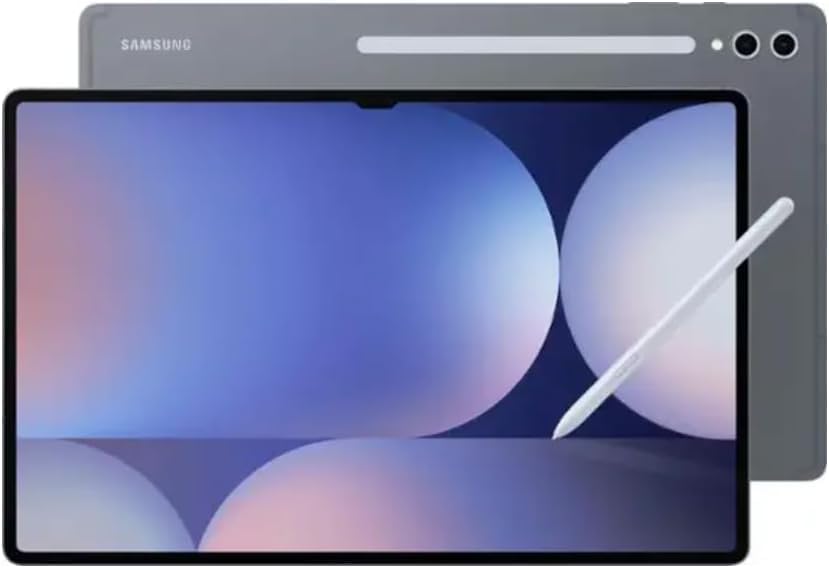
Figure 1: Samsung Galaxy Tab S11 Ultra tablet with its accompanying S Pen.
2. What's in the Box
Upon unboxing your Samsung Galaxy Tab S11 Ultra, please ensure all the following items are present:
- Samsung Galaxy Tab S11 Ultra Tablet
- S Pen
- USB Cable (Type-C)
- Quick Start Guide and Warranty Information
Video 1: An unboxing and initial review of the Samsung Galaxy Tab S11 Ultra, demonstrating the contents of the box and first impressions.
3. Setup
3.1 Initial Power On
- Press and hold the Power button (located on the top edge of the tablet) until the Samsung logo appears on the screen.
- Follow the on-screen prompts to select your language, connect to a Wi-Fi network, and set up your Google account.
3.2 S Pen Attachment and Charging
The S Pen attaches magnetically to the side of the tablet for storage and charging. Ensure the flat side of the S Pen aligns with the designated magnetic strip on the tablet's edge. The S Pen will automatically charge when attached.
3.3 MicroSD Card Installation
To expand your tablet's storage, you can install a microSD card (up to 2TB). Locate the SIM/microSD card tray on the side of the tablet. Use the included SIM ejector tool to open the tray, place the microSD card into the designated slot, and reinsert the tray firmly.
4. Operating Instructions
4.1 Display Settings
The Galaxy Tab S11 Ultra features a 14.6-inch Dynamic AMOLED 2X display with a 120Hz refresh rate and anti-reflective coating. You can adjust display settings such as brightness, dark mode, motion smoothness, and eye comfort shield via the 'Display' menu in the tablet's settings.
4.2 S Pen Usage
The redesigned S Pen offers enhanced comfort with its hexagonal, cone-shaped design. It features a conical tip that allows for writing and drawing at steeper angles, ideal for shading and detailed work. While the new S Pen does not include Bluetooth functionality, it offers quick controls for pen selection, color, and thickness directly from the screen. These quick controls were not available in previous generations of Samsung tablets.
4.3 Button Functions
The power and volume buttons have been repositioned for improved accessibility. To take a screenshot, simultaneously press the Power button and Volume Down button. To access the Power Off menu, press and hold the Power button and Volume Down button simultaneously.
4.4 Connectivity
The tablet supports Wi-Fi 7 (802.11a/b/g/n/ac/ax/be) across 2.4GHz, 5GHz, and 6GHz bands, offering high-speed and stable connections. It also includes USB 3.2 Gen 1 and Bluetooth v5.3 for versatile connectivity with other devices.
4.5 Galaxy AI Features
Leverage the power of Galaxy AI for enhanced productivity:
- Note Assist: Automatically formats, summarizes, and translates your notes.
- Drawing Assist: Transforms simple sketches into refined art, creates images from text descriptions, and turns photos into cartoons or paintings.
- Audio Eraser: Analyzes audio in videos to isolate and adjust different sound types (e.g., voices, wind, background noise).
Video 2: Overview of key features of the Galaxy Tab S11 Ultra, including S Pen and AI capabilities.
5. Maintenance
5.1 Durability
The Galaxy Tab S11 Ultra is designed with IP68 water and dust resistance, providing protection against everyday accidents. This rating means the device is protected from dust ingress and can withstand immersion in up to 1.5 meters of fresh water for up to 30 minutes.
5.2 Battery Care
The tablet is equipped with a large 11600 mAh Li-Ion battery, supporting 45W fast charging. To maximize battery lifespan, avoid exposing the device to extreme temperatures and use only approved chargers and cables. Regular software updates can also optimize battery performance.
6. Troubleshooting
6.1 General Issues
- Device not responding: Press and hold the Power button and Volume Down button for more than 7 seconds to force restart the device.
- Wi-Fi connectivity issues: Ensure your router is working correctly and the tablet is within range. Try forgetting the network and reconnecting.
- S Pen not responding: Ensure the S Pen is properly attached to the tablet for charging. If the issue persists, restart the tablet.
6.2 Performance
The MediaTek Dimensity 9400+ processor provides robust performance for demanding tasks. If you experience slowdowns, close unnecessary background applications. Regularly clear cache and ensure your software is up to date.
7. Specifications
| Feature | Specification |
|---|---|
| Model Number | SM-X930 |
| Display Size | 14.6 inches |
| Display Type | Dynamic AMOLED 2X, 120Hz, Anti-Reflective |
| Resolution | 2960 x 1848 (WQXGA+) |
| Processor | MediaTek Dimensity 9400+ (3.73GHz, 3.3GHz, 2.4GHz) |
| RAM | 12GB |
| Internal Storage | 256GB |
| Expandable Storage | microSD up to 2TB |
| Rear Camera | 13 MP + 8 MP Ultra Wide |
| Front Camera | 12 MP Ultra Wide |
| Battery Capacity | 11600 mAh |
| Fast Charging | 45W |
| Operating System | Android |
| Connectivity | Wi-Fi 7, USB 3.2 Gen 1, Bluetooth v5.3 |
| Dimensions (LxWxH) | 12.85 x 8.21 x 0.20 inches |
| Weight | 2 pounds |
| Water/Dust Resistance | IP68 |
8. Warranty and Support
Please note that this is a Latin American model and does not include warranty coverage in the USA. For support or service inquiries, please refer to the documentation provided with your device or contact Samsung's official support channels in your region of purchase.


