
1. Introduction
The SinoTrack V529 OBD2 Scanner is a professional diagnostic tool designed to provide comprehensive vehicle health reports. It offers a range of functions including reading and clearing diagnostic trouble codes, live data streaming, battery health tests, I/M readiness checks, and performance testing for gasoline vehicles. This manual provides detailed instructions for setting up and operating your V529 scanner.
1.1 Package Contents
- V529 OBD2 Diagnostic Scanner
- PU Waterproof Bag
- User Manual
1.2 Key Features
- Read & Clear Codes: Access and clear diagnostic trouble codes (DTCs) across multiple vehicle systems.
- Live Data Stream: View real-time data from various sensors, including oxygen sensor tests, with graphing capabilities.
- Battery Test & Voltage Monitoring: Measure battery voltage and cranking health to prevent unexpected breakdowns.
- I/M Readiness Status: Check the status of emission-related monitors to determine if the vehicle is ready for an inspection/maintenance test.
- Mode 6 & Mode 8 (EVAP Test): Utilize advanced emissions monitoring and EVAP system tests.
- Performance Tests: Conduct acceleration, braking, and distance tests to evaluate vehicle safety and performance.
- DTC Library & Repair Guidance: Access an extensive built-in database of over 40,000 fault codes with definitions and troubleshooting guides.
- User-Friendly Design: Features a 2.8-inch color screen, quick search function, data replay, and a smart indicator light.
- Multilingual Support: Supports 12 languages including English, German, French, Spanish, Japanese, and Russian.
2. Safety Information
Please read and understand all safety instructions before using the SinoTrack V529 OBD2 Scanner. Failure to follow these instructions may result in injury or damage to the device or vehicle.
- Always perform automotive testing in a safe environment.
- Do not wear loose clothing or jewelry when working on a vehicle.
- Keep the scanner away from hot engine parts or moving components.
- Ensure the vehicle is parked on a level surface with the parking brake engaged.
- Never connect or disconnect the scanner while the ignition is on or the engine is running, unless specifically instructed by a diagnostic procedure.
- Use appropriate eye protection and gloves when necessary.
- The V529 is designed for gasoline vehicles and does not support advanced functions like ABS, SRS, TPMS, transmission temperature, service resets, or MS-CAN connections.
3. Setup
The SinoTrack V529 scanner is designed for easy plug-and-play operation. It draws power directly from your vehicle's OBD-II port.
3.1 Locating the OBD-II Port
The OBD-II (On-Board Diagnostics II) port is typically located under the dashboard on the driver's side of the vehicle. In some vehicles, it may be found in the center console area or near the passenger side. Refer to your vehicle's owner's manual if you have difficulty locating it.
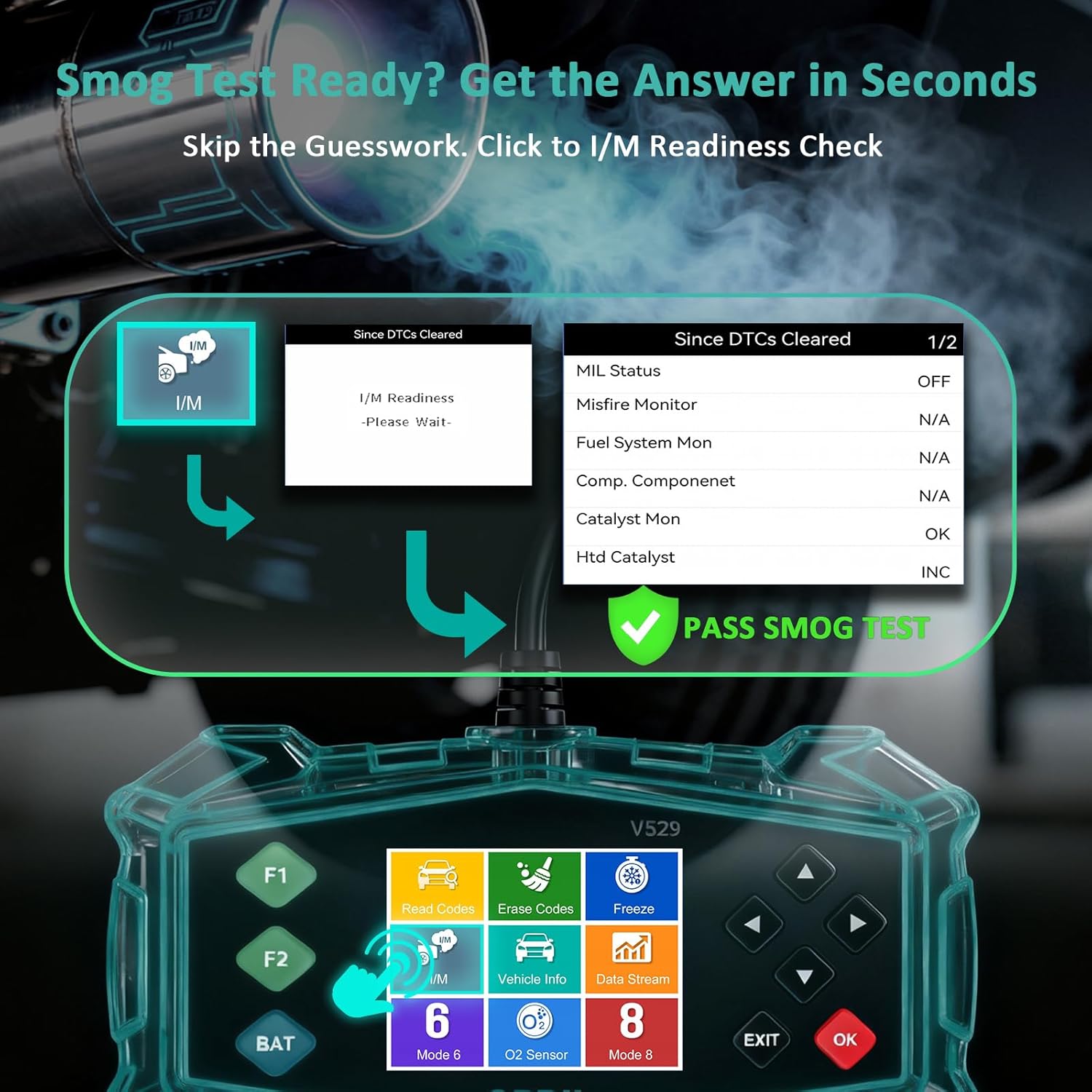
Figure 3.1: Universal Compatibility and OBD-II Port Location
3.2 Connecting the Scanner
- Ensure the vehicle's ignition is OFF.
- Plug the V529 scanner's OBD-II connector firmly into the vehicle's OBD-II port.
- Turn the vehicle's ignition to the ON position (engine can be off or running, depending on the test). The scanner will power on automatically.
4. Operating Instructions
The V529 features a user-friendly interface with a 2.8-inch color screen and intuitive navigation buttons.
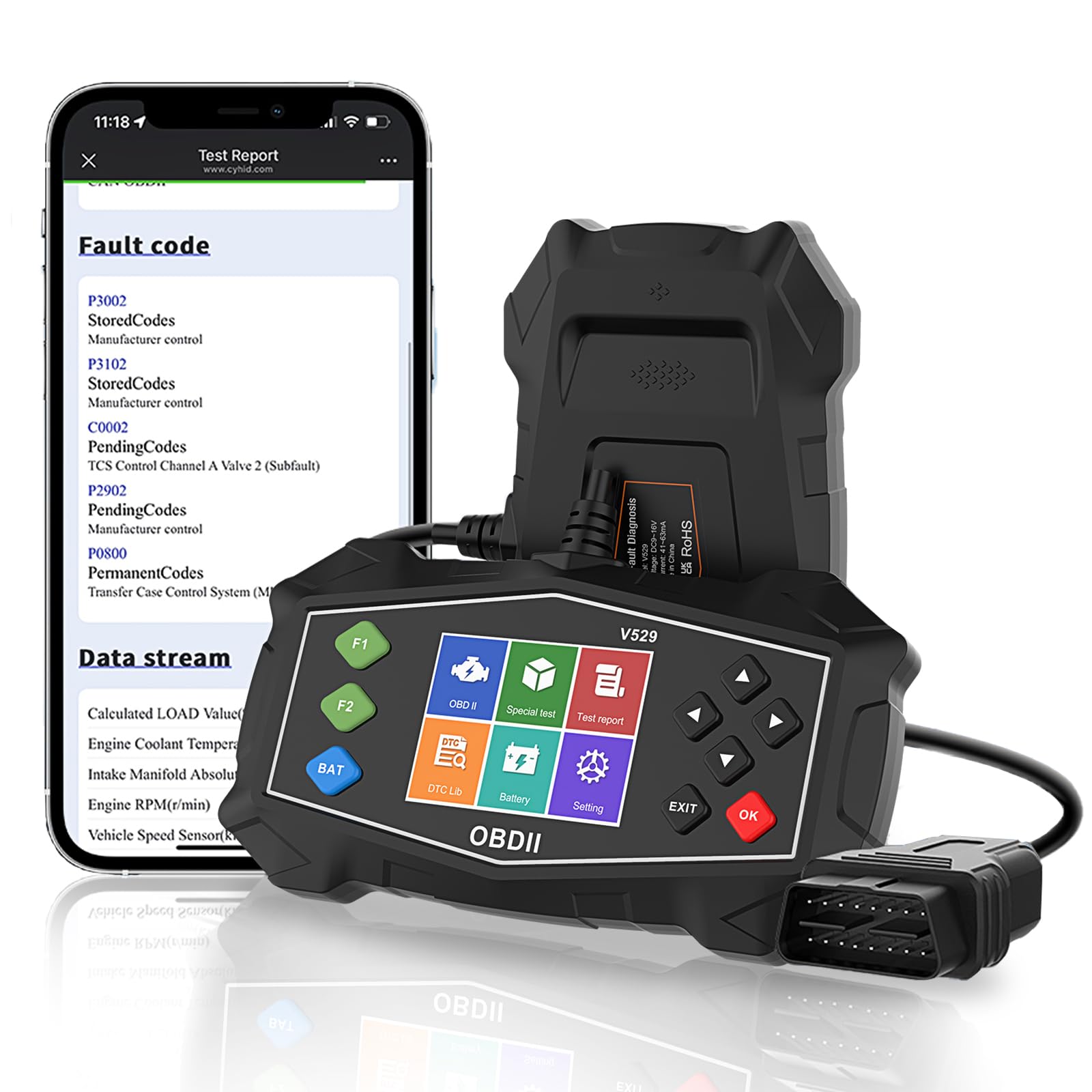
Figure 4.1: SinoTrack V529 Main Interface Overview
4.1 Basic Navigation
- Use the UP/DOWN arrow buttons to scroll through menu options.
- Use the LEFT/RIGHT arrow buttons to navigate between screens or adjust values.
- Press the OK button to confirm a selection or enter a menu.
- Press the EXIT button to return to the previous screen or exit a function.
4.2 Reading and Clearing Diagnostic Trouble Codes (DTCs)
This function allows you to retrieve and clear fault codes that illuminate the Check Engine Light (MIL).

Figure 4.2: Core Diagnostic Functions
- From the main menu, select Read Codes to view current, pending, and permanent DTCs.
- The scanner will display the codes and their definitions.
- To clear codes, select Erase Codes from the main menu. Confirm your selection when prompted.
- Note: Clearing codes will turn off the Check Engine Light, but if the underlying issue is not resolved, the light will reappear.
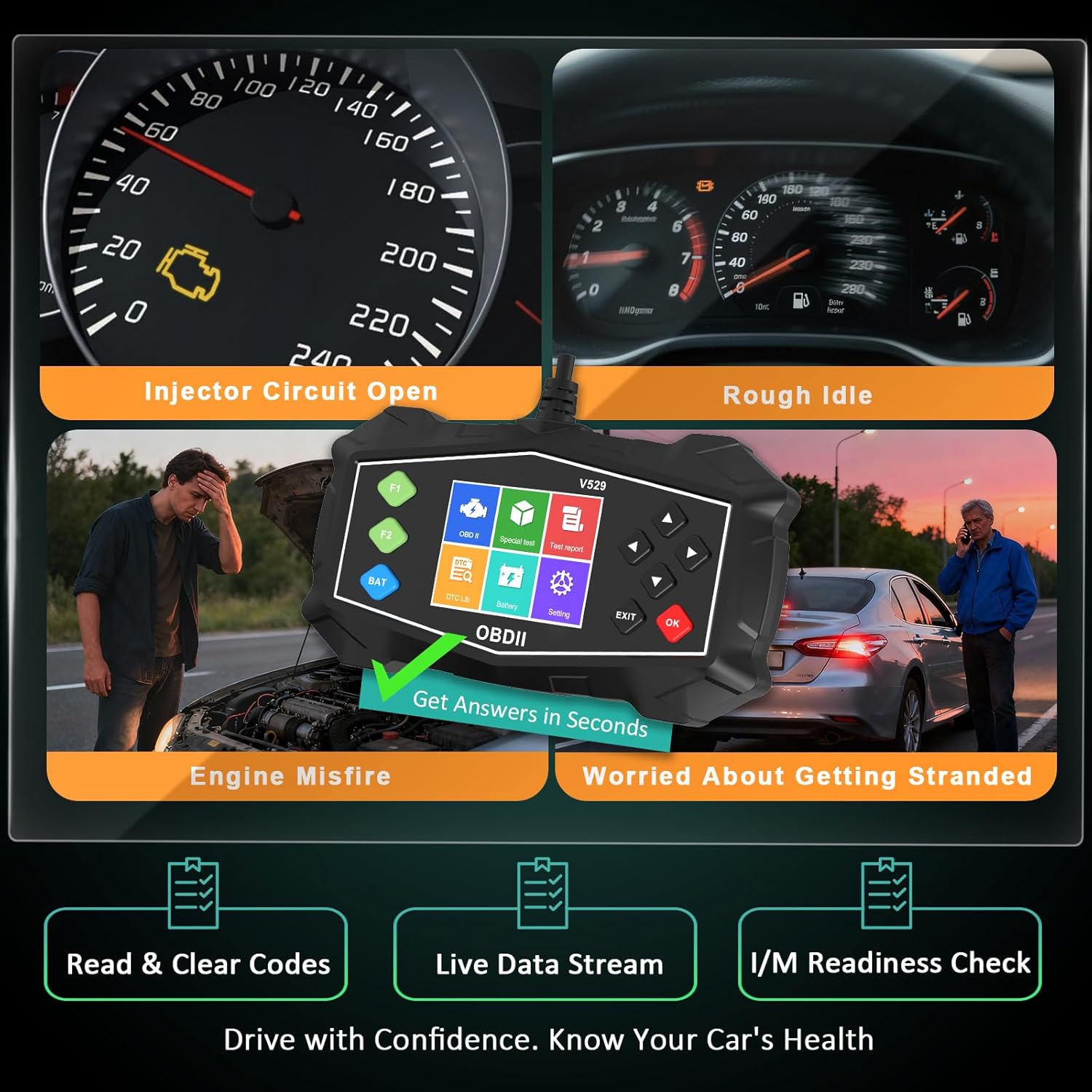
Figure 4.3: Identifying Common Vehicle Issues
4.3 DTC Lookup
The V529 includes an extensive built-in library to define DTCs.
- From the main menu, select DTC Library.
- Enter the 5-character DTC using the arrow buttons and OK button.
- The scanner will display the definition and potential causes for the code.

Figure 4.4: Instant DTC Definitions
4.4 Live Data Stream
Monitor real-time sensor data to observe vehicle performance and diagnose intermittent issues.
- From the main menu, select Live Data.
- Choose to view data in list format or graphical format.
- Scroll through the various parameters such as engine RPM, coolant temperature, fuel trim, and oxygen sensor readings.
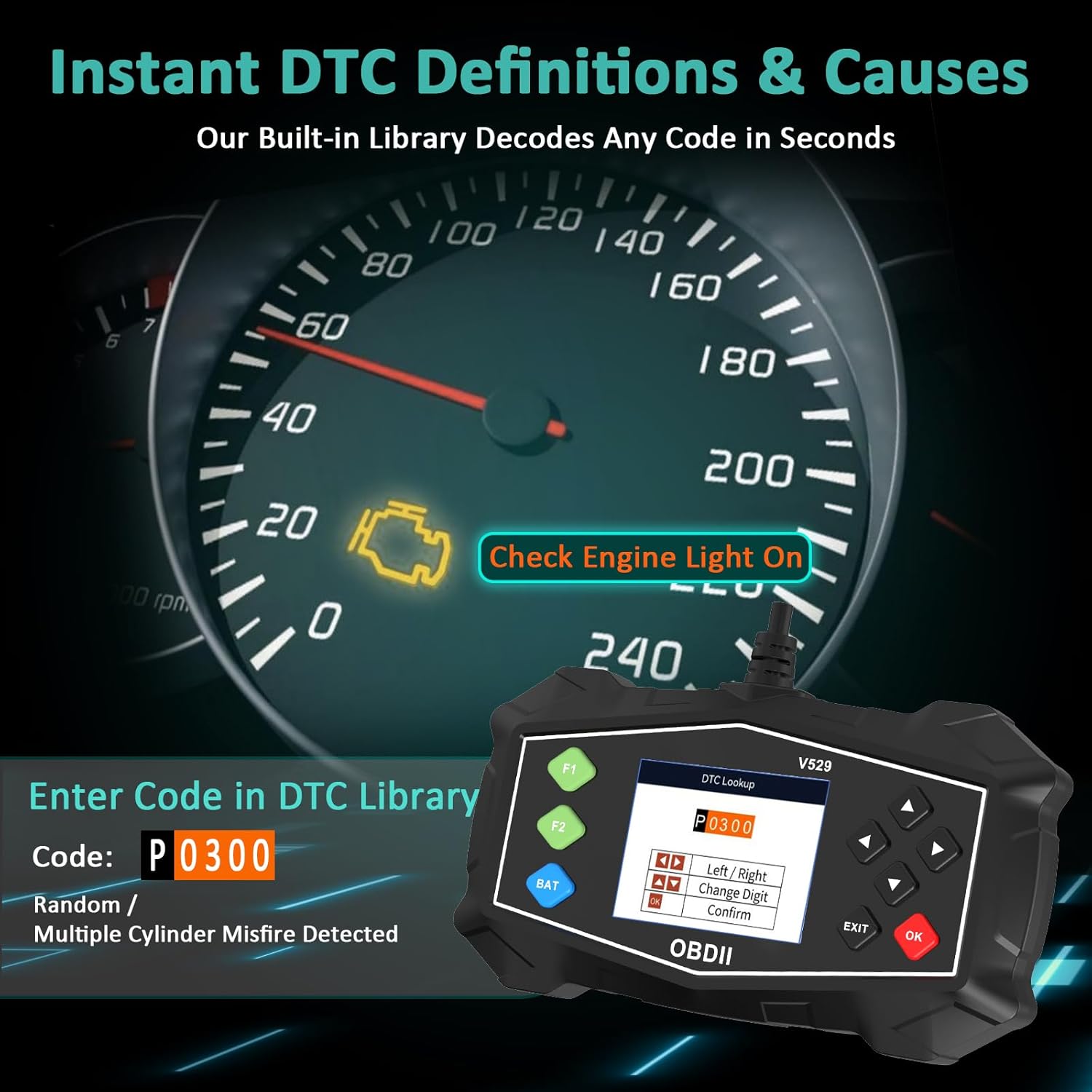
Figure 4.5: Live Data Stream Interface
4.5 I/M Readiness Check
This function checks the status of the vehicle's emission-related monitoring systems.
- From the main menu, select I/M Readiness.
- The scanner will display the status of various monitors (e.g., Misfire Monitor, Fuel System Monitor, O2 Sensor Monitor).
- A 'Ready' status indicates the monitor has completed its diagnostic cycle. 'Not Ready' means the cycle is incomplete.

Figure 4.6: I/M Readiness Status
4.6 Battery Test
Perform a quick test to assess the vehicle's battery voltage and cranking health.
- From the main menu, select Battery Test.
- Follow the on-screen prompts to perform the test.
- The scanner will display the battery voltage and a health assessment.
4.7 Mode 6 & Mode 8 (EVAP Test)
These advanced functions provide access to non-continuous monitor test results and allow for control of the EVAP system leak test.
- Mode 6: Retrieves test results for continuously and non-continuously monitored systems.
- Mode 8 (EVAP Test): Initiates a test of the Evaporative Emission Control System (EVAP) to check for leaks.
4.8 Performance Tests
Evaluate your vehicle's acceleration, braking, and distance performance.
- From the main menu, select Performance Test.
- Choose the desired test (Acceleration, Braking, or Distance).
- Follow the on-screen instructions carefully to perform the test safely.
5. Maintenance
Proper maintenance ensures the longevity and reliable operation of your SinoTrack V529 scanner.
- Cleaning: Use a soft, damp cloth to clean the scanner's exterior. Do not use abrasive cleaners or solvents.
- Storage: Store the scanner in its protective PU waterproof bag when not in use. Keep it in a dry, cool place away from direct sunlight and extreme temperatures.
- Cable Care: Avoid bending or crimping the OBD-II cable excessively. Always grasp the connector when plugging or unplugging, not the cable itself.
- Software Updates: Check the SinoTrack official website periodically for any available software updates to ensure optimal performance and compatibility.
6. Troubleshooting
If you encounter issues while using your SinoTrack V529 scanner, refer to the following common problems and solutions:
| Problem | Possible Cause | Solution |
|---|---|---|
| Scanner does not power on. | Loose connection; vehicle ignition off; blown fuse in vehicle's OBD-II circuit. | Ensure the scanner is firmly connected. Turn vehicle ignition to ON. Check vehicle's fuse box for a blown fuse related to the OBD-II port. |
| "Link Error" or "Communication Error" message. | Incorrect protocol; vehicle not OBD-II compliant; faulty connection. | Verify your vehicle is OBD-II compliant (most vehicles 1996 and newer). Ensure the connection is secure. Try on another OBD-II compliant vehicle if possible. |
| Cannot clear DTCs. | Ignition not in ON position; underlying fault still present. | Ensure ignition is ON (engine off). If the fault is still active, the code cannot be cleared until the issue is repaired. |
| Screen is frozen or unresponsive. | Temporary software glitch. | Disconnect the scanner from the vehicle, wait a few seconds, then reconnect. If the issue persists, contact customer support. |
7. Specifications
| Feature | Detail |
|---|---|
| Brand | SinoTrack |
| Model | V529 |
| Screen Size | 2.8 Inches |
| Power Source | Corded Electric (via OBD-II port) |
| Operating System | Android 4.0 (Internal System) |
| Automotive Fit Type | Universal Fit (for OBD-II compliant gasoline vehicles) |
| Supported OBDII Protocols | SAE J1850 PWM, SAE J1850 VPW, ISO9141-2, ISO14230-4 KWP (5 baud init), ISO14230-4 KWP (fast init), ISO15765-4 CAN (11bit ID, 500 Kbaud), ISO15765-4 CAN (29bit ID, 500 Kbaud), ISO15765-4 CAN (11bit ID, 250 Kbaud), ISO15765-4 CAN (29bit ID, 250 Kbaud) |
| Item Weight | 15.5 ounces |
| Package Dimensions | 8.7 x 5.08 x 1.93 inches |
8. Warranty and Support
SinoTrack products are designed for reliability and performance. For warranty information, technical support, or service inquiries, please refer to the contact information provided in your product packaging or visit the official SinoTrack website. Keep your purchase receipt for warranty claims.
For additional resources and frequently asked questions, you may visit the SinoTrack Store on Amazon.