1. Introduction
This manual provides essential information for setting up, operating, and maintaining your Akocrsiy 15.6" FHD Business Laptop N95. Please read this guide thoroughly before using your device to ensure optimal performance and longevity. Keep this manual for future reference.
2. What's in the Box
Carefully unpack your laptop and verify that all items are present:
- Akocrsiy 15.6" FHD Business Laptop N95
- Power adapter
- User Manual (this document)
3. Product Features and Components

Figure 3.1: Akocrsiy 15.6" FHD Business Laptop N95. This image displays the overall design of the laptop, featuring a 15.6-inch Full HD IPS display, a full-size keyboard, and a large touchpad.
3.1 Processor and Performance

Figure 3.2: Intel Core N95 Processor. This image highlights the Intel Alder Lake N95 processor, detailing its 3.40GHz speed, 4 cores, 4 threads, 7nm architecture, 4MB cache, and 15W TDP. A bar chart compares its performance to older Celeron models (N5095, N5100, N4200), showing a significant improvement.
The laptop is powered by an Intel Alder Lake N95 processor, offering up to 3.4 GHz clock speed with 4 cores and 4 threads. This configuration is designed for efficient handling of daily computing tasks, streaming, and video conferencing.
3.2 Memory and Storage

Figure 3.3: LPDDR5 Memory Performance. This image illustrates the read and write speed of LPDDR5 memory (3486MHz) compared to DDR4 (2266MHz), indicating a 35% increase in speed for running multiple software applications simultaneously. The laptop is shown with various applications open, demonstrating multitasking capabilities.
Equipped with 12GB of LPDDR5 RAM, the laptop ensures smooth multitasking and fast application switching. The 512GB SSD provides ample storage for files, photos, and videos, with quick access times.
3.3 Display
The 15.6-inch Full HD (1920x1080) IPS display offers crisp visuals and wide viewing angles, suitable for various tasks from spreadsheets to multimedia consumption.
3.4 Security and Input
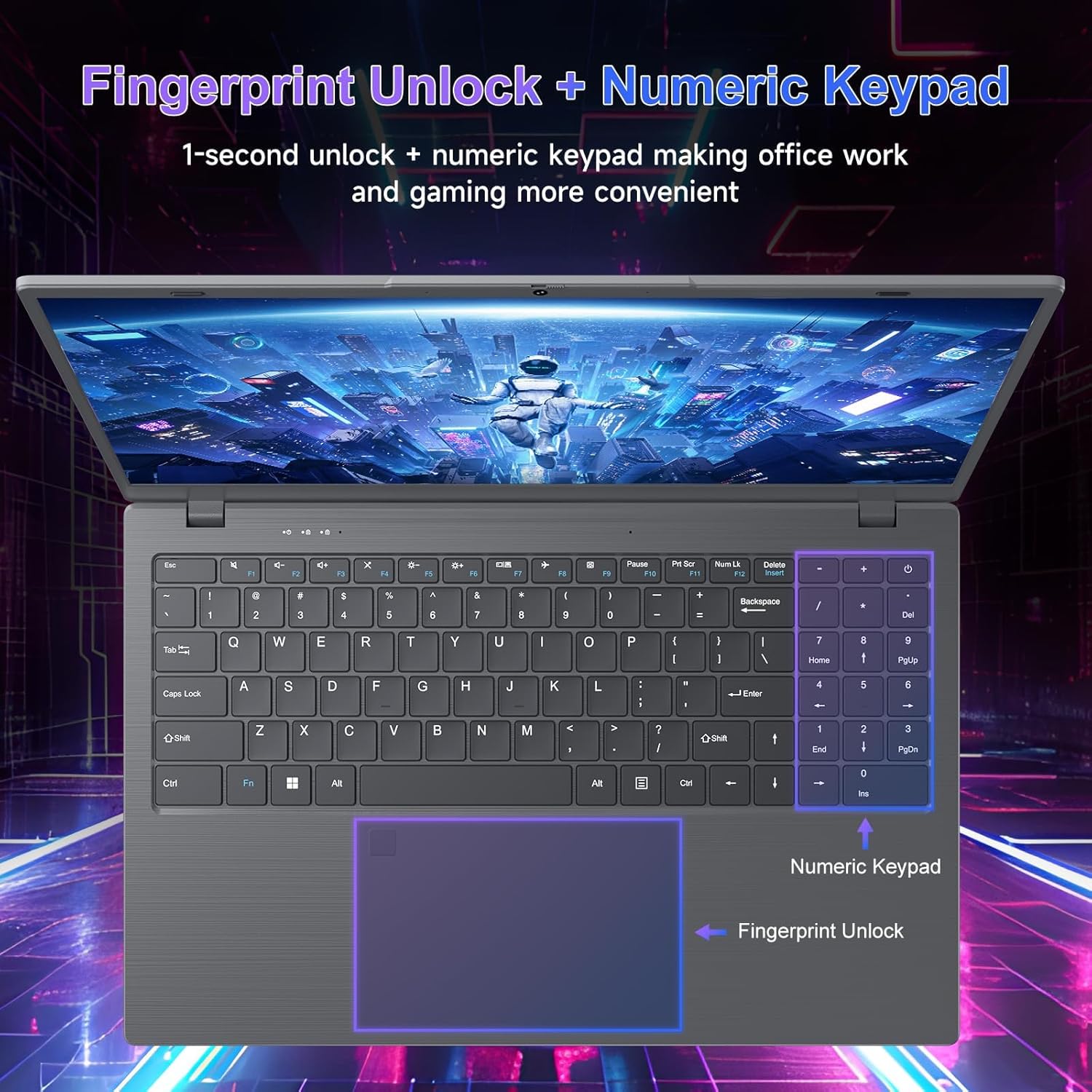
Figure 3.4: Fingerprint Unlock and Numeric Keypad. This image highlights the integrated fingerprint unlock sensor on the touchpad and the dedicated numeric keypad on the right side of the keyboard, designed for quick login and efficient data entry.
The laptop features a secure fingerprint login for quick and convenient access. A numeric keypad is integrated for enhanced productivity, especially for data entry tasks.
3.5 Webcam and Privacy
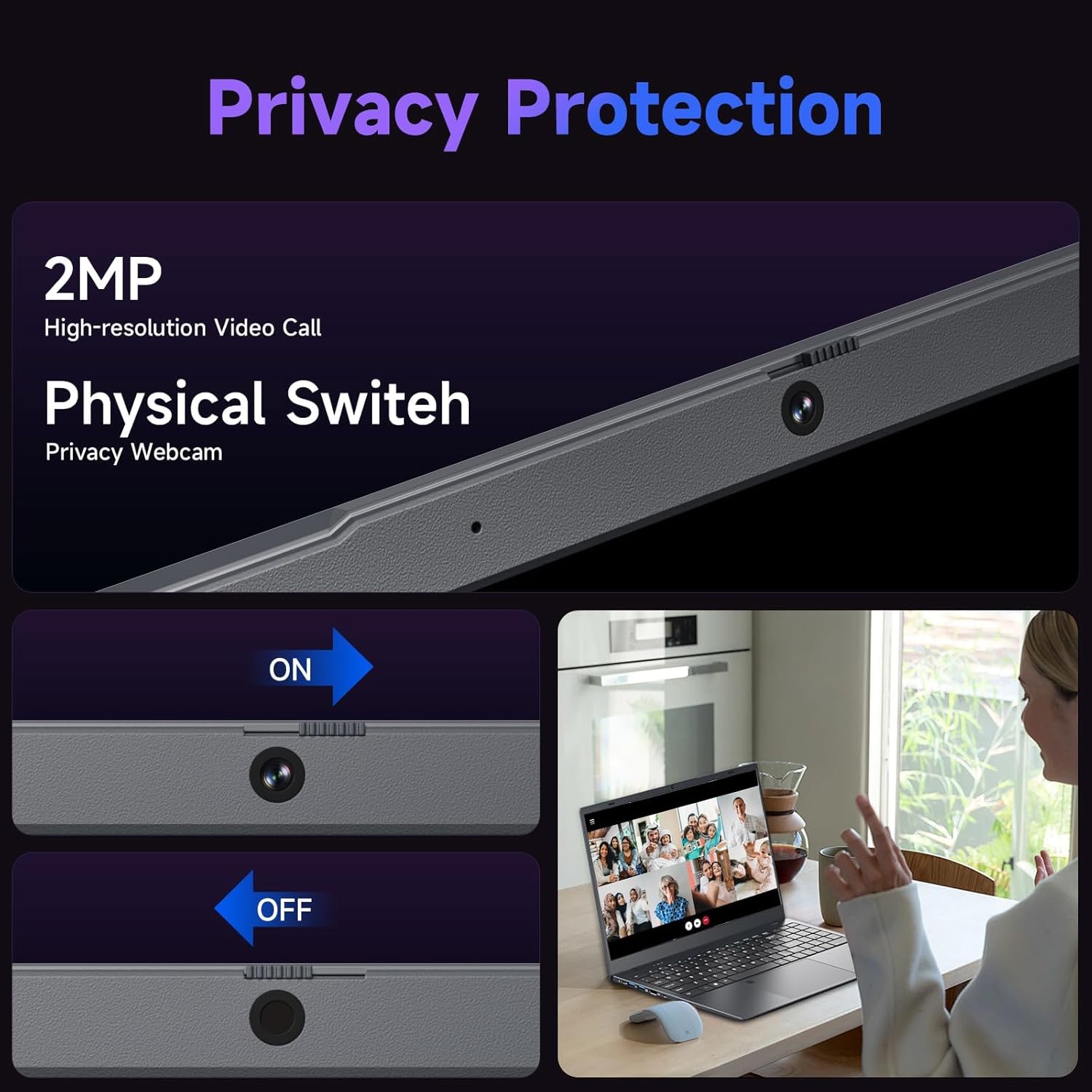
Figure 3.5: Privacy Webcam. This image shows the 2MP high-resolution webcam with a physical privacy switch, allowing users to manually turn the camera on or off for enhanced privacy during video calls or when not in use.
A 2-megapixel high-resolution webcam is included for video calls. For enhanced privacy, a physical switch is provided to disable the webcam when not in use.
3.6 Connectivity and Ports

Figure 3.6: Multiple Ports. This diagram illustrates the various ports available on the laptop, including a Lock Slot, Headphone Jack, USB 2.0, Micro SD Slot on one side, and 12V/3A Type-C PD, USB 3.2, USB 2.0, HDMI, and Type-C Full Function ports on the other side.
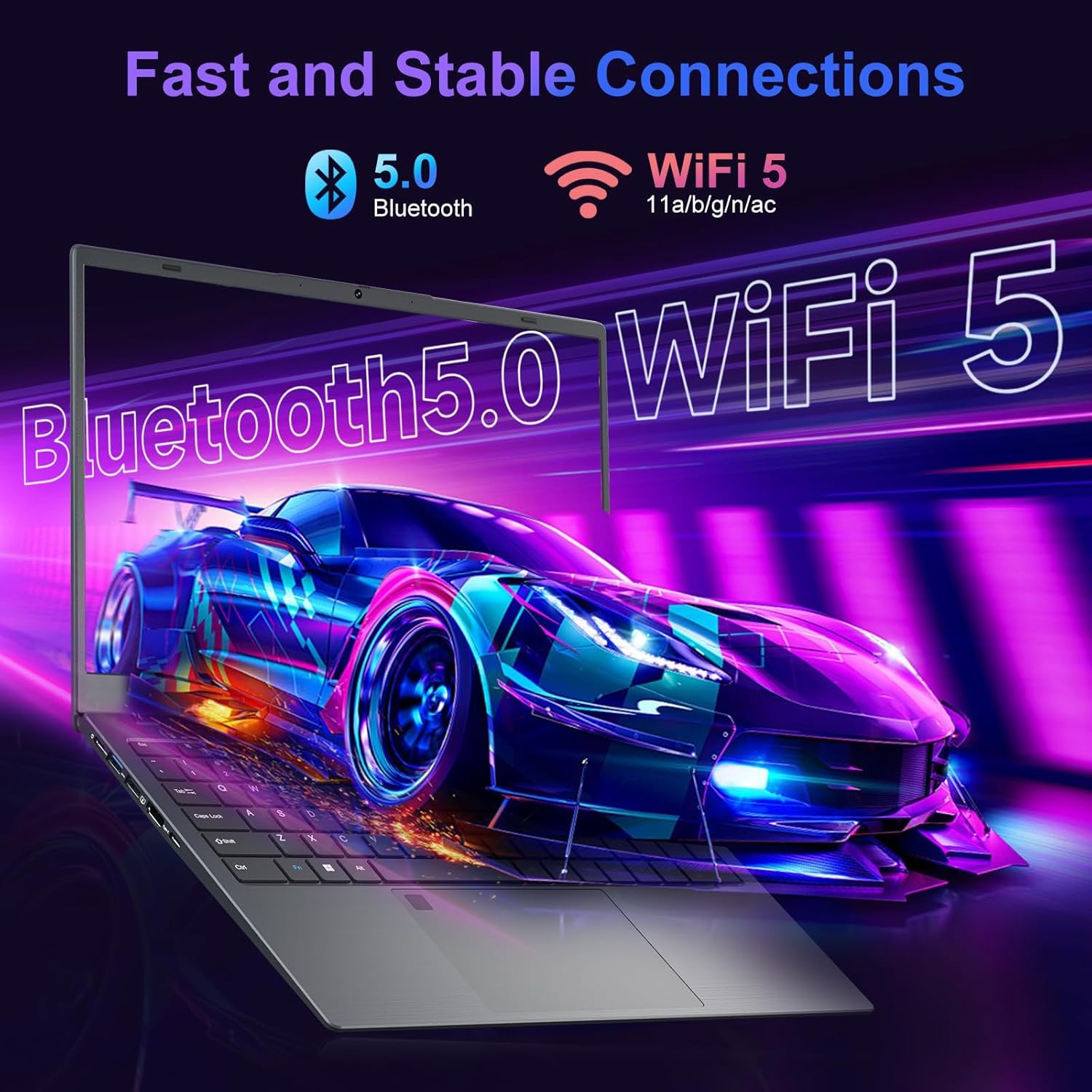
Figure 3.7: Fast and Stable Connections. This image highlights the laptop's support for Bluetooth 5.0 and WiFi 5 (802.11a/b/g/n/ac) for reliable wireless connectivity.
The laptop offers comprehensive connectivity options:
- 2 x USB 3.2 Gen 1 Type-C (Data Transfer Only, 5 Gb/s signaling rate)
- 1 x USB 2.0
- 1 x TYPE C (PD/DP/USB)
- 1 x HDMI 1.4 (3840 x 2160 @30Hz)
- 1 x TYPE-C PD
- Headphone Jack
- Micro SD Slot
- Security Lock Slot
Wireless connectivity includes Bluetooth 5.0 and WiFi 5 (802.11a/b/g/n/ac) for fast and stable connections.
3.7 External Display and Audio

Figure 3.8: External Display and Audio Setup. This image shows the laptop connected via HDMI to an external monitor, demonstrating its capability to extend the workspace. Dual speakers are also highlighted, indicating integrated audio output.
The HDMI 1.4 port allows connection to external displays, supporting resolutions up to 3840x2160 at 30Hz. Integrated dual speakers provide audio output.
3.8 Design and Flexibility

Figure 3.9: Multiple Angle Display. This image demonstrates the laptop's hinge design, allowing the screen to open up to 180 degrees, facilitating easier sharing of content with others.
The laptop features a hinge design that allows the display to open up to 180 degrees, offering flexibility for sharing content or adjusting viewing angles.
4. Setup Guide
4.1 Initial Charging
- Connect the power adapter to the laptop's charging port (TYPE-C PD).
- Plug the power adapter into a wall outlet.
- Allow the laptop to charge for at least 30 minutes before first use, or until the battery indicator shows sufficient charge.
4.2 Powering On
- Open the laptop lid.
- Press the power button, typically located on the top right of the keyboard or side panel.
- Follow the on-screen instructions to complete the initial operating system setup.
4.3 Connecting to Wi-Fi
- Once the operating system is set up, click on the Wi-Fi icon in the taskbar (usually bottom right).
- Select your desired Wi-Fi network from the list.
- Enter the network password if prompted and click 'Connect'.
5. Operating Instructions
5.1 Using the Fingerprint Sensor
- During initial setup or via system settings, register your fingerprint(s).
- To log in, gently place your registered finger on the fingerprint sensor located on the touchpad.
5.2 Connecting External Devices
- USB Devices: Insert USB drives, mice, or keyboards into the available USB 2.0 or USB 3.2 ports.
- External Monitor: Connect an external monitor using an HDMI cable to the HDMI 1.4 port. Adjust display settings in your operating system.
- USB-C Devices: Use the Type-C ports for data transfer, power delivery (PD), or display output (DP) depending on the port's capabilities.
5.3 Adjusting Display Settings
To change screen resolution, brightness, or extend/duplicate your display to an external monitor, access the display settings through your operating system's control panel or system preferences.
6. Maintenance
6.1 Cleaning the Laptop
- Always power off the laptop and disconnect the power adapter before cleaning.
- Use a soft, lint-free cloth slightly dampened with water or a screen cleaner for the display.
- For the keyboard and chassis, use a soft, dry cloth. Avoid harsh chemicals or abrasive materials.
6.2 Battery Care
- Avoid fully discharging the battery frequently.
- Store the laptop in a cool, dry place if not used for extended periods.
- For optimal battery life, avoid exposing the laptop to extreme temperatures.
6.3 Software Updates
Regularly check for and install operating system and driver updates to ensure system stability and security.
7. Troubleshooting
7.1 Laptop Does Not Power On
- Ensure the power adapter is securely connected to both the laptop and a working power outlet.
- Check if the battery has sufficient charge.
- Try holding the power button for 10-15 seconds to perform a hard reset.
7.2 No Wi-Fi Connection
- Verify that Wi-Fi is enabled in your operating system settings.
- Restart your router and modem.
- Ensure you are within range of a Wi-Fi network and have entered the correct password.
7.3 Display Issues
- If using an external monitor, ensure the cable is properly connected and the correct display output is selected (e.g., via Fn+F key combination or display settings).
- Adjust brightness settings.
- Restart the laptop.
8. Specifications
| Feature | Specification |
|---|---|
| Model Name | N95 |
| Screen Size | 15.6 Inches |
| Processor | Intel Alder Lake N95 (up to 3.4 GHz, 4 cores, 4 threads) |
| RAM | 12GB LPDDR5 |
| Hard Drive | 512GB SSD |
| Graphics | Integrated UHD Graphics |
| Operating System | Windows 11 Pro (as indicated in product images) |
| Ports | 2x USB 3.2 Gen 1 Type-C (Data), 1x USB 2.0, 1x Type-C (PD/DP/USB), 1x HDMI 1.4, 1x Type-C PD, Headphone Jack, Micro SD Slot, Security Lock Slot |
| Wireless Connectivity | Wi-Fi 5 (802.11a/b/g/n/ac), Bluetooth 5.0 |
| Battery Life | Up to 6 Hours |
| Dimensions (LxWxH) | 15 x 0.8 x 12 inches |
| Weight | 3.5 lbs |
9. Warranty and Support
For warranty information and technical support, please refer to the documentation provided with your purchase or visit the official Akocrsiy support website. Keep your proof of purchase for warranty claims.