
1. Introduction
This manual provides detailed instructions for the installation, operation, and maintenance of your HEI LIANG HL-5 Smart Fingerprint Door Lock. Please read this manual thoroughly before installation and use to ensure proper function and security.
2. Product Overview
2.1 Key Features
- Multiple Unlocking Methods: Fingerprint, Keypad Password, Mobile App Control, and Emergency Physical Key.
- Fast Fingerprint Recognition: Unlocks in approximately 0.3 seconds with a high success rate.
- Advanced Security: Biometric technology, anti-peep passcode function, and automatic locking.
- App Management: Control access, manage users, view unlocking records, and set access modes via a mobile application.
- Durable Construction: Made from sturdy aluminum alloy.
- Easy Installation: Designed for straightforward installation with common tools.
2.2 Components
The HEI LIANG HL-5 Smart Fingerprint Door Lock includes the following main components:
- Exterior Knob with Fingerprint Sensor and Keypad
- Interior Knob
- Latch Mechanism
- Mounting Hardware (screws, spindle rod)
- Emergency Keys
- USB-C Charging Cable (for internal battery)
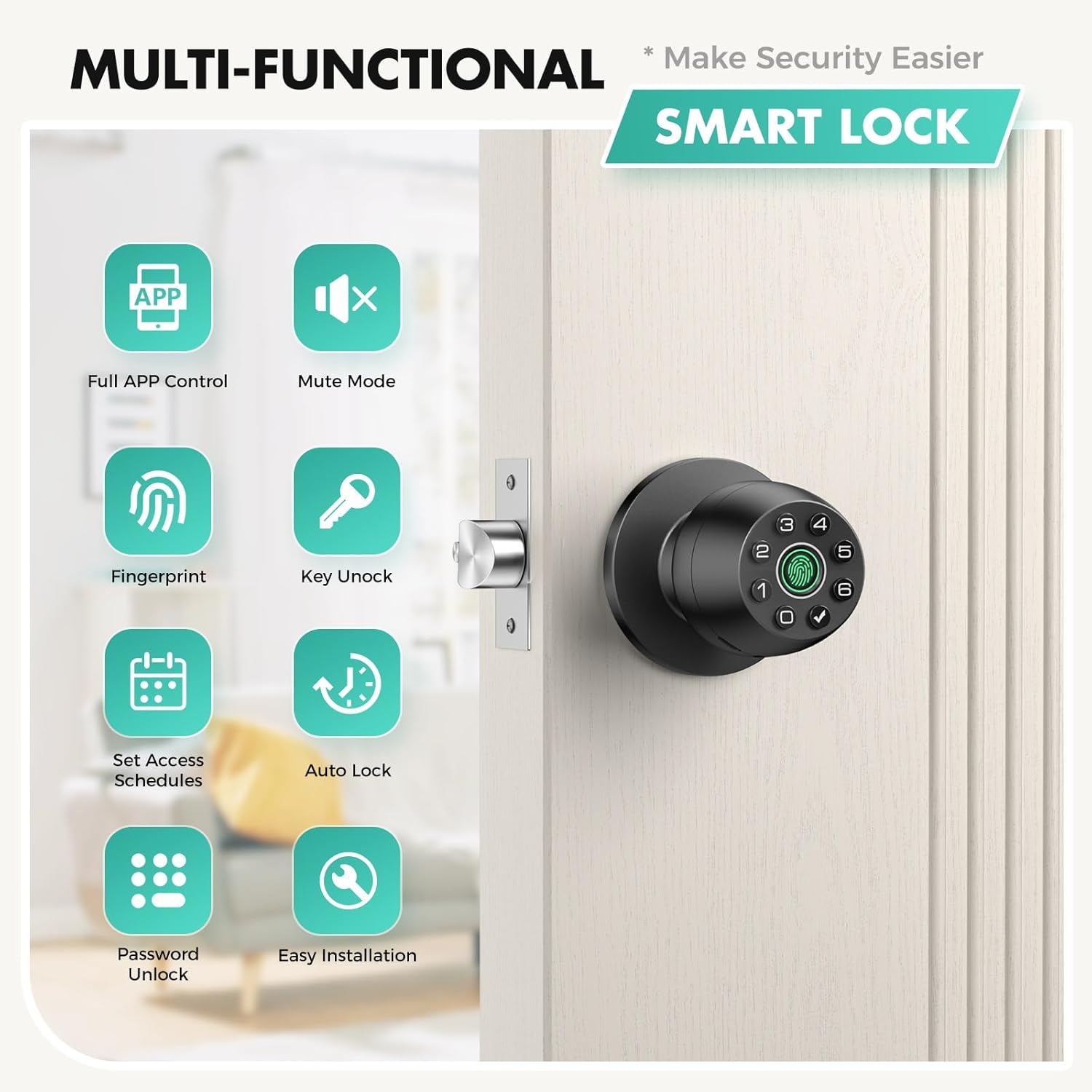
Figure 1: Multi-functional features of the HEI LIANG HL-5 Smart Fingerprint Door Lock.

Figure 2: Four primary unlocking methods.
3. Installation
The HEI LIANG HL-5 Smart Fingerprint Door Lock is designed for easy installation. A screwdriver is typically the only tool required. This lock is suitable for wooden doors, fire doors, and anti-theft doors with a thickness between 30mm and 55mm.
3.1 Pre-Installation Checklist
- Ensure your door thickness is within 30-55mm.
- Verify all components are present in the package.
- Have a Phillips head screwdriver ready.
3.2 Installation Steps
- Remove your existing door knob.
- Install the latch mechanism into the door edge. Ensure it is oriented correctly.
- Insert the spindle rod through the latch mechanism.
- When installing the inner knob, ensure both the outer and inner knobs are inserted according to the "UP" sign on their tops. This ensures they are fixed in place correctly.
- The spindle rod should be in a vertical position. Rotate the adjustment arrow with your thumb to point to the center point and the "UP" symbol.
- Insert the arrow upward into the mounting base. Apply slight force to fully insert the back lock.
- Secure the knobs with the provided screws.

Figure 3: Installation diagram for the HEI LIANG HL-5 Smart Fingerprint Door Lock.
4. Operation
The HEI LIANG HL-5 Smart Fingerprint Door Lock offers multiple convenient ways to secure and access your space.
4.1 Initial Setup and User Management (via App)
- Download the designated mobile application (e.g., Tuya Smart or Smart Life app) from your device's app store.
- Register an account and log in.
- Add your HEI LIANG HL-5 lock to the app by following the on-screen instructions. Ensure Bluetooth is enabled on your phone and the lock is powered on.
- Adding Fingerprints: In the app, navigate to user management and follow the prompts to register new fingerprints. Place your finger on the sensor multiple times from different angles for accurate registration.
- Setting Passcodes: Create permanent or temporary passcodes through the app.
- Managing Users: Assign different access levels and schedules to various users (e.g., family, friends, service personnel).
- Viewing Records: The app allows you to view unlocking records, providing a history of who accessed the door and when.

Figure 4: Remote passcode generation via the mobile application.
4.2 Unlocking Methods
- Fingerprint Unlock: Place your registered finger on the fingerprint sensor. The lock will unlock in approximately 0.3 seconds if the fingerprint is recognized.
- Keypad Password Unlock: Enter your registered passcode on the keypad.
- Anti-Peep Passcode: To enhance security, you can enter random digits before or after your actual passcode. For example, if your passcode is 123456, you can enter 987+123456+321. The lock will recognize the correct sequence within the longer string.
- App Control Unlock: Open the mobile application, select your lock, and tap the unlock icon.
- Emergency Physical Key Unlock: In case of battery depletion or electronic malfunction, use the provided physical key to manually unlock the door.

Figure 5: Anti-peep passcode entry for enhanced security.
4.3 Operating Modes
The lock supports different operating modes for various scenarios:
- Normal Mode: The lock automatically locks after 5 seconds of being unlocked.
- Passage Mode: The lock remains unlocked, allowing free entry and exit without requiring credentials. This is useful for high-traffic periods.
- Privacy Mode: The lock can only be unlocked by authorized users (e.g., administrator fingerprint/passcode). This mode provides enhanced privacy.
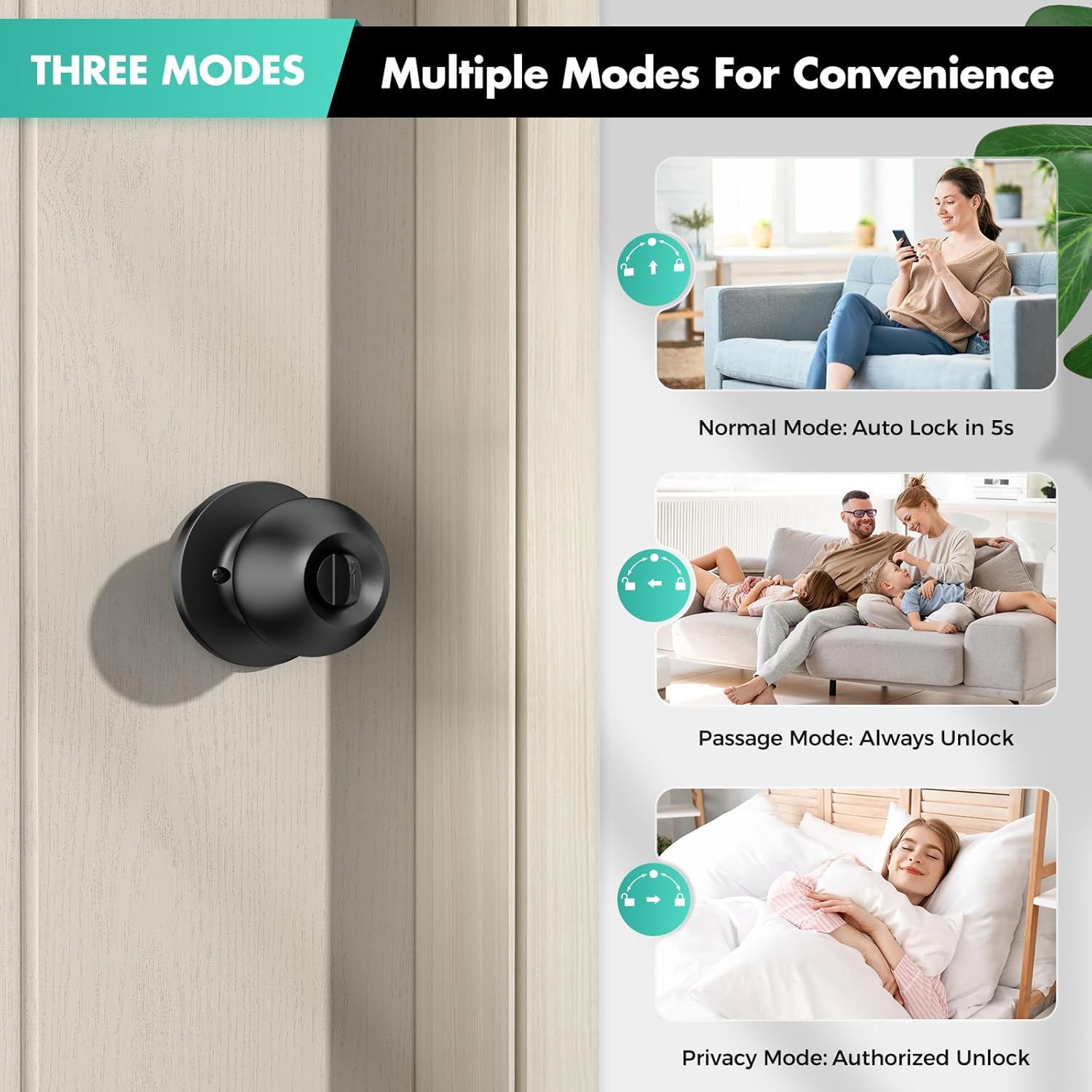
Figure 6: Different operating modes for convenience.
4.4 Automatic Lock Function
The automatic lock feature ensures your door is secured even if you forget to lock it manually. In Normal Mode, the lock will engage automatically after a set period (default 5 seconds) once it has been unlocked.

Figure 7: Automatic lock feature for added security.
5. Maintenance
5.1 Battery Management
- The lock is powered by a non-removable lithium battery (400 mAh rechargeable).
- A visual power display and low power alarm function are integrated to notify you when the battery is low.
- Charge the lock using the provided USB-C cable. The charging port is located on the exterior knob.
- Important: Disconnect the charging cable after the battery is fully charged. Do not operate the lock while it is continuously plugged in for charging.
- In case of complete battery depletion, use the emergency physical key to access the door.

Figure 8: Battery features and charging port.
5.2 Cleaning
Wipe the lock's exterior with a soft, dry cloth. Avoid using abrasive cleaners or solvents, as these can damage the finish and electronic components.
6. Troubleshooting
| Problem | Possible Cause | Solution |
|---|---|---|
| Lock does not respond / Power issues | Battery is low or depleted. | Charge the lock using the USB-C cable. If completely depleted, use the physical key. |
| Fingerprint not recognized | Finger is wet, dirty, or improperly placed. Fingerprint not registered correctly. | Ensure your finger is clean and dry. Place your finger firmly and completely on the sensor. Re-register your fingerprint in the app if issues persist. |
| Cannot connect to mobile app (Bluetooth) | Bluetooth is off. Lock is charging. App permissions. | Ensure Bluetooth is enabled on your phone. Do not attempt to connect or configure while the lock is charging; disconnect the charging cable first. Check app permissions for Bluetooth access. Restart the app and try again. |
| Keypad not responding | Battery low. Incorrect code. | Charge the lock. Ensure you are entering the correct passcode. Try using the anti-peep function. |
| Locking switch feels loose / accidentally switches | Normal wear or design characteristic. | This may be a characteristic of the design. Develop a habit of checking the lock status when leaving the room. |
7. Specifications
| Feature | Detail |
|---|---|
| Brand | HEI LIANG |
| Model Number | HL-5 |
| Color | Black (Matte) |
| Lock Type | Fingerprint and Keypad Lock |
| Handle Type | Knob |
| Material | Aluminium Alloy |
| Door Thickness Compatibility | 30-55mm |
| Unlocking Methods | Fingerprint, Keypad, App Control, Physical Key |
| Fingerprint Recognition Speed | Approx. 0.3 seconds |
| User Capacity | Up to 100 user codes/fingerprints |
| Battery Type | Non-removable Lithium Battery (400 mAh) |
| Charging Port | USB Type-C |
| Smart Home Compatibility | Yes (via App) |
| Indoor/Outdoor Usage | Indoor |

Figure 9: Internal view showing sturdy aluminum alloy construction.
8. Warranty and Support
For any questions, technical assistance, or warranty inquiries regarding your HEI LIANG HL-5 Smart Fingerprint Door Lock, please contact HEI LIANG customer support. Refer to your purchase documentation for specific warranty terms and contact information.

