
1. Introduction
The ILEDCOLOR LED Glasses S3296 are customizable Bluetooth-enabled glasses designed for displaying various animations, text, and patterns. These glasses connect to a mobile application, allowing users to personalize content for different occasions. This manual provides essential information for the proper setup, operation, and maintenance of your LED Glasses.
2. Package Contents
- ILEDCOLOR LED Glasses (Model S3296)
- USB Charging Cable
- User Manual
3. Product Features
- Customizable LED display via mobile application.
- Bluetooth connectivity for smartphone control.
- Integrated USB charging for convenience.
- Adjustable elastic band for a secure and comfortable fit.
- Touch keys for basic on-device control (power, animation switching).
- Lightweight plastic construction.

Image: ILEDCOLOR LED Glasses displaying various animations and text, alongside a smartphone screen illustrating the mobile application interface for customization.
4. Setup
4.1 Charging the Glasses
- Locate the USB charging port on the glasses.
- Connect the provided USB charging cable to the glasses and a compatible USB power source (e.g., computer USB port, wall adapter).
- The LED indicator will illuminate to show the charging status. Ensure the glasses are fully charged before first use.
4.2 App Download and Installation
- Search for the 'iledeyes' application in your smartphone's app store (available for iOS and Android devices).
- Download and install the application on your smartphone.
4.3 Bluetooth Connection
- Ensure Bluetooth is enabled on your smartphone.
- Power on the ILEDCOLOR LED Glasses by long pressing the touch key for 2 seconds.
- Open the 'iledeyes' application on your smartphone.
- Follow the on-screen prompts within the app to search for and pair with your LED Glasses. The app will typically display a device name like 'S3296' or similar.
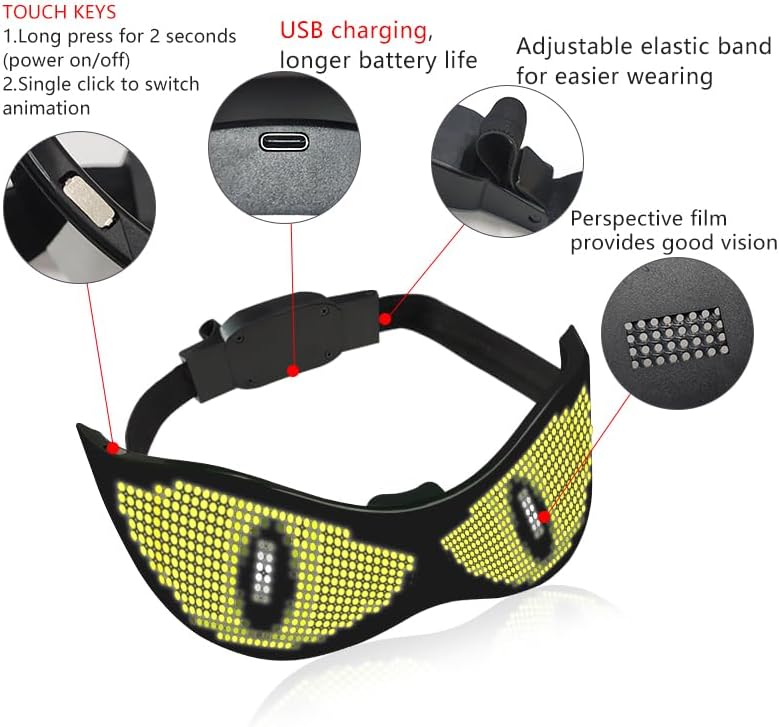
Image: Rear view of the ILEDCOLOR LED Glasses, showing the touch keys for power and animation switching, the USB charging port, and the adjustable elastic band for fit.
5. Operating Instructions
5.1 Power On/Off and On-Device Animation Switching
- To Power On the glasses, long press the touch key (located on the side of the frame) for approximately 2 seconds.
- To Power Off the glasses, long press the same touch key for approximately 2 seconds.
- To Switch Animations through pre-loaded patterns, single click the touch key while the glasses are powered on.
5.2 Using the Mobile Application
The 'iledeyes' app provides comprehensive control and customization options for your LED Glasses:
- Animation: Browse and select from a variety of pre-designed animations to display on your glasses.
- Text: Input custom text messages. You can often adjust font, color, and scrolling speed within the app.
- Graffiti/DIY: Use the drawing interface to create your own custom patterns or designs pixel by pixel.
- Music Mode: Some versions of the app may offer a music mode where the display reacts to sound.
Refer to the in-app tutorials or help sections for detailed guidance on specific features.
6. Maintenance
- Cleaning: Use a soft, dry, lint-free cloth to gently wipe the surfaces of the glasses. Do not use abrasive cleaners, solvents, or immerse the glasses in water.
- Storage: Store the glasses in a cool, dry place away from direct sunlight and extreme temperatures.
- Battery Care: To prolong battery life, avoid fully discharging the battery frequently. Charge the glasses regularly, even if not in use for extended periods.
7. Troubleshooting
- Glasses not turning on:
- Ensure the glasses are fully charged. Connect them to a USB power source.
- Press and hold the touch key for at least 2 seconds to power on. - Cannot connect via Bluetooth:
- Verify that Bluetooth is enabled on your smartphone.
- Ensure the glasses are powered on and within range of your smartphone.
- Close and reopen the 'iledeyes' app.
- Restart your smartphone and the glasses, then attempt to pair again. - Display is dim or flickering:
- The battery may be low. Charge the glasses fully.
- Ensure there is no physical damage to the LED display area. - Discomfort when wearing:
- Adjust the elastic band to achieve a comfortable and secure fit. The band should not be too tight or too loose.
- Ensure the nose bridge sits comfortably on your nose. - App not responding or crashing:
- Close the app completely and reopen it.
- Check for app updates in your smartphone's app store.
- Ensure your smartphone's operating system is up to date.
8. Specifications
| Model Number | S3296 |
| Product Dimensions | 6.5 x 2.25 x 2.25 inches |
| Item Weight | 8 Ounces |
| Material | Plastic (Frame), Mirrored (Lens) |
| Connectivity | Bluetooth |
| Power Source | USB Charging |
| Fit Type | One Size Fits All |
| Age Range | Adult |
9. Warranty Information
The ILEDCOLOR LED Glasses S3296 are covered by a 1-Year Manufacturer Warranty from the date of purchase. This warranty covers defects in materials and workmanship under normal use. It does not cover damage caused by misuse, accidents, unauthorized modifications, or normal wear and tear. Please retain your proof of purchase for any warranty claims.
10. Support
For further assistance, technical support, or warranty inquiries, please contact ILEDCOLOR customer support through the contact information provided on the product packaging or the official ILEDCOLOR website.